

Overview
OneSignal provides analytics to measure message performance, track user engagement over time, and attribute downstream business outcomes like purchases and sign-ups. You can view analytics in the Dashboard, retrieve them through the API, stream real-time events to your own systems using Event Streams, or export data to CSV. Message reports and aggregate trends are covered below. Jump to other analytics features:Event Streams
Send real-time message events like sent, opened, clicked, and dismissed to your data warehouse or analytics tools.
Exporting data
Export message and user data to CSV for offline analysis.
Journey analytics
Measure conversion, drop-off, and performance across multi-step Journeys.
Template analytics
Aggregate analytics across many messages sent from the same Template.
Conversion metrics
Measure business impact like revenue and sign-ups with cross-channel last-touch attribution.
Goals
Set a target metric on a Journey and track progress on the Journey report.
Metrics glossary
Map dashboard, API, CSV, and Event Streams metric names for each channel.
Which analytics should I use?
Choose the right analytics tool based on your goal. Most teams use more than one depending on whether they are optimizing campaigns, debugging delivery, or analyzing long-term behavior.Message reports
Every message sent through OneSignal has a message report showing delivery, engagement, and outcome metrics for that specific send. Message reports cover a single message. They do not aggregate data across multiple messages. Navigate to Messages > All messages and select a message to view its report, or retrieve reports programmatically using the View messages API and/or Export audience activity CSV.If you send messages using Journeys or Templates, use Journey analytics and/or Template analytics to see aggregated performance instead of reviewing each message individually.
Push message reports
Delivery, opens, clicks, confirmed receipt, and outcomes for push notifications.
In-app message reports
Impressions, clicks, dismissals, and conversion metrics for in-app messages.
Email message reports
Sends, opens, clicks, bounces, and unsubscribes for email messages.
SMS message reports
Delivery, clicks, failures, and opt-outs for SMS/RCS messages.
Live activity message reports
Updates, clicks, engagement, and lifecycle events for Live Activities.
Aggregate trends
Aggregate trends show how message and user activity changes over time across your entire app. These charts help you identify seasonality, spikes, or long-term engagement changes. For billing related plan usage (sends by channel, MAU, and billing limits), see:- App > Settings > Usage for app-level message volume
- Organization settings > Billing for plan limits and usage across apps
Engagement trends
Use Engagement Trends to track message sends, deliveries, opens, clicks, and unsubscribes across all messages. Engagement Trends do not show performance for individual messages. Use message reports for a single send. Navigate to Analytics > Engagement to view these charts. Track:- Sends and deliveries (labeled “Impressions” for in-app messages)
- Opens and clicks
- Unsubscribes
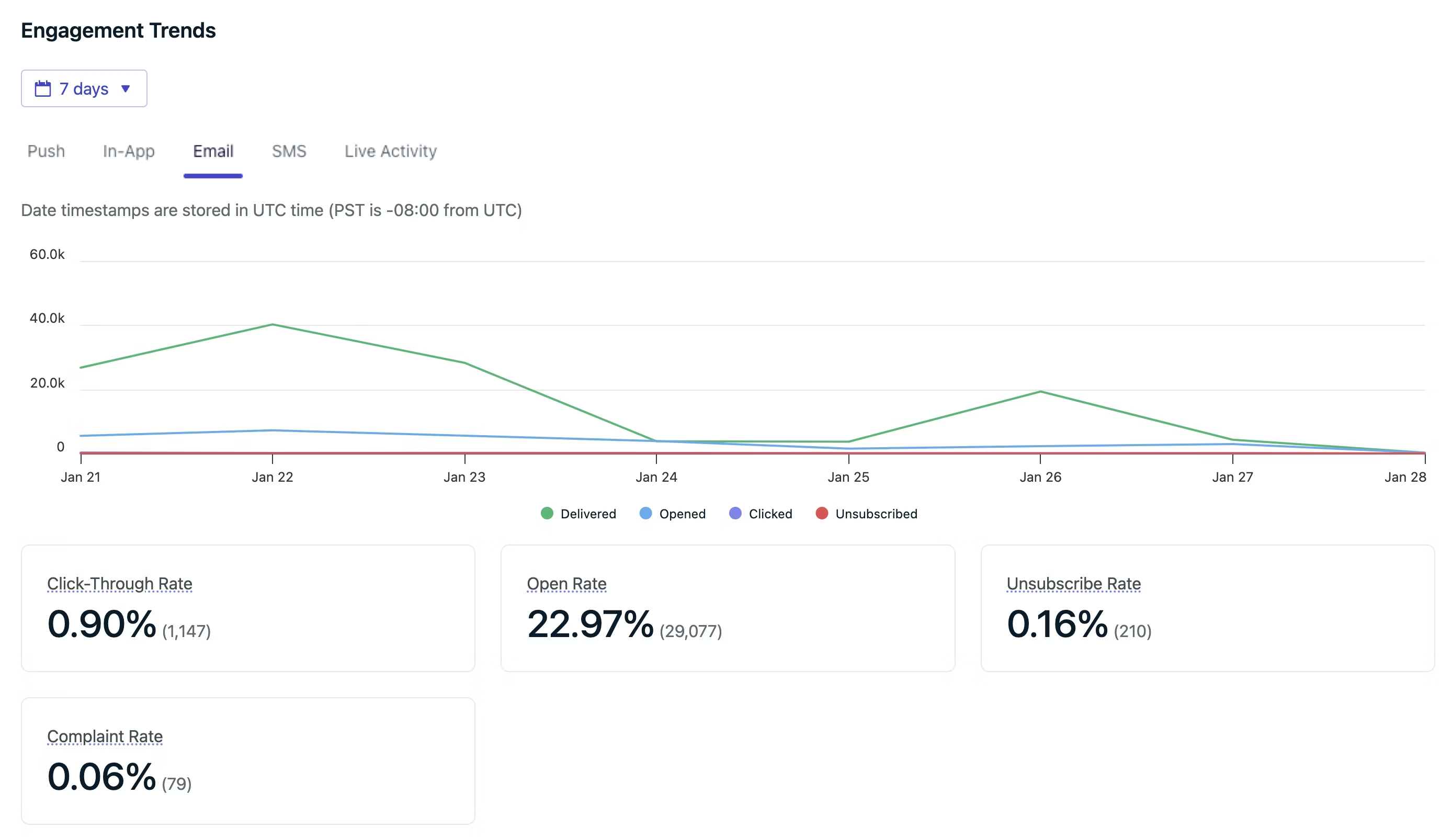
Engagement Trends chart in the Dashboard
Engagement trends
Track message sends, opens, clicks, and unsubscribes over time.
Subscription trends
Use Subscription Trends to see how Subscriptions subscribe and unsubscribe over time, broken down by channel. Subscription Trends track opt-in and opt-out activity. They do not track message engagement like opens or clicks. Use Engagement Trends for open and click rates. Navigate to Analytics > Subscriptions to view these charts. Each of subscribes and unsubscribes gets its own chart.Subscription trends
Track subscribe and unsubscribe activity over time, including Total subscribed, Subscribes, and Unsubscribes.
Retention
Use Retention to see what percentage of the users active on a chosen date came back on the days after. Pick a date, and everyone with a session that day becomes the cohort the chart follows forward. Retention does not measure message engagement like opens or clicks. Use Engagement Trends for open and click rates. Navigate to Analytics > Sessions & Retention to view this chart. For how to read curve shapes and compare channel or platform series, see Interpreting retention curves.Retention metrics
Measure whether users come back after a given day, broken down by channel and platform.
Sessions volume
Use Sessions volume to see how many sessions your app or website had each day, with total sessions and average session duration for the window. Sessions volume counts every session, whether or not it is attributed to a message. Navigate to Analytics > Sessions & Retention to view this chart. It appears below the User retention chart.Sessions volume
Track total sessions and average session duration across your app.
Conversion metrics
Conversion Metrics measure the business impact of your messaging by tracking what users do after interacting with messages, such as purchases, sign-ups, or content views. You define which Custom Events count as conversions, and OneSignal attributes those conversions to messages using a last-touch attribution model across all channels (push, email, SMS, in-app, and RCS).Conversion Metrics replaces the legacy Custom Outcomes feature. If you are setting up conversion tracking for the first time, use Conversion metrics.
Conversion metrics
Full details on the attribution model, qualifying interactions per channel, attribution windows, and setup instructions.
Legacy outcomes
The legacy Custom Outcomes feature uses a different attribution model that only covers push notifications and in-app messages:FAQ
How long is message data retained?
How do I aggregate data across multiple messages?
Each message has a unique message ID, which makes manual aggregation via the API possible but inefficient. Recommended approach:- Use Templates analytics to aggregate performance across related messages sent from the same Template.
- Use Journeys analytics to aggregate performance across related Journeys.