

- Send personalized, time-sensitive messages using live data
- Sync user attributes and message data between systems
- Trigger automated Journeys from user actions in your system
- Use your internal system as the source of truth while leveraging OneSignal’s messaging infrastructure
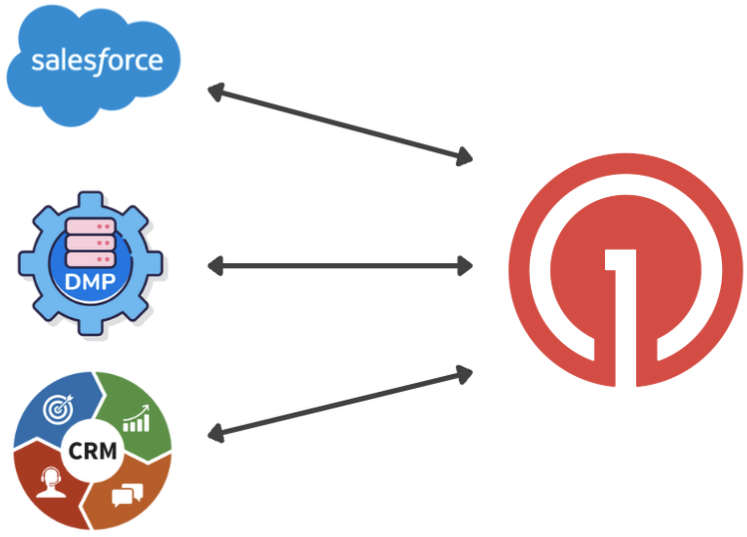
Database integration
Integration guide
OneSignal has direct integrations with many popular platforms. Check the integrations page to see if your platform is supported — if it is, follow that setup guide instead.Integrations
Browse all available OneSignal integrations with CRMs, data warehouses, analytics tools, and more.
Step 1: Identify users with External ID
OneSignal’sexternal_id is the key link between OneSignal and your database. Set each user’s external_id in OneSignal to match their user ID in your database. This enables you to target users, sync data, and trigger messages using identifiers you already have.
If you use multiple OneSignal apps (e.g., separate apps for iOS, Android, and web), setting the same external_id across all apps identifies the same user across platforms.
If you have anonymous users or do not have a stable user ID for tracking users across systems, you can use OneSignal’s onesignal_id or subscription_id. However, we recommend setting an external_id when the user is stable and identifiable.
The onesignal_id and/or subscription_id is available in the Create user API response and via our mobile and web SDKs using the Observer methods.
API-only setup
If you’re only using OneSignal for email and SMS/RCS (no mobile apps or websites), you can manage users entirely through the REST API:- Create user — Create a user with
external_id, email address, and/or phone number - Update user — Update user properties and subscriptions
external_id:
- Install the OneSignal SDK for your platform.
- Call
loginwith the user’sexternal_idafter they authenticate in your app. - The SDK automatically captures the push token and links it to the user.
Step 2: Sync user data and events
Once user identity is set up, you can sync two types of data from your system to OneSignal: Tags — persistent user properties Tags store user attributes in OneSignal for segmentation and message personalization. Use them for data that describes who a user is, such as plan type, preferred language, or signup date.- Set tags via the Update user API or through our frontend SDKs
- Tags persist on the user until you update or remove them
- Use tags to build Segments and personalize message content
completed_purchase, viewed_page, or subscription_expired. Use them to trigger automated Journeys.
- Send Custom Events via our API or frontend SDKs
- Custom events are not persisted like tags but they can be used to trigger Journeys and message personalization
Step 3: Export message and engagement data
To sync delivery and engagement data back to your systems:- Event Streams — (Recommended) Real-time webhook delivery of message events (sent, delivered, clicked, etc.). Best for keeping your database in sync as events happen.
- Export subscriptions CSV — Bulk export of subscription data for periodic syncs or migrations.
- View messages API — Query message history and delivery stats programmatically.
Architecture recommendations
- Keep your database as the source of truth. Treat OneSignal as the messaging layer — push user data and events to OneSignal, and pull delivery/engagement data back.
- Use the API for real-time updates. When a user takes an action (e.g., completes a purchase), call the OneSignal API immediately to update tags or send a custom event.
- Use CSV import for bulk operations. For initial onboarding or large migrations, use CSV import rather than making thousands of individual API calls.
- Respect rate limits. For high-volume updates, batch requests where possible and implement retry logic with exponential backoff.
- Use Event Streams for the return path. Rather than polling the OneSignal API for delivery data, set up Event Streams to receive real-time webhooks for message events.
Triggering messages from your database
You can trigger messages using two approaches — choose one or both based on your use case.- API
- Custom events and Journeys
Use the Create message API for immediate, transactional messaging.Target users via:
external_id- Aliases (e.g.,
crm_id) - Email or phone number
- Transactional messages (e.g., receipts, alerts)
- Time-sensitive or personalized notifications
- Targeting individuals or groups (up to 20,000 users per call)
send_after parameter.FAQ
Should I use the API or Journeys to send messages from my database?
Use the Create message API for immediate, transactional messages like receipts or alerts. Use Journeys with Tags or Custom Events for automated lifecycle and marketing messages that benefit from visual workflow building.What data should I store in OneSignal vs. my own system?
Decide based on the data’s purpose: What to store in OneSignal- Store data used directly for messaging:
external_idand aliases- Emails (for email messaging)
- Phone numbers (for SMS)
- Lightweight user attributes as Tags
- Key events you want to send messages for as Custom Events
OneSignal supports several ways to personalize messages detailed in Message personalization.
- Keep data unrelated to messaging (e.g., full user profiles, transaction logs) in your own systems for performance, privacy, and control. Archive message history from OneSignal for long-term analytics or compliance.
Can I send messages to users who don’t have an external ID?
Yes, but it requires extra handling. You can use OneSignal’sonesignal_id or subscription_id, but these are anonymous until linked to an external_id. We recommend setting an external_id for every user to simplify cross-system identification.
What’s the difference between tags and custom events?
Tags are persistent user properties (e.g., plan type, language preference) used for segmentation and personalization. Custom Events represent one-time user actions (e.g.,completed_purchase) used to trigger Journeys. Tags describe who a user is; custom events describe what a user did.
Users
Understand the OneSignal user model and how identities are structured.
Custom events
Send events from your systems to trigger Journeys and track user behavior.
Message personalization
Personalize messages with tags, custom data, and dynamic content.
Journeys
Build automated messaging workflows triggered by user behavior and data.