Automate push notifications, emails, SMS, and in-app messaging from HubSpot Workflows using the native OneSignal integration.
The OneSignal HubSpot integration connects your HubSpot CRM to OneSignal through native workflow actions. No third-party middleware required. You can:
Send messages: trigger push notifications, emails, and SMS/RCS from HubSpot Workflows.
Create users: create OneSignal users from HubSpot contacts, including email and SMS/RCS subscriptions, when a contact passes through a workflow.
Manage tags: set or delete OneSignal Tags based on HubSpot contact properties.
Associate contacts: store the HubSpot Contact ID on the matching OneSignal user so message activity can appear on that contact’s HubSpot timeline.
See message activity in HubSpot: send OneSignal message events (sent, delivered, opened, clicked, and related outcomes) to the contact timeline.
Target in-app messages: use tags set by HubSpot to build segments that control in-app message delivery.
The integration does not import HubSpot lists, deals, or company records automatically. Use workflow actions to pass the data you need.For capabilities like A/B testing, intelligent delivery, throttling, and retargeting, use the OneSignal dashboard or API directly alongside HubSpot.
HubSpot deprecated the original third-party OneSignal app in December 2024. OneSignal now provides its own HubSpot app with expanded functionality. If you used the previous integration, see the migration steps below.
Migrating from the legacy HubSpot integration
Install the new integrationActivate the HubSpot integration from the OneSignal dashboard under Data > Integrations as described in Connect HubSpot to OneSignal below.Migrate your workflowsWe recommend creating a new workflow to test the new integration before replacing actions in your existing workflows.
Clone your workflow: On the HubSpot Workflows page, click Clone next to your existing workflow.
Remove triggers: In the cloned workflow, remove all enrollment triggers so it does not fire automatically when published.
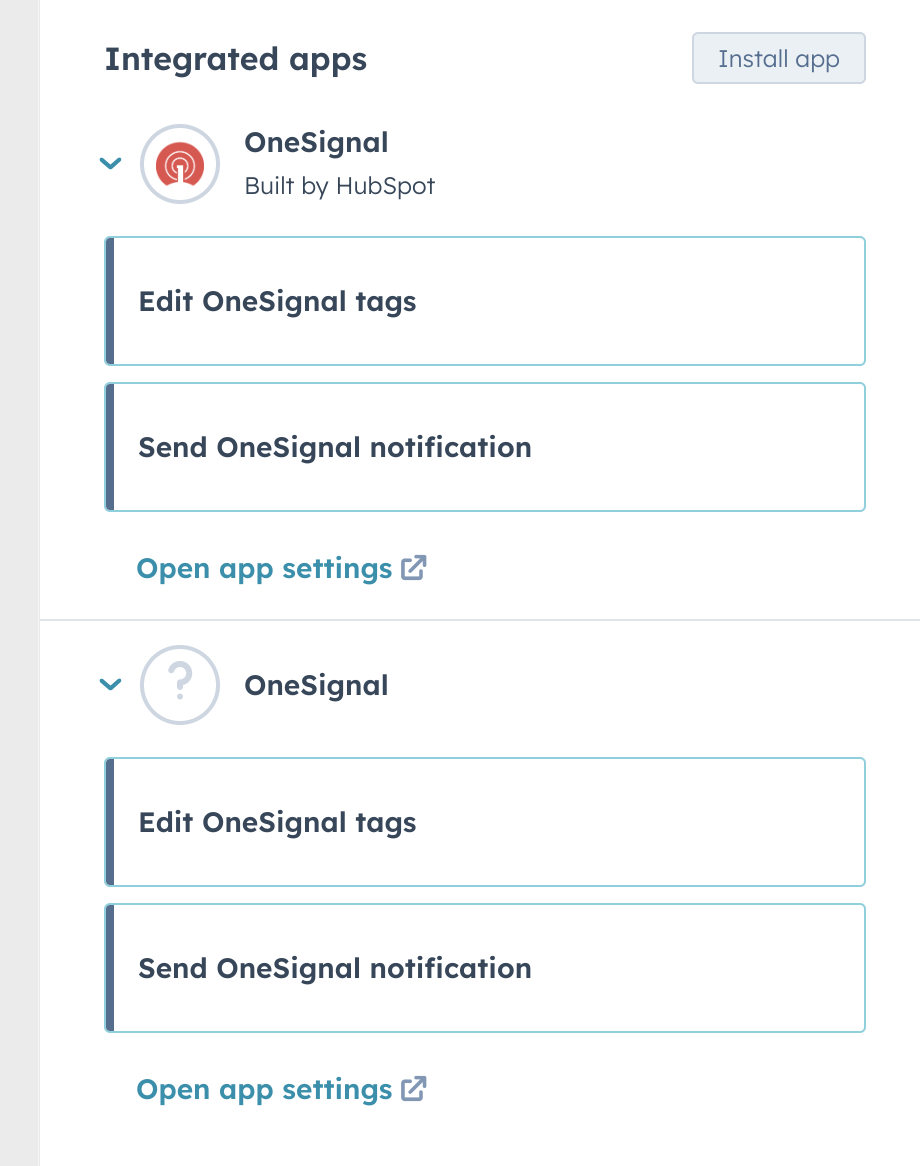
Replace legacy actions: Remove each legacy OneSignal action and replace it with the new version. If both apps are installed, the legacy app shows “Built by HubSpot”. Use the one that does not.
When both apps are installed, use the OneSignal action that does not say 'Built by HubSpot'.
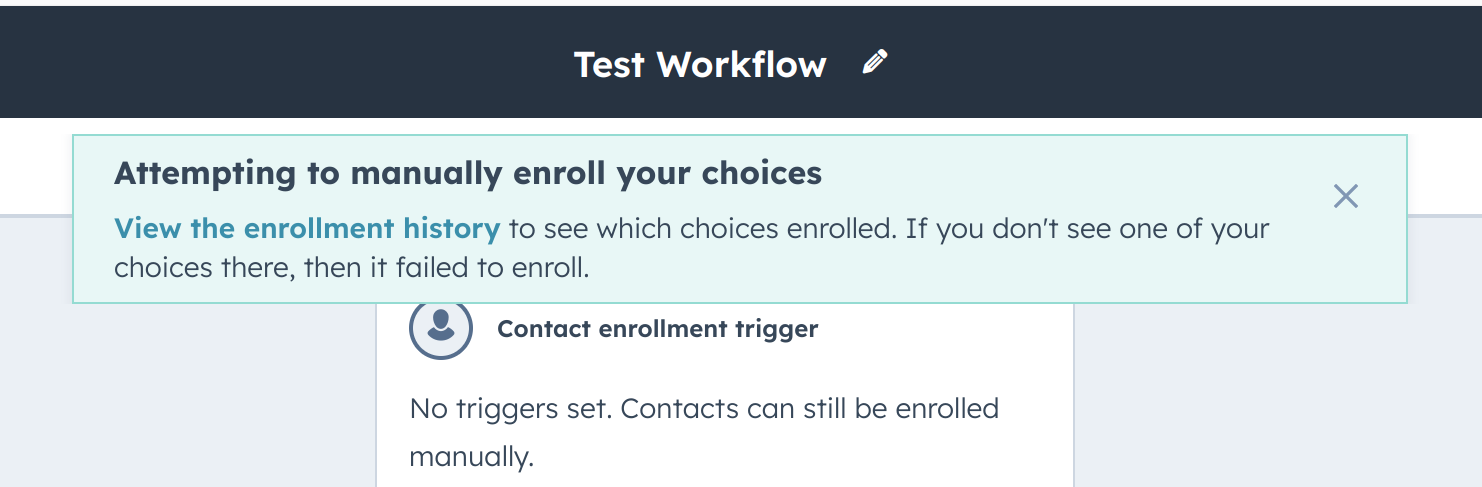
Test with a single contact: Save and publish the workflow, then manually enroll one test contact. Check the enrollment history to verify actions completed successfully.
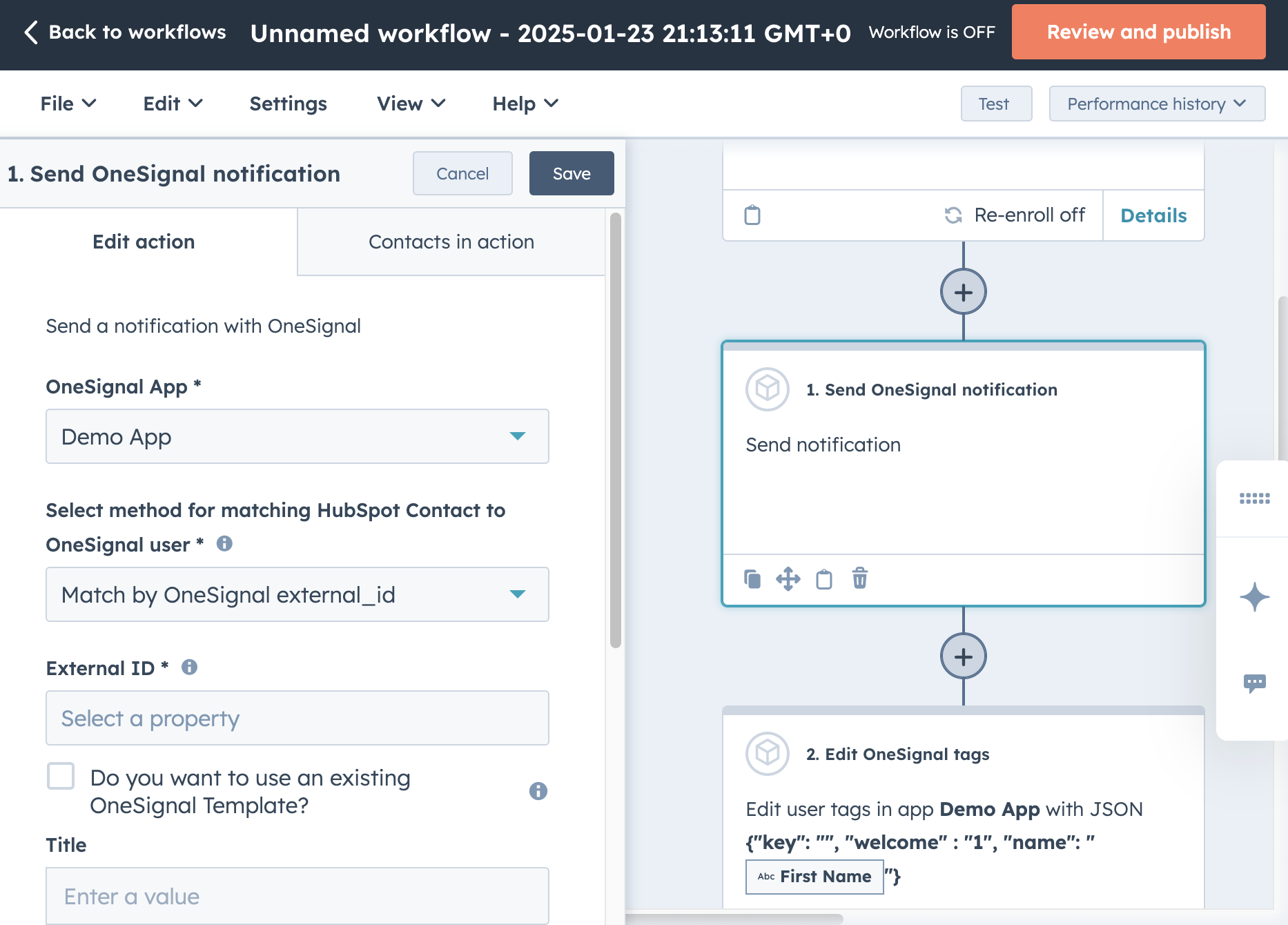
Example migrated HubSpot workflow.
Replace or update: After confirming the workflow works correctly, either replace the original workflow with the clone or apply the same changes to the original.
If you encounter errors during migration, contact support@onesignal.com.
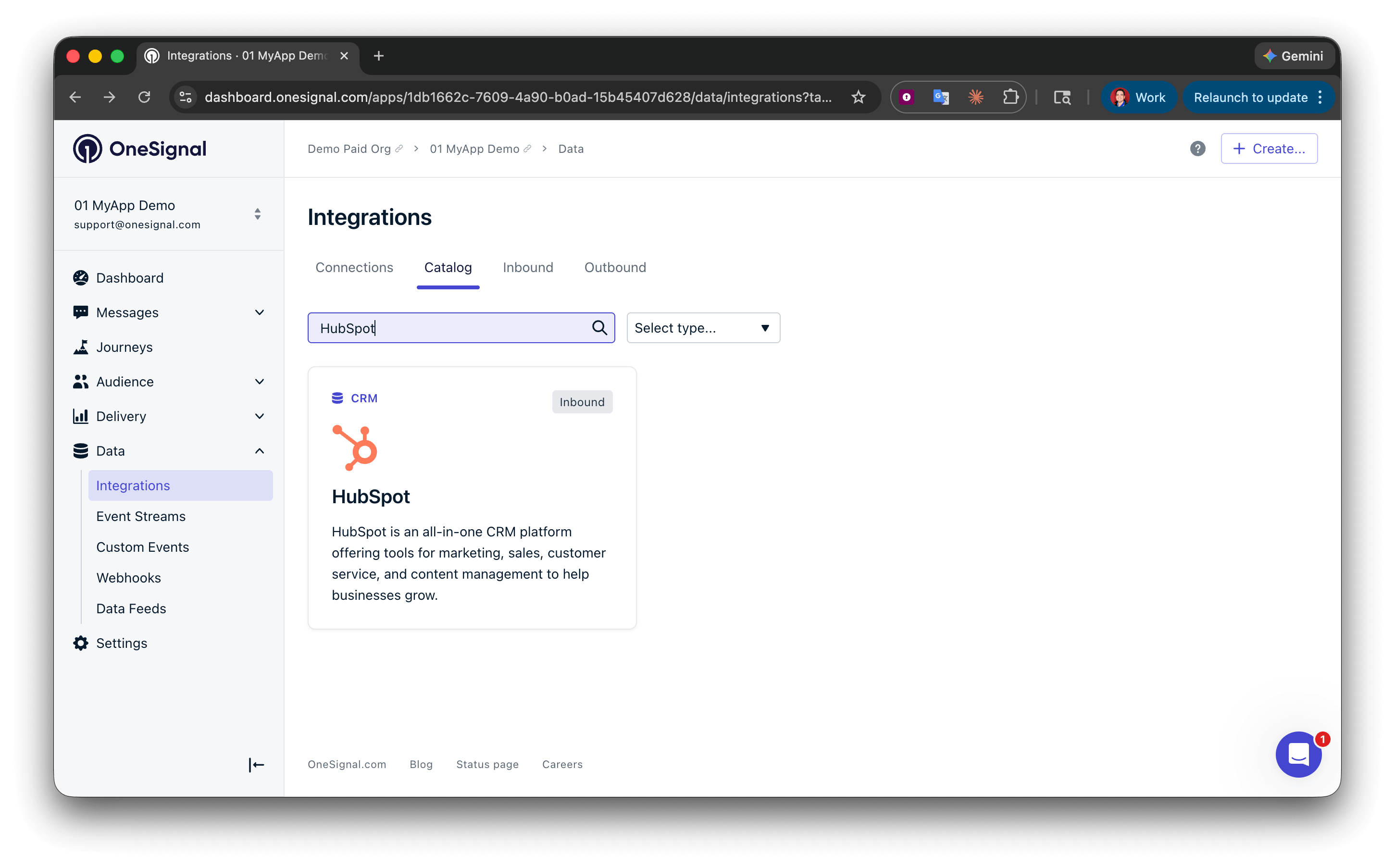
In OneSignal, go to Data > Integrations > Catalog and select HubSpot.
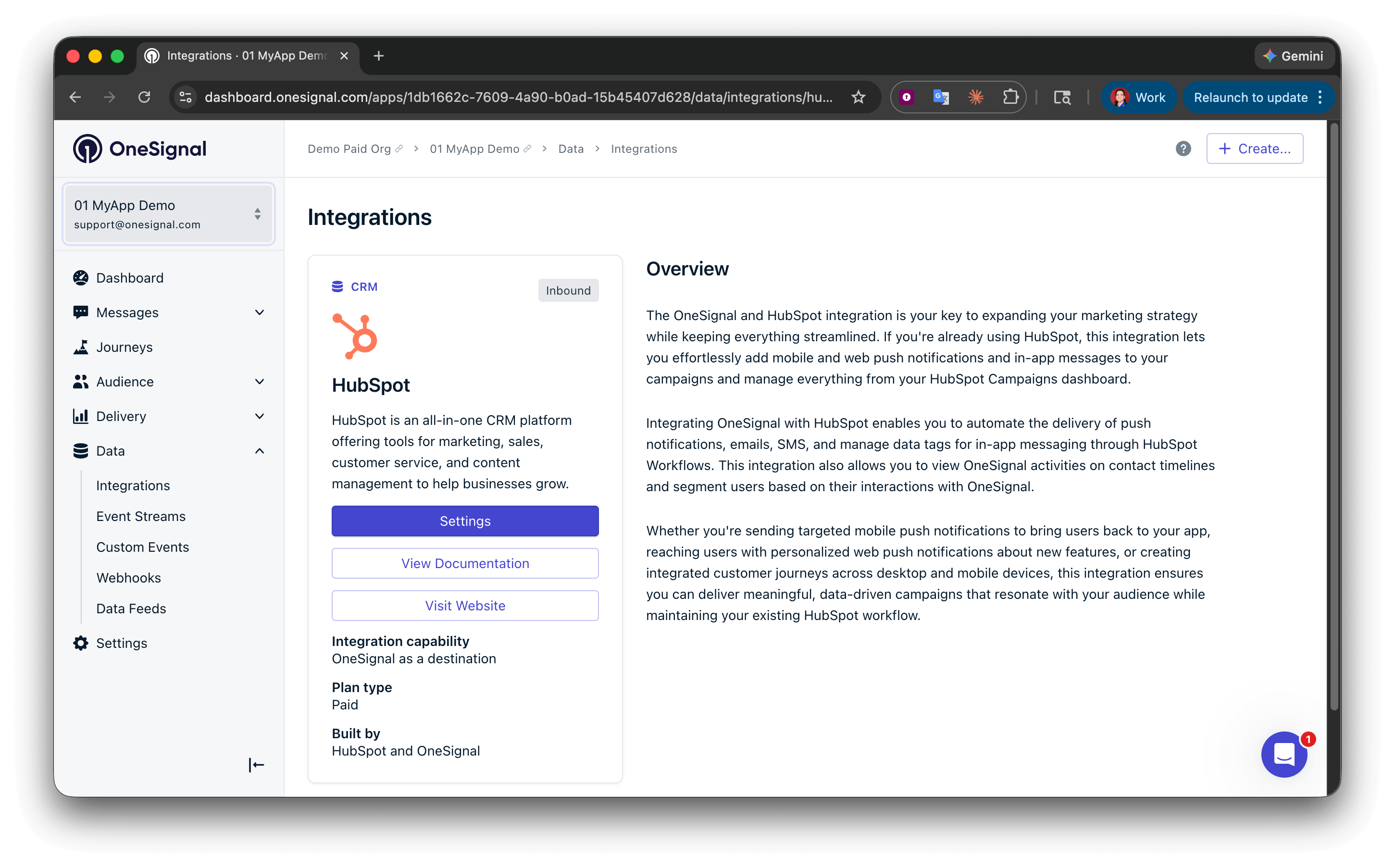
The HubSpot integration card on the OneSignal Integrations page.
Click Settings > Authenticate, then select your HubSpot account and log in.
Select which HubSpot account to connect to this OneSignal app.
After agreeing to the terms and selecting Connect app, you are redirected back to OneSignal. The HubSpot integration in Data > Integrations now shows your connected account.
You can also start from HubSpot. In the HubSpot Marketplace, install OneSignal | Mobile & Web Push, SMS and RCS Messaging, sign in to OneSignal, and select the OneSignal app to connect. After you agree to the terms, HubSpot returns you to your portal.Use this path when a teammate is installing from HubSpot. Use Data > Integrations in OneSignal when you are already in the OneSignal dashboard, or when you need to reconnect.
You can only connect one HubSpot account to each OneSignal app. If you have a testing environment, set up another OneSignal app for testing.
If Data > Integrations > HubSpot shows a reconnect prompt, the connection is missing permissions needed to send OneSignal message events to HubSpot timelines. Click Reconnect HubSpot, select the same HubSpot account, and accept the updated permissions (including timeline access).Workflow actions keep working while the prompt is visible. Timeline events do not appear on HubSpot contacts until you reconnect.
To link HubSpot contacts to OneSignal users, set the External ID in OneSignal to a value that matches a unique property in HubSpot (e.g., a user ID or email address).Set External ID using the SDK login method in your app or website. Choose a property that is readily available in both your app and HubSpot so matching is reliable.
See Users and Subscriptions for details on identity and subscription management.
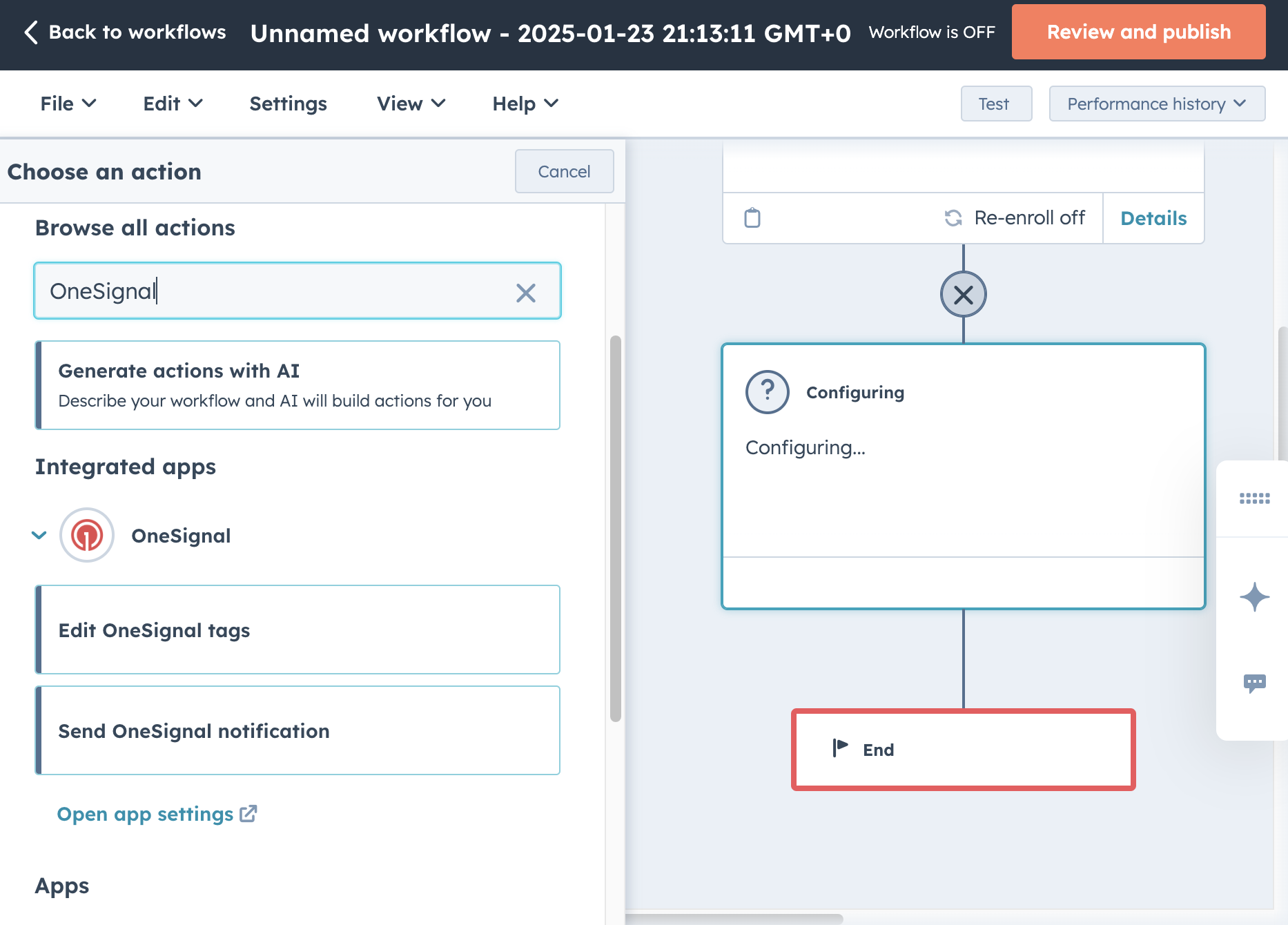
In HubSpot, go to Automation > Workflows and click Create workflow. Select Contact-based and configure your enrollment triggers.To add a OneSignal action, click + in the workflow editor and search for “OneSignal”.
OneSignal workflow actions in HubSpot.
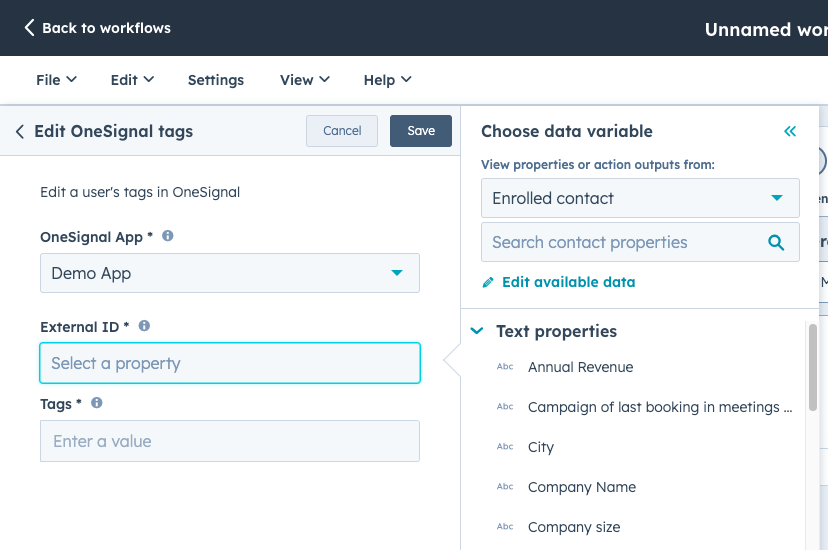
Most OneSignal actions ask for:
Setting the OneSignal App and External ID in a workflow action.
OneSignal App: the app you connected during setup.
External ID: the HubSpot contact property whose value matches the OneSignal user’s External ID (set via the SDK login method).
Send OneSignal message can match by External ID or by email. If you choose email matching, the External ID field is hidden. Email matching is a legacy option for customers who set email using the addEmail SDK method.Prefer External ID matching. It is required for associating the HubSpot contact and for timeline events.
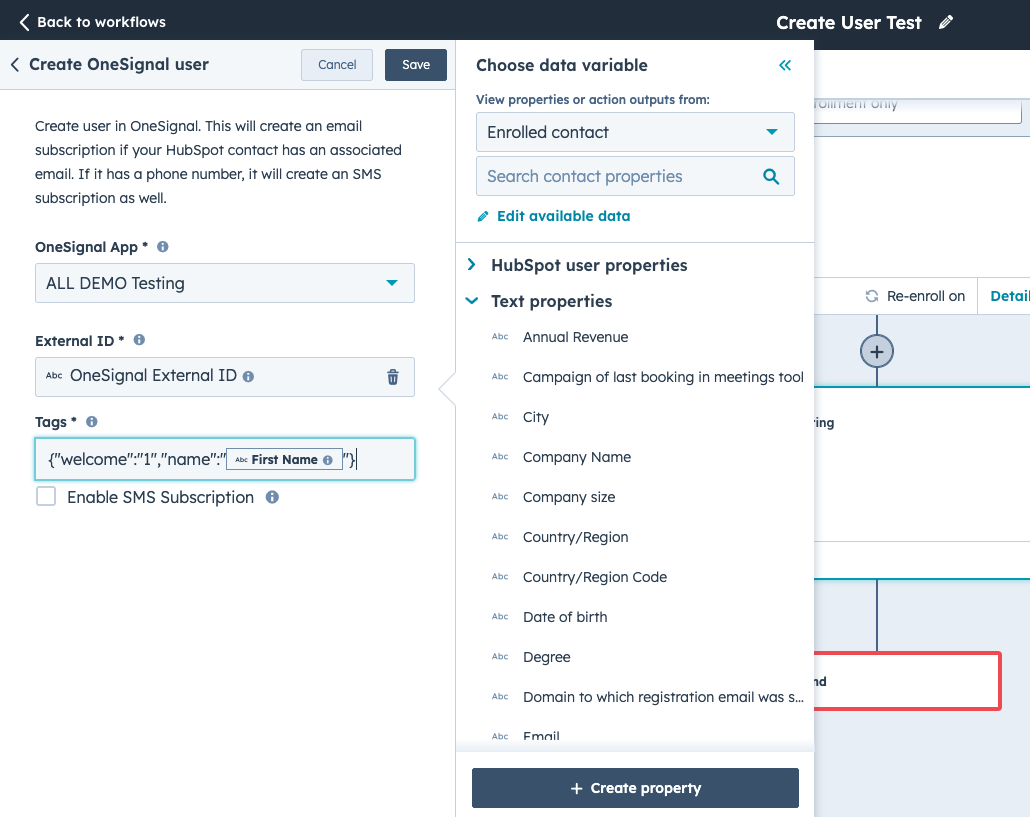
The Create OneSignal user action creates a User in OneSignal when a contact passes through the workflow. Use this to add HubSpot contacts to OneSignal as they are enrolled.The contact must have an email or a phone number. If neither is present, the action fails.If those HubSpot properties are set, OneSignal creates corresponding Subscriptions:
Email → creates an email Subscription
Mobile phone, or Phone if mobile phone is empty → creates an SMS Subscription
You can also set the External ID and tags in this action. When External ID is set, OneSignal stores the HubSpot Contact ID on that user so later message events can appear on the contact timeline.
OneSignal Create User node in a HubSpot workflow.
If your OneSignal app has Double Opt-in enabled, a new SMS Subscription that is enabled receives an opt-in message. Leave Enable SMS Subscription unchecked to create the SMS Subscription without sending that message. The user stays unsubscribed until they opt in separately.
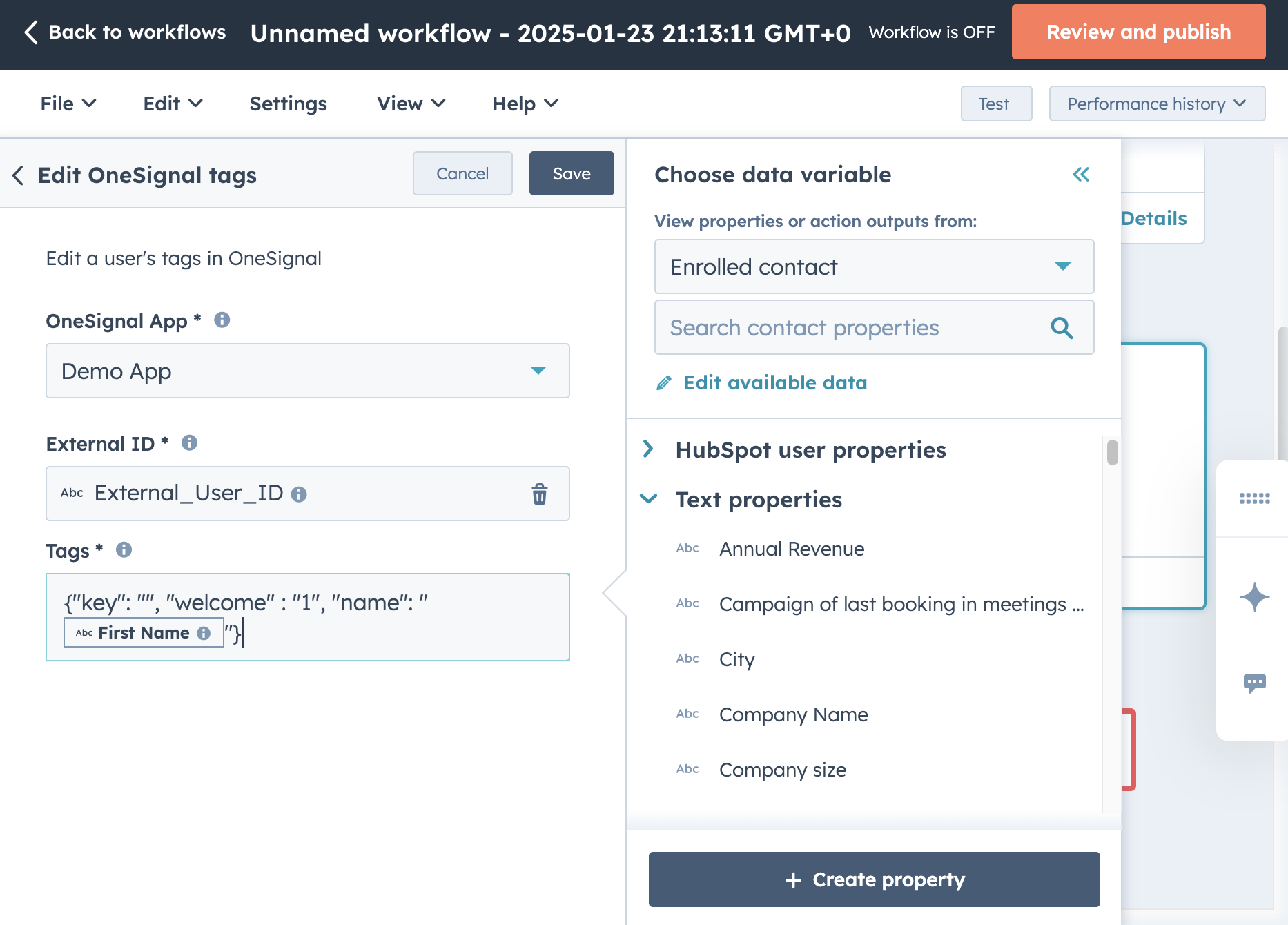
{ "welcome": "1", "name": "<First Name property>" }
You can inject any HubSpot contact property as a tag value by using HubSpot’s property token inserter in the workflow editor. For example, add a user’s first name as a tag so you can personalize messages in OneSignal.
If you do not select a template, you can compose a push notification directly in the workflow action using the Title, Subtitle, Message, Image URL, and Launch URL fields. Email and SMS/RCS messages are only available via templates.The form fields option allows you to inject HubSpot contact properties (e.g., First Name) to personalize the notification content.When you match by External ID, OneSignal also stores the HubSpot Contact ID on that user so the send can appear on the contact timeline.
The Associate HubSpot Contact ID action stores the HubSpot Contact ID on the matching OneSignal user (the hubspot_contact_id alias). Timeline events can only attach to a HubSpot contact when this ID is present.Use this action when:
The OneSignal user already exists (created in your app or API) and has not passed through Create OneSignal user.
You want to force the association onto the current OneSignal user if the Contact ID was previously tied to a different user.
Create OneSignal user, Add or edit OneSignal tags, and Send OneSignal message (when matching by External ID) also set this association automatically. Those updates are best-effort and will not fail the action if the alias cannot be saved. Use Associate HubSpot Contact ID when the association itself is the step you need to succeed or fail.This action requires OneSignal App and External ID. The OneSignal user must already exist.
In-app messages cannot be sent directly from a HubSpot workflow. Instead, use HubSpot to tag users, then target those users with a segment-based in-app message in OneSignal.
1
Tag users from HubSpot
In your HubSpot workflow, use the Add or edit OneSignal tags action to set a tag on contacts. For example: { "hubspot_campaign": "spring_promo" }.
2
Create a segment in OneSignal
In the OneSignal dashboard, go to Audience > Segments and click New Segment. Add a User Tag filter matching the tag key and value set by HubSpot (e.g., hubspot_campaign is spring_promo).
3
Create the in-app message
Go to Messages > In-App and create a new in-app message. Under Audience, select Show to Particular Segment(s) and choose the segment you created.As users pass through the HubSpot workflow and receive the tag, they are added to the segment immediately.
4
Configure the trigger
Tags do not trigger in-app messages on their own. If the tag is set while the user is actively using the app, the in-app message does not display until the next session (a new session starts after the app is in the background for 30+ seconds). See Sessions.Available triggers:
On app open: displays the next time the user opens the app.
Session duration: displays after a set number of seconds in-session.
Time since last in-app message: prevents back-to-back messages.
Programmatic: trigger from your app code using the OneSignal SDK.
See OneSignal message events on the HubSpot timeline
OneSignal can write message activity onto the HubSpot contact timeline. This covers messages sent from HubSpot workflows and from OneSignal (dashboard, API, Journeys), as long as the OneSignal user has a HubSpot Contact ID.
Timeline events do not update HubSpot contact properties or import HubSpot lists. Depending on your HubSpot plan, app events on the contact timeline can be used in HubSpot reports, lists, and workflow enrollment.Use Event Streams if you need a custom webhook payload, want to update HubSpot contact properties, or want to send events somewhere other than the contact timeline.
HubSpot workflows combine enrollment triggers (the event that starts the workflow) with OneSignal actions (what happens to the user in OneSignal). Below are recommended patterns for common use cases.
Target a specific audience with an in-app message triggered by a HubSpot list or form.
Step
Type
Configuration
Enrollment trigger
HubSpot
Contact becomes a member of a static or active list (e.g., “Spring Sale Eligible”)
Action 1
OneSignal: Add or edit OneSignal tags
{ "promo": "spring_2025" }
Then follow the Send in-app messages steps to create a OneSignal segment matching promo = spring_2025 and configure an in-app message for that segment.To remove users from the campaign after it ends, create a second workflow that deletes the tag:
Check the error message: Expand the failed action in the HubSpot workflow enrollment history. The error message often indicates the cause (e.g., “User not found,” “Invalid app ID”).
Verify the External ID: Confirm the HubSpot contact property used as the External ID matches a user in OneSignal. Check the user’s profile in OneSignal > Audience > Users & subscriptions and search by External ID.
Confirm the integration is active: Go to OneSignal > Data > Integrations > HubSpot and verify the connection status is active.
Check subscriptions: The user must have an active subscription for the channel you’re sending on (push, email, or SMS/RCS). Verify this in the user’s profile in OneSignal under Subscriptions.
Check segment membership: If you’re using a template with segment targeting, confirm the user belongs to the targeted segment.
Review message reports: In the OneSignal dashboard, go to Messages, find the message, and check its delivery report to see if the message was delivered, dropped, or errored.
Verify External ID matching: If the External ID in the workflow does not match an existing OneSignal user, Add or edit OneSignal tags fails the HubSpot workflow step. Use Create OneSignal user first to ensure the user exists.
Check JSON format: Tags must be a valid JSON object. Common mistakes include missing quotes around keys or values, trailing commas, or using single quotes instead of double quotes.
Check for empty values: Setting a tag value to "" deletes the tag. Verify that HubSpot contact properties being injected are not blank.
Timeline events not appearing on the HubSpot contact
Reconnect if prompted: Open OneSignal > Data > Integrations > HubSpot and complete Reconnect HubSpot so timeline permissions are granted.
Check Outbound events: Confirm the event types you expect are selected on the HubSpot Outbound tab.
Confirm the contact association: Search the OneSignal user by External ID and confirm a hubspot_contact_id alias. If it is missing, run Associate HubSpot Contact ID (or Create OneSignal user) for that contact.
Confirm you matched by External ID: Sends matched only by email do not store the HubSpot Contact ID, so those sends cannot be written to the timeline.
What data is shared between HubSpot and OneSignal?
HubSpot
Direction
OneSignal
Description
Contact properties
→
External ID, Tags, email, phone
Workflow actions match users and can create subscriptions and tags from the enrolled contact.
Contact ID
→
hubspot_contact_id alias
Stored so OneSignal can attach message events to that contact.
Workflows
←
Message Templates
OneSignal Templates appear in Send OneSignal message.
Contact timeline
←
Message events
Sent, delivered, opened, clicked, and related outcomes, when Outbound is enabled and the contact is associated.
The integration does not sync HubSpot lists, deals, or company records to OneSignal automatically. Use workflow actions to explicitly pass the data you need.
Can I use HubSpot lists to target OneSignal segments?
Not directly. HubSpot lists and OneSignal segments are independent systems. To bridge them, create a workflow that enrolls contacts from a HubSpot list and uses the Add or edit OneSignal tags action to set a tag. Then build a OneSignal segment based on that tag. See Promotional campaign via in-app message for a worked example.
Push notifications can be sent using templates or form fields. Email and SMS/RCS can only be sent using Templates created in OneSignal. In-app messages cannot be sent from HubSpot workflows. Use the tag-and-segment pattern instead.
Why didn’t my in-app message display after the tag was set?
Tags alone do not trigger in-app messages. The tag adds the user to a segment, but the in-app message still requires a trigger to display. If the tag is set while the user is actively using the app, the message will not appear until the next session (30+ seconds in background). Set the in-app message trigger to On app open for the most reliable behavior. See In-App Message Triggers for all trigger options.
Can I use HubSpot webhooks to call the OneSignal API directly?
Yes. HubSpot’s Custom Code workflow action lets you make HTTP requests to external APIs. You can call the OneSignal REST API to send messages, create users, or update tags outside the native integration. This is useful for use cases the native actions do not cover, such as sending to a segment rather than an individual user.
Can I send OneSignal message events back to HubSpot?
Yes. After you connect (or reconnect) HubSpot, enable Outbound events on the HubSpot integration. OneSignal writes those events to the contact timeline. See See OneSignal message events on the HubSpot timeline.Use Event Streams instead if you need a custom webhook payload, want to update HubSpot contact properties, or want to send events somewhere other than the contact timeline.
There are two options for getting HubSpot users into a OneSignal Journey:
Tags: Use the Add or edit OneSignal tags action to set a tag on the user. Create a segment in OneSignal based on that tag and use the segment as a Journey entry condition.
Custom Events: Use HubSpot’s Custom Code action to call the OneSignal Custom Events API, which can serve as a Journey entry trigger.
Can I send custom events from HubSpot to OneSignal?
Not through the native workflow actions. The native integration supports Create OneSignal user, Add or edit OneSignal tags, Send OneSignal message, and Associate HubSpot Contact ID. To send custom events, use HubSpot’s Custom Code action to call the OneSignal Custom Events API directly.
What HubSpot enrollment triggers work with OneSignal?
Any HubSpot enrollment trigger works. The OneSignal actions are standard workflow actions that execute regardless of how the contact was enrolled. Common triggers include:
Contact property changes (lifecycle stage, lead status, last activity date)
Form submissions (signup forms, demo requests, event registrations)
List membership (added to a static or active list)