

Overview
The OneSignal + Databricks integration supports two flows:- Export: Send OneSignal message events to Databricks for analytics and reporting.
- Import: Send custom events from Databricks to OneSignal to trigger Journeys and personalize campaigns.
Export OneSignal message events to Databricks
Sync all your message events from OneSignal into your Databricks lakehouse for near real-time analytics and visibility. Requirements- Access to Event Streams for outbound message events (Plan limitations and overages apply)
- Access to Custom Events for inbound event syncing (Plan limitations and overages apply)
- Updated Account Plan (not available on free apps)
- Databricks Platform: AWS, Azure, or GCP
- Databricks Plan: Premium or higher
- Databricks Unity Catalog (recommended for governance)
- Databricks SQL Warehouse for querying
- Delta Lake event tables (for custom event import)
1. Collect SQL warehouse details
Log in to your Databricks workspace
Select your warehouse
Save the following details
- Server Hostname
- Port
- HTTP Path
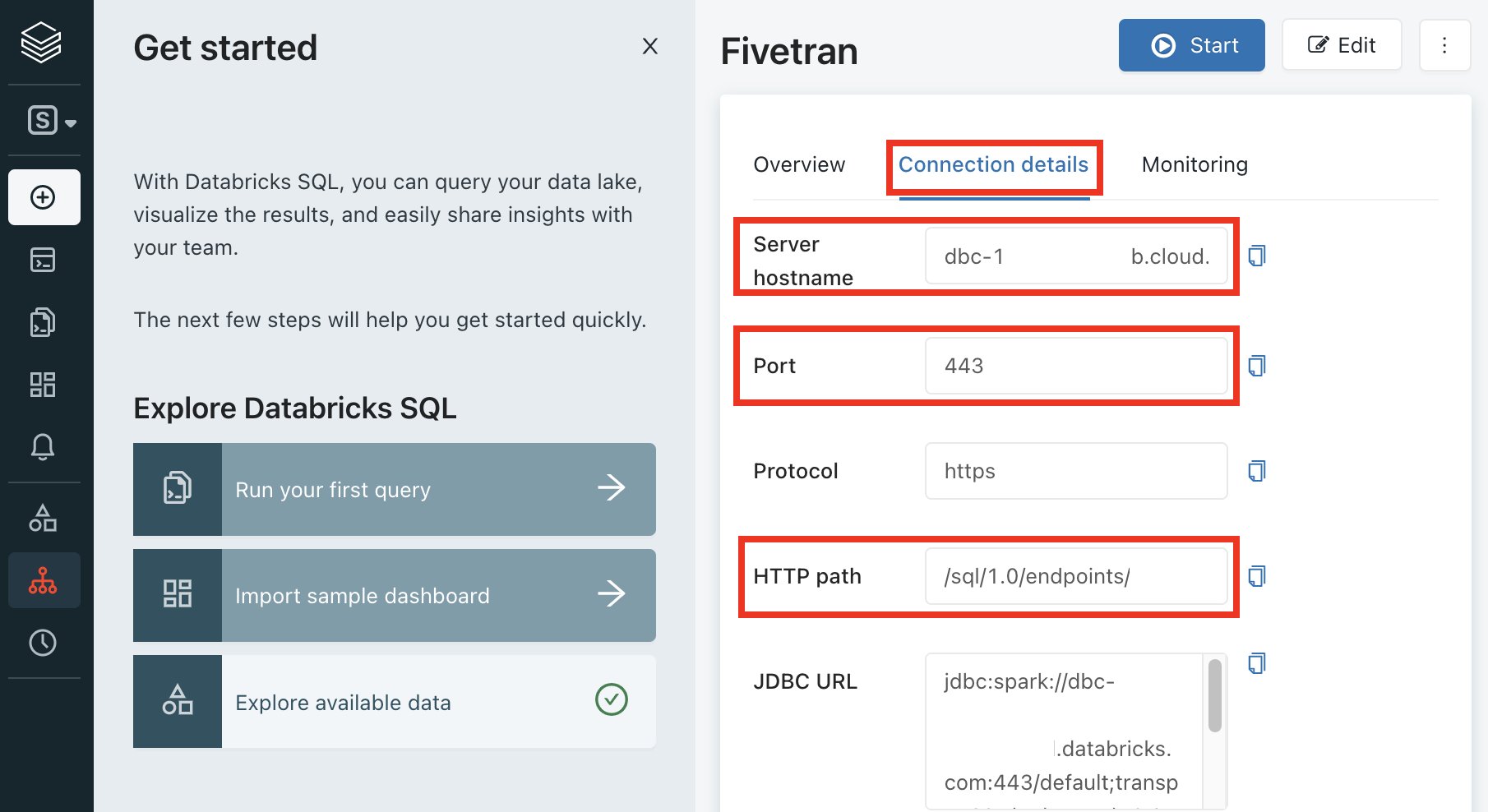
Databricks SQL connection details for Fivetran setup
2. Choose authentication method
Databricks supports two authentication methods. Choose the method that best fits your deployment and security requirements.- OAuth M2M
- Personal Access Token
- Direct connections (not using PrivateLink)
- Organizations with OAuth infrastructure
Create a service principal
Go to the Service Principals page
Add a new service principal
Name the service principal
onesignal-sync).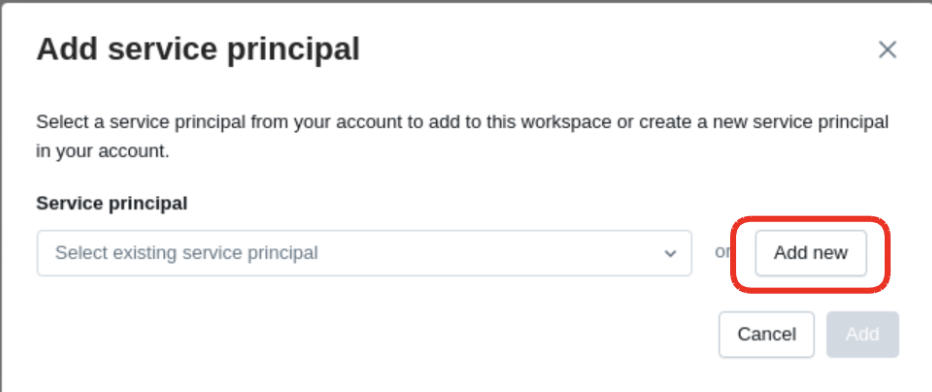
Modal for adding a service principal, with the 'Add new' option highlighted
Generate a secret
Click into the created principal
Go to the Secrets tab
Generate a secret
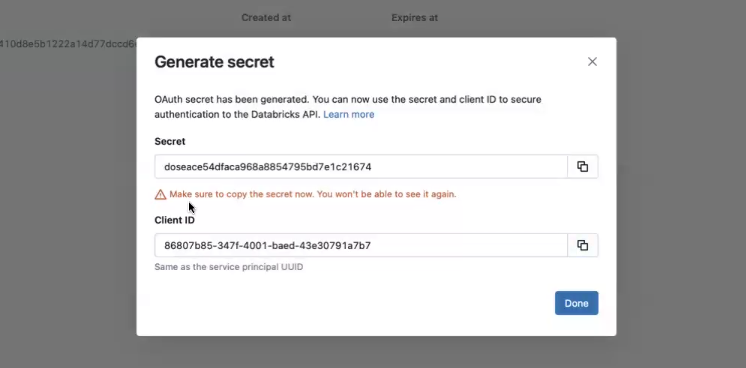
Databricks 'Generate secret' modal showing OAuth secret and client ID for API authentication
3. Assign permissions
Navigate to your Catalog and open the Permissions tab
Click Grant
Assign the following permissions to the service principal or user
- USE CATALOG
- USE SCHEMA
- SELECT
- MODIFY
- CREATE SCHEMA
- CREATE TABLE
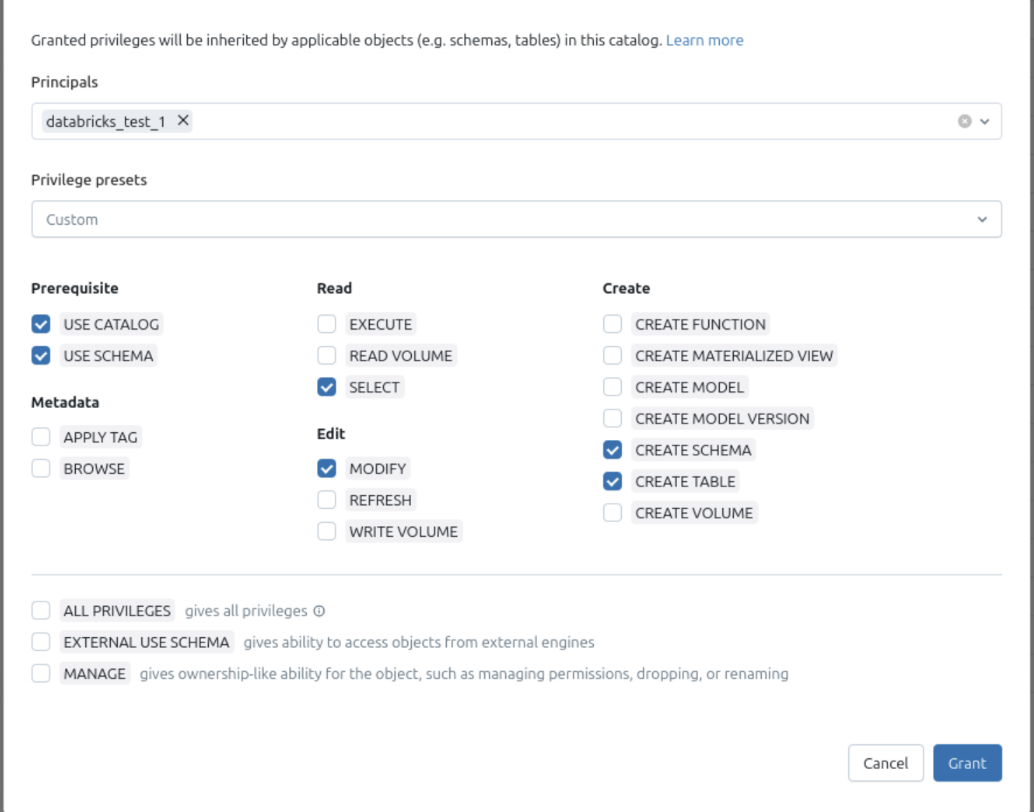
Privilege assignment screen for a Databricks principal with custom catalog permissions selected.
4. Connect OneSignal
Activate the integration
Enter the details
- Server Hostname
- Port
- HTTP Path
- Catalog Name
- Schema Name
- Credentials
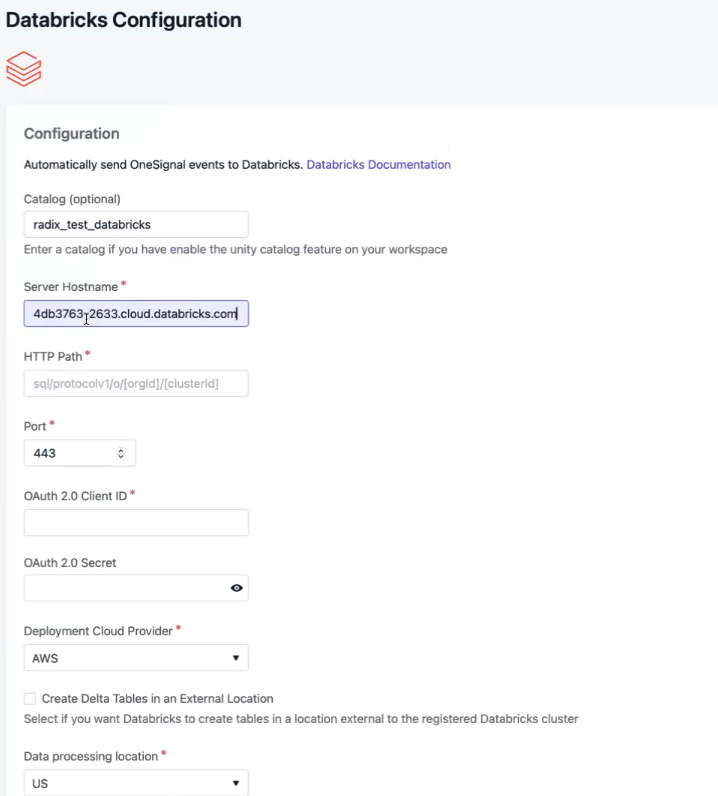
OneSignal Databricks Configuration form with fields for catalog, hostname, HTTP path, and credentials.
Configure the integration
- Sync Frequency: as often as every 15 minutes
- Dataset/Table Names: pre-set as
onesignal_events_<app-id>andmessage_events(editable) - Event Types: choose which to sync—select all or just what you need
Select events
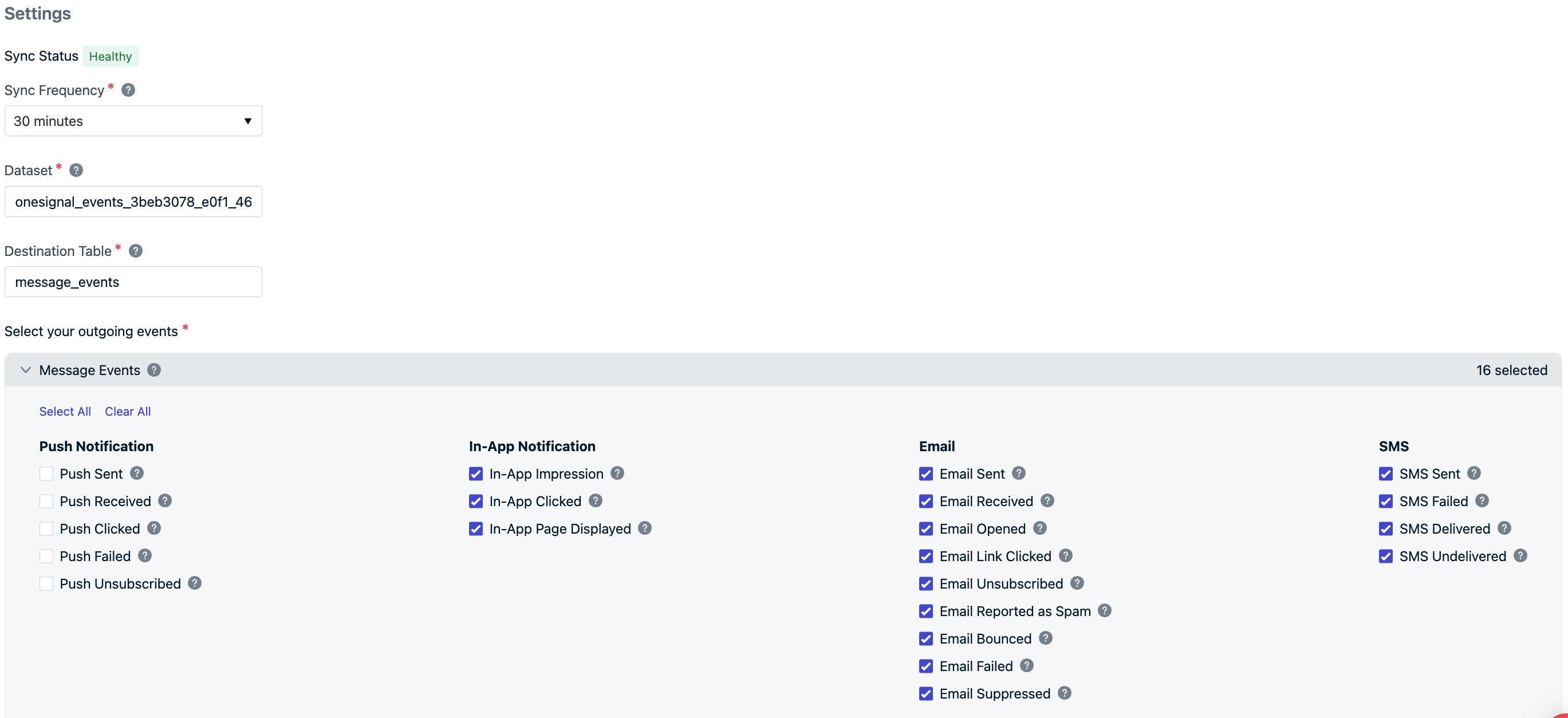
OneSignal event export settings screen showing sync status, dataset configuration, and selected message event types.
Complete the setup
5. View data in Databricks
- Open your Catalog in Databricks.
- Once syncing completes, your configured schema will appear.
-
Access and query the
message_eventstable.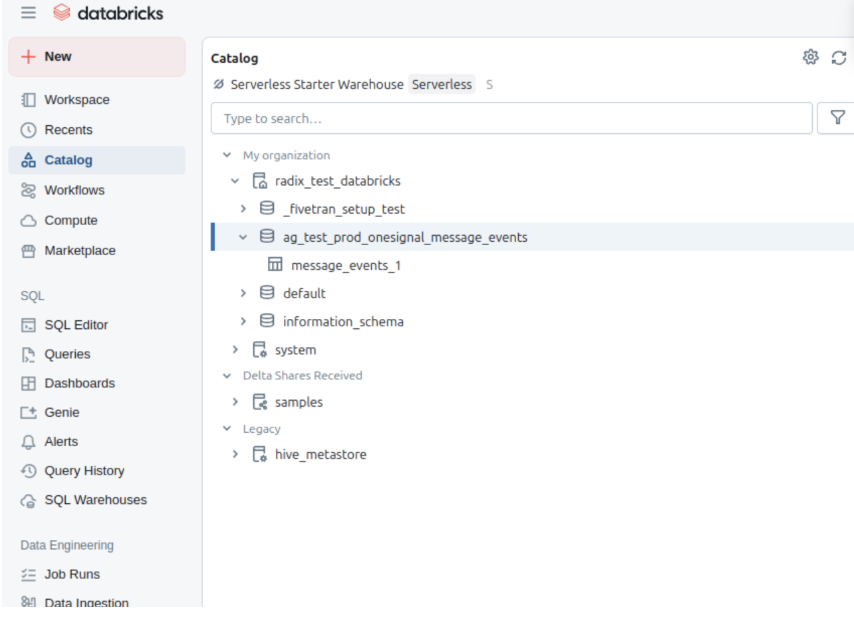
Databricks Catalog view showing OneSignal message events table under a production schema.
-
Click into tables for sample data preview.
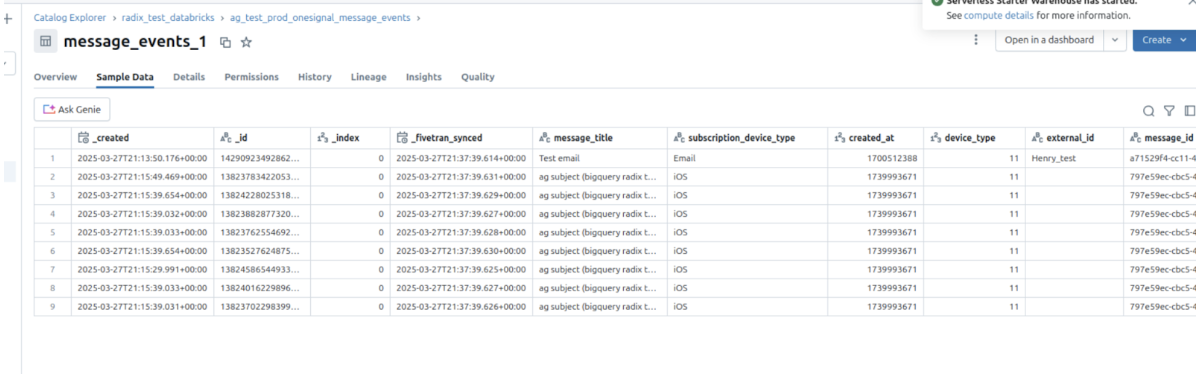
Sample data from the message_events_1 table with synced OneSignal event fields.
support@onesignal.com.Message events and properties
Message event kinds
Property:event_kind
Type: String
The kind of message and event (e.g. message.push.received, message.push.sent).
message.email.sent and message.sms.sent are deprecated. They can’t be added to new exports, but exports that already include them keep receiving them. Use message.email.received and message.sms.delivered instead.
Event data schema
For each message event generated by a user, the following metadata will be attached to the record.Notes
- Events go through a processing step that can take up to 30 minutes before they are included in a sync. With a 15-minute sync frequency, expect events to appear in your warehouse within 45 minutes.
- Deactivating may still result in one final sync after deactivation.
- To ensure efficient data synchronization, our system automatically creates and manages staging datasets. These datasets, named with a pattern like
fivetran_{two random words}_staging, temporarily store data during processing before it’s integrated into your main schema. These staging datasets are essential for maintaining a streamlined workflow and should not be deleted, as they will be automatically recreated.
Import events from Databricks
Send behavioral event data from Databricks to OneSignal to:- Trigger Journeys based on user activity
- Personalize messaging based on behavioral data
- Access to Event Streams for outbound message events (Plan limitations and overages apply)
- Access to Custom Events for inbound event syncing (Plan limitations and overages apply)
- Updated Account Plan (not available on free apps)
- Databricks workspace with SQL Warehouse or compute cluster
- Personal Access Token with appropriate permissions
- Event data tables containing behavioral data in Delta Lake format
- Unity Catalog (recommended for data governance)
Create Databricks Personal Access Token
- Navigate to User Settings in your Databricks workspace
- Click Developer tab and then Access tokens
- Click Generate new token
- Enter a comment like “OneSignal Integration” and set expiration (recommend 90 days)
- Save the generated token (you’ll need this for OneSignal)
Configure SQL Warehouse access
- Navigate to SQL Warehouses in your Databricks workspace
- Select or create a SQL Warehouse for OneSignal access
- Note the Server Hostname and HTTP Path from the connection details
- Ensure the warehouse has access to your event data tables
Grant table permissions
Add integration in OneSignal
- Server Hostname: Your Databricks SQL Warehouse hostname
- HTTP Path: SQL Warehouse HTTP path
- Personal Access Token: Token created in step 1
- Catalog (optional): Unity Catalog name if using Unity Catalog
Configure event data source
- Database/Schema: Database or schema name containing event tables
- Table: Table name with event records (e.g.,
user_events) - Event Query: Optional SQL query to filter or transform event data
- Event name/type (String)
- User identifier (String)
- Event timestamp (Timestamp)
- Additional event properties
Test the connection
Event data mapping
Map your Databricks event table columns to OneSignal’s custom events format:Advanced configuration
Unity Catalog Integration
Leverage Unity Catalog for governed data access:Delta Lake Optimization
Optimize event tables for better query performance:- Partitioning: Partition by date (
event_date) for faster time-based queries - Z-Ordering: Z-order by
user_idandevent_namefor better filtering - Delta Lake Features: Use liquid clustering for automatic optimization
Streaming Event Processing
For real-time event processing, consider:- Structured Streaming: Process events as they arrive
- Delta Live Tables: Build robust event processing pipelines
- Auto Loader: Continuously ingest new event files