

Email deliverability overview
Volume thresholds: warm-up vs bulk sender
These limits are related but different:
Warm up before you hit bulk-sender volume. Crossing 5,000/day to Gmail or Yahoo without a healthy reputation is hard to recover from.
Reputation
Your email sending reputation, assigned by inbox providers, is a key driver of deliverability. It determines how much they accept from you, whether messages get blocked, and where they land (inbox, promotions, or spam). See Inbox placement. Reputation works like a credit score: it rises or falls based on the performance of your past emails.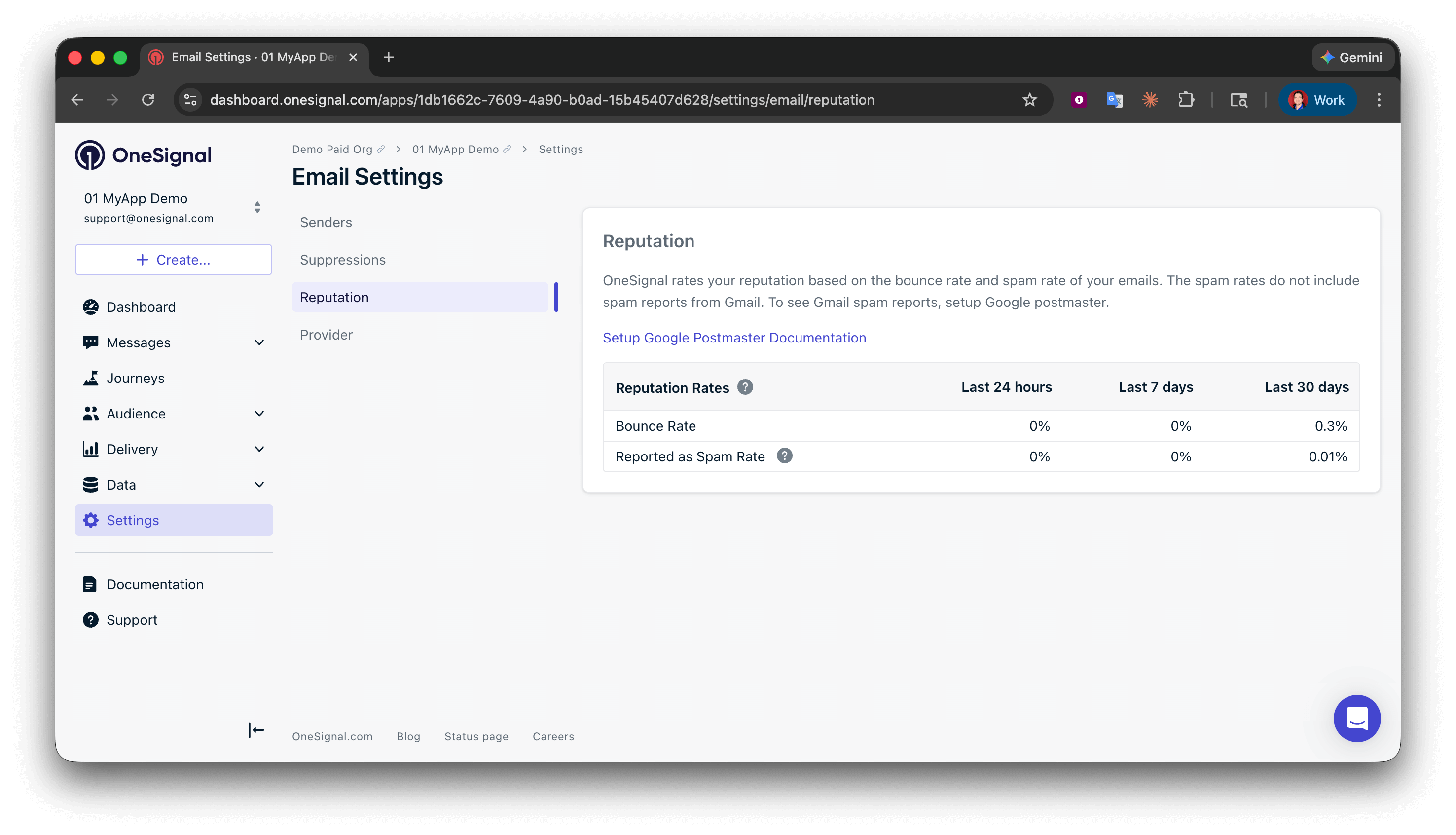
Email reputation dashboard
What helps reputation
- Proper email authentication (SPF, DKIM, DMARC)
- High engagement (e.g., opens, clicks, replies)
- Clean, verified lists
- Consistent email sending patterns
What hurts reputation
- High spam complaint rates. See Monitor spam reports.
- High bounce rates. See Avoid invalid emails.
- Sending to spam traps. See Set up a clear opt-in process.
Which spam and bounce limits apply
Use the right threshold for the right system:
The OneSignal Reported spam rate (Reputation dashboard) excludes Gmail and Apple. For Gmail’s rate, connect Google Postmaster Tools. See How spam rate is calculated.
Where to monitor reputation
If you use OneSignal Email:- Settings > Email > Reputation for overall bounce and reported spam rates
- Messages > Email > Deliverability insights for the same metrics broken down by inbox provider
How reputation metrics are calculated
- Bounce rate = permanent bounces ÷ total sent
- Reported spam rate = spam complaints from feedback-loop providers ÷ delivered emails to those providers. Apple and Gmail do not report per-recipient complaints, so their deliveries are excluded from this rate.
Email reputation best practices
Actionable steps to build and maintain a healthy sending reputation: opt-in, monitoring, frequency, warm-up, and list hygiene.
Gmail and Yahoo bulk sender requirements
Gmail and Yahoo classify any domain sending 5,000 or more messages per day specifically to Gmail or Yahoo addresses as a bulk sender. The classification is permanent and applies even if your daily volume later drops below 5,000. Bulk senders must meet stricter requirements or face throttling and spam folder placement.
OneSignal handles forward/reverse DNS, TLS, and message formatting for you. You’re responsible for SPF, DKIM, and DMARC, keeping your complaint rate low, and including a working unsubscribe link. Monitor Gmail’s spam rate with Google Postmaster Tools (it does not appear in the overall Reputation dashboard).
Google and Yahoo email updates
OneSignal-specific setup steps to meet the Gmail and Yahoo bulk sender requirements.
Key deliverability concepts
These terms appear in your email reports and reputation dashboard.Unsubscribed
Recipients who opt out via the unsubscribe link in your emails. These recipients are suppressed automatically to ensure compliance and protect your reputation. Honor unsubscribe requests promptly. It is required by regulations like CAN-SPAM and protects your sender reputation.Email unsubscribe links and headers
Manage unsubscribe links, List-Unsubscribe headers, suppression rules, and resubscription workflows.
Create a custom unsubscribe page
Replace the default unsubscribe link with a branded, multi-language preferences page.
Bounced
Emails that fail to deliver because the address is permanently invalid (it does not exist or is misspelled). Bounce data is stored in your suppression list and is also visible in Event Streams.Failed
Emails that could not be delivered after retry attempts. Failed sends are not added to your suppression list, and the email may be retried on future sends. Failures appear in Email Message Reports > Audience Activity and Event Streams. Common reasons: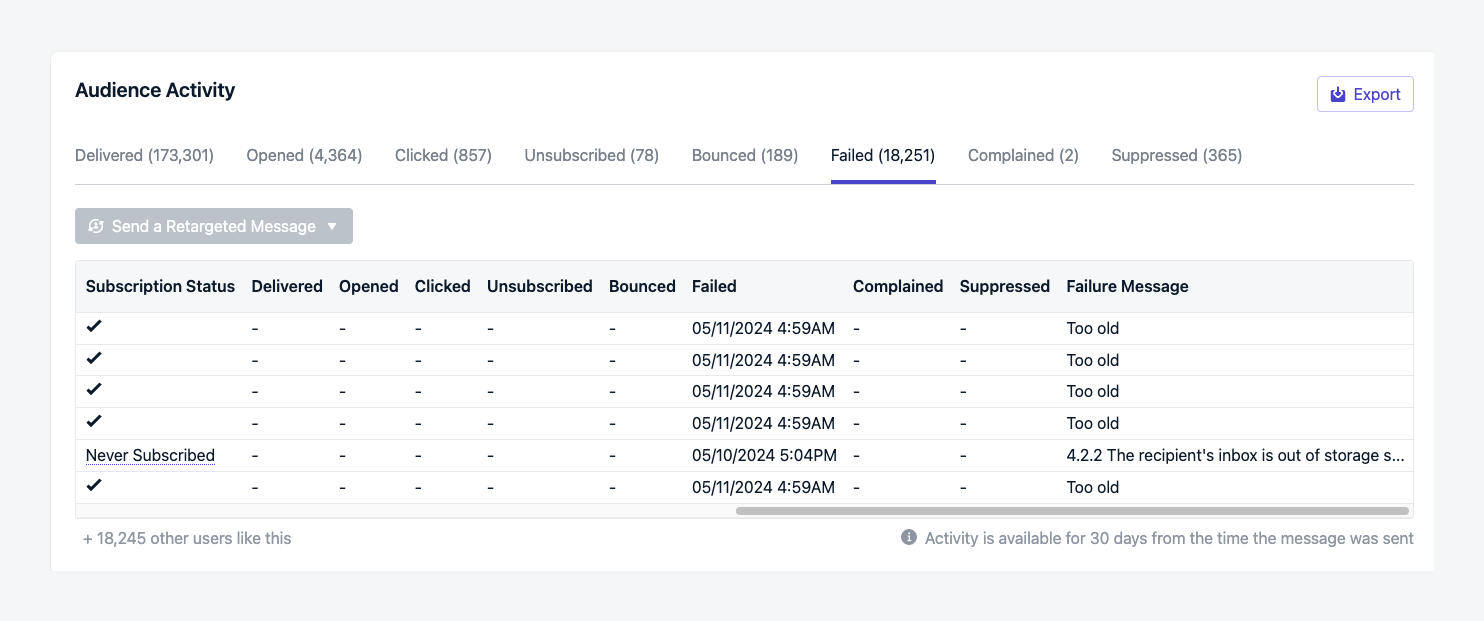
Too Old deferral message from Gmail for poor reputation
Spam complained
When recipients mark your email as spam, it triggers a spam complaint (also called a spam report).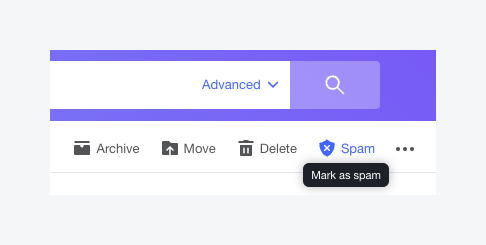
Yahoo Report Spam button
How spam rate is calculated
A feedback loop is how some inbox providers notify senders when a recipient marks mail as spam. Yahoo and Outlook provide feedback loops. Gmail and Apple do not. The OneSignal Reported spam rate is: spam complaints from feedback-loop providers ÷ emails delivered to those providers Apple and Gmail deliveries are excluded from both the numerator and the denominator. Their complaints never appear in this rate. That is an industry-wide limitation, not a OneSignal limitation. Sustained rates above 0.3% can hurt placement at major providers. Aim for Google’s 0.10% target when monitoring Gmail in Postmaster Tools. OneSignal’s AUP expects complaint rates below 0.08% on the reported (feedback-loop) rate. See Which spam and bounce limits apply. To see Gmail’s spam rate, connect Google Postmaster Tools to OneSignal: verify your sending domain with Google and addmailmonitor@onesignal.com as a managed user. The Gmail figure then appears in Deliverability insights (Messages > Email) next to other providers. Full Gmail charts and domain reputation (High / Medium / Low / Bad) remain in Postmaster Tools.
Google Postmaster Tools
Connect Postmaster Tools to OneSignal for Gmail spam rate and domain reputation.
Deliverability insights by provider
View Gmail spam rate next to Outlook, Yahoo, Apple, and other providers.
Suppression list
Your app’s internal list of email addresses OneSignal will not send to, typically after a hard bounce or spam complaint. Manage entries on the Suppressions page. This is not the same as an external blocklist.Blocklists
External or inbox-provider-managed lists of spammy or harmful IPs and domains (for example Spamhaus). Being listed causes deliverability problems across many inboxes. Check your domain or IP status with those providers.Spam traps
Spam traps are addresses not used by real people. Inbox providers and anti-spam organizations plant them to catch poor list hygiene. Sending to them can put your domain or IPs on a blocklist.
List-cleaning tools often miss traps. Prevent them with confirmed (double) opt-in, and remove unengaged recipients so traps never stay on your active list. See Set up a clear opt-in process, Magic Link double opt-in, and Wait Until journeys to sunset non-engagers.
Email address validation
Validate addresses before they reach your audience. Validation flags typos, invalid domains, role-based addresses, and disposable email services that raise bounce rates and hurt reputation.Email address validation
Validate email addresses during CSV import and in bulk to reduce bounces and protect your sender reputation.
Engagement metrics
Opened
The number of times recipients open your email messages. Open rates reflect subject lines, targeting, and your From name and address. View opens in Email Message Reports.Open rates are over-reported for Apple Mail recipients because Mail Privacy Protection prefetches images. Compare opens with clicks and CTOR for a more reliable engagement signal.
Clicked
The number of times recipients click links in your emails. Clicks require an open, so they are a stronger engagement signal than opens alone. View clicks in Email Message Reports.Inbox placement
Inbox placement is where your emails land inside the recipient’s mailbox. Placement affects whether mail is seen and engaged with.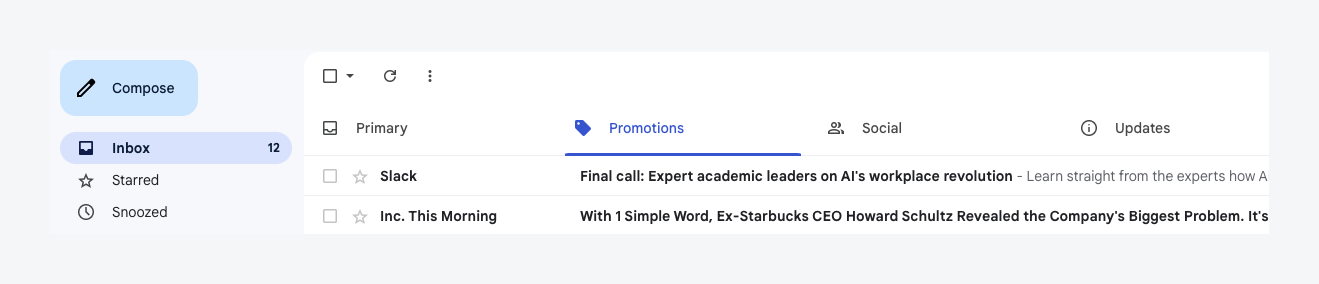
Gmail inbox tabs
Primary
The Primary tab is typically where important and personal mail lands. Primary placement usually signals good reputation and relevance.Promotions
The Promotions tab holds promotional or marketing mail. Providers categorize messages using reputation and content signals. Landing in Promotions is not a sign of bad reputation. Marketing mail often performs better there because recipients expect deals when they open that tab. Gmail also surfaces Promotions intentionally. To reach Primary more often, reduce heavy promotional language, personalize content, and ask recipients to move your mail to Primary.Spam
Emails filtered into spam or junk. Causes include suspicious content, filter triggers, or low sender reputation. Spam placement usually means reputation trouble. Check bounce and complaint rates against the limits above. Google expects Postmaster spam rates below 0.10% and treats 0.30% as critical. Follow email reputation best practices. If placement does not look reputation-related, verify DMARC alignment with a tool like About My Email.FAQ
What is the difference between reputation and deliverability?
Reputation is the score inbox providers assign to your sending domain based on past email performance. Deliverability is the outcome: whether your emails reach the inbox, land in spam, or get blocked. A good reputation is the primary driver of good deliverability.What’s the difference between a bounce and a failure?
A bounce means the email address is permanently invalid (for example, it does not exist). Bounced addresses are added to your suppression list. A failure is a temporary delivery issue (for example, full inbox or DKIM misconfiguration). Failures are not suppressed and the email may be retried.Why are my emails landing in Promotions instead of Primary?
Landing in Promotions is not a sign of bad reputation. Gmail and other providers categorize emails based on content and past recipient behavior. To reach the Primary tab, reduce promotional language, personalize content, and encourage recipients to move your emails to Primary.What are spam traps and how do they affect me?
Spam traps are addresses set up by inbox providers to catch poor list hygiene. Sending to them can land your domain on a blocklist. Use confirmed opt-in and remove unengaged recipients. See Set up a clear opt-in process.Why don’t my Gmail spam complaints show up in OneSignal?
Gmail does not provide per-recipient spam complaint feedback to senders. This is an industry-wide limitation. The Reported spam rate on the Reputation dashboard only reflects complaints from feedback-loop providers like Yahoo and Outlook. To monitor Gmail-specific spam rates, connect Google Postmaster Tools to OneSignal by verifying your domain and addingmailmonitor@onesignal.com as a managed user. The Gmail spam rate then appears in Deliverability insights (Messages > Email). You can also view full Gmail charts and domain reputation directly in Postmaster Tools.
How do I improve my deliverability?
Follow the email reputation best practices, which covers opt-in, monitoring spam reports, targeting engaged recipients, controlling send frequency, warming up your domain, and list hygiene. If you’re sending from a new domain, start with Email warm-up.Do I need to warm up before sending large volumes?
Yes. Warm up when you use a new or cold sending domain, especially before you approach 2,000+ emails per day. Separately, 5,000+ emails per day to Gmail or Yahoo permanently classifies you as a bulk sender. Start Email warm-up before either threshold becomes a problem.Related pages
Deliverability insights by provider
Break spam, bounce, open, and fail rates down by inbox provider. Gmail spam rate requires Postmaster Tools.
Email reputation best practices
Actionable steps to build and maintain a healthy sending reputation.
Email warm-up
Ramp volume on a new sending domain without hurting deliverability.
Email DNS configuration
Set up SPF, DKIM, and DMARC records for your sending domain.
Google Postmaster Tools
Connect Postmaster Tools to OneSignal for Gmail spam rate and domain reputation.
Suppressions
Manage your app suppression list of bounced or complained addresses.
Email address validation
Validate addresses during import to reduce bounces.
Email troubleshooting
Diagnose Too old failures and other delivery problems.