

If the email is sent via a Journey or using Templates, see Journey Analytics or Template Analytics for additional details.
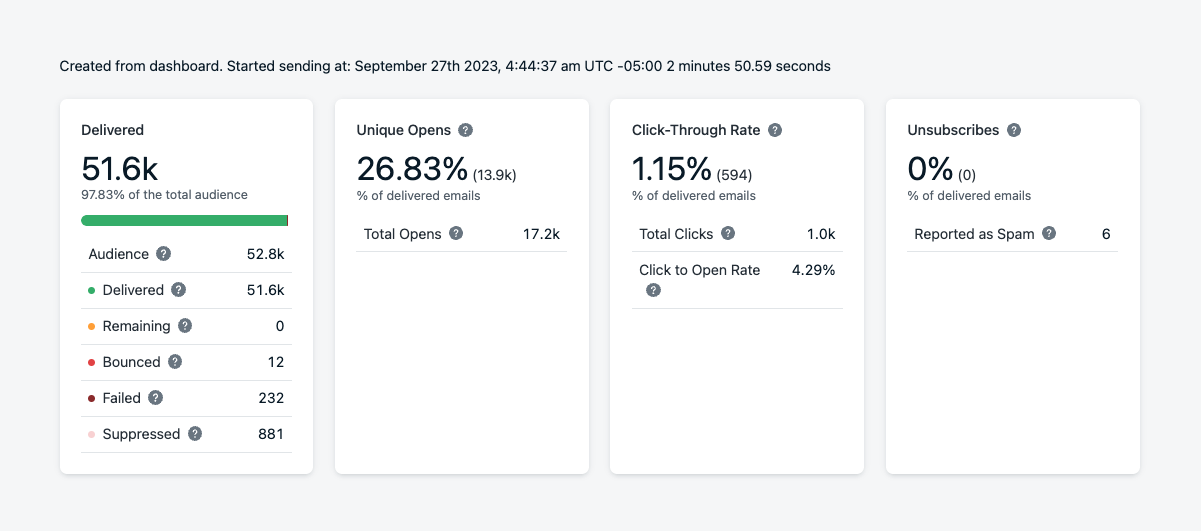
Snapshot view of real-time email message data
Delivery statistics
Audience Activity and data for messages sent via the API are retained for ~30 days. To retain historical performance, export data using the Dashboard or API. See Exporting Data.Delivered
Understand how many recipients received your message, and why others didn’t.
Total vs Unique clicks and opens
Unique clicks and opens are counted once per Subscription, regardless of how many times that user opens or clicks the same email. Total clicks and opens count every interaction, including repeats from the same user.
The following metrics are specific to email message reports:
For detailed metric definitions across all channels, see the Metrics Glossary.
Open rate
Open events are counted when the email is viewed, though privacy settings and inbox behavior may affect accuracy. See Why are open events low?Unique vs. Total Opens
- Open Rate is always based on unique opens.
- Use Total Opens to see repeat engagement from the same recipients.
Click-through rate
Measure engagement through link clicks. Click tracking can be enabled or disabled per email send. For more on link behavior, see URLs, links, and deep links and Email unsubscribe links and headers.CTR vs CTOR — CTR measures clicks as a percentage of deliveries; CTOR measures clicks as a percentage of opens. Use both to evaluate message quality. Add UTM parameters to links for tracking in tools like Google Analytics.
Unsubscribed and reported as spam
Understand opt-outs and spam complaints so you can improve targeting and deliverability.Conversions
This report shows the conversions attributed to and influenced by this message. See Conversion metrics for the attribution model and setup instructions.
Message statistics
Analyze performance trends over time, including engagement and delivery issues.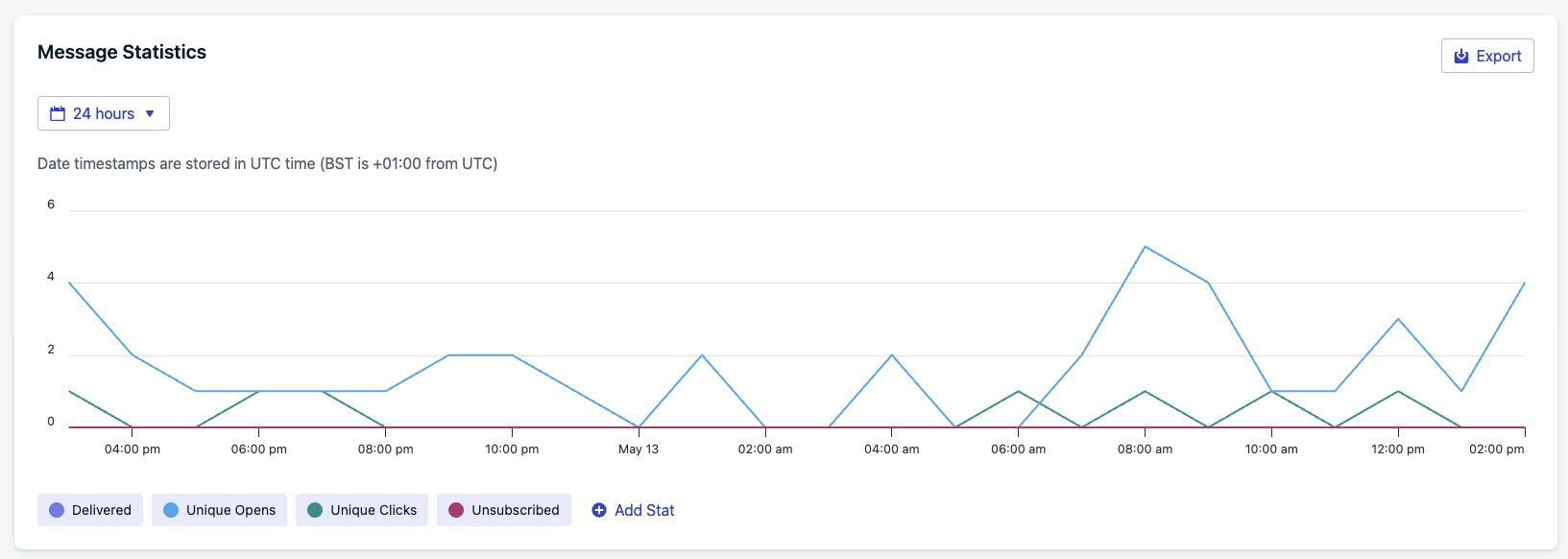
Message Statistics over 24-hour view
- 30 days (default)
- 24 hours
- 60 minutes
Audience activity
The Audience activity report shows how each subscription interacted with a specific message. Results are grouped into categories so you can quickly see how recipients engaged.
Audience activity tabs and table
- Categories
- Table columns
Each tab displays the number of recipients in that category and lets you drill into the individual subscription records.
Audience activity data is only available for 30 days from the time the message is sent. Export results if you need to retain them longer.
Why audience activity is helpful
Audience activity helps you go beyond delivery counts by showing which specific users fall into each outcome. Use it to:- Diagnose delivery issues by reviewing failed or unconfirmed deliveries.
- Measure engagement by comparing clicks vs. non-clicks.
- Track churn by identifying unsubscribes tied to a message.
- Segment audiences for retargeting or export.
Exporting results
You can download audience data with the Export menu:- Selected activity – exports only the currently viewed tab (for example, all users who did not click).
- All activities – exports the full report across every category.
Retargeting users
From any tab, click Send a retargeted message to act on that specific group. You can send:- New push
- New SMS
Example use cases
- Send a retargeted push to users in Did not click.
- Send an SMS to users in Did not confirm delivery who may not be reachable via push.
- Follow up with confirmed receipt users to encourage further engagement.
Example workflow
1
Open the Did not click tab
Navigate to the Did not click tab in Audience activity.
2
Review the list of subscriptions
Check which subscriptions received the notification but did not engage.
3
Send a retargeted message
Click Send a retargeted message → New push to follow up with this segment.
4
Export for deeper analysis
If needed, export the audience activity for offline analysis or multi-channel targeting in a journey.
Click activity
The Click Activity section shows a per-link breakdown so you can see which links were clicked and how often. Metric definitions (Unique Clicks, Total Clicks, CTR) are the same as in Click-through rate above.Auto Warm Up campaigns: Emails sent through Auto Warm Up after February 2, 2026 show individual click stats for each link. For warm-up campaigns sent before that date, all link clicks are grouped under “All other links.”
FAQ
Why are my email stats showing zero opens or clicks?
The most common cause is missing CNAME DNS records. Without CNAME records configured for your sending domain, OneSignal cannot track opens or clicks. These metrics stay at zero even though emails are being delivered. To verify your DNS records are set up correctly:- Go to Dashboard > Settings > Email > Senders.
- Select your sending domain and check for a green checkmark next to each DNS record, especially the CNAME records used for click and open tracking.
- If any records show as missing or unverified, follow the Email DNS configuration guide to add them.
After adding or updating DNS records, allow up to 48 hours for propagation. Opens and clicks are only tracked for emails sent after the records are verified — previously sent emails are not retroactively updated.
Why are my emails marked as failed?
Failure reasons are shown in the Audience Activity export. Common causes include:- Misspelled or non-existent domains (e.g.
@gmial.com) - Email addresses already on your ESP’s suppression list
- Using Custom Unsubscribe Links without also unsubscribing via Update User API or CSV Upload
- Previously bounced addresses
- Inboxes throttling un-warmed sender domains (see Warm-up Guide)
Why are open events low?
Inbox privacy features (e.g., Apple Mail Privacy Protection), ad blockers, and disabled image loading can prevent open events from being recorded. Open tracking is not 100% reliable — test on multiple devices and networks for comparison. See the Open rate section for details on how privacy features affect accuracy.Why do I see emails in Pending?
Two main reasons:- Scheduled delivery: Especially if auto warm-up is enabled, delivery is spread out.
- Pending confirmation: Some inboxes delay event feedback up to 8 hours.
How do I export audience activity data?
In the email message report, scroll to Audience Activity and click Export CSV. The export includes per-recipient delivery status, timestamps, click events, and failure reasons.What is the difference between Bounced and Suppressed?
Bounced means the recipient’s mail server rejected the email (e.g., invalid address or full inbox). Suppressed means OneSignal proactively blocked the send because the address was already on the suppression list — for example, from a previous bounce, spam complaint, or unsubscribe.Related pages
Email deliverability
Understand factors that affect inbox placement and how to improve them.
Email reputation best practices
Maintain strong sender reputation and avoid spam filters.
Suppressions
View and manage bounced, unsubscribed, and spam-reported addresses.
Template analytics
Review aggregate performance metrics across all sends of a template.
URLs, links, and deep links
Configure link behavior, click tracking, and deep linking in messages.
Email warm-up
Gradually ramp sending volume to establish domain reputation.
Email DNS configuration
Add SPF, DKIM, DMARC, and CNAME records to enable tracking and authentication.