

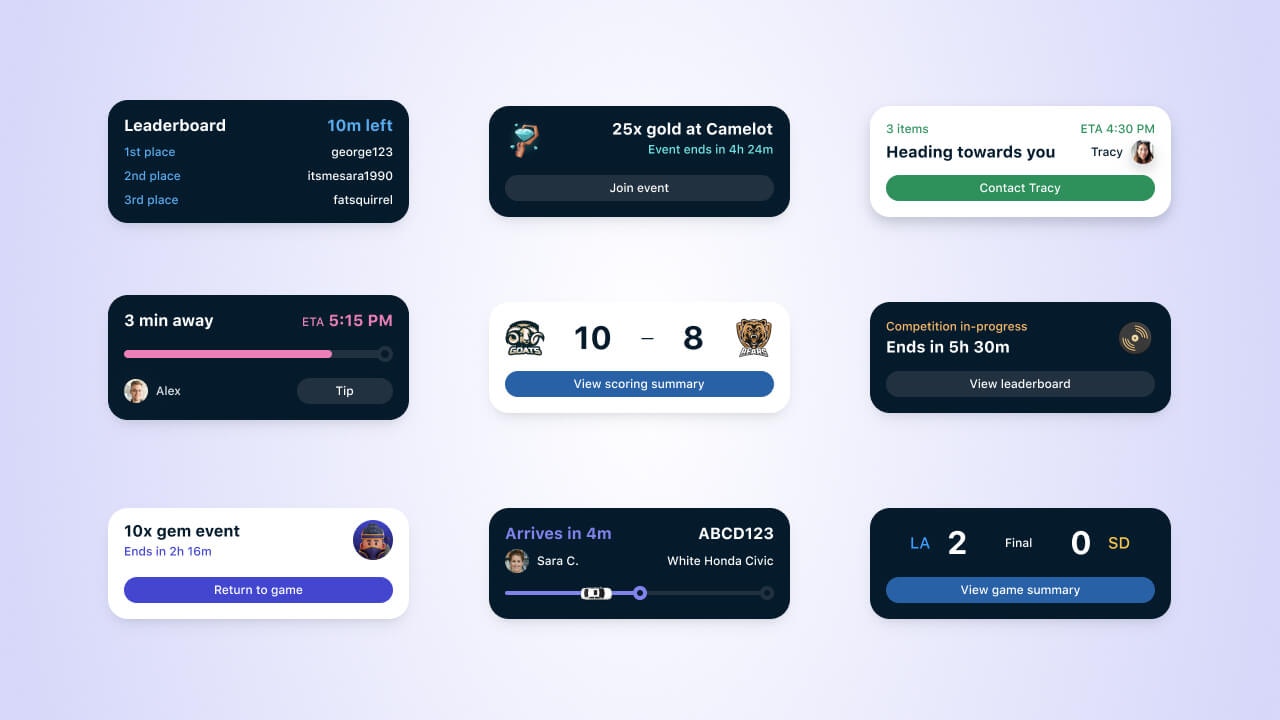
Live Activities examples
Live Activities are an iOS feature. For similar capability on Android, see Android Live Updates.
Android Live Updates
Android’s version of iOS Live Activities.
What makes Live Activities different
Live Activities combine four properties you get from no other channel:- Persistent placement. The activity holds a fixed spot on the Lock Screen and in the Dynamic Island for the life of the event, so users check it instead of opening your app.
- A separate permission. iOS governs Live Activities with their own setting. Users who declined push notifications still see your Live Activities.
- One call reaches every device. Send one Update Live Activity request and OneSignal delivers it to every device registered to that
activity_id. OneSignal stores and refreshes each device’s APNs update token for you. - Per-send analytics. Every update reports delivery, confirmed receipt, clicks, failures, and unsubscribes, using the same metric definitions as your other channels.
When to use Live Activities
Use a Live Activity when a user is waiting on something that changes while they wait. All four of the following must be true:- The user already expects the event. They started it, or they know it is coming. A Live Activity tracks something in progress. It does not announce something new.
- The status changes more than once. If the status changes once, send a push notification. If it never changes, build a widget.
- The event ends within 8 hours. Apple stops accepting updates after 8 hours.
- Each update is glanceable. An ETA, a score, a delivery status, a timer, a workout metric. If an update needs a full sentence to make sense, send a push notification.
- Ads, promotions, or flash sales. Apple requires that a Live Activity provide user value, and prohibits purely promotional content.
- Always-on data with no end, such as a stock ticker or the weather.
- Events that run longer than a day, such as multi-day shipping. Send a push notification at each milestone.
- Re-engaging users who are not expecting an update.
- Sensitive information. The Lock Screen is visible without unlocking the device.
Choose your update pattern
Decide who sees the same content before you build, because it determines theactivity_id you send.
Use a shared activity_id when many users follow the same event: a match, a concert, a launch, an auction close, or a service incident. One update request reaches every recipient. Target these sends with segments.
Use a unique activity_id per user or per order when each user tracks their own event: a delivery, a ride, an order, or a workout. Target these sends by user.
Target Live Activities with the same parameters as your other messages: Segments, Filters, aliases, and IDs. For details on choosing the value, see Choose an activity ID.
What Live Activities require from your app
Plan for iOS engineering work. Your Live Activity layout is a widget extension compiled into your app, so each new use case needs development and an App Store release. You cannot add a Live Activity use case from the dashboard the way you can with a push notification. Weigh that against how often you will use it. A use case that runs on every order or every match justifies the work. A single campaign does not.Get started
Requirements
- iOS 16.1+ or iPadOS 17+.
- OneSignal Mobile SDK integrated.
- Setup completed per the Live Activities Developer Setup.
- Click tracking and confirmed receipt require iOS SDK 5.2.15 or higher.
- Remote push-to-start requires iOS 17.2+ and iOS SDK 5.2.0+.
Start, update, and end an activity
1
Start a Live Activity
Start an activity in one of two ways:
- Remotely, by calling the Start Live Activity API (push-to-start).
- In-app, by using ActivityKit in your iOS code. See the Live Activities Developer Setup.
2
Update a Live Activity
Call the Update Live Activity API with the
activity_id. OneSignal delivers the update to every user registered under that activity_id, so choose the value based on who should see the same content. See Choose an activity ID.3
End a Live Activity
End an activity in one of three ways:
- OneSignal SDK (
exit()) - Update Live Activity API
- User action
- Tells OneSignal to stop sending updates for the given
activityId. Seeexit(). - Does not remove the activity from the screen. iOS removes it automatically after the 4-hour dismissal window or when the user dismisses it.
Lifecycle and limits
- Active updates: Up to 8 hours from when the activity starts.
- Dismissal window: After the activity ends, iOS keeps it visible for up to 4 more hours before removing it automatically. Set a
dismissal_dateto remove it sooner. - Stale period: If you set a
stale_date, iOS marks the activity as stale once that time passes, signaling the content is outdated so your widget can show a fallback message. The activity stays visible; stale is about freshness, not removal. See Setting a fallback message. - Limit: Up to 5 simultaneous Live Activities per app.
- Permissions: The first activity is provisional, so it needs no push permission. Whether later activities appear depends on whether the user tapped Allow on the first one.
Update frequency and throttling
Apple meters how often your Live Activities update, because frequent updates drain the device battery. Every update carries apriority, and only high-priority updates spend a budget that iOS maintains per device.
priority: 5delivers opportunistically and does not spend the budget, so there is no limit on how many you send. Use it for routine updates.priority: 10delivers immediately and spends the budget. Reserve it for updates that need the user’s immediate attention. When you omitpriority, OneSignal sends10.- Apple does not publish the size of the budget. iOS calculates it dynamically from device conditions and your app’s recent
priority: 10usage, then delays or drops updates once you exceed it. - Your budget is per device, not per audience. One update request sends one push to every device registered to that
activity_id, so a request every 10 seconds spends every recipient’s budget at that rate. - If your use case requires frequent high-priority updates, add
NSSupportsLiveActivitiesFrequentUpdatesto your app’sInfo.plistas a Boolean set toYES. Apple raises your budget. Apple does not remove it, so keep mixing inpriority: 5. See Apple’s guidance on update frequency. - Users can turn frequent updates off for your app in iOS Settings. Detect this in your app with ActivityKit’s
frequentPushesEnabledand store the value as a tag so you can lower your send rate for those users. OneSignal does not sync this setting for you.
priority field, see the Update Live Activity API.
Design your Live Activity
- Support every presentation: Compact, Minimal, Expanded, and Lock Screen.
- Apply your brand, spacing, and dark and light themes consistently.
- Prioritize clarity and tap targets. Do not try to draw attention to the Dynamic Island itself.
- Keep each activity only as long as the content remains useful, and set a
dismissal_dateproportional to the event. Apple suggests 15 to 30 minutes for most cases.
See Apple’s Live Activities Human Interface Guidelines for presentation detail and layout guidance.
Measure results
Track delivery, confirmed receipt, clicks, failures, and unsubscribes on every Live Activity send. Metrics follow the same definitions used across channels. See the Metrics glossary for canonical definitions, and Live Activities analytics for message reports, Audience Activity exports, and rate calculations.FAQ
Do I have access to Live Activities in my plan?
Live Activities are available on all plans except Free plans with more than 10,000 opted-in subscribers. Upgrade from the Free plan to use Live Activities. See pricing or contactsupport@onesignal.com.
How often can I update a Live Activity?
As often as you need when you sendpriority: 5, which delivers opportunistically and is unmetered. Only priority: 10 is metered: it spends a budget iOS calculates per device, and iOS delays or drops updates once you exceed it. Omitting priority sends 10. See Update frequency and throttling.
Where can I see Live Activities in the OneSignal dashboard?
Live Activities are sent only through the Live Activity APIs, but you can review historically sent activities in All messages filtered to Live Activities for up to 30 days. For aggregate trends, see Engagement Trends.Can I use Live Activities with cross-platform SDKs?
Yes. Live Activities work in apps built with React Native, Expo, Flutter, Unity, Cordova, Capacitor, and .NET MAUI. The SDK’ssetupDefault method manages the ActivityKit lifecycle so the only native code you write is the widget layout. See the Cross-platform Live Activity SDK setup.
Live Activities remain an iOS feature regardless of framework. They do not run on Android or the web. For Android, see Android Live Updates.
Can I target Live Activities with segments?
Yes. Start Live Activities remotely with the same targeting parameters as your other messages: Segments, filters, aliases, and IDs. Updates then go to every device registered to theactivity_id. See Choose an activity ID.
What devices support Live Activities?
Apple maintains the compatibility list for iOS 16+ and iPadOS 17+.What’s the difference between Delivered and Confirmed Receipt?
Delivered means APNs accepted the Live Activity update for delivery. Confirmed Receipt means the OneSignal SDK on the device confirmed that the update actually arrived. Confirmed Receipt requires iOS SDK 5.2.15+ and completed Confirmed receipt setup. See the Metrics glossary for the full definitions.Related
Live Activities Developer Setup
Integrate the OneSignal iOS SDK and configure your app for Live Activities.
Live Activities analytics
Message reports, Audience Activity, and CSV export for Live Activities.
Start Live Activity API
Start an activity remotely with push-to-start, including audience targeting.
Update Live Activity API
Update or end a running activity, and control when iOS dismisses it.
Android Live Updates
Deliver similar real-time experiences on Android devices.
Metrics glossary
Canonical definitions for every metric across dashboard, API, CSV, and Event Streams.