

Prerequisites
- OneSignal SMS set up for your app.
- The Admin role on the app or the organization to change settings. Other roles can view the limit. See Manage team members.
How the daily sending limit works
Each app has a daily sending limit. Find it at Settings > SMS / RCS > Pumping Protection.- Every app has a configurable default for text message sends per day.
- Apps with a consistent sending history will see their limit grow from the default.
- Sending history will never shrink your limit beyond your configured default.
- You can schedule an override if you expect to need a different limit.
- The limit resets at 12 AM UTC.
- Text messages you send yourself from the OneSignal dashboard don’t count toward the limit.
- If you know you do not need this layer of protection, you may opt out.
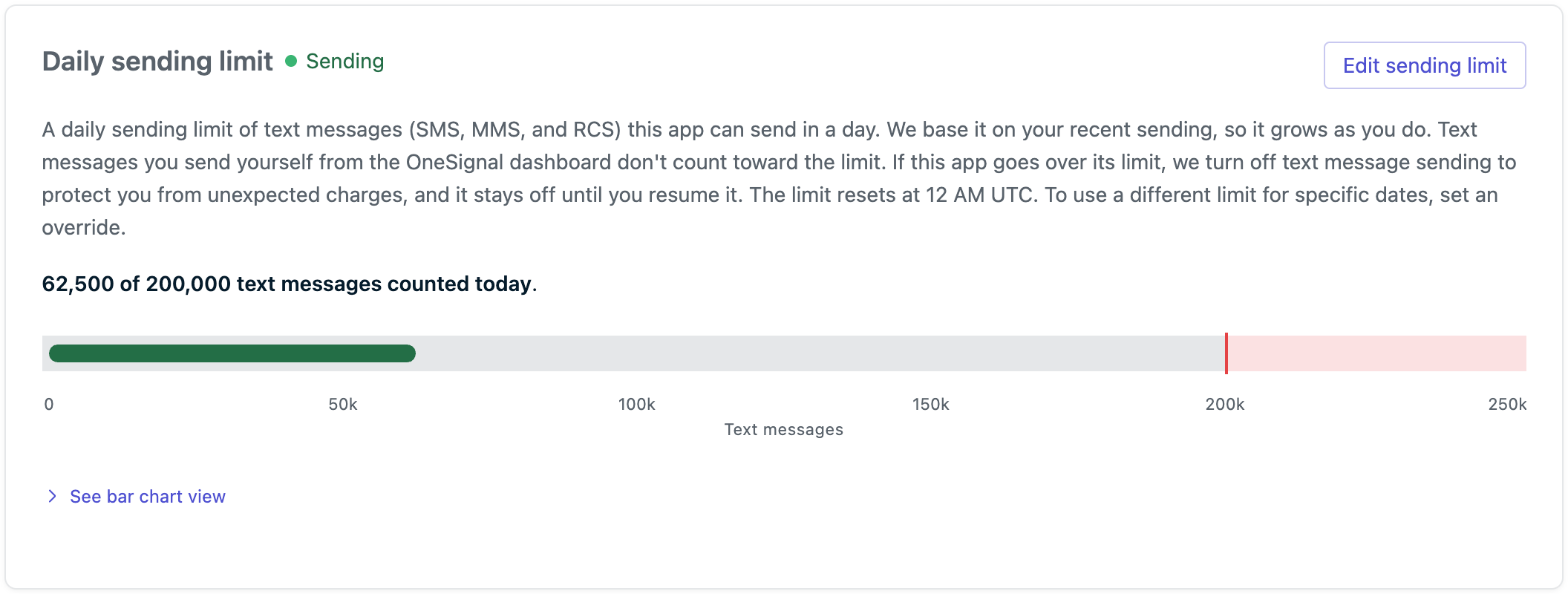
An app well under its daily sending limit.
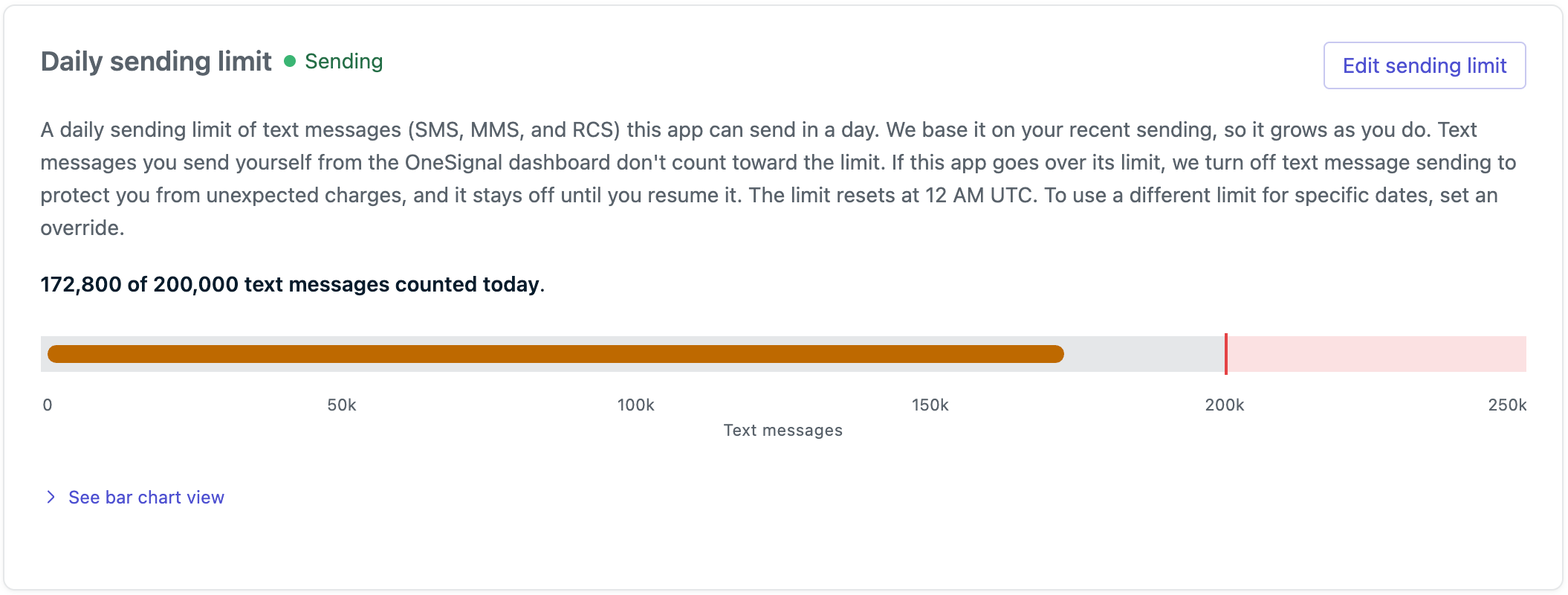
An app approaching its daily sending limit.
When an app reaches its limit
OneSignal turns off text message sending for the app. The Pumping Protection tab shows Sending stopped, and sending stays off until you resume it.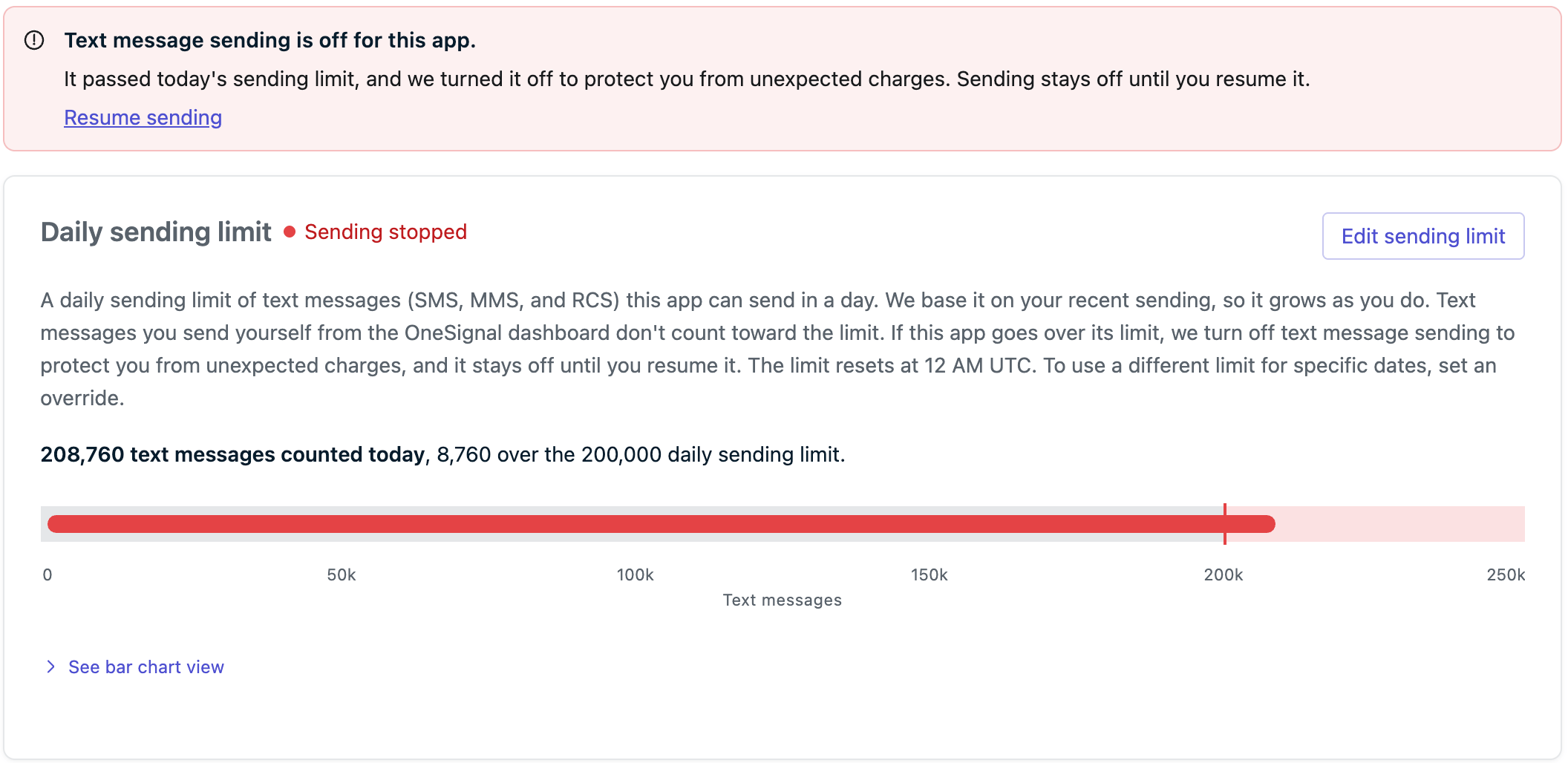
An app over its daily sending limit, with sending stopped.
Resume sending
- Go to the Pumping Protection tab.
- Click Resume sending, then confirm.
Change the limit
Set the default limit
Click Edit sending limit and change Default daily sending limit. The app uses the default limit or its history-based limit, whichever is higher.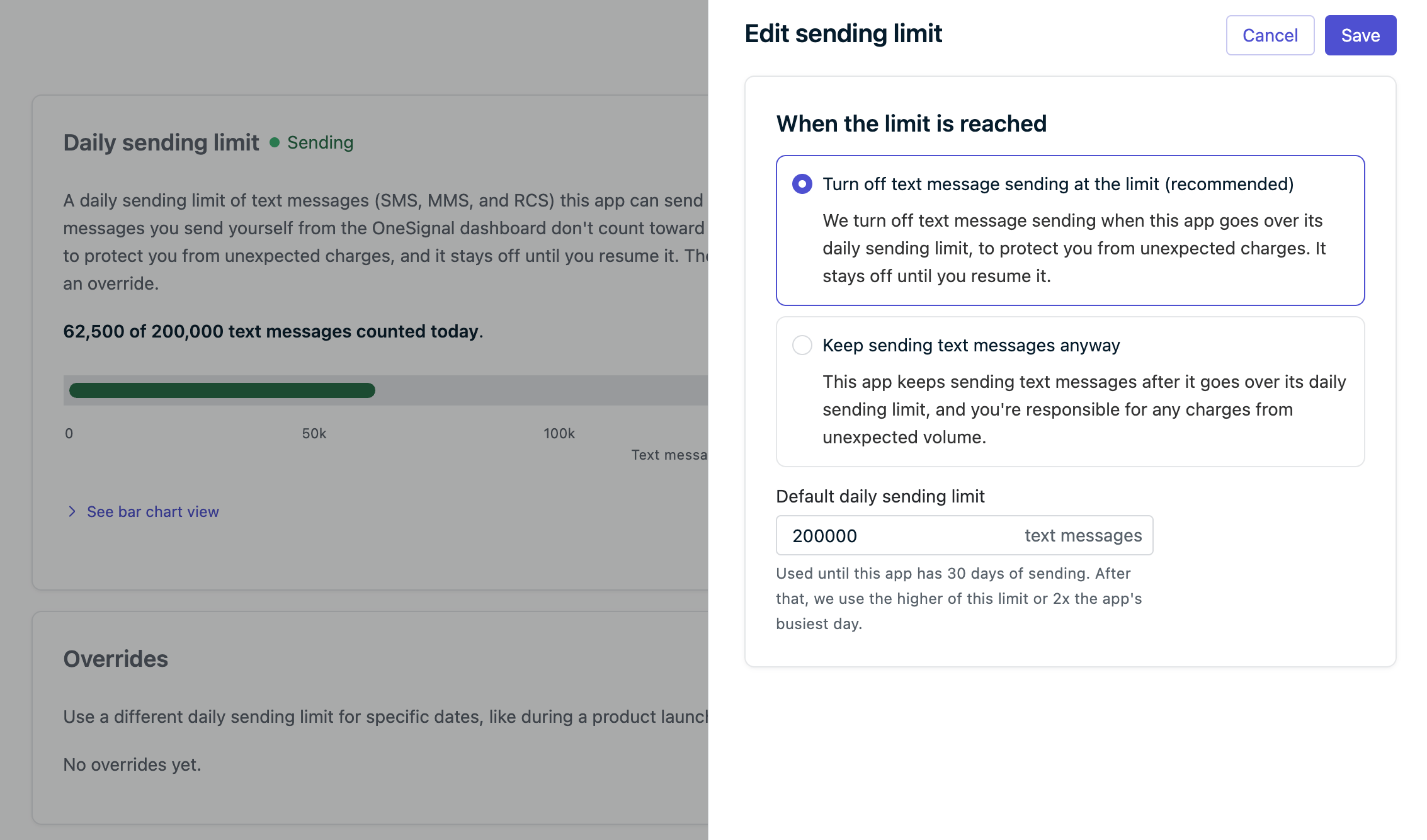
The Edit sending limit drawer.
Schedule an override
Overrides give you the flexibility to temporarily adjust your limit to fit your needs.- Click Schedule override.
- Set Start date and time, End date and time, and Daily sending limit during override period.
- Click Save override.
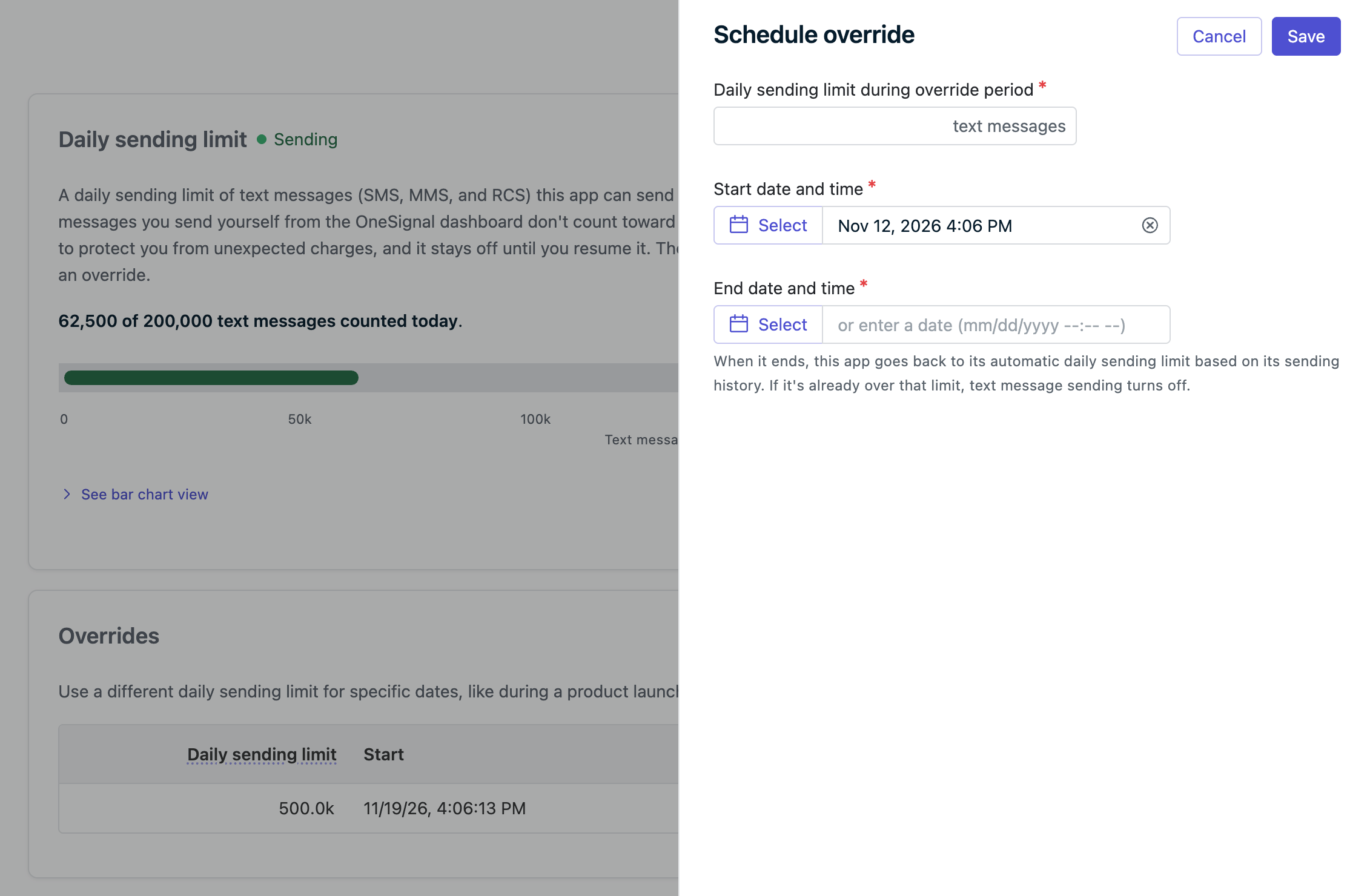
The Schedule override drawer.
After an override ends: if the app is over its daily sending limit, sending will be disabled. (See Resume sending)
Opting out of the daily sending limit
You can choose what happens when the app reaches its limit. Click Edit sending limit and, under When the limit is reached, select one:- Turn off text message sending at the limit (recommended): Stay opted in to the daily sending limit to stop sending at the limit until you resume it.
- Keep sending text messages anyway: Opt out of the daily sending limit to continue sending past the limit. OneSignal will still email you as the app approaches its limit, and again when it reaches the limit.
FAQ
Why did my SMS messages fail with “Daily SMS volume limit exceeded”?
The app reached its daily sending limit, and OneSignal turned off text message sending. Resume sending, or schedule an override for planned high-volume sends.Why can’t I change the limit?
Only users with the Admin role on the app or the organization can change daily sending limit settings. Ask an Admin on your team.Related pages
SMS message reports
Find failed messages and their error text in Audience Activity.
SMS regulatory compliance
See every protection OneSignal uses to prevent SMS fraud.