

init 옵션 및 코드에서의 서비스 워커 경로가 필요한 경우 맞춤 코드를 사용하세요.
WordPress 설정
Shopify 설정
맞춤 코드 설정
OneSignal.init()에서 프롬프트, init 옵션 및 서비스 워커 경로를 설정하세요.요구 사항
- HTTPS 웹사이트: 웹 푸시는 HTTP 또는 시크릿/프라이빗 모드에서 작동하지 않습니다.
- 서버 액세스: 서비스 워커 파일을 사이트에 업로드해야 합니다.
- 단일 원본: 웹 푸시는 동일 원본 정책을 따릅니다. 여러 원본(도메인/하위 도메인)이 있는 경우 원본당 하나씩 여러 OneSignal 앱이 필요합니다. 이 브라우저 제한을 준수하려면 다음 중 하나를 수행할 수 있습니다:
- 구독을 위해 트래픽을 단일 원본으로 리디렉션합니다.
- 원본당 하나씩 여러 OneSignal 앱을 생성합니다.
OneSignal 앱 및 플랫폼 구성
OneSignal 대시보드에서:- 설정 > Push & In-App > 웹으로 이동합니다.
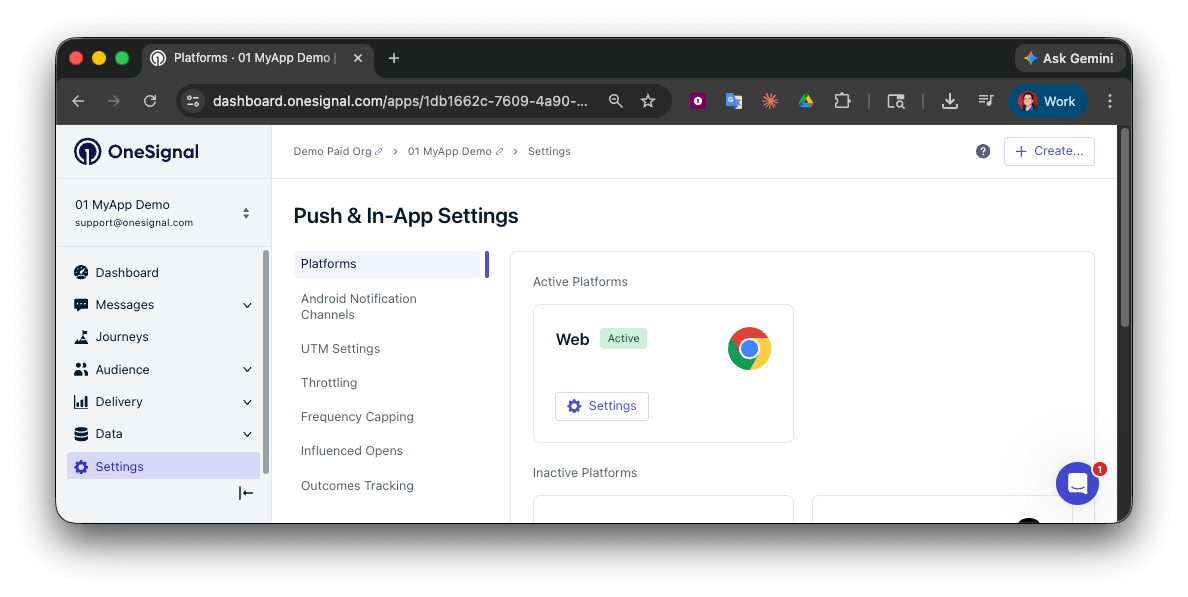
OneSignal 설정에서 웹 플랫폼 활성화
일반 사이트 (권장)
WordPress
맞춤 코드
사이트 설정
사이트 세부 정보를 추가하세요:- Site Name: 사이트 이름 및 기본 알림 제목입니다.
- Site URL: 사이트의 URL입니다. 자세한 내용은 사이트 URL을 참조하세요.
- Auto Resubscribe: 사용자가 브라우저 데이터를 지우고 사이트로 돌아올 때 자동으로 재구독할 수 있도록 이 옵션을 활성화합니다 (새로운 권한 프롬프트 필요 없음).
- Default Icon URL: 알림 및 프롬프트에 표시되는 정사각형
256×256PNG, JPG 또는 애니메이션이 아닌 GIF를 업로드하세요. 설정하지 않으면 기본 아이콘으로 벨이 사용됩니다. 알림 아이콘을 참조하세요.
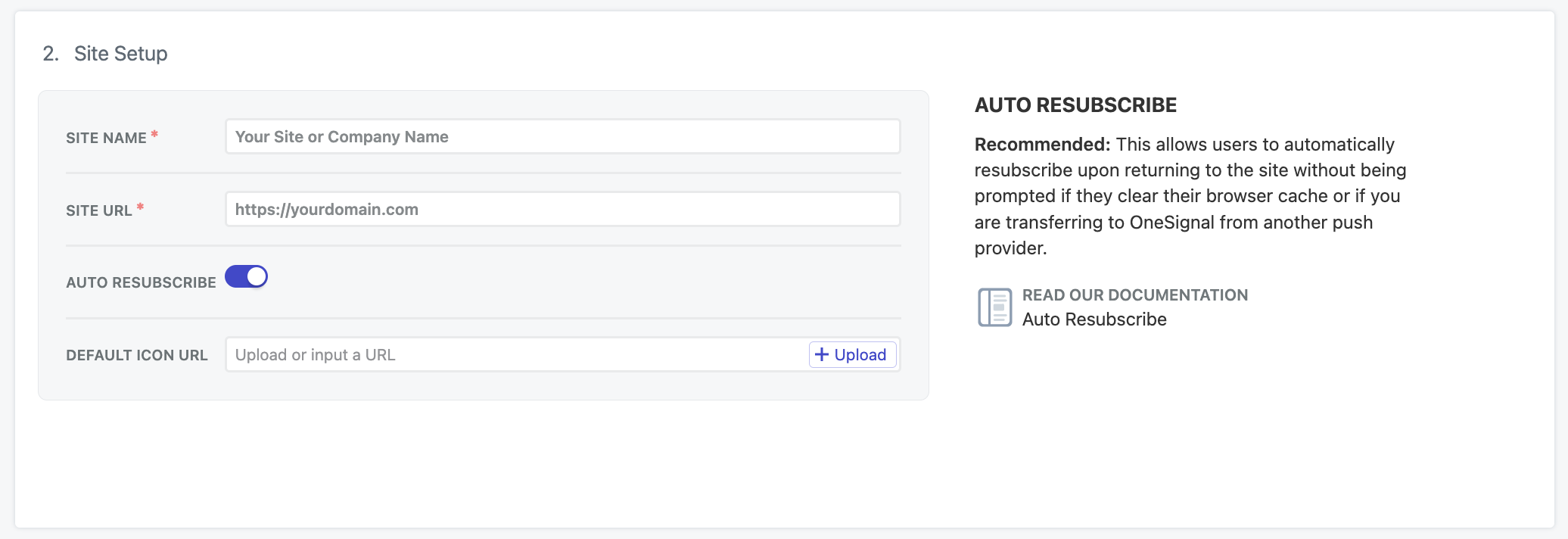
OneSignal 대시보드의 웹 설정
사이트 URL
사이트의 정확한 원본을 입력하세요 (예:https://yourdomain.com). 사이트가 그렇게 구성되지 않은 경우 www. 사용을 피하세요.
여러 원본이 있는 경우 요구 사항을 참조하세요.
로컬 테스트
웹 SDK는 localhost 환경에서 테스트할 수 있습니다. localhost에서 테스트하는 경우 프로덕션 앱과 별도의 OneSignal 앱을 사용하세요.Localhost 구성
Localhost 구성
http://localhosthttps://localhost:3000http://127.0.0.1https://127.0.0.1:5000
http://localhost와 http://127.0.0.1을 보안 원본으로 처리하므로 SDK는 해당 호스트에서만 HTTP를 통해 초기화할 수 있습니다. 다른 호스트 이름 (예: http://mysite.local)은 보안으로 처리되지 않으므로 웹 푸시 테스트에 사용할 수 없습니다.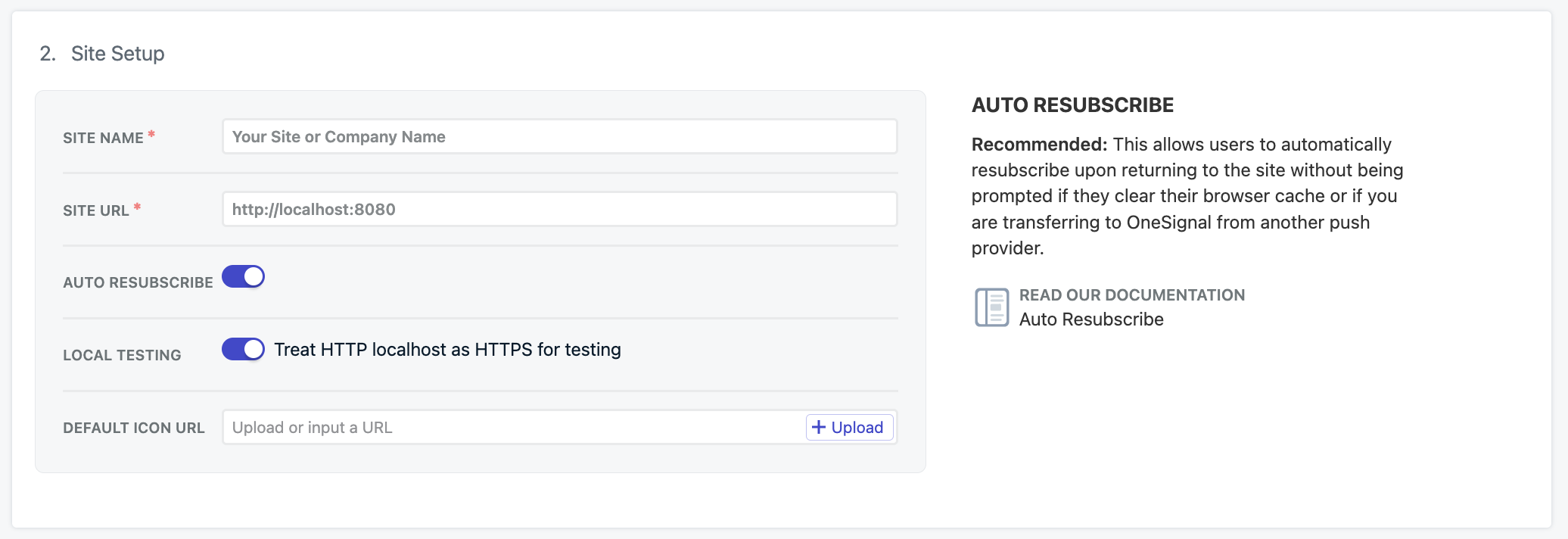
OneSignal 대시보드의 로컬 테스트
init 옵션에 allowLocalhostAsSecureOrigin: true를 추가하세요.자체 서명된 인증서로 HTTPS에서 localhost를 테스트하는 경우 Chrome이 테스트용 유효하지 않은 인증서를 무시하도록 요청해야 할 수 있습니다: --allow-insecure-localhost. Firefox 및 Safari는 보안 인증서에 대한 예외를 추가하는 기본 제공 메커니즘을 제공합니다.권한 프롬프트
일반 사이트 설정을 사용하면 사용자 또는 팀 구성원이 언제든지 OneSignal 대시보드를 통해 권한 프롬프트를 추가, 제거 및 업데이트할 수 있습니다.웹 권한 프롬프트
환영 알림 (선택 사항)
사용자가 푸시 알림을 구독할 때 전송할 환영 알림을 설정할 수도 있습니다. 일반 사이트와 WordPress는 대시보드에서 이를 설정합니다. 맞춤 코드는OneSignal.init()에서 welcomeNotification을 설정합니다.
대시보드에서 설정하려면 설정 > Push & In-App > 웹으로 이동하세요:
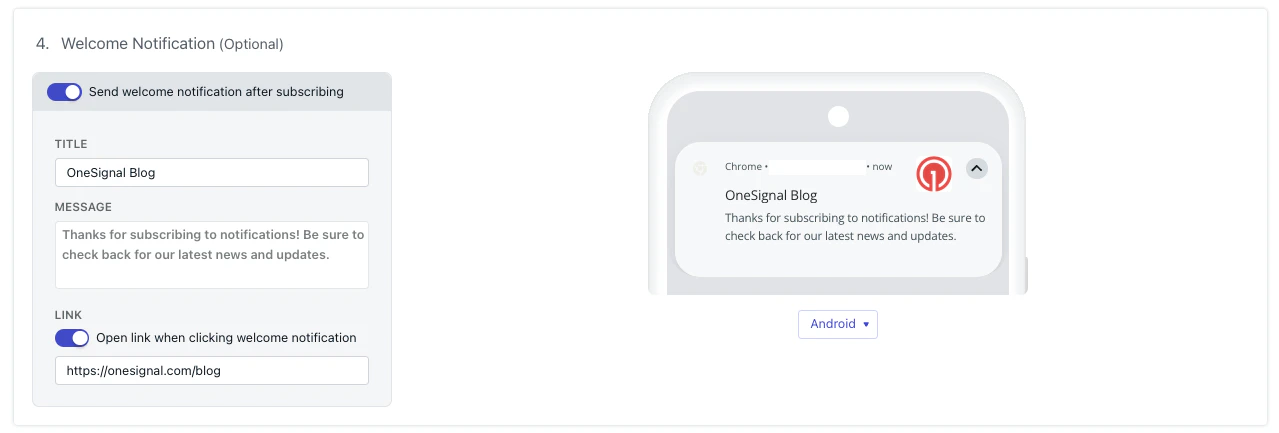
환영 알림 구성
welcomeNotification 매개변수를 참조하세요.
고급 설정
다음 기능은 OneSignal 대시보드에서 구성할 수 있습니다.Webhooks
웹 SDK는 특정 웹 푸시 이벤트를 선택한 URL로POST할 수 있습니다.
웹 푸시 Webhook은 이벤트 Webhook과 별도의 구현이며 상호 교환하여 사용할 수 없습니다.
웹 푸시 웹훅
서비스 워커
웹 SDK는 다른 위치를 지정하지 않는 한 사이트 루트(https://yourdomain.com/OneSignalSDKWorker.js)에서 OneSignalSDKWorker.js를 찾습니다.
루트가 아닌 위치를 SDK에 알리는 방법은 선택한 통합 유형에 따라 다릅니다.
일반 사이트: 대시보드에서 경로를 설정하세요. 코드에서 serviceWorkerPath를 설정하지 마세요.
파일을 루트에 호스팅하는 경우 기본 경로 설정을 그대로 두세요. 하위 디렉토리에 호스팅하는 경우 아래 경로를 설정해야 하며, 그렇지 않으면 SDK가 여전히 /OneSignalSDKWorker.js를 요청하고 등록이 실패합니다.
- 설정 > Push & In-App > 웹으로 이동합니다.
- Advanced Push Settings를 엽니다.
- Customize service worker paths and filenames를 활성화합니다.
- 파일의 공개 URL과 일치하도록 필드를 설정합니다:
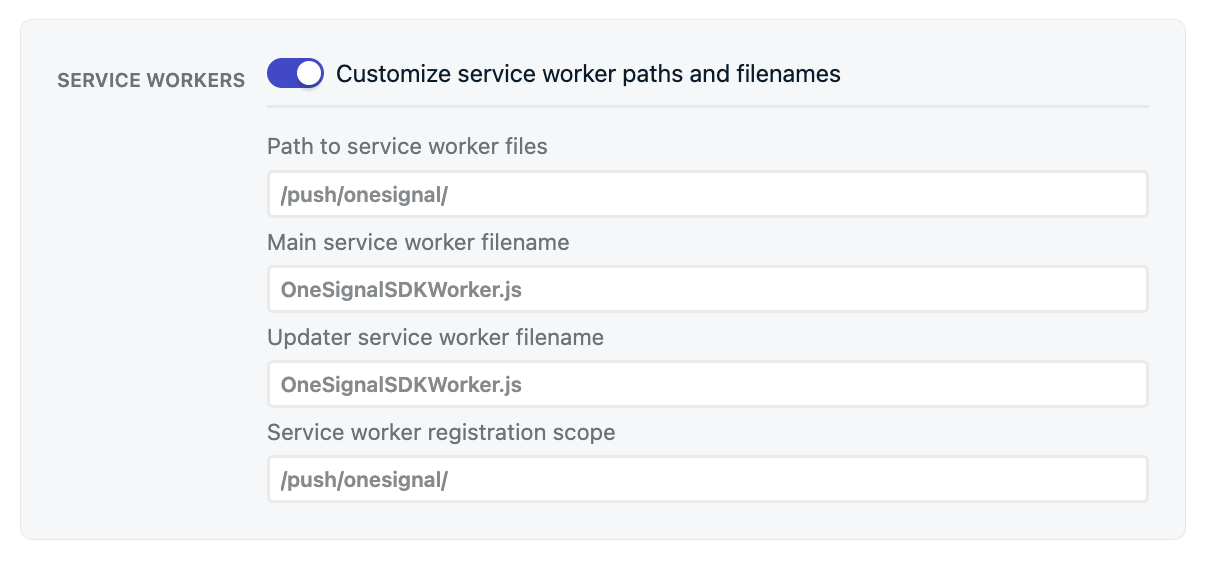
서비스 워커 구성
https://yourdomain.com/push/onesignal/OneSignalSDKWorker.js에서 공개적으로 액세스할 수 있어야 합니다.
맞춤 코드: 대시보드 경로 필드를 사용하지 마세요. OneSignal.init()에 serviceWorkerPath와 serviceWorkerParam을 전달하세요. init 옵션은 맞춤 코드 설정을, 워커 결합 및 마이그레이션은 OneSignal 서비스 워커를 참조하세요.
클릭 동작
클릭 동작은 사용자가 이미 동일 원본 탭에서 사이트를 열어둔 경우에 발생하는 일만 변경합니다. 일치하는 탭이 열려 있지 않으면 브라우저는 알림 URL로 새 탭을 엽니다. 이 설정은 그 동작을 변경하지 않습니다. 클릭 동작은 Chrome, Edge, Firefox 및 Safari에서 작동합니다. 실행 URL이 설정되지 않은 경우 알림 URL은 홈페이지입니다. 실행 URL을 설정하여 사용자를 특정 페이지로 보내거나, UTM 추적을 추가하거나, 페이지를 열지 않고 닫으려면?_osp=do_not_open을 추가하세요.
동일 원본 탭이 이미 열려 있는 경우 동작은 선택한 설정에 따라 달라집니다:
URL, 링크 및 딥 링킹
?_osp=do_not_open으로 알림을 닫으세요.액션 버튼
웹 SDK 푸시 이벤트 리스너
지속성
지속성은 사용자가 알림과 상호 작용할 때까지 알림을 화면에 유지합니다. 데스크톱의 Chrome 및 Edge에서만 작동합니다. Firefox, Safari 및 모든 모바일 브라우저는 이를 무시합니다. 지속적인 알림은 텍스트, 이미지 및 액션 버튼을 가릴 수 있으므로 사용자에게 문제가 되는 경우 비활성화하는 것이 좋습니다. 값이 설정되지 않은 경우 SDK는 현재 지속성을 켜진 것으로 처리합니다.- 일반 사이트: 설정 > Push & In-App > 웹의 Persistence 토글을 사용하세요.
- 맞춤 코드:
OneSignal.init()에서persistNotification을 설정하세요. 대시보드 토글은 적용되지 않습니다.persistNotification을 참조하세요.
Safari Web Push .p12 인증서 (선택 사항, 레거시)
이미 자체 Safari Web Push.p12 인증서가 있고 레거시 Safari 사용자를 지원하려는 경우가 아니라면 이 옵션을 끄세요.
최신 Safari(macOS 13+ 및 iOS 16.4+)는 VAPID(Voluntary Application Server Identification)를 사용하는 표준 기반 웹 푸시를 사용합니다. OneSignal은 VAPID를 자동으로 처리합니다. 해당 브라우저를 위한 인증서는 업로드하지 않습니다.
Apple은 Safari 웹 푸시를 위한 .p8 토큰이나 키를 제공하지 않습니다. 네이티브 iOS 및 macOS 앱은 .p8을 사용하여 APNs로 인증합니다. Safari 웹 푸시는 그렇지 않습니다. Safari에 적용되는 유일한 Apple 자격 증명은 Safari Web Push .p12 인증서이며, 레거시 Website Push ID 경로에만 해당됩니다.
해당 레거시 경로는 여전히 다음에 적용됩니다:
- macOS 12 이하의 Safari (VAPID 없음)
- 이전 Safari API를 통해 이미 권한을 부여한 기존 구독자 (Safari는 해당 구독을 VAPID로 마이그레이션하지 않음)
.p12 파일과 비밀번호를 업로드하세요. 일반 사이트와 맞춤 코드 모두 대시보드에서 이를 설정합니다. OneSignal.init()에서는 설정하지 않습니다.
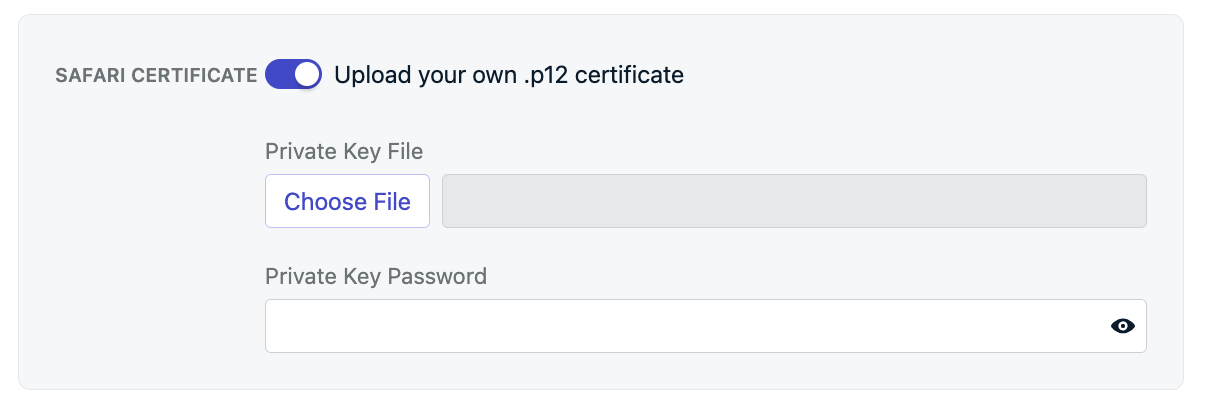
Safari Web Push .p12 인증서 (선택 사항, 레거시)
서비스 워커 파일 업로드
사이트에OneSignalSDKWorker.js 서비스 워커 파일을 추가하세요.
OneSignal 대시보드에서 다운로드하거나 다음 한 줄로 OneSignalSDKWorker.js라는 파일을 생성하세요:
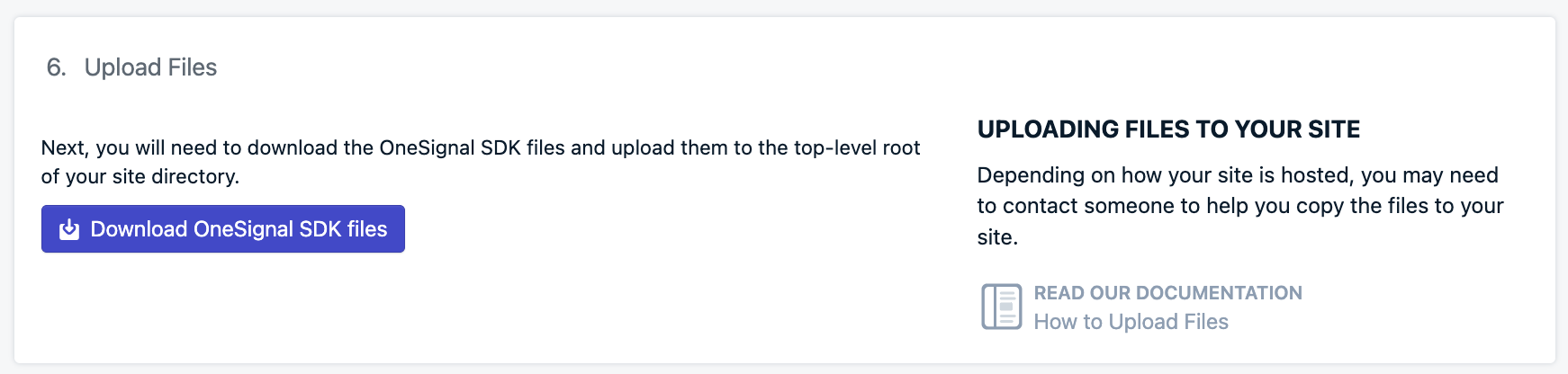
서비스 워커 파일 업로드 단계
OneSignal.init()에서 경로를 설정하세요. 맞춤 코드 설정을 참조하세요.
루트 (기본값): 파일이 https://yourdomain.com/OneSignalSDKWorker.js에서 사용 가능하도록 업로드하세요. 서비스 워커 경로 설정을 변경하지 마세요. SDK가 이 URL을 자동으로 요청합니다.
하위 디렉토리: 사이트에 이미 서비스 워커가 있는 경우(예: PWA), /를 소유한 워커와 충돌하지 않도록 OneSignal의 파일을 /push/onesignal/과 같은 하위 디렉토리에 넣으세요. 그런 다음 SDK에 찾을 위치를 알려주세요: 서비스 워커를 따라 Customize service worker paths and filenames를 활성화하세요. Path to service worker files와 Service worker registration scope를 해당 하위 디렉토리(예: /push/onesignal/)로 설정하세요. 파일은 https://yourdomain.com/push/onesignal/OneSignalSDKWorker.js에서 공개적으로 액세스할 수 있어야 합니다.
파일이 서버에 있으면 다음을 확인하여 작동하는지 확인하세요:
위치 확인
- 기본값:
https://yourdomain.com/OneSignalSDKWorker.js - 하위 디렉토리 예:
https://yourdomain.com/push/onesignal/OneSignalSDKWorker.js
원본에서 공개적으로 액세스할 수 있어야 함
OneSignalSDKWorker.js 파일은 원본에서 공개적으로 액세스할 수 있고 사용 가능해야 합니다. CDN을 통해 호스팅되거나 리디렉션으로 다른 원본에 배치될 수 없습니다.파일의 URL을 방문하면 코드가 표시되어야 합니다.content-type: application/javascript로 제공되어야 함
OneSignal 서비스 워커
사이트에 코드 추가
JavaScript SDK로 사이트에서 OneSignal을 초기화하려면 제공된 코드를 웹사이트의<head> 태그에 복사하세요. OneSignal 대시보드는 앱 ID가 미리 입력된 동일한 코드 스니펫을 제공합니다.
Google Tag Manager로 스크립트를 로드하는 경우 여기서 멈추고 Google Tag Manager 설정을 따르세요. 해당 가이드는 이 대시보드 및 서비스 워커 작업을 사용한 다음 아래 스니펫을 붙여넣는 대신 GTM에서 SDK를 초기화합니다.
iOS 웹 푸시 지원
Apple은 iOS 16.4+를 실행하는 iPhone 및 iPad에서 웹 푸시 알림 지원을 시작했습니다. 지원되는 브라우저에서 추가 설정 없이 웹 푸시가 작동하는 Android 기기와 달리 Apple은manifest.json 파일과 사용자가 홈 화면에 사이트를 추가하는 작업을 요구합니다.
iOS 웹 푸시 설정
manifest.json 파일을 추가하고 사용자가 홈 화면에 사이트를 추가하도록 안내합니다.Testing the OneSignal SDK integration
This guide helps you verify that your OneSignal SDK integration is working correctly by testing push notifications and subscription registration.Check web push subscriptions
Launch your site on a test device.
- Use Chrome, Firefox, Edge, or Safari while testing.
- Do not use Incognito or private browsing mode. Users cannot subscribe to push notifications in these modes.
- The prompts should appear based on your permission prompts configuration.
- Click Allow on the native prompt to subscribe to push notifications.
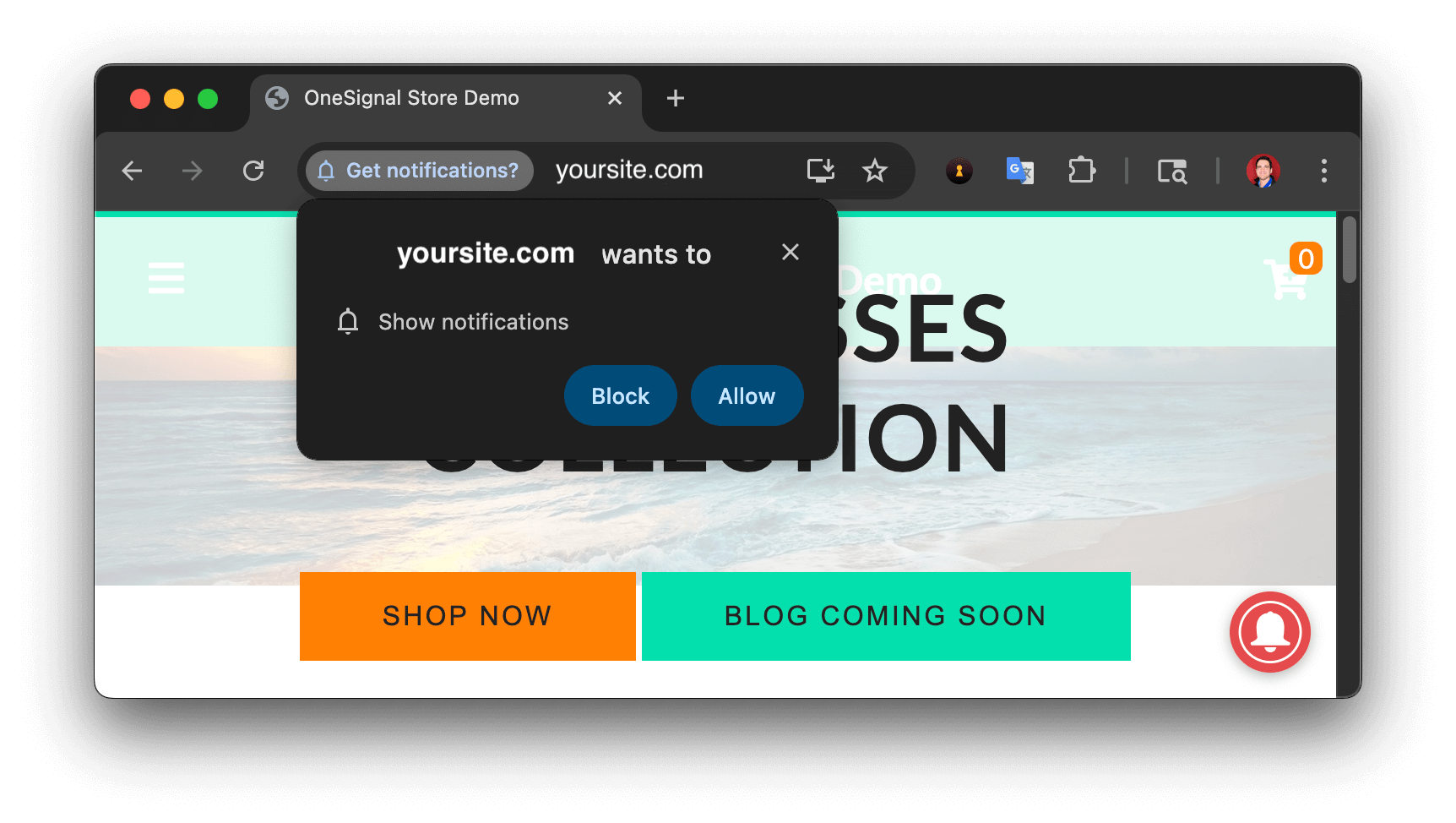
Web push native permission prompt
Check your OneSignal dashboard
- Go to Audience > Subscriptions.
- You should see a new entry with the status Subscribed.
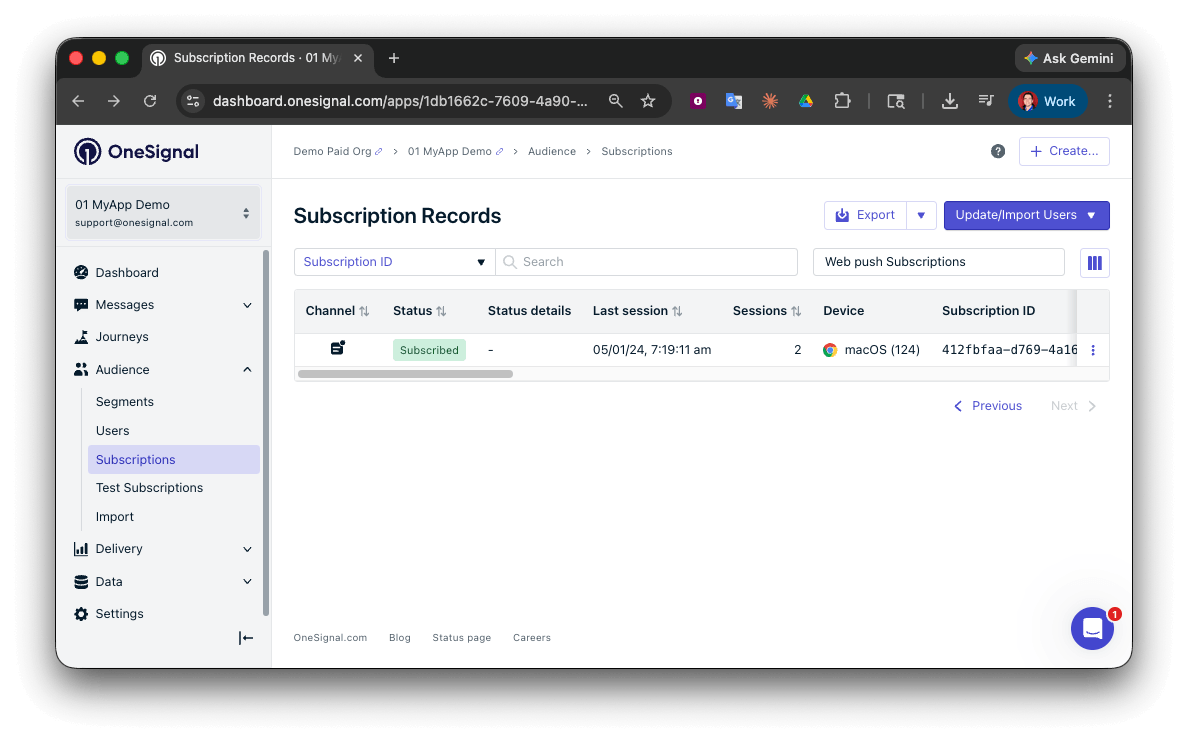
Dashboard showing subscription with 'Subscribed' status
Set up test users
test users are helpful for testing a push notification before sending a message.Add to Test Users.

Adding a device to Test Users
Name your subscription.
Create a test users segment.
Name the segment.
Test Users (the name is important because it will be used later).Add the Test Users filter and click Create Segment.
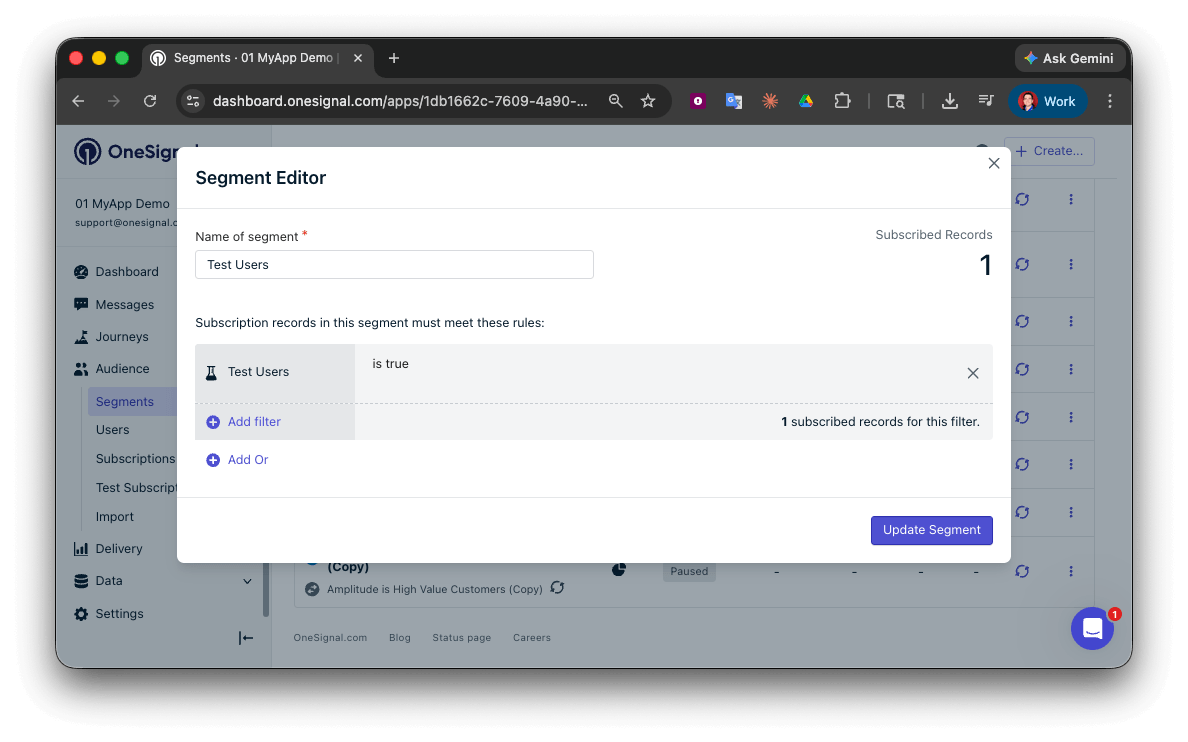
Creating a 'Test Users' segment with the Test Users filter
Send test push via API
Get your App API Key and App ID.
Update the provided code.
YOUR_APP_API_KEY and YOUR_APP_ID in the code below with your actual keys. This code uses the Test Users segment we created earlier.Run the code.
Check images and confirmed receipt.
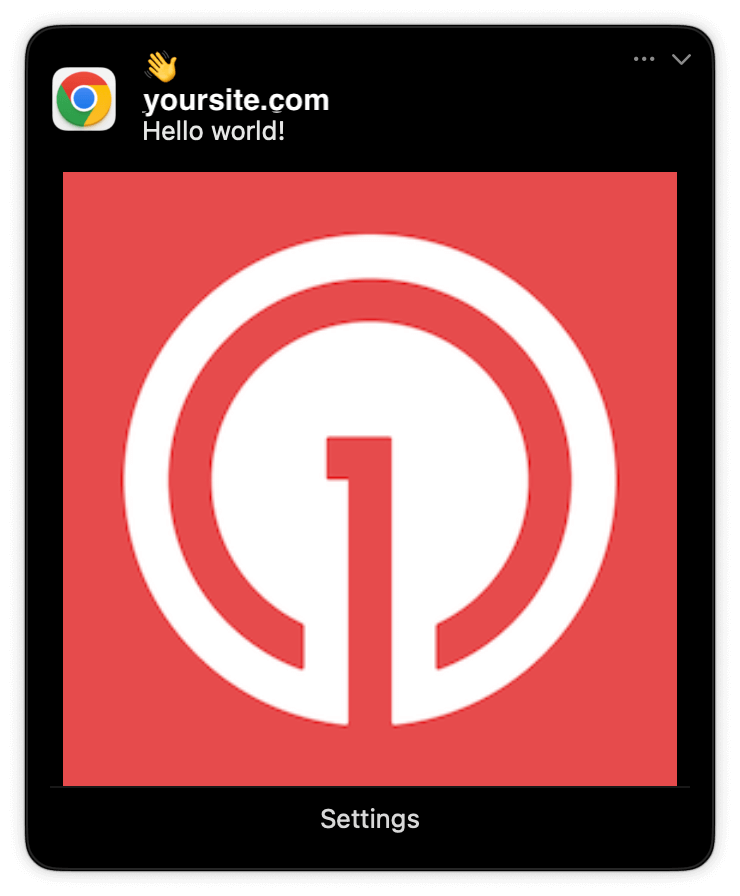
Expanded push notification with image on Chrome macOS
Check for confirmed receipt.
푸시 알림 메시지 보고서
support@onesignal.com with the following:
- The API request and response (copy-paste into a
.txtfile) - Your Subscription ID
- Your website URL with the OneSignal code
User identification
The previous section covered creating web push Subscriptions. This section expands to identifying Users across all their subscriptions (including push, email, and SMS) using the OneSignal SDK. It covers External IDs, tags, multi-channel subscriptions, privacy, and event tracking to help you unify and engage users across platforms.Assign External ID
Use an External ID to identify users consistently across devices, email addresses, and phone numbers using your backend’s user identifier. This ensures your messaging stays unified across channels and 3rd party systems (especially important for Integrations). Set the External ID with the SDK’slogin method each time a user is identified by your app.
Add Tags
Tags are key-value pairs of string data you can use to store user properties (likeusername, role, or preferences) and events (like purchase_date, game_level, or user interactions). Tags power advanced Message Personalization and Segmentation allowing for more advanced use cases.
Set tags with the SDK’s addTag and addTags methods as events occur in your app.
In this example, the user reached level 6 identifiable by the tag called current_level set to a value of 6.
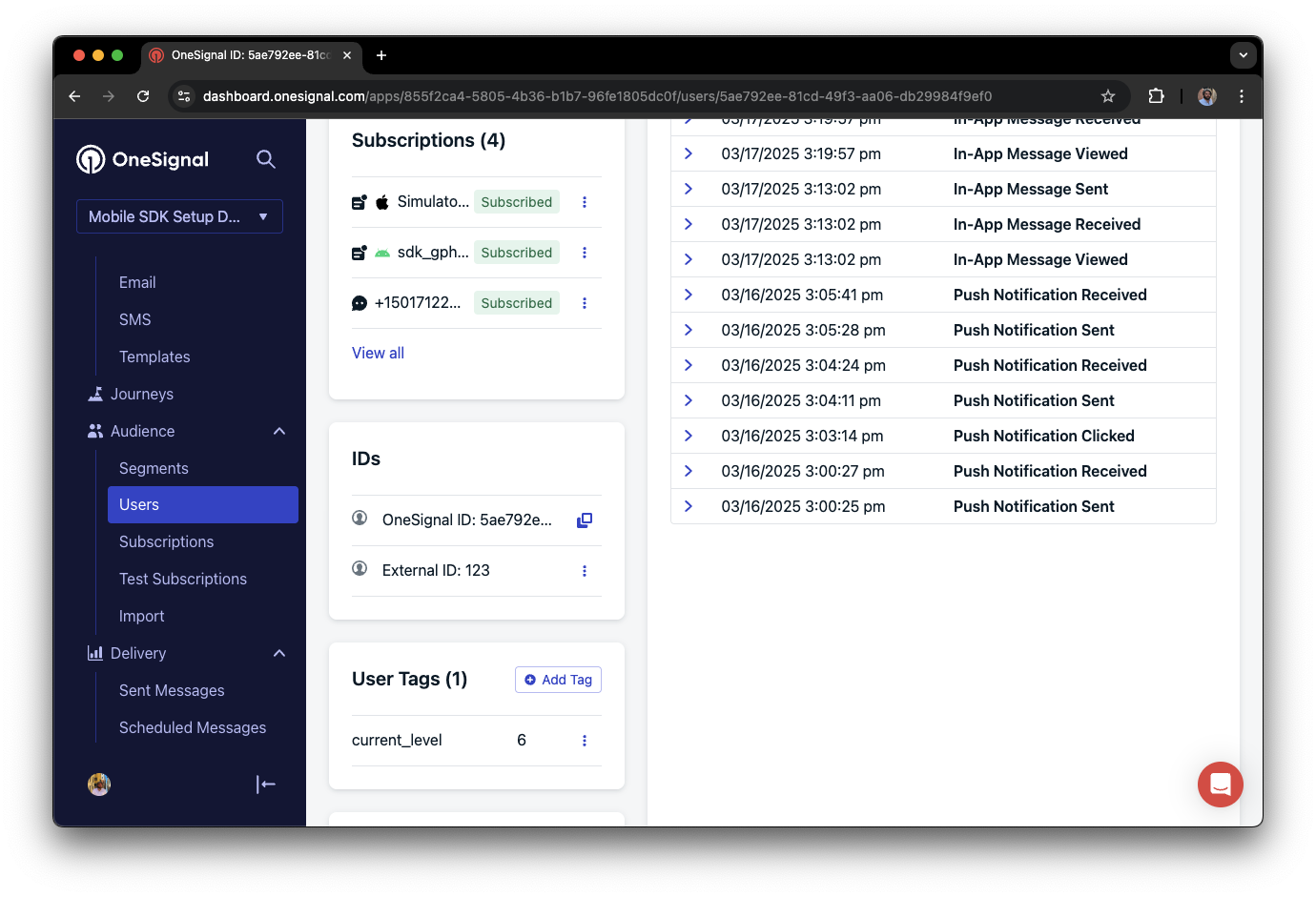
A user profile in OneSignal with a tag called "current_level" set to "6"
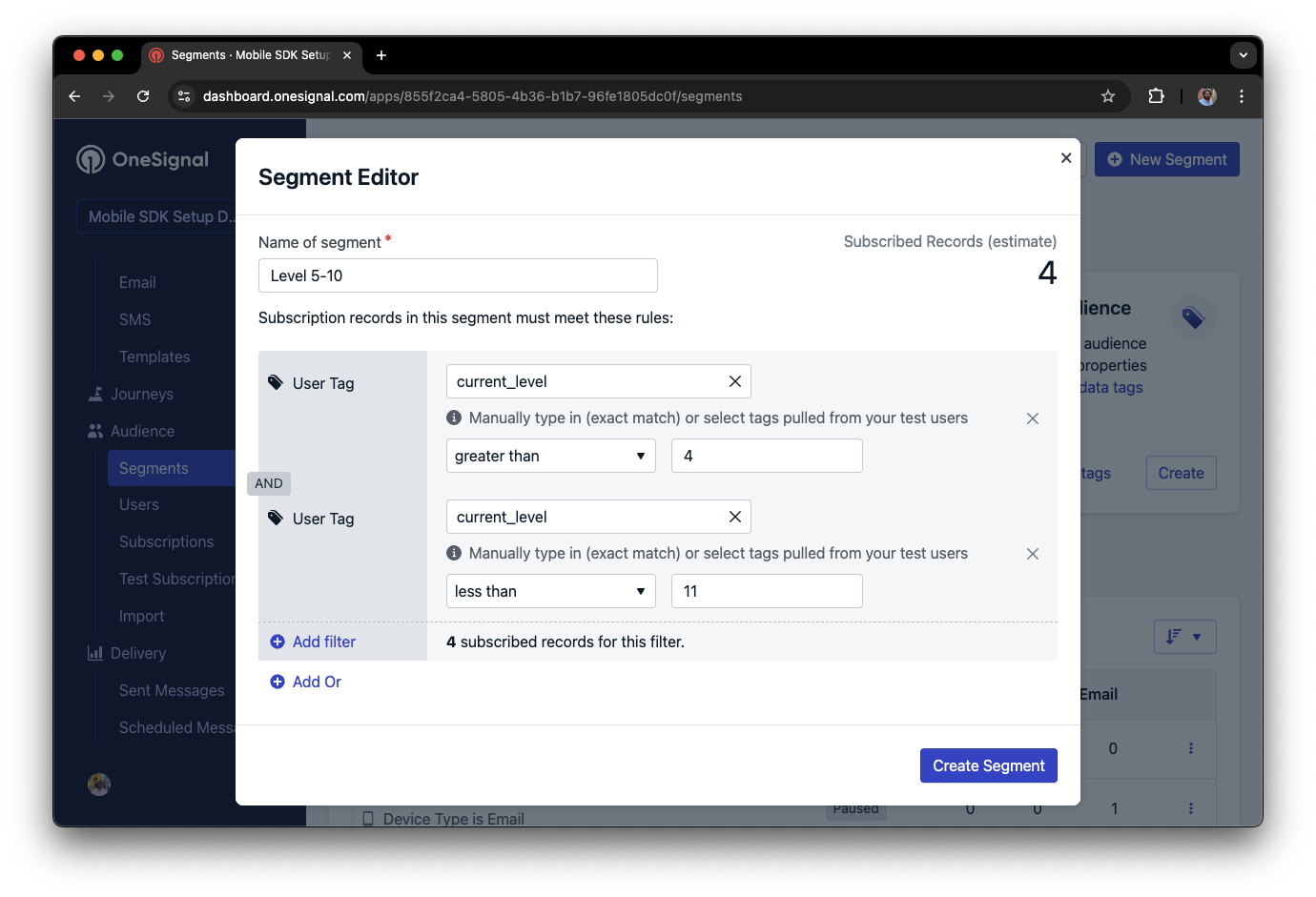
Segment editor showing a segment targeting users with a current_level value of greater than 4 and less than 10
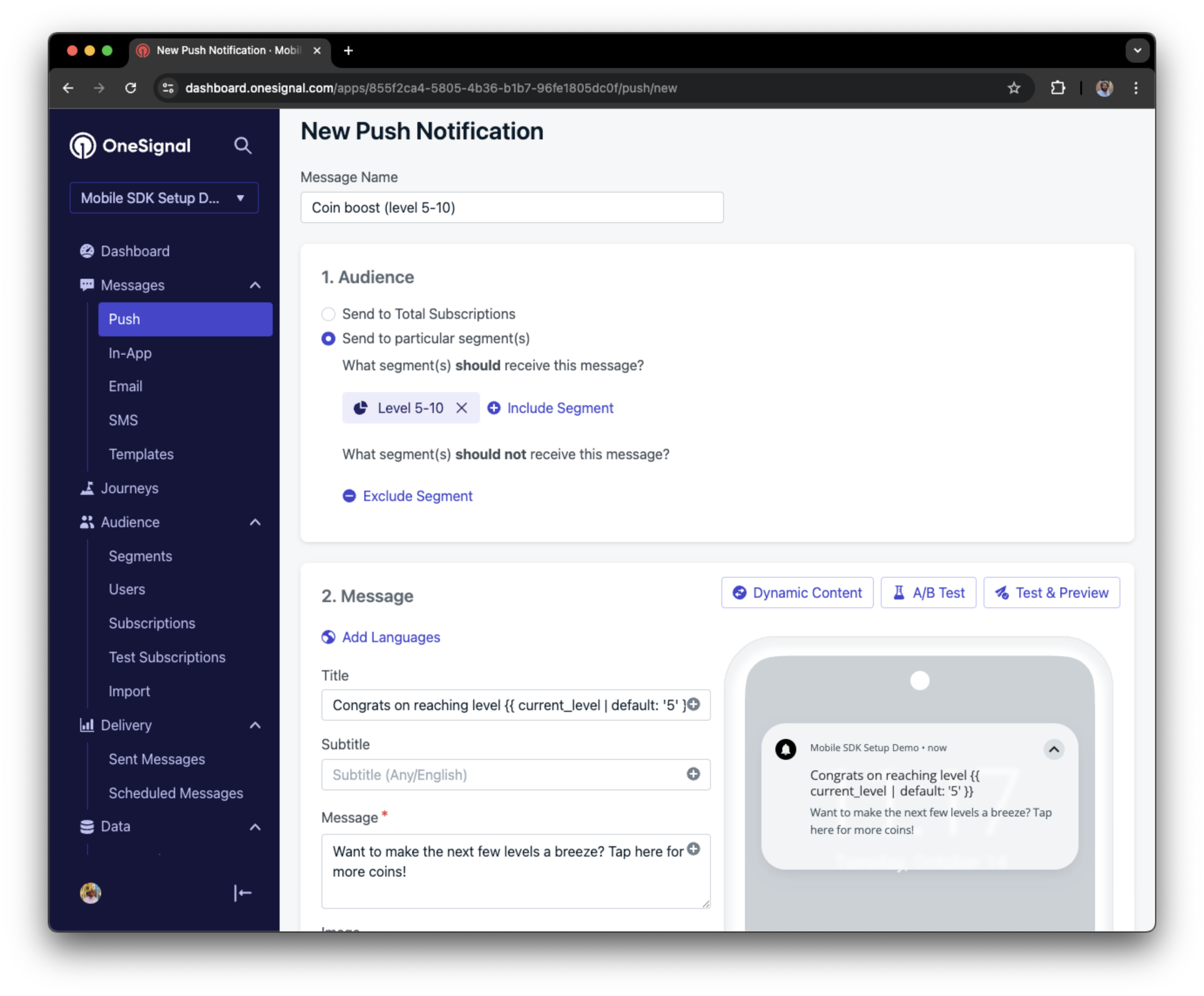
Screenshot showing a push notification targeting the Level 5-10 segment with a personalized message
Add email and/or SMS subscriptions
The OneSignal SDK creates web push subscriptions automatically when users opt in. You can also reach users through email and SMS channels by creating the corresponding subscriptions.- Use the
addEmailmethod to create email subscriptions. - Use the
addSmsmethod to create SMS subscriptions.
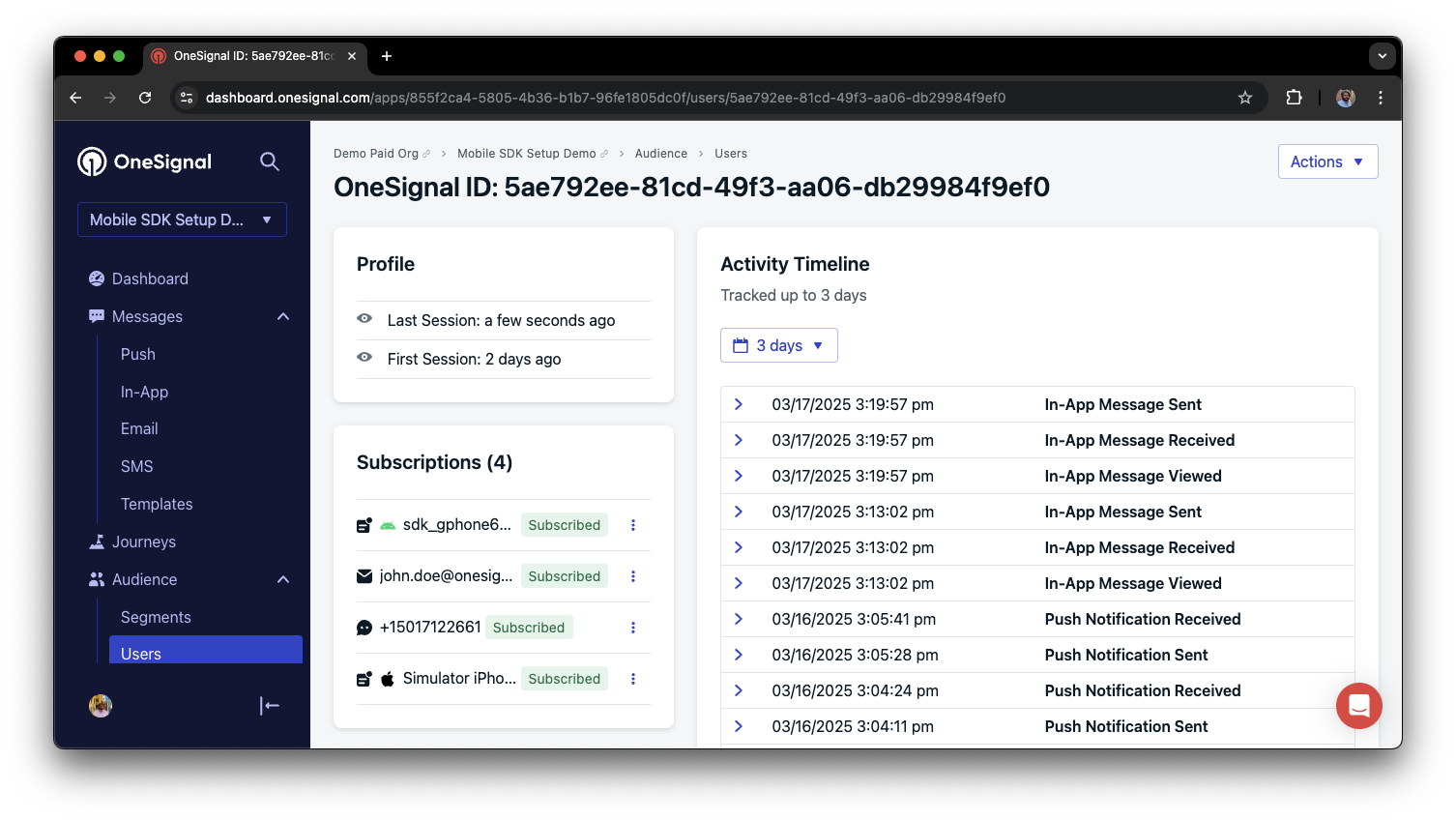
A user profile with push, email, and SMS subscriptions unified by External ID
- Obtain explicit consent before adding email or SMS subscriptions.
- Explain the benefits of each communication channel to users.
- Provide channel preferences so users can select which channels they prefer.
Privacy & user consent
To control when OneSignal collects user data, use the SDK’s consent gating methods:setConsentRequired(true): Prevents data collection until consent is given.setConsentGiven(true): Enables data collection once consent is granted.
SDK가 수집하는 데이터
개인 데이터 처리
Listen to push, user, and in-app events
Use SDK listeners to react to user actions and state changes. The SDK provides several event listeners for you to hook into. See our SDK reference guide for more details.Push notification events
- Click event listener: Detect when a notification is tapped.
- Foreground lifecycle listener: Control how notifications behave in foreground.
User state changes
- User state change event listener: Detect when the External ID is set.
- Permission observer: Track the user’s specific interaction with the native push permission prompt.
- Push subscription change observer: Track when the push subscription status changes.
Advanced setup & capabilities
Explore more capabilities to enhance your integration:OneSignal로 마이그레이션
통합
액션 버튼
다국어 메시징
Identity Verification
커스텀 아웃컴
Web SDK setup & reference
웹 푸시 설정
Web SDK 레퍼런스
FAQ
웹 푸시가 HTTP 사이트에서 작동하나요?
아니요. 웹 푸시는 HTTPS가 필요합니다. 브라우저는 이를 보안 요구 사항으로 적용합니다. 유일한 예외는localhost 및 127.0.0.1로, 브라우저가 개발 목적으로 보안 원본으로 처리합니다.
서비스 워커 파일이 왜 필요한가요?
서비스 워커는 백그라운드에서 실행되며 사용자가 사이트를 열지 않았을 때도 수신되는 푸시 알림을 처리합니다. 서비스 워커 없이는 브라우저가 알림을 표시할 수 없습니다.OneSignalSDKWorker.js 파일은 원본에서 공개적으로 액세스할 수 있어야 합니다.
웹 SDK는 어디에서 서비스 워커를 찾나요?
웹 SDK는 맞춤 경로를 설정하지 않는 한 사이트 루트(https://yourdomain.com/OneSignalSDKWorker.js)에서 OneSignalSDKWorker.js를 찾습니다. 일반 사이트는 대시보드에서 경로를 설정합니다: 설정 > Push & In-App > 웹 > Advanced Push Settings에서 Customize service worker paths and filenames를 활성화하세요. 맞춤 코드는 해당 대시보드 필드를 사용하지 않습니다. OneSignal.init()에 serviceWorkerPath와 serviceWorkerParam을 전달하세요. 맞춤 코드 설정을 참조하세요.
사이트가 WordPress 또는 Shopify에 있는 경우 이 가이드를 사용해야 하나요?
아니요. WordPress 설정 또는 Shopify 설정을 사용하세요. 해당 통합은 SDK와 서비스 워커를 추가해 줍니다.일반 사이트와 맞춤 코드의 차이점은 무엇인가요?
일반 사이트는 이 페이지에서 권장하는 경로입니다: OneSignal 대시보드에서 프롬프트, 대부분의 설정 및 서비스 워커 경로를 구성한 다음 JavaScript 스니펫을 추가합니다. 맞춤 코드는 프로그래밍 방식의 제어를 위한 것입니다.serviceWorkerPath와 serviceWorkerParam으로 코드에서 프롬프트, init 옵션 및 서비스 워커 경로를 설정합니다. 맞춤 코드 설정을 참조하세요.
Safari 인증서를 업로드해야 하나요?
아니요, macOS 13+ 또는 iOS 16.4+의 Safari에는 필요하지 않습니다. OneSignal은 VAPID를 자동으로 사용합니다. 레거시 Website Push ID 경로(macOS 12 이하 및 기존 레거시 구독자)에 대해서만 Safari Web Push .p12를 업로드하세요. Safari Web Push .p12 인증서를 참조하세요.Safari 웹 푸시에 .p8 키를 사용할 수 있나요?
아니요. Apple은 Safari 웹 푸시를 위한 .p8 토큰이나 키를 제공하지 않습니다. .p8은 네이티브 iOS 또는 macOS 앱에만 사용하세요. iOS p8 토큰 기반 APNs 연결을 참조하세요. 유일한 Safari 자격 증명은 Safari Web Push .p12이며, 레거시 경로에만 해당됩니다.iOS(iPhone/iPad)에서 웹 푸시를 사용할 수 있나요?
네, iOS 16.4+부터 가능합니다. 그러나 Apple은manifest.json 파일이 필요하며 사용자가 먼저 홈 화면에 사이트를 추가해야 합니다. 전체 요구 사항은 iOS 웹 푸시 설정을 참조하세요. iOS 웹 푸시는 VAPID를 사용합니다. 이를 위해 Safari .p12 또는 .p8을 업로드하지 않습니다.
알림이 표시되지 않는 이유는 무엇인가요?
일반적인 원인으로는 잘못 배치된 서비스 워커 파일, 대시보드의 사이트 URL 불일치 또는 브라우저 설정에서 알림이 차단된 경우가 있습니다. 전체 문제 해결 체크리스트는 웹 푸시: 알림이 표시되지 않음을 참조하세요.support@onesignal.com으로 이메일을 보내주세요.다음을 포함해 주세요:- 발생한 문제의 세부 정보 및 재현 단계(가능한 경우)
- OneSignal 앱 ID
- External ID 또는 Subscription ID(해당하는 경우)
- OneSignal 대시보드에서 테스트한 메시지의 URL(해당하는 경우)
- 관련 로그 또는 오류 메시지