Send dynamic, message-specific data through the Create Message API using custom_data. Reference values in templates with Liquid syntax for real-time personalization.
Use the custom_data field in the Create Message API to send dynamic data from your backend and render it inside templates using Liquid syntax.custom_data:
Is message-specific
Is not stored
Exists only during the API request
Must be used with a template_id
Reference values in templates with:
Liquid
{{ message.custom_data.key_name }}
custom_data is ephemeral. Data is not saved to user profiles and cannot be reused in future messages. If you need persistent data, see Message personalization.
Audience targeting (include_player_ids, include_aliases, or segments)
OneSignal renders the template at send time using your data.If Liquid syntax is invalid or keys don’t exist, those fields render as empty strings, but the message still sends.
Use simple key-value pairs for basic personalization like names, IDs, URLs, or any single-value data.Use case: Transactional messages (invoices, receipts, confirmations) where each field contains a single value.Template:
Liquid
Invoice {{ message.custom_data.invoice_id }} for {{ message.custom_data.product_name }} is ready.
Pass arrays of objects to work with multiple items like cart products, order line items, or recommendations. Arrays enable both direct access (indexing) and iteration (loops).Use case: Displaying product lists, leaderboards, order summaries, or any multi-item data.Indexing template (accessing first item):
Liquid
Your {{message.custom_data.cart_items[0].item_name}} is waiting for you!Image: {{message.custom_data.cart_items[0].img_url}}
Array indexing starts at 0, not 1. The first item is [0], second is [1], etc. Accessing an index that doesn’t exist returns empty (no error thrown).
Looping template (accessing all items):
Liquid
{% for item in message.custom_data.cart_items %}- {{ item.item_name }} — {{ item.img_url }}{% endfor %}
Send a single API request to multiple users where each recipient sees personalized content based on their external_id.How it works:
Structure custom_data as an object where keys are external_ids and values are user-specific data
In the template, use subscription.external_id to look up the current recipient’s data
OneSignal renders the template once per recipient with their specific data
Template:
Liquid
{% assign user = message.custom_data.users[subscription.external_id] %}Hi {{ user.first_name }}, you have {{ user.points }} points. Your level is {{ user.level }}.
What’s happening:
subscription.external_id contains the current recipient’s external_id (e.g., “user123”)
message.custom_data.users[subscription.external_id] looks up that user’s data from the custom_data object
user becomes a shorthand variable for that user’s data
Each recipient only sees their own personalized content
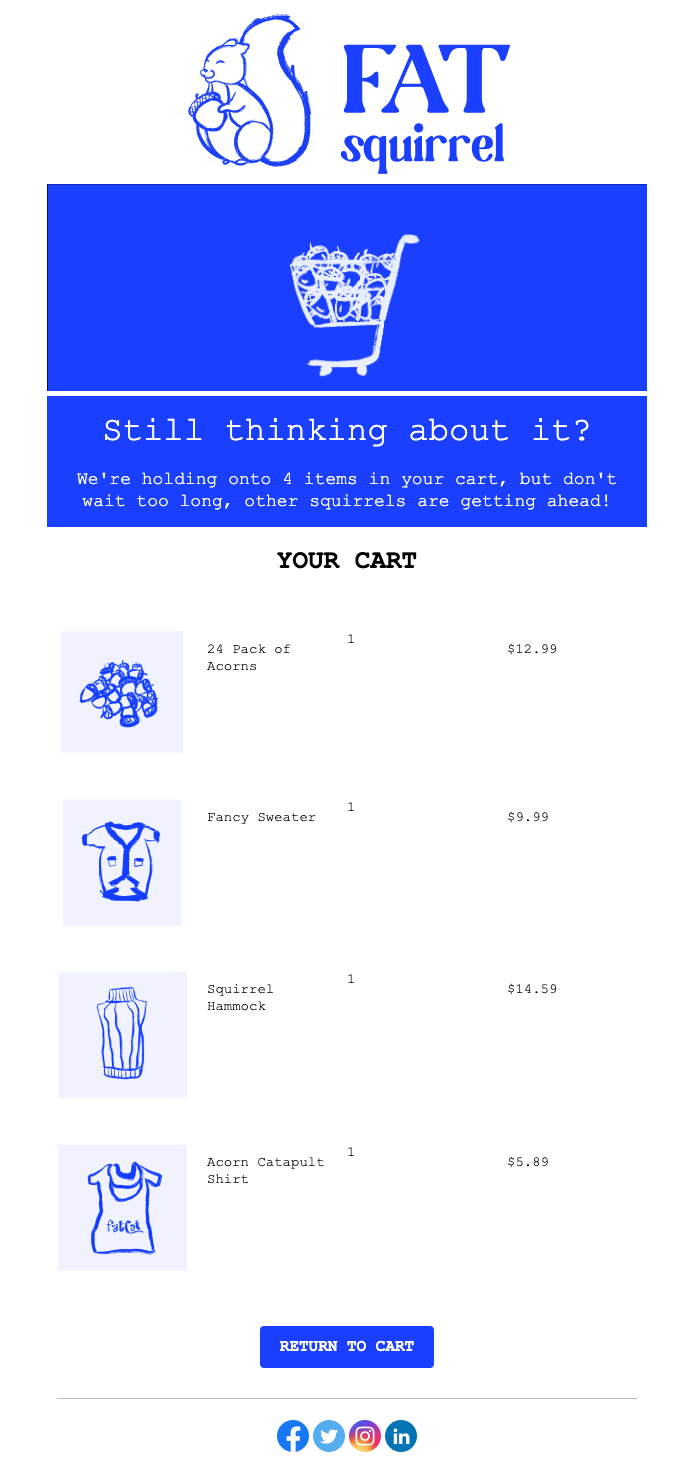
This example shows how to build an email template that displays:
The cart item count
Each product with image, name, quantity, and price using a for-loop
A button that links to the customer’s unique cart URL
Example Abandoned Cart Email Template
1
Create the email template
Navigate to Messages > Templates > New Email Template and open the Drag & Drop Editor.
2
Add the layout structure
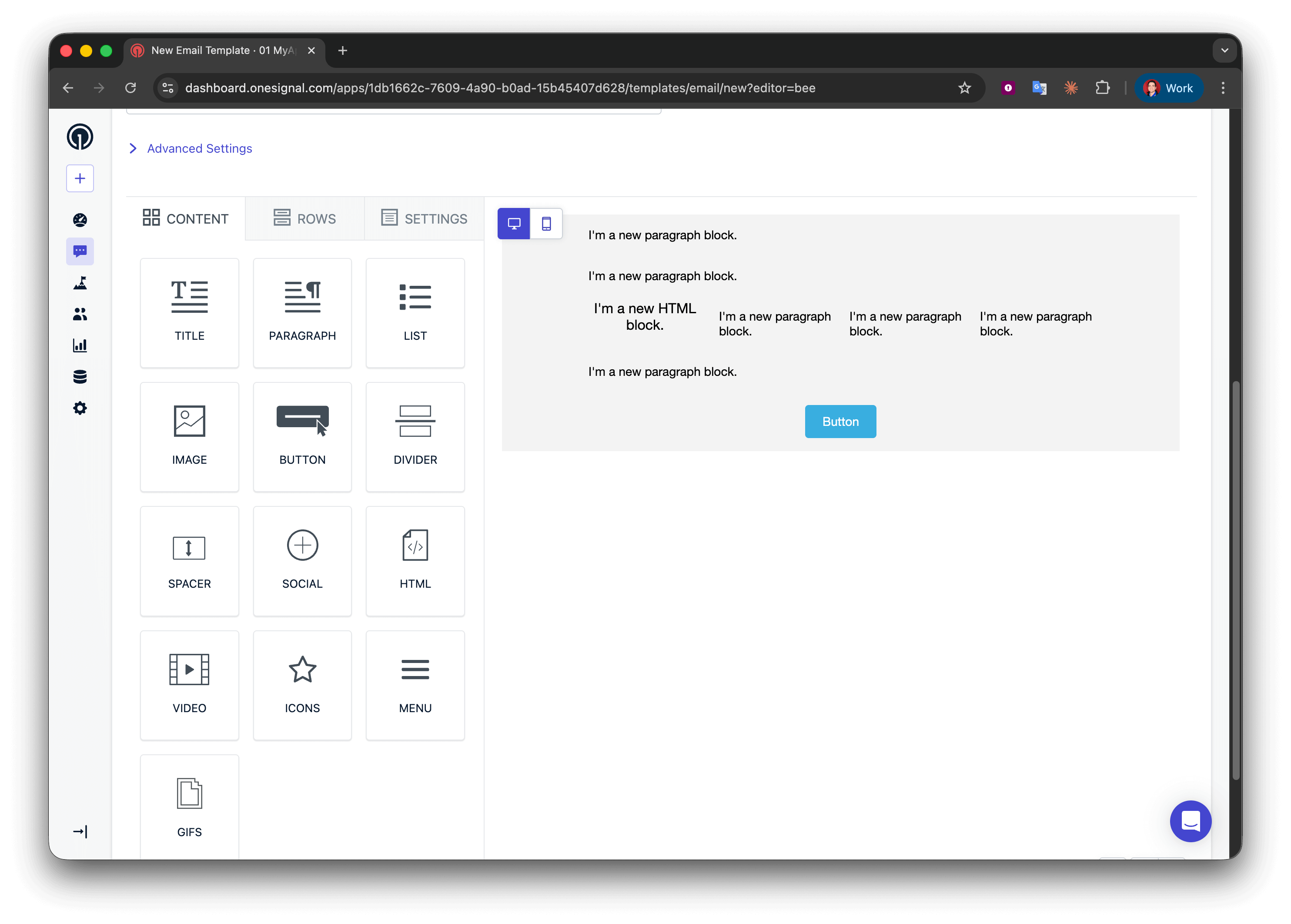
Create five rows:
Rows 1, 2, and 4: one column with a Paragraph block
Row 3: four columns with HTML | Paragraph | Paragraph | Paragraph
Row 5: one column with a Button block
Starter email template for abandoned cart
3
Display the item count
In row 1, add:
Liquid
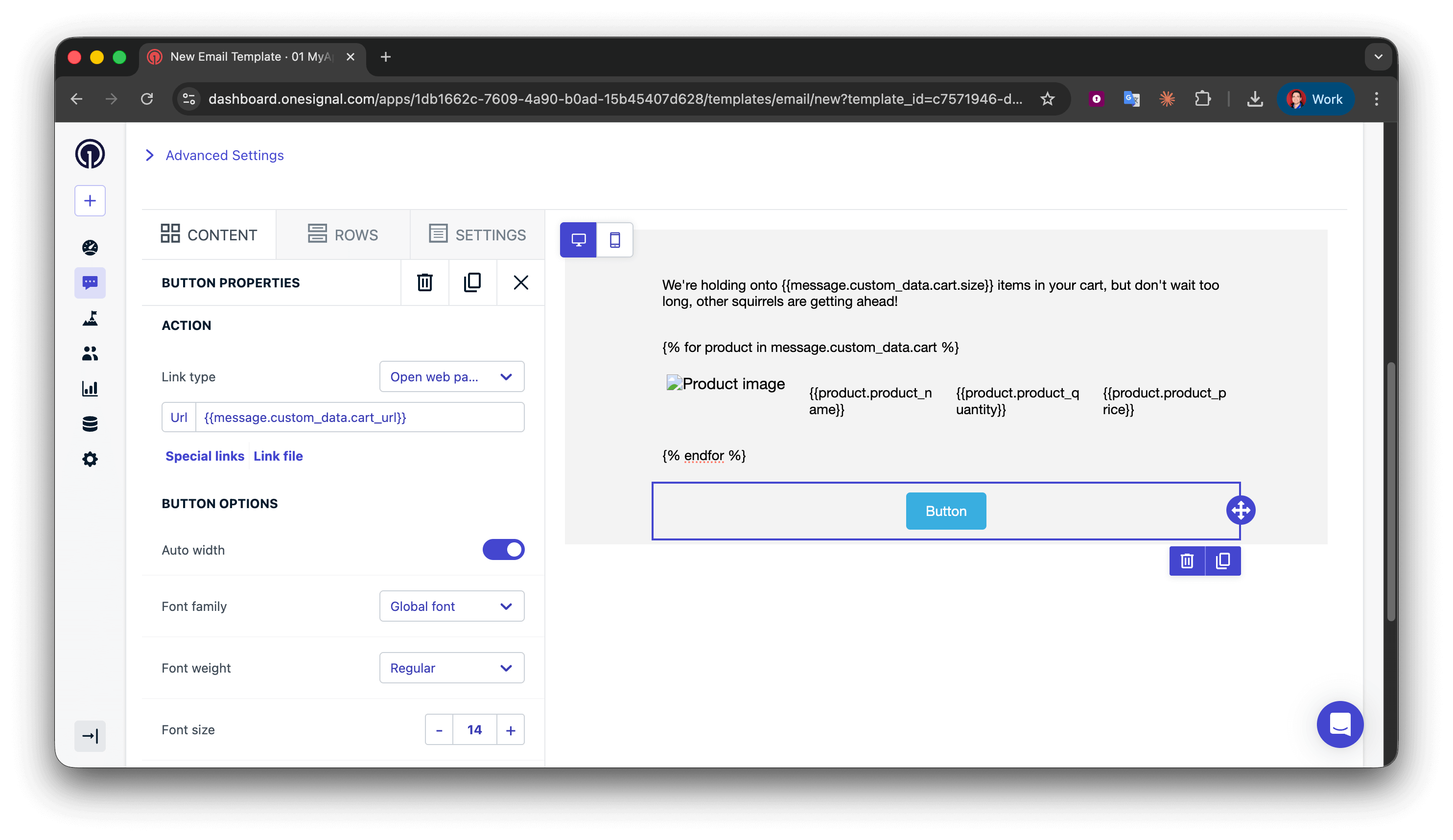
We're holding onto {{message.custom_data.cart.size}} items in your cart, but don't wait too long, other squirrels are getting ahead!
For better grammar, you could use a conditional to say “1 item” vs “2 items”, but for abandoned cart emails, plural is usually acceptable.
Liquid
{% assign cart = message.custom_data.cart %}{% assign item_count = cart.size | plus: 0 %}{% if item_count == 1 %}We're holding onto {{item_count}} item in your cart, but don't wait too long, other squirrels are getting ahead!{% endif %}{% if item_count > 1 %}We're holding onto {{item_count}} items in your cart, but don't wait too long, other squirrels are getting ahead!{% endif %}
4
Start the for-loop
Use a for-loop to repeat the product display row for each cart item.In row 2 (loop start), add:
Text
{% for product in message.custom_data.cart %}
What this does:
Begins a loop that iterates over each object in the cart array
Creates a temporary variable called product that represents the current item
Everything between {% for %} and {% endfor %} repeats once per cart item
You can name product anything (e.g., item, cartItem)—just stay consistent
For-loop placement: Make sure the {% for %} syntax is in its own Text block row. Don’t put it inside a multi-column row with other content, as this can break email rendering in some clients.
5
Display product details
This 4-column row shows image, name, quantity, and price. Because it’s inside the loop, it repeats for every cart item.In row 3 (product details), configure:Column 1 - HTML block (product image):
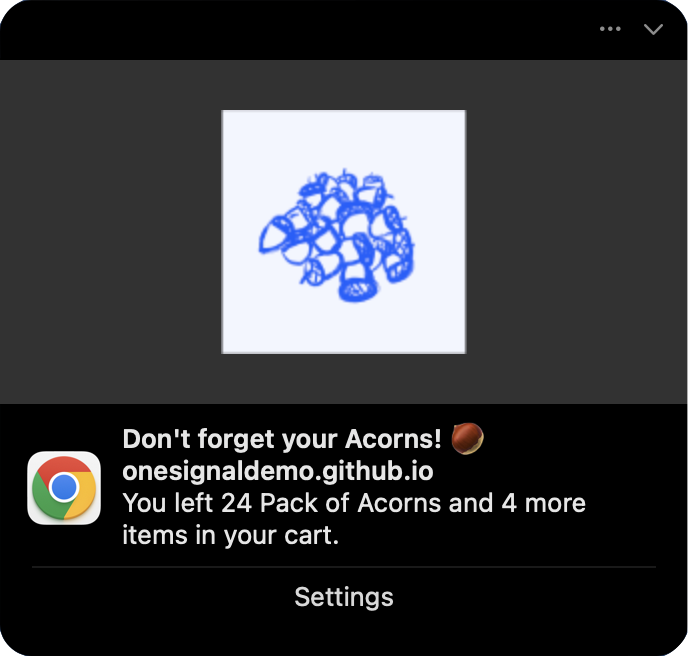
Push notifications have character limits and operating system restrictions, so instead of showing all items, display the first product and indicate the total count with proper grammar.Here is an example push notification we will build:
Abandoned cart push template example
Message field:
Liquid
{% assign cart = message.custom_data.cart %}{% assign item_count = cart.size | plus: 0 %}{% if item_count == 1 %}You left {{cart.first.product_name}} in your cart.{% endif %}{% if item_count == 2 %}You left {{cart.first.product_name}} and {{item_count | minus: 1}} more item in your cart.{% endif %}{% if item_count > 2 %}You left {{cart.first.product_name}} and {{item_count | minus: 1}} more items in your cart.{% endif %}