

When to use property personalization
Use property personalization to render content at send time using data that already exists in OneSignal—most commonly Tags, External ID, and subscription fields like email or phone number. This is the right approach when:- The data is already stored in OneSignal
- You want Liquid placeholders replaced automatically when the message sends
- You don’t need to fetch or compute fresh data at delivery time
If the value must be fetched or computed at send time (for example, live pricing or inventory), use Data Feeds or our API with
custom_data.If the value comes from the event that caused a user to enter or progress through a Journey, use Custom Event personalization.Channel support
Each channel supports specific property types and fields.- Email
- Push
- SMS
- In-app messages
- Live Activities
Supports User & Subscription properties in:
- Subject, Reply-to, and Pre-header
- Message body
- HTML attributes (for example:
<img src="{{ image_url }}" />) - Button actions (URLs, mailto, etc.)
How property personalization works
OneSignal replaces Liquid placeholders with the corresponding property values for the user and subscription being messaged.Liquid
first_name: Jon and level: 5, they see:
Text
Property Liquid reference
Use this section to look up the exact object and field names available in Liquid.User & Subscription properties
Useuser for user-level data. Use subscription when you need channel-specific values like email address or phone number.
The Tags of the User. You can reference the tags in several ways:
- Use the
keydirectly or place the key aftertags - Example tags set:
first_name: Jon, level: 5
Liquid
- Iterate over tags with for-loop syntax. This example outputs key:value pairs separated by commas.
Liquid
The language code of the user.
Liquid
The country code of the user.
Liquid
The External ID of the User.
Liquid
The OneSignal ID of the User.
Liquid
The email address of the email Subscription being messaged.
Liquid
The phone number of the SMS Subscription being messaged.
Liquid
The Subscriptions of the User.
- Iterate over subscriptions with for-loop syntax.
- This example outputs each subscription’s token and ID separated by commas.
JSON
The token used with the Unsubscribe email with token API.
Liquid
Journey properties
Thejourney object lets you reference the Journey name or access Custom Event Personalization for the Journey.
The name of the Journey.
JSON
Message properties
Themessage object provides access to the message ID, name, and template ID that can be helpful for Event Streams along with access to custom_data for personalizing messages sent from your backend.
The ID of the message set by OneSignal.
JSON
The name of the message set by you, the sender.
JSON
The ID of the template set by OneSignal.
JSON
Template properties
Thetemplate object provides access to the template ID and name about the Template used to send the message. This can be helpful for Event Streams.
The ID of the template set by OneSignal.
JSON
The name of the template set by you, the sender.
JSON
App and organization properties
Theapp and org objects provide details about the App and Organization that sent the message. This can be helpful for Event Streams.
The ID of the app set by OneSignal.
JSON
The name of the app set by you, the owner of the app.
JSON
The ID of the Organization set by OneSignal.
JSON
The name of the Organization set by you, the owner of the Organization.
JSON
Example: Abandoned cart templates using tags
This example shows how to personalize abandoned cart messages using Tags. It builds on the Abandoned Cart tutorial. Example tags set:JSON
Email template
1
Create a new email template
Navigate to Messages > Templates > New Email Template and open the Drag & Drop Editor.
2
Add the layout structure
Create five rows: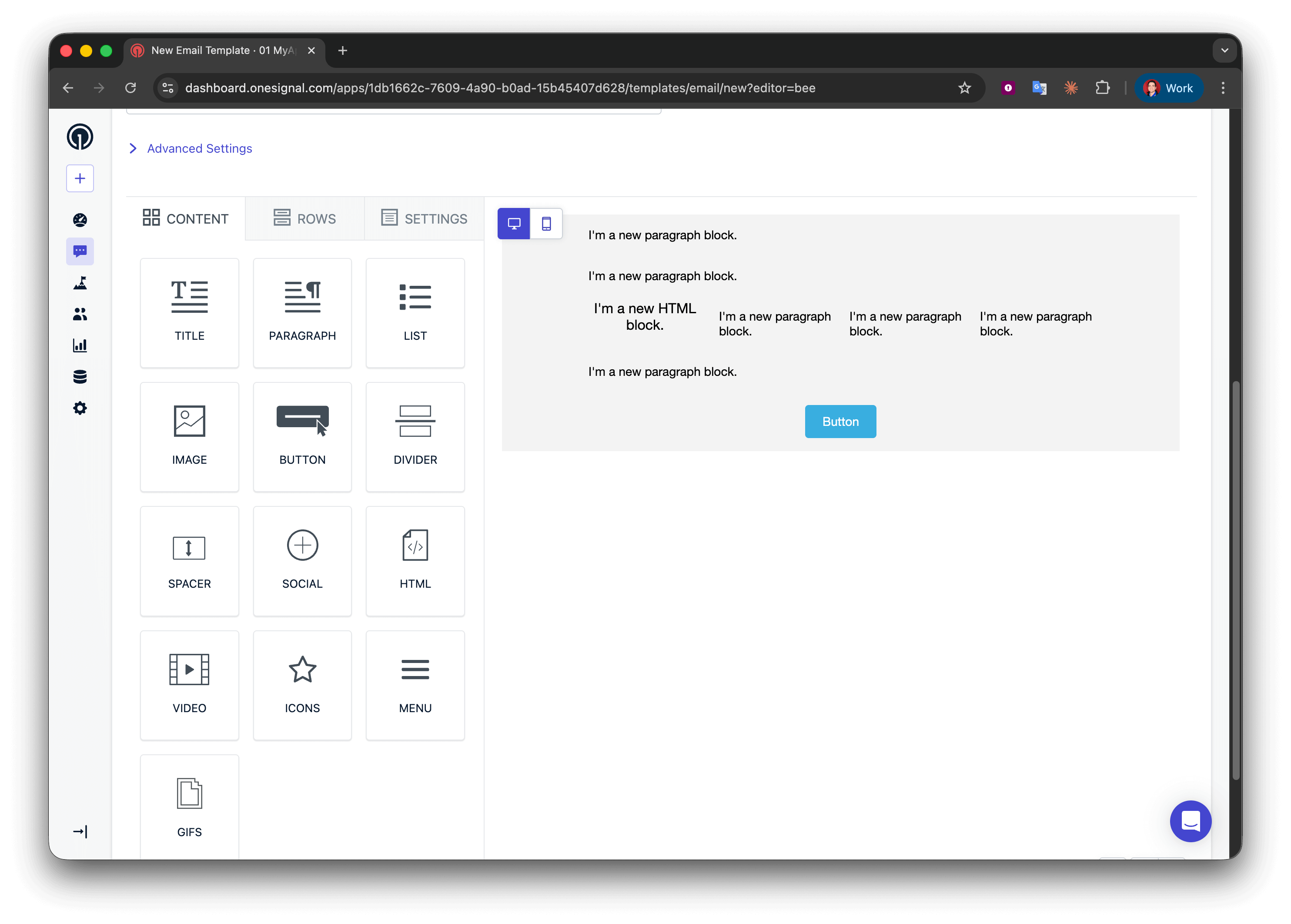
- Rows 1, 2, and 4: one column with a Paragraph block
- Row 3: four columns with HTML | Paragraph | Paragraph | Paragraph
- Row 5: one column with a Button block
Starter email template for abandoned cart
3
Add liquid to paragraph blocks
In row 1, add:In row 2, add a description of what the user is looking at:In row 4, add another CTA:
Liquid
Text
Text
4
Display the most recent item
In row 3, configure the four columns:Column 1 (HTML block):Columns 2–4 (Text blocks):
HTML
- Column 2:
{{product_name}} - Column 3:
{{product_quantity}} - Column 4:
{{product_price}}
5
Add the cart URL to the button
In the row 5 Button block, set the Action URL to: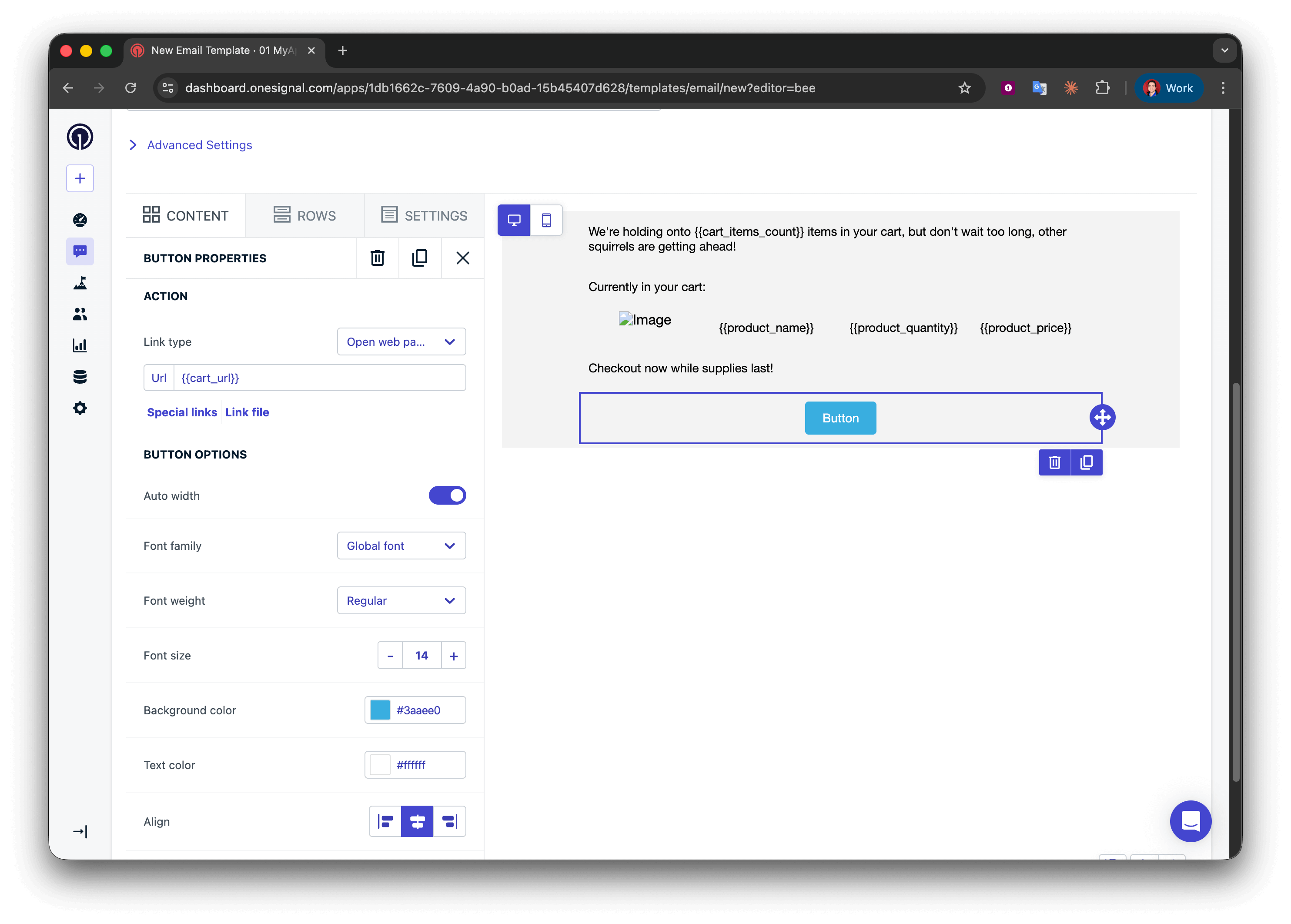
Finished base email template for abandoned cart without styling
6
Test & preview the template
Send a test email to yourself using the Test & preview button.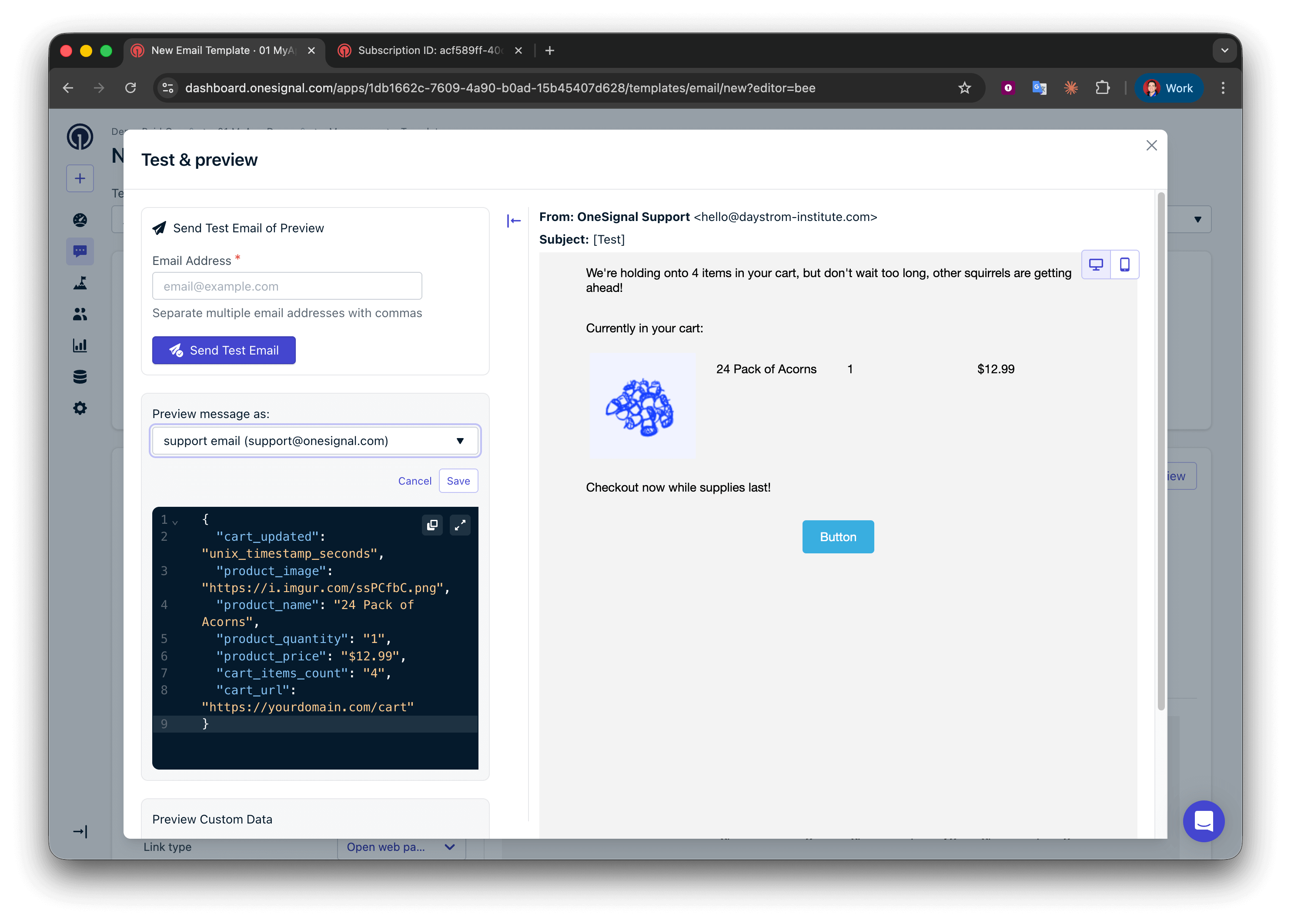
- Make sure the tags are set on your email Subscription.
Preview email with tags
7
Style the template
Success! Now you can apply your own styling to the template. See Design emails with drag-and-drop.
Push template
Push notifications have limited space, so display one item and mention the total count. Message field: Display item and count with correct grammar using conditional statements.Liquid
Liquid
Liquid
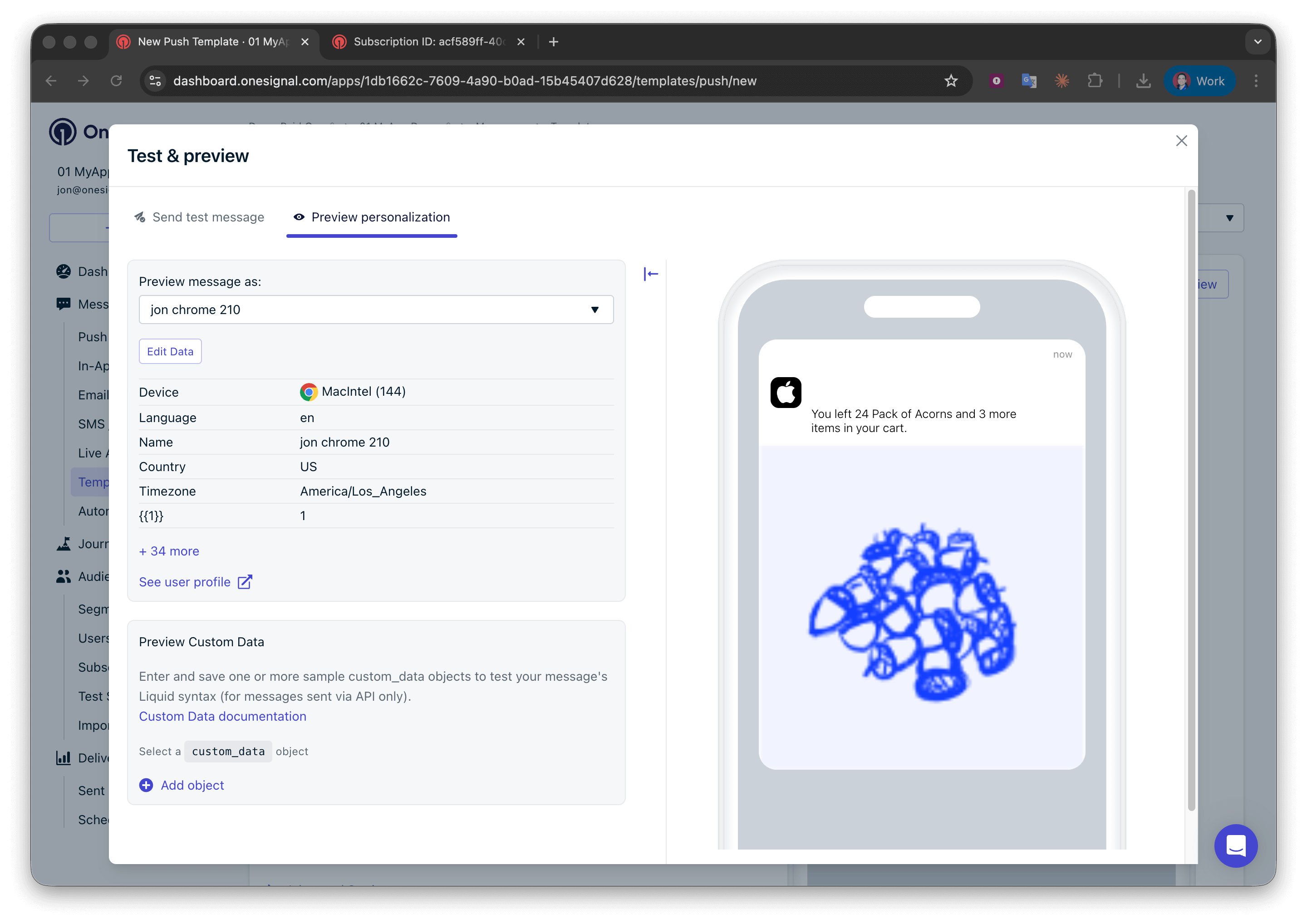
Preview push template personalization with Test & preview
Success! You can now create more templates and use them in the Abandoned Cart Journey.
Example: Personalize an in-app message with tags
This example shows a reward in-app message personalized with Tags. The IAM substitutes Tag values into multiple block types. In the configured message:- Text block — displays the completed level and the reward for that level
- Image block — displays the image for that reward, with a default image as fallback
- Button 2 text — displays the reward value, with a default of
100 - Background image — set from a Tag value
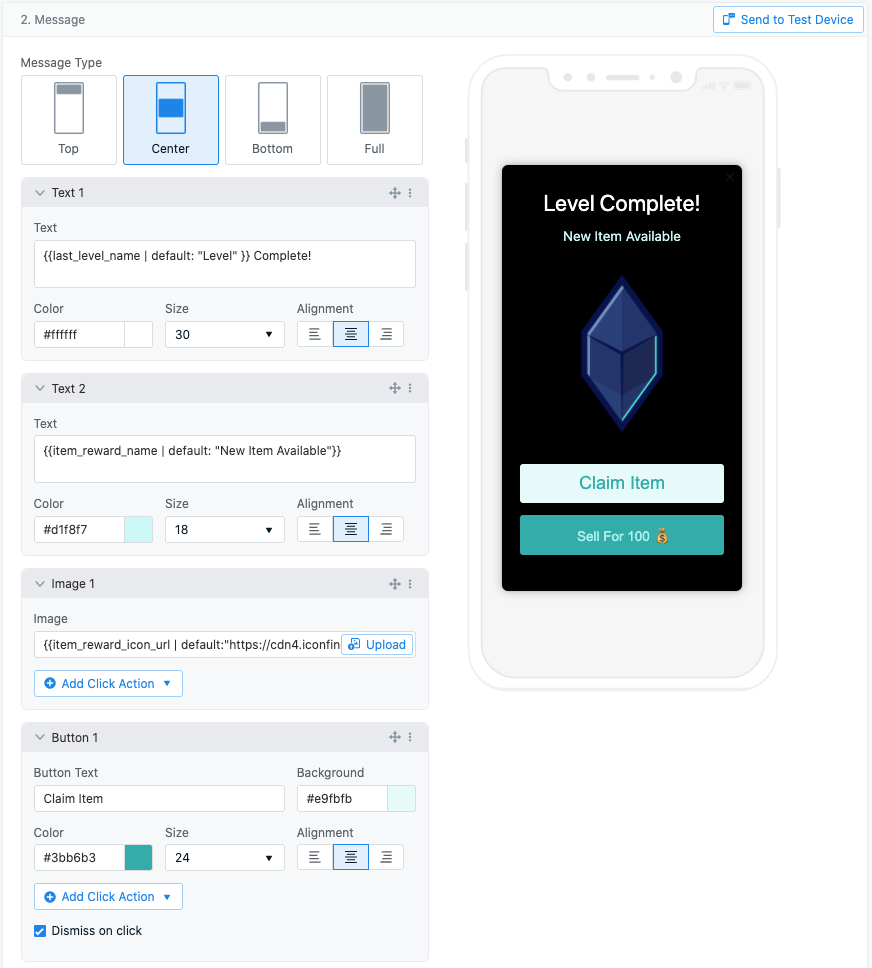
In-app message editor with Tag substitution configured in text, image, and button blocks
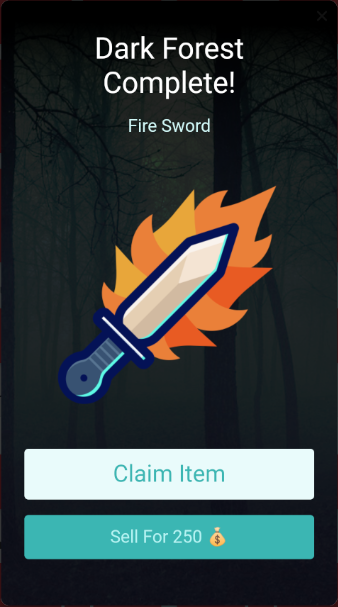
In-app message displayed to the user with values substituted from Tags
See the In-app messages tab in Channel support above for the supported blocks, attributes, and timing rules. Two reminders worth restating from there:
- Tags must be set before the user starts a new app session. Tags updated mid-session don’t render in IAMs shown in that session.
- Tag substitution doesn’t render in “Send Test Message” test-sends. Trigger the message from a real session to verify substitution.
- Property substitution is not supported in in-app messages.
Related pages
Message personalization
Overview of all personalization options in OneSignal, including when to use Custom Events vs other methods.
Tags
Learn how to set tags on users via SDK, API, or CSV import.
Using Liquid syntax
Complete Liquid reference with filters, conditionals, loops, and string manipulation.
Templates
Create and manage reusable message templates for use in Journeys.
Abandoned cart tutorial
Build an abandoned cart Journey using Tags and Properties.
Need help?Chat with our Support team or email
support@onesignal.comPlease include:- Details of the issue you’re experiencing and steps to reproduce if available
- Your OneSignal App ID
- The External ID or Subscription ID if applicable
- The URL to the message you tested in the OneSignal Dashboard if applicable
- Any relevant logs or error messages