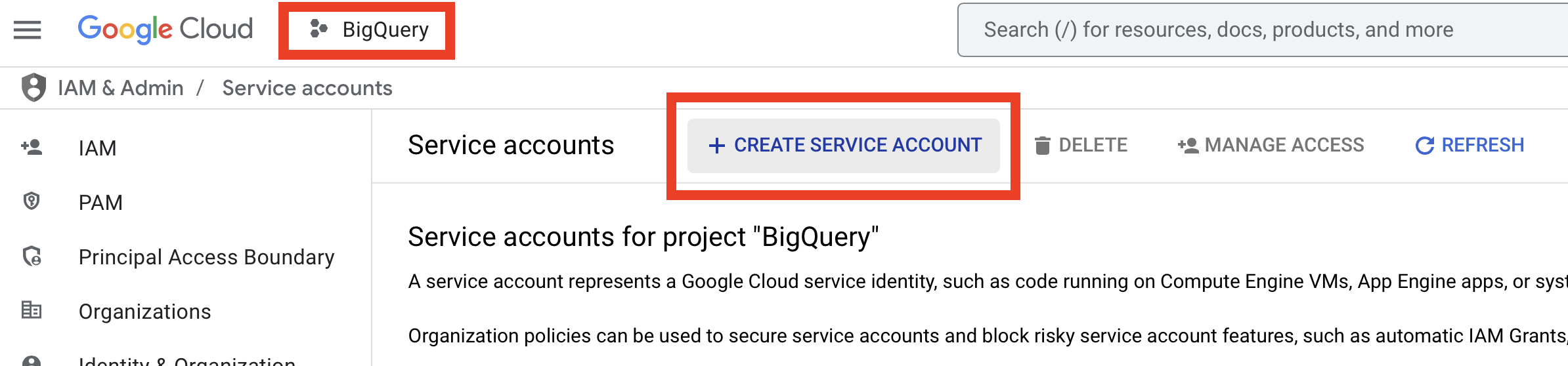
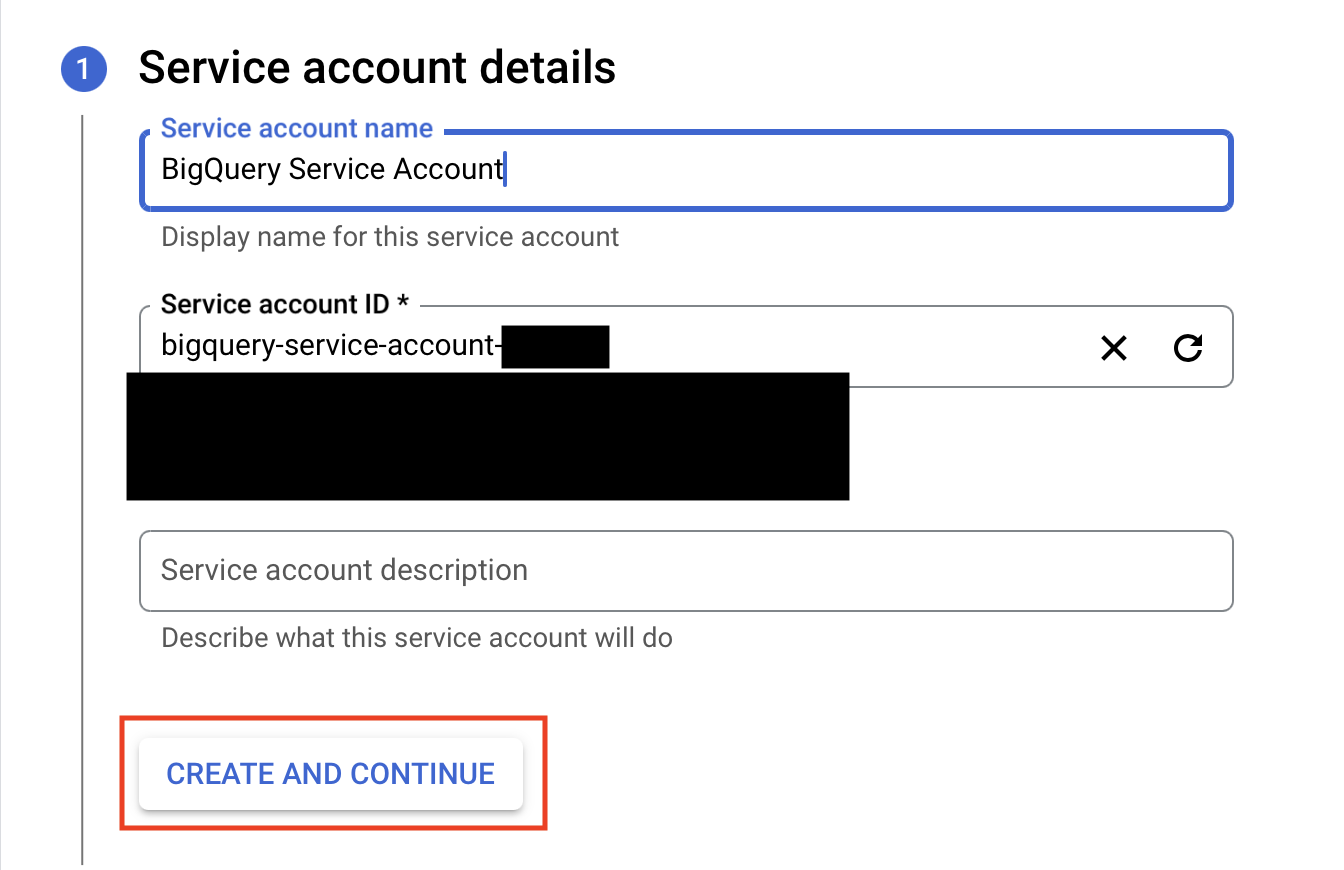
Give it any name and service account ID you choose.
4
Assign the appropriate BigQuery roles
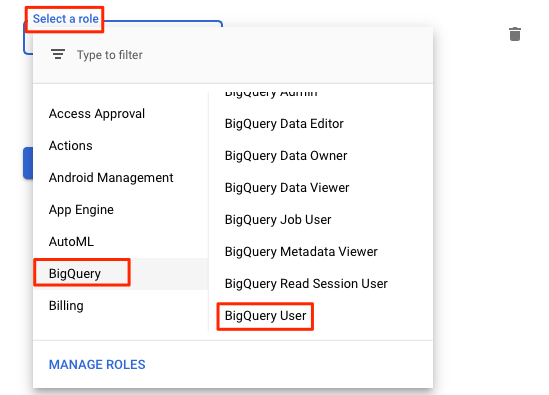
Give the service account the BigQuery User role. If you want to sync data to an existing dataset, you must also grant the service account BigQuery Data Owner on that dataset. See Roles and permissions.
For existing datasets, the service account will need the bigquery.dataOwner role (“BigQuery Data Owner”). If the dataset is not yet created, only the “BigQuery User” role is needed.
5
Create a JSON key for this account
Go to your new service account > Keys > Add Key > Create new key > select JSON. Save the file.
You’ll paste the entire contents of this JSON key file into OneSignal to activate the integration.
The minimum role required to sync OneSignal events into BigQuery is BigQuery User. This role allows OneSignal to:
Run, enumerate, and cancel its own jobs, including update jobs
Read, query, and enumerate all datasets within a project
Create new datasets within the project and grant the bigquery.dataOwner role for these new datasets
These permissions are required because OneSignal can create its own datasets. They do not allow OneSignal to modify datasets it does not own.To sync data to an existing dataset in your BigQuery project, created by another user or service account, you must grant the service account the bigquery.dataOwner role for that dataset.To grant the bigquery.dataOwner role for an existing dataset:
Dataset/Table Names: Must only contain lowercase letters, numbers and underscores, and cannot begin with a number.
Event Types: Select specific message events (e.g., sent, opened, clicked)
Note: You can select multiple event types or update selected events at a later time.
4
Click Save and wait for confirmation
Events go through a processing step that can take up to 30 minutes before they are included in a sync. With a 15-minute sync frequency, expect events to appear in BigQuery within 45 minutes.While you wait, send messages via push, email, in-app, or SMS to trigger the events selected.
message.email.sent and message.sms.sent are deprecated. They can’t be added to new exports, but exports that already include them keep receiving them. Use message.email.received and message.sms.delivered instead.
Events go through a processing step that can take up to 30 minutes before they are included in a sync. With a 15-minute sync frequency, expect events to appear in your warehouse within 45 minutes.
Deactivating may still result in one final sync after deactivation.
To ensure efficient data synchronization, our system automatically creates and manages staging datasets. These datasets, named with a pattern like fivetran_{two random words}_staging, temporarily store data during processing before it’s integrated into your main schema. These staging datasets are essential for maintaining a streamlined workflow and should not be deleted, as they will be automatically recreated.
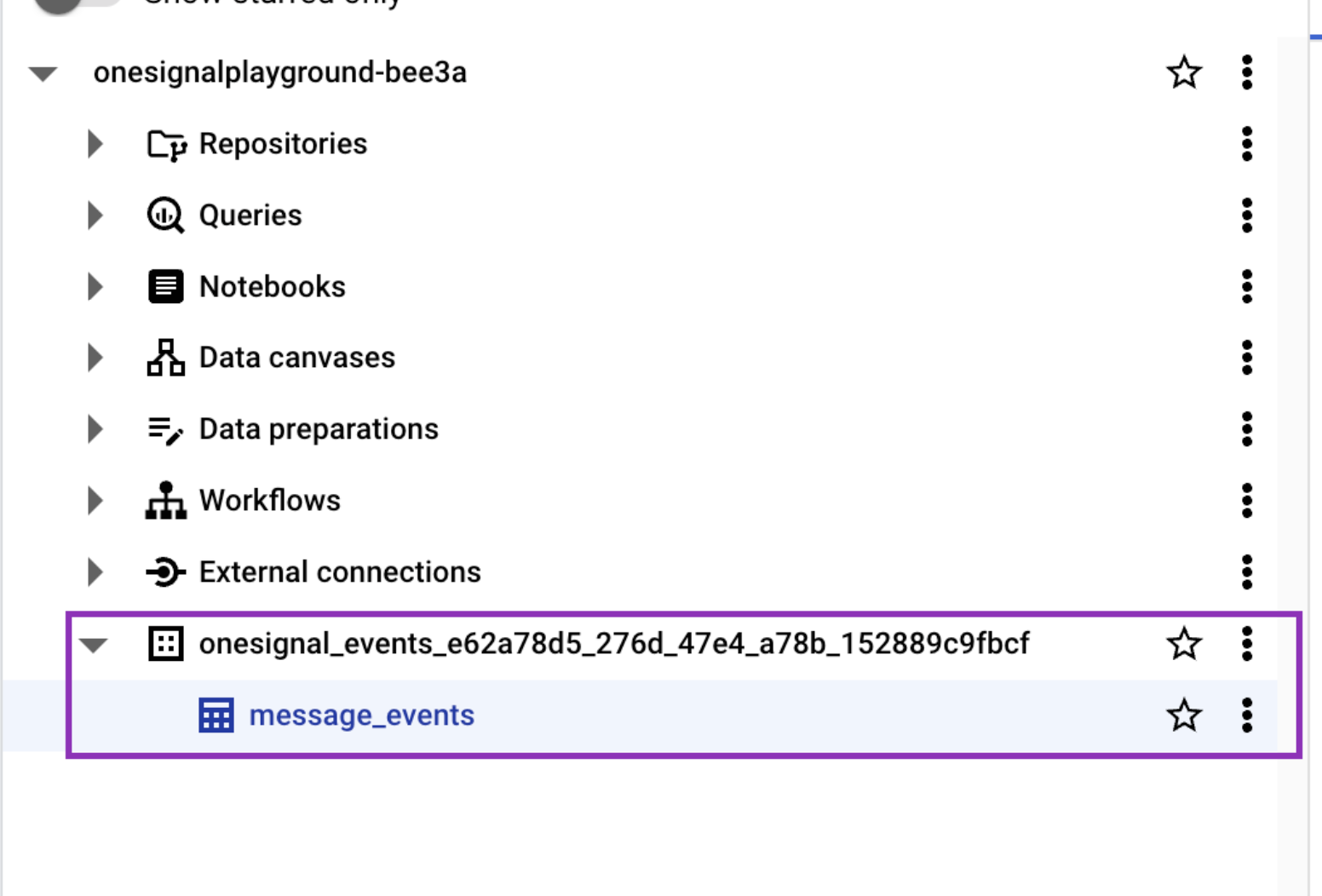
Event data tables containing behavioral data in BigQuery datasets
Setup Steps
1
Create BigQuery service account
OneSignal will generate a service account automatically when you create the connection. Alternatively, you can provide your own service account key JSON file.If creating your own service account, ensure it has the required permissions listed below.
2
Grant required permissions
The OneSignal service account needs these BigQuery IAM roles:
bigquery.dataViewer - Read access to datasets and tables containing event data
bigquery.jobUser - Permission to create jobs for data queries
In OneSignal, go to Data > Integrations and click Add Integration.
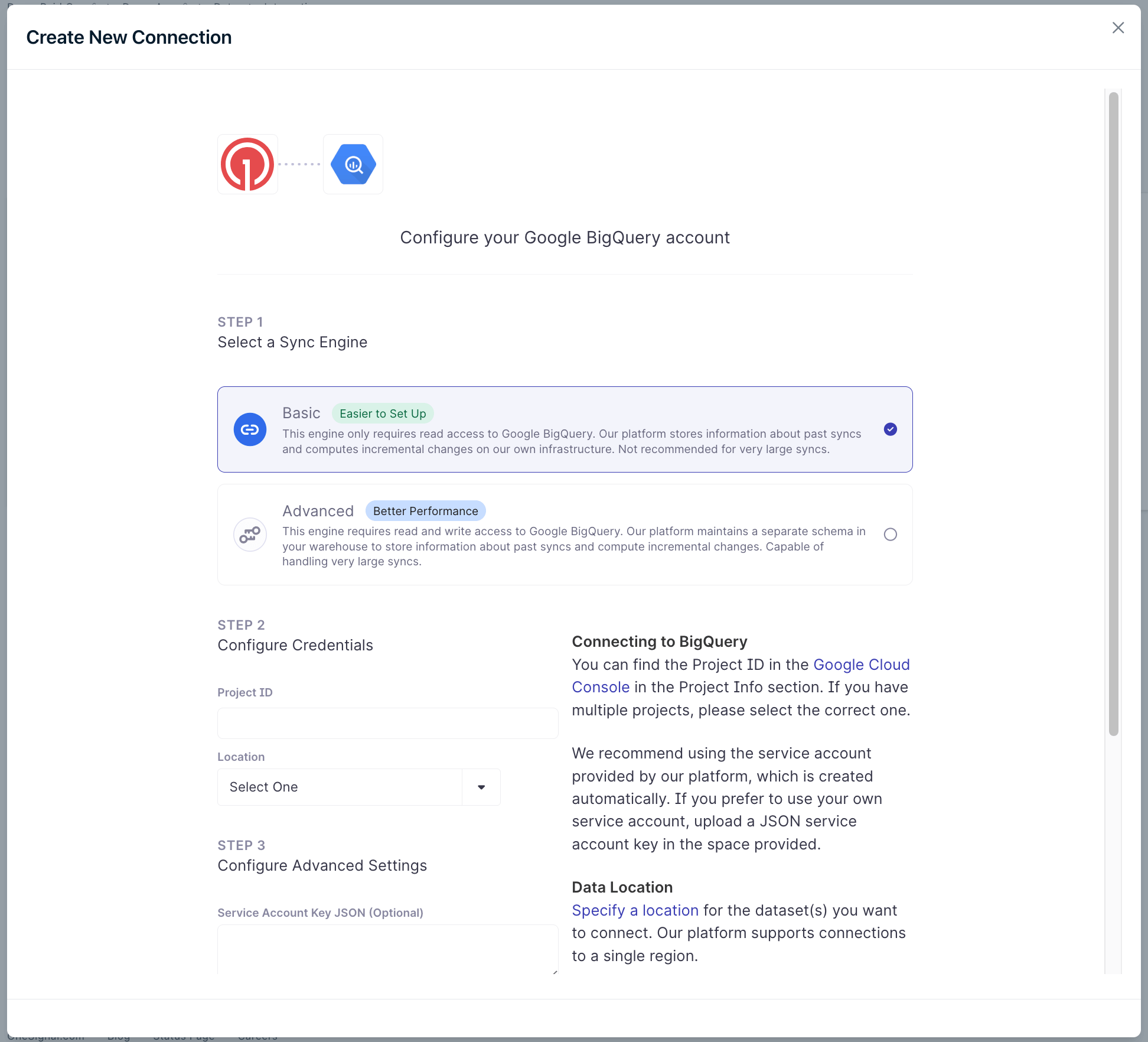
Add BigQuery integration
Sync Engine: Advanced sync is recommended for large datasets or complex event data queries. You can start with basic sync and switch to advanced sync later if needed.
Google Cloud Project ID: Your GCP project containing BigQuery datasets
Dataset Region: Location where your BigQuery datasets are stored
Service Account Key (optional): JSON key file if using your own service account
4
Configure event data source
Specify the BigQuery dataset and table containing your event data:
Dataset: BigQuery dataset name (e.g., analytics_events)
Table/View: Table or view containing event records
Event Query: Optional SQL query to filter or transform event data
Your event table should contain columns for:
Event name/type
User identifier
Event timestamp
Additional event properties
5
Test the connection
Click Test Connection to verify OneSignal can access your BigQuery project and read event data.
{"docsConfig":{"theme":"mint","$schema":"https://mintlify.com/docs.json","name":"OneSignal Documentation","description":"OneSignal is a platform for sending push notifications, emails, in-app messages, and SMS campaigns via a single API, Journey Builder, and a dashboard.","colors":{"primary":"#3A3DB3","light":"#E54B4D","dark":"#3A3DB3"},"logo":{"light":"https://mintcdn.com/onesignal/yJcueeDCO7UpHnnY/logo/OneSignal-Logo.svg?fit=max\u0026auto=format\u0026n=yJcueeDCO7UpHnnY\u0026q=85\u0026s=1fcfb6fef6d820fd9d99c74850711107","dark":"https://mintcdn.com/onesignal/s4WC_KzLxf8ornqq/logo/OneSignal-Logo-White.svg?fit=max\u0026auto=format\u0026n=s4WC_KzLxf8ornqq\u0026q=85\u0026s=2573a53b5aea961e18c82b3af8f31925"},"favicon":"https://mintcdn.com/onesignal/SGduBFHpiRdg5l6h/favicon.ico?fit=max\u0026auto=format\u0026n=SGduBFHpiRdg5l6h\u0026q=85\u0026s=c0a99fadc0553c658a83741c5611cef4","api":{"examples":{"languages":["curl","typescript","python","php","go","ruby","java","csharp","rust"],"autogenerate":true}},"navbar":{"links":[{"href":"mailto:support@onesignal.com","label":"Support"}],"primary":{"type":"button","label":"Dashboard","href":"https://dashboard.onesignal.com"}},"footer":{"socials":{"github":"https://github.com/OneSignal","linkedin":"https://linkedin.com/company/onesignal","youtube":"https://www.youtube.com/@onesignalofficial/playlists"}},"seo":{"metatags":{"apple-mobile-web-app-title":"OneSignal Docs"}},"fonts":{"family":"Nunito Sans"},"styling":{"eyebrows":"breadcrumbs","latex":true},"integrations":{"ga4":{"measurementId":"G-2DGWL0VYP5"},"posthog":{"apiKey":"phc_vZpvE0f5eyzcOt30FHer34yddVmNdo9kmlMVRBzLMtn","apiHost":"https://eu.i.posthog.com","sessionRecording":true}},"contextual":{"options":["copy","view","chatgpt","claude"],"display":"header"},"navigation":{"languages":[{"language":"en","href":"docs/en/home"},{"language":"cn","href":"docs/cn/home"},{"language":"ko","href":"docs/ko/home"},{"language":"ja","href":"docs/ja/home"},{"language":"tr","href":"docs/tr/home"},{"language":"pt-BR","href":"docs/pt-BR/home"},{"language":"es","href":"docs/es/home"},{"language":"fr","href":"docs/fr/home"}]}},"deployment":{"deploymentMetadataValue":{"subdomain":"onesignal","hasAudioNarration":false,"actualSubdomain":"onesignal","customDomains":["documentation.onesignal.com"],"gitSource":{"type":"github","owner":"onesignal","repo":"mintlify-docs","deployBranch":"main","contentDirectory":"","isPrivate":true,"mountPath":"","label":""},"chroma":{"liveDeploymentHistoryId":"6aebb1cc40574e0e146e06f5","collectionId":"7de601f2-2191-44e0-a201-86d097330b1f","schemaVersion":"v3","latestBuiltDeploymentHistoryId":"6aebb1cc40574e0e146e06f5"},"feedback":{"thumbs":true},"entitlements":{"AI_CHAT":{"status":"ENABLED"},"WEB_MCP":{"status":"ENABLED"},"NARRATION":{"status":"ENABLED"}},"buildId":"6aee76d2161a823262d5e93f","clientVersion":"0.0.4076","searchFilterCounts":[{"language":"en","tag":"User Guides","count":203},{"language":"es","tag":"Guías del Usuario","count":178},{"language":"fr","tag":"Guides utilisateur","count":178},{"language":"ja","tag":"ユーザーガイド","count":178},{"language":"ko","tag":"사용자 가이드","count":178},{"language":"pt-BR","tag":"Guia do Usuário","count":178},{"language":"tr","tag":"Kullanıcı Kılavuzları","count":178},{"language":"cn","tag":"用户指南","count":176},{"language":"en","tag":"Message channels","count":90},{"language":"es","tag":"Canales de mensajería","count":84},{"language":"fr","tag":"Canaux de messagerie","count":84},{"language":"ja","tag":"メッセージングチャネル","count":84},{"language":"ko","tag":"메시지 채널","count":84},{"language":"pt-BR","tag":"Canais de mensagem","count":84},{"language":"tr","tag":"Mesaj kanalları","count":84},{"language":"cn","tag":"消息渠道","count":83},{"language":"default","tag":"API Reference","count":68},{"language":"default","tag":"API reference","count":64},{"language":"en","tag":"Analytics \u0026 Integrations","count":53},{"language":"es","tag":"Analítica \u0026 Integraciones","count":52},{"language":"fr","tag":"Analyses et intégrations","count":52},{"language":"ja","tag":"分析 \u0026 統合","count":52},{"language":"ko","tag":"분석 \u0026 통합","count":52},{"language":"pt-BR","tag":"Análises \u0026 Integrações","count":52},{"language":"tr","tag":"Analitik ve Entegrasyonlar","count":52},{"language":"cn","tag":"分析和集成","count":51},{"language":"cn","tag":"开发者指南","count":48},{"language":"es","tag":"Guías del desarrollador","count":48},{"language":"fr","tag":"Guides développeur","count":48},{"language":"ja","tag":"開発者ガイド","count":48},{"language":"ko","tag":"개발자 가이드","count":48},{"language":"tr","tag":"Geliştirici Kılavuzları","count":48},{"language":"en","tag":"Developer Guides","count":47},{"language":"pt-BR","tag":"Guia de desenvolvedor","count":47},{"language":"en","tag":"Integrations","count":37},{"language":"es","tag":"Integraciones","count":37},{"language":"fr","tag":"Intégrations","count":37},{"language":"ja","tag":"統合","count":37},{"language":"ko","tag":"통합","count":37},{"language":"pt-BR","tag":"Integrações","count":37},{"language":"tr","tag":"Entegrasyonlar","count":37},{"language":"cn","tag":"集成","count":36},{"language":"en","tag":"Tutorials","count":35},{"language":"cn","tag":"推送通知","count":31},{"language":"cn","tag":"OneSignal 作为目的地","count":31},{"language":"en","tag":"Push","count":31},{"language":"en","tag":"OneSignal as destination","count":31},{"language":"es","tag":"Push notificaciones","count":31},{"language":"es","tag":"OneSignal como destino","count":31},{"language":"fr","tag":"Push","count":31},{"language":"fr","tag":"OneSignal comme destination","count":31},{"language":"ja","tag":"プッシュ通知","count":31},{"language":"ja","tag":"OneSignal as 宛先","count":31},{"language":"ko","tag":"푸시","count":31},{"language":"ko","tag":"OneSignal을 데이터 목적지로 사용","count":31},{"language":"pt-BR","tag":"Push notificações","count":31},{"language":"pt-BR","tag":"OneSignal como destino","count":31},{"language":"tr","tag":"Anlık bildirimler","count":31},{"language":"tr","tag":"OneSignal hedef","count":31},{"language":"en","tag":"Mobile SDKs","count":26},{"language":"cn","tag":"移动SDK","count":25},{"language":"es","tag":"SDKs móviles","count":25},{"language":"fr","tag":"SDK mobiles","count":25},{"language":"ja","tag":"モバイルSDK","count":25},{"language":"ko","tag":"모바일 SDKs","count":25},{"language":"pt-BR","tag":"SDKs móveis","count":25},{"language":"tr","tag":"Mobil SDK'lar","count":25},{"language":"cn","tag":"教程","count":24},{"language":"es","tag":"Tutoriales","count":24},{"language":"fr","tag":"Tutoriels","count":24},{"language":"ja","tag":"チュートリアル","count":24},{"language":"ko","tag":"튜토리얼","count":24},{"language":"pt-BR","tag":"Tutoriais","count":24},{"language":"tr","tag":"Eğitimler","count":24},{"language":"en","tag":"Mobile SDK setup","count":19},{"language":"cn","tag":"移动SDK设置","count":18},{"language":"es","tag":"Configuración del SDK móvil","count":18},{"language":"fr","tag":"Configuration SDK mobile","count":18},{"language":"ja","tag":"モバイルSDKセットアップ","count":18},{"language":"ko","tag":"모바일 SDK 설정","count":18},{"language":"pt-BR","tag":"Configuração do SDK móvel","count":18},{"language":"tr","tag":"Mobil SDK kurulumu","count":18},{"language":"default","tag":"Messages","count":9},{"language":"default","tag":"Users","count":9},{"language":"default","tag":"Organization","count":9},{"language":"default","tag":"Journeys","count":8},{"language":"default","tag":"Deprecated","count":6},{"language":"default","tag":"Templates","count":6},{"language":"default","tag":"Subscriptions","count":6},{"language":"default","tag":"Segments","count":5}]},"assistantConfig":{"enableStarterQuestions":false,"deflection":{"enabled":true,"email":"support@onesignal.com","showHelpButton":true}},"basePath":"","hasChatPermissions":true,"hasWebMcpPermissions":true,"toggles":[{"name":"kill-isr","enabled":true,"variant":{"name":"disabled","enabled":false,"feature_enabled":true},"impressionData":false},{"name":"agent-mintlify-slack","enabled":true,"variant":{"name":"disabled","enabled":false,"feature_enabled":true},"impressionData":false},{"name":"agent-integrations-settings","enabled":true,"variant":{"name":"disabled","enabled":false,"feature_enabled":true},"impressionData":false},{"name":"rbac-expansion","enabled":true,"variant":{"name":"disabled","enabled":false,"feature_enabled":true},"impressionData":false},{"name":"automations-pr-grouping","enabled":true,"variant":{"name":"disabled","enabled":false,"feature_enabled":true},"impressionData":false},{"name":"custom-prefix","enabled":true,"variant":{"name":"disabled","enabled":false,"feature_enabled":true},"impressionData":false},{"name":"analytics-v7","enabled":true,"variant":{"name":"disabled","enabled":false,"feature_enabled":true},"impressionData":false},{"name":"user-flows-analytics","enabled":true,"variant":{"name":"disabled","enabled":false,"feature_enabled":true},"impressionData":false},{"name":"no-publish-flow","enabled":true,"variant":{"name":"disabled","enabled":false,"feature_enabled":true},"impressionData":false},{"name":"workos-onboarding","enabled":true,"variant":{"name":"disabled","enabled":false,"feature_enabled":true},"impressionData":false},{"name":"llms-txt-v2","enabled":true,"variant":{"name":"disabled","enabled":false,"feature_enabled":true},"impressionData":false},{"name":"snapshot-serving-live","enabled":true,"variant":{"name":"disabled","enabled":false,"feature_enabled":true},"impressionData":false},{"name":"stripTemperatureMiddleware","enabled":true,"variant":{"name":"disabled","enabled":false,"feature_enabled":true},"impressionData":false},{"name":"support-platform-pylon-zendesk","enabled":true,"variant":{"name":"disabled","enabled":false,"feature_enabled":true},"impressionData":false},{"name":"snapshot-serving","enabled":true,"variant":{"name":"disabled","enabled":false,"feature_enabled":true},"impressionData":false},{"name":"instant-rollback","enabled":true,"variant":{"name":"disabled","enabled":false,"feature_enabled":true},"impressionData":false},{"name":"granular-notifications-server","enabled":true,"variant":{"name":"disabled","enabled":false,"feature_enabled":true},"impressionData":false},{"name":"granular-notifications","enabled":true,"variant":{"name":"disabled","enabled":false,"feature_enabled":true},"impressionData":false},{"name":"automations-fable","enabled":true,"variant":{"name":"disabled","enabled":false,"feature_enabled":true},"impressionData":false},{"name":"fixed-ai-action-pricing","enabled":true,"variant":{"name":"disabled","enabled":false,"feature_enabled":true},"impressionData":false},{"name":"automation-resolve-merge-conflict","enabled":true,"variant":{"name":"disabled","enabled":false,"feature_enabled":true},"impressionData":false},{"name":"scoped-publishing","enabled":true,"variant":{"name":"disabled","enabled":false,"feature_enabled":true},"impressionData":false},{"name":"mintql","enabled":true,"variant":{"name":"disabled","enabled":false,"feature_enabled":true},"impressionData":false},{"name":"page-level-analytics","enabled":true,"variant":{"name":"disabled","enabled":false,"feature_enabled":true},"impressionData":false},{"name":"editor-version-history-v2","enabled":true,"variant":{"name":"disabled","enabled":false,"feature_enabled":true},"impressionData":false},{"name":"billing-page-v2","enabled":true,"variant":{"name":"disabled","enabled":false,"feature_enabled":true},"impressionData":false},{"name":"full-page-search","enabled":true,"variant":{"name":"disabled","enabled":false,"feature_enabled":true},"impressionData":false},{"name":"workspace-projects","enabled":true,"variant":{"name":"disabled","enabled":false,"feature_enabled":true},"impressionData":false},{"name":"assistant-v5","enabled":true,"variant":{"name":"disabled","enabled":false,"feature_enabled":true},"impressionData":false},{"name":"fork-pr-previews","enabled":true,"variant":{"name":"disabled","enabled":false,"feature_enabled":true},"impressionData":false},{"name":"revalidation-jwt","enabled":true,"variant":{"name":"disabled","enabled":false,"feature_enabled":true},"impressionData":false},{"name":"workos-sso-scim","enabled":true,"variant":{"name":"disabled","enabled":false,"feature_enabled":true},"impressionData":false},{"name":"hobby-abuse-scan","enabled":true,"variant":{"name":"disabled","enabled":false,"feature_enabled":true},"impressionData":false},{"name":"dashboard-inbox","enabled":true,"variant":{"name":"disabled","enabled":false,"feature_enabled":true},"impressionData":false},{"name":"workos-signup","enabled":true,"variant":{"name":"disabled","enabled":false,"feature_enabled":true},"impressionData":false},{"name":"turbopuffer-dual-write","enabled":true,"variant":{"name":"disabled","enabled":false,"feature_enabled":true},"impressionData":false},{"name":"workos-enabled","enabled":true,"variant":{"name":"disabled","enabled":false,"feature_enabled":true},"impressionData":false},{"name":"approve-review-flow","enabled":true,"variant":{"name":"disabled","enabled":false,"feature_enabled":true},"impressionData":false},{"name":"editor-metadata","enabled":true,"variant":{"name":"disabled","enabled":false,"feature_enabled":true},"impressionData":false},{"name":"sso-setup-deadline-banner","enabled":true,"variant":{"name":"disabled","enabled":false,"feature_enabled":true},"impressionData":false},{"name":"turbopuffer-serve","enabled":true,"variant":{"name":"disabled","enabled":false,"feature_enabled":true},"impressionData":false},{"name":"live-agents","enabled":true,"variant":{"name":"disabled","enabled":false,"feature_enabled":true},"impressionData":false},{"name":"comment-mode","enabled":true,"variant":{"name":"disabled","enabled":false,"feature_enabled":true},"impressionData":false}],"googleFontsInlined":true},"customCss":[],"page":{"pagePath":"docs/en/bigquery","slug":"/docs/en/bigquery","pageMetadata":{"title":"Google BigQuery","description":"Export messaging event data to BigQuery and import custom events from BigQuery to trigger personalized campaigns.","keywords":["bigquery","google bigquery","BigQuery integration","import BigQuery events","BigQuery messaging events","behavioral event sync","GCP integration","custom event triggers"],"href":"/docs/en/bigquery"},"description":{"compiledSource":"\"use strict\";\nconst {jsx: _jsx} = arguments[0];\nconst {useMDXComponents: _provideComponents} = arguments[0];\nfunction _createMdxContent(props) {\n const _components = {\n p: \"p\",\n ..._provideComponents(),\n ...props.components\n };\n return _jsx(_components.p, {\n children: \"Export messaging event data to BigQuery and import custom events from BigQuery to trigger personalized campaigns.\"\n });\n}\nfunction MDXContent(props = {}) {\n const {wrapper: MDXLayout} = {\n ..._provideComponents(),\n ...props.components\n };\n return MDXLayout ? _jsx(MDXLayout, {\n ...props,\n children: _jsx(_createMdxContent, {\n ...props\n })\n }) : _createMdxContent(props);\n}\nreturn {\n default: MDXContent\n};\n","frontmatter":{},"scope":{}},"pageType":"default","mdx":{"mdxSource":{"compiledSource":"\"use strict\";const{Fragment:_Fragment,jsx:_jsx,jsxs:_jsxs}=arguments[0];const{useMDXComponents:_provideComponents}=arguments[0];function _createMdxContent(props){const _components={a:`a`,code:`code`,em:`em`,hr:`hr`,li:`li`,ol:`ol`,p:`p`,pre:`pre`,span:`span`,strong:`strong`,tbody:`tbody`,td:`td`,th:`th`,thead:`thead`,tr:`tr`,ul:`ul`,..._provideComponents(),...props.components},{CodeBlock,Frame,Heading,Info,Note,OptimizedImage,Step,Steps,Table,Warning}=_components;if(!CodeBlock)_missingMdxReference(`CodeBlock`,true);if(!Frame)_missingMdxReference(`Frame`,true);if(!Heading)_missingMdxReference(`Heading`,true);if(!Info)_missingMdxReference(`Info`,true);if(!Note)_missingMdxReference(`Note`,true);if(!OptimizedImage)_missingMdxReference(`OptimizedImage`,true);if(!Step)_missingMdxReference(`Step`,true);if(!Steps)_missingMdxReference(`Steps`,true);if(!Table)_missingMdxReference(`Table`,true);if(!Warning)_missingMdxReference(`Warning`,true);return _jsxs(_Fragment,{children:[_jsx(Heading,{level:`2`,id:`overview`,children:`Overview`}),`\n`,_jsx(_components.p,{children:`The OneSignal + BigQuery integration supports two powerful data pipelines:`}),`\n`,_jsxs(_components.ul,{children:[`\n`,_jsxs(_components.li,{children:[_jsx(_components.strong,{children:`Export`}),`: Automatically send messaging event data (push, email, SMS, in-app) from OneSignal to BigQuery for analysis and reporting.`]}),`\n`,_jsxs(_components.li,{children:[_jsx(_components.strong,{children:`Import`}),`: Sync custom user events from your BigQuery datasets to OneSignal to trigger automated Journeys and personalized messaging.`]}),`\n`]}),`\n`,_jsx(_components.p,{children:`Together, these integrations give you complete control over user engagement data, powering advanced analytics and real-time behavior-driven messaging.`}),`\n`,_jsx(_components.hr,{}),`\n`,_jsx(Heading,{level:`2`,id:`export-onesignal-events-to-bigquery`,children:`Export OneSignal events to BigQuery`}),`\n`,_jsx(_components.p,{children:`Send messaging performance and engagement events (e.g., sends, opens, clicks) to BigQuery to:`}),`\n`,_jsxs(_components.ul,{children:[`\n`,_jsx(_components.li,{children:`Build custom dashboards and reports`}),`\n`,_jsx(_components.li,{children:`Track delivery and engagement trends across channels`}),`\n`,_jsx(_components.li,{children:`Combine OneSignal data with other business data for analysis`}),`\n`]}),`\n`,_jsx(_components.p,{children:_jsx(_components.strong,{children:`Requirements`})}),`\n`,_jsxs(_components.ul,{children:[`\n`,_jsxs(_components.li,{children:[`Access to `,_jsx(_components.a,{href:`/docs/en/event-streams`,children:`Event Streams`}),` for outbound message events (Plan limitations and overages apply)`]}),`\n`,_jsxs(_components.li,{children:[`Access to `,_jsx(_components.a,{href:`/docs/en/custom-events`,children:`Custom Events`}),` for inbound event syncing (Plan limitations and overages apply)`]}),`\n`,_jsxs(_components.li,{children:[_jsx(_components.a,{href:`https://onesignal.com/pricing`,children:`Updated Account Plan`}),` (not available on free apps)`]}),`\n`]}),`\n`,_jsxs(_components.ul,{children:[`\n`,_jsxs(_components.li,{children:[`Google Cloud Platform project with `,_jsx(_components.strong,{children:`billing enabled`})]}),`\n`,_jsx(_components.li,{children:`BigQuery enabled in your GCP project`}),`\n`,_jsx(_components.li,{children:`Service account with BigQuery write permissions`}),`\n`]}),`\n`,_jsx(_components.p,{children:_jsx(_components.strong,{children:`Setup Steps`})}),`\n`,_jsx(Heading,{level:`3`,id:`1-create-a-service-account`,children:`1. Create a Service Account`}),`\n`,_jsxs(Steps,{children:[_jsxs(Step,{title:`Log in to your Google Cloud Platform account`,children:[_jsx(_components.p,{children:`After you login, ensure the proper project is selected.`}),_jsx(Frame,{children:_jsx(OptimizedImage,{src:`https://mintcdn.com/onesignal/0qspEXXeJ8zJbkJ-/images/docs/7fe257f51fcacd15a07c4f4f23bf8bf2f9f22c2f1c171ad8b8648624de4de304-BQ1-2.png?fit=max\u0026auto=format\u0026n=0qspEXXeJ8zJbkJ-\u0026q=85\u0026s=038779c4d976ba56a17a32f2e6646573`,\"data-og-width\":`2388`,width:`2388`,\"data-og-height\":`558`,height:`558`,\"data-path\":`images/docs/7fe257f51fcacd15a07c4f4f23bf8bf2f9f22c2f1c171ad8b8648624de4de304-BQ1-2.png`,\"data-optimize\":`true`,\"data-opv\":`3`,srcset:`https://mintcdn.com/onesignal/0qspEXXeJ8zJbkJ-/images/docs/7fe257f51fcacd15a07c4f4f23bf8bf2f9f22c2f1c171ad8b8648624de4de304-BQ1-2.png?w=280\u0026fit=max\u0026auto=format\u0026n=0qspEXXeJ8zJbkJ-\u0026q=85\u0026s=4992dd34351cc1f8da0b35ea655bceb7 280w, https://mintcdn.com/onesignal/0qspEXXeJ8zJbkJ-/images/docs/7fe257f51fcacd15a07c4f4f23bf8bf2f9f22c2f1c171ad8b8648624de4de304-BQ1-2.png?w=560\u0026fit=max\u0026auto=format\u0026n=0qspEXXeJ8zJbkJ-\u0026q=85\u0026s=0c922d4fe6b58f19d4314524803da04f 560w, https://mintcdn.com/onesignal/0qspEXXeJ8zJbkJ-/images/docs/7fe257f51fcacd15a07c4f4f23bf8bf2f9f22c2f1c171ad8b8648624de4de304-BQ1-2.png?w=840\u0026fit=max\u0026auto=format\u0026n=0qspEXXeJ8zJbkJ-\u0026q=85\u0026s=5b4454722fc0bf2b6af39664b6f1450b 840w, https://mintcdn.com/onesignal/0qspEXXeJ8zJbkJ-/images/docs/7fe257f51fcacd15a07c4f4f23bf8bf2f9f22c2f1c171ad8b8648624de4de304-BQ1-2.png?w=1100\u0026fit=max\u0026auto=format\u0026n=0qspEXXeJ8zJbkJ-\u0026q=85\u0026s=e92fd814a9971ec2410aeccb2434ef36 1100w, https://mintcdn.com/onesignal/0qspEXXeJ8zJbkJ-/images/docs/7fe257f51fcacd15a07c4f4f23bf8bf2f9f22c2f1c171ad8b8648624de4de304-BQ1-2.png?w=1650\u0026fit=max\u0026auto=format\u0026n=0qspEXXeJ8zJbkJ-\u0026q=85\u0026s=5830a85d871d5ba41b3ce617387f283c 1650w, https://mintcdn.com/onesignal/0qspEXXeJ8zJbkJ-/images/docs/7fe257f51fcacd15a07c4f4f23bf8bf2f9f22c2f1c171ad8b8648624de4de304-BQ1-2.png?w=2500\u0026fit=max\u0026auto=format\u0026n=0qspEXXeJ8zJbkJ-\u0026q=85\u0026s=49ed23fe6b58c03e5d0bddb467905d7e 2500w`})})]}),_jsxs(Step,{title:`Create a service account`,children:[_jsxs(_components.p,{children:[`Visit the `,_jsx(_components.a,{href:`https://console.cloud.google.com/iam-admin/serviceaccounts/create`,children:`Create Service Account page`}),` and click `,_jsx(_components.strong,{children:`Create Service Account.`})]}),_jsx(Frame,{children:_jsx(OptimizedImage,{src:`https://mintcdn.com/onesignal/0qspEXXeJ8zJbkJ-/images/docs/7fe257f51fcacd15a07c4f4f23bf8bf2f9f22c2f1c171ad8b8648624de4de304-BQ1-2.png?fit=max\u0026auto=format\u0026n=0qspEXXeJ8zJbkJ-\u0026q=85\u0026s=038779c4d976ba56a17a32f2e6646573`,\"data-og-width\":`2388`,width:`2388`,\"data-og-height\":`558`,height:`558`,\"data-path\":`images/docs/7fe257f51fcacd15a07c4f4f23bf8bf2f9f22c2f1c171ad8b8648624de4de304-BQ1-2.png`,\"data-optimize\":`true`,\"data-opv\":`3`,srcset:`https://mintcdn.com/onesignal/0qspEXXeJ8zJbkJ-/images/docs/7fe257f51fcacd15a07c4f4f23bf8bf2f9f22c2f1c171ad8b8648624de4de304-BQ1-2.png?w=280\u0026fit=max\u0026auto=format\u0026n=0qspEXXeJ8zJbkJ-\u0026q=85\u0026s=4992dd34351cc1f8da0b35ea655bceb7 280w, https://mintcdn.com/onesignal/0qspEXXeJ8zJbkJ-/images/docs/7fe257f51fcacd15a07c4f4f23bf8bf2f9f22c2f1c171ad8b8648624de4de304-BQ1-2.png?w=560\u0026fit=max\u0026auto=format\u0026n=0qspEXXeJ8zJbkJ-\u0026q=85\u0026s=0c922d4fe6b58f19d4314524803da04f 560w, https://mintcdn.com/onesignal/0qspEXXeJ8zJbkJ-/images/docs/7fe257f51fcacd15a07c4f4f23bf8bf2f9f22c2f1c171ad8b8648624de4de304-BQ1-2.png?w=840\u0026fit=max\u0026auto=format\u0026n=0qspEXXeJ8zJbkJ-\u0026q=85\u0026s=5b4454722fc0bf2b6af39664b6f1450b 840w, https://mintcdn.com/onesignal/0qspEXXeJ8zJbkJ-/images/docs/7fe257f51fcacd15a07c4f4f23bf8bf2f9f22c2f1c171ad8b8648624de4de304-BQ1-2.png?w=1100\u0026fit=max\u0026auto=format\u0026n=0qspEXXeJ8zJbkJ-\u0026q=85\u0026s=e92fd814a9971ec2410aeccb2434ef36 1100w, https://mintcdn.com/onesignal/0qspEXXeJ8zJbkJ-/images/docs/7fe257f51fcacd15a07c4f4f23bf8bf2f9f22c2f1c171ad8b8648624de4de304-BQ1-2.png?w=1650\u0026fit=max\u0026auto=format\u0026n=0qspEXXeJ8zJbkJ-\u0026q=85\u0026s=5830a85d871d5ba41b3ce617387f283c 1650w, https://mintcdn.com/onesignal/0qspEXXeJ8zJbkJ-/images/docs/7fe257f51fcacd15a07c4f4f23bf8bf2f9f22c2f1c171ad8b8648624de4de304-BQ1-2.png?w=2500\u0026fit=max\u0026auto=format\u0026n=0qspEXXeJ8zJbkJ-\u0026q=85\u0026s=49ed23fe6b58c03e5d0bddb467905d7e 2500w`})})]}),_jsxs(Step,{title:`Fill out the fields.`,children:[_jsx(_components.p,{children:`Give it any name and service account ID you choose.`}),_jsx(Frame,{children:_jsx(OptimizedImage,{src:`https://mintcdn.com/onesignal/MUgio66t0sYhGEvj/images/docs/6437e9849e23f18ec6f90e03c3821817566e7f150125f440a58fbe5fd2b42e0b-BQ1-3.png?fit=max\u0026auto=format\u0026n=MUgio66t0sYhGEvj\u0026q=85\u0026s=37236688a79f1c16c0d6fdad15b03245`,\"data-og-width\":`1344`,width:`1344`,\"data-og-height\":`870`,height:`870`,\"data-path\":`images/docs/6437e9849e23f18ec6f90e03c3821817566e7f150125f440a58fbe5fd2b42e0b-BQ1-3.png`,\"data-optimize\":`true`,\"data-opv\":`3`,srcset:`https://mintcdn.com/onesignal/MUgio66t0sYhGEvj/images/docs/6437e9849e23f18ec6f90e03c3821817566e7f150125f440a58fbe5fd2b42e0b-BQ1-3.png?w=280\u0026fit=max\u0026auto=format\u0026n=MUgio66t0sYhGEvj\u0026q=85\u0026s=1e3ffac7b0476ef623641d41c20845b3 280w, https://mintcdn.com/onesignal/MUgio66t0sYhGEvj/images/docs/6437e9849e23f18ec6f90e03c3821817566e7f150125f440a58fbe5fd2b42e0b-BQ1-3.png?w=560\u0026fit=max\u0026auto=format\u0026n=MUgio66t0sYhGEvj\u0026q=85\u0026s=24ef862a49afc22c4d5e31e83e6afad4 560w, https://mintcdn.com/onesignal/MUgio66t0sYhGEvj/images/docs/6437e9849e23f18ec6f90e03c3821817566e7f150125f440a58fbe5fd2b42e0b-BQ1-3.png?w=840\u0026fit=max\u0026auto=format\u0026n=MUgio66t0sYhGEvj\u0026q=85\u0026s=1cca3fa7728e60c77b755e56df4cea8f 840w, https://mintcdn.com/onesignal/MUgio66t0sYhGEvj/images/docs/6437e9849e23f18ec6f90e03c3821817566e7f150125f440a58fbe5fd2b42e0b-BQ1-3.png?w=1100\u0026fit=max\u0026auto=format\u0026n=MUgio66t0sYhGEvj\u0026q=85\u0026s=5486c2cfed9d0b999ac638e1f2c9ac12 1100w, https://mintcdn.com/onesignal/MUgio66t0sYhGEvj/images/docs/6437e9849e23f18ec6f90e03c3821817566e7f150125f440a58fbe5fd2b42e0b-BQ1-3.png?w=1650\u0026fit=max\u0026auto=format\u0026n=MUgio66t0sYhGEvj\u0026q=85\u0026s=1542539c8911f8da0f9916f9b7c39dc5 1650w, https://mintcdn.com/onesignal/MUgio66t0sYhGEvj/images/docs/6437e9849e23f18ec6f90e03c3821817566e7f150125f440a58fbe5fd2b42e0b-BQ1-3.png?w=2500\u0026fit=max\u0026auto=format\u0026n=MUgio66t0sYhGEvj\u0026q=85\u0026s=02e4c6e47f1dcfd909e6c5bf3a3af434 2500w`})})]}),_jsxs(Step,{title:`Assign the appropriate BigQuery roles`,children:[_jsxs(_components.p,{children:[`Give the service account the `,_jsx(_components.strong,{children:`BigQuery User`}),` role. If you want to sync data to an existing dataset, you must also grant the service account `,_jsx(_components.strong,{children:`BigQuery Data Owner`}),` on that dataset. See `,_jsx(_components.a,{href:`#roles-and-permissions`,children:`Roles and permissions`}),`.`]}),_jsx(Frame,{children:_jsx(OptimizedImage,{src:`https://mintcdn.com/onesignal/56ctKxZSV4m5VEkn/images/docs/b1bff32d7f010b488b60347e01ecb1fbde182602f19f16d3d89914d1de1c0635-BQ1-4.png?fit=max\u0026auto=format\u0026n=56ctKxZSV4m5VEkn\u0026q=85\u0026s=1df75028d3632a3ed413c10c1de9b94a`,\"data-og-width\":`549`,width:`549`,\"data-og-height\":`395`,height:`395`,\"data-path\":`images/docs/b1bff32d7f010b488b60347e01ecb1fbde182602f19f16d3d89914d1de1c0635-BQ1-4.png`,\"data-optimize\":`true`,\"data-opv\":`3`,srcset:`https://mintcdn.com/onesignal/56ctKxZSV4m5VEkn/images/docs/b1bff32d7f010b488b60347e01ecb1fbde182602f19f16d3d89914d1de1c0635-BQ1-4.png?w=280\u0026fit=max\u0026auto=format\u0026n=56ctKxZSV4m5VEkn\u0026q=85\u0026s=0fe0bf5b41f084cd6f9f968e9ee6187d 280w, https://mintcdn.com/onesignal/56ctKxZSV4m5VEkn/images/docs/b1bff32d7f010b488b60347e01ecb1fbde182602f19f16d3d89914d1de1c0635-BQ1-4.png?w=560\u0026fit=max\u0026auto=format\u0026n=56ctKxZSV4m5VEkn\u0026q=85\u0026s=12f8fa13c1011ea490a385b997118091 560w, https://mintcdn.com/onesignal/56ctKxZSV4m5VEkn/images/docs/b1bff32d7f010b488b60347e01ecb1fbde182602f19f16d3d89914d1de1c0635-BQ1-4.png?w=840\u0026fit=max\u0026auto=format\u0026n=56ctKxZSV4m5VEkn\u0026q=85\u0026s=27a1bd853da856c972600ac1761a2c5a 840w, https://mintcdn.com/onesignal/56ctKxZSV4m5VEkn/images/docs/b1bff32d7f010b488b60347e01ecb1fbde182602f19f16d3d89914d1de1c0635-BQ1-4.png?w=1100\u0026fit=max\u0026auto=format\u0026n=56ctKxZSV4m5VEkn\u0026q=85\u0026s=6bbc629a61a061ff1665a53ac9d80cc6 1100w, https://mintcdn.com/onesignal/56ctKxZSV4m5VEkn/images/docs/b1bff32d7f010b488b60347e01ecb1fbde182602f19f16d3d89914d1de1c0635-BQ1-4.png?w=1650\u0026fit=max\u0026auto=format\u0026n=56ctKxZSV4m5VEkn\u0026q=85\u0026s=09156a2d85cf38f2649a7a9d9e490cfc 1650w, https://mintcdn.com/onesignal/56ctKxZSV4m5VEkn/images/docs/b1bff32d7f010b488b60347e01ecb1fbde182602f19f16d3d89914d1de1c0635-BQ1-4.png?w=2500\u0026fit=max\u0026auto=format\u0026n=56ctKxZSV4m5VEkn\u0026q=85\u0026s=731da05da2840cf860317fa2f3a36ed2 2500w`})}),_jsx(Info,{children:_jsxs(_components.p,{children:[`For existing datasets, the service account will need the `,_jsx(_components.a,{href:`#how-can-i-assign-a-big-query-data-owner-role-to-the-service-account`,children:`bigquery.dataOwner role`}),` (“BigQuery Data Owner”). If the dataset is not yet created, only the “BigQuery User” role is needed.`]})})]}),_jsxs(Step,{title:`Create a JSON key for this account`,children:[_jsxs(_components.p,{children:[`Go to your new service account > `,_jsx(_components.strong,{children:`Keys`}),` > `,_jsx(_components.strong,{children:`Add Key`}),` > `,_jsx(_components.strong,{children:`Create new key`}),` > select JSON. Save the file.`]}),_jsx(Info,{children:_jsx(_components.p,{children:`You’ll paste the entire contents of this JSON key file into OneSignal to activate the integration.`})})]})]}),`\n`,_jsx(Heading,{level:`4`,id:`roles-and-permissions`,children:`Roles and permissions`}),`\n`,_jsxs(_components.p,{children:[`The minimum role required to sync OneSignal events into BigQuery is `,_jsx(_components.strong,{children:`BigQuery User`}),`. This role allows OneSignal to:`]}),`\n`,_jsxs(_components.ul,{children:[`\n`,_jsx(_components.li,{children:`Run, enumerate, and cancel its own jobs, including update jobs`}),`\n`,_jsx(_components.li,{children:`Read, query, and enumerate all datasets within a project`}),`\n`,_jsxs(_components.li,{children:[`Create new datasets within the project and grant the `,_jsx(_components.code,{children:`bigquery.dataOwner`}),` role for these new datasets`]}),`\n`]}),`\n`,_jsx(_components.p,{children:`These permissions are required because OneSignal can create its own datasets. They do not allow OneSignal to modify datasets it does not own.`}),`\n`,_jsxs(_components.p,{children:[`To sync data to an existing dataset in your BigQuery project, created by another user or service account, you must grant the service account the `,_jsx(_components.code,{children:`bigquery.dataOwner`}),` role for that dataset.`]}),`\n`,_jsxs(_components.p,{children:[`To grant the `,_jsx(_components.code,{children:`bigquery.dataOwner`}),` role for an existing dataset:`]}),`\n`,_jsxs(_components.ol,{children:[`\n`,_jsxs(_components.li,{children:[`Log in to the `,_jsx(_components.a,{href:`https://console.cloud.google.com/bigquery`,children:`BigQuery console`}),`.`]}),`\n`,_jsx(_components.li,{children:`In the Explorer pane, locate the dataset where you want to sync your data.`}),`\n`,_jsxs(_components.li,{children:[`Click `,_jsx(_components.strong,{children:`View actions`}),` > `,_jsx(_components.strong,{children:`Share`}),` > `,_jsx(_components.strong,{children:`Manage Permissions`}),` for the dataset.`]}),`\n`,_jsxs(_components.li,{children:[`Click `,_jsx(_components.strong,{children:`Add principal`}),`.`]}),`\n`,_jsxs(_components.li,{children:[`In the `,_jsx(_components.strong,{children:`New principals`}),` field, enter the service account you want to use for your destination.`]}),`\n`,_jsxs(_components.li,{children:[`In the `,_jsx(_components.strong,{children:`Role`}),` drop-down menu, select `,_jsx(_components.strong,{children:`BigQuery Data Owner`}),`.`]}),`\n`,_jsxs(_components.li,{children:[`Click `,_jsx(_components.strong,{children:`Save`}),`.`]}),`\n`]}),`\n`,_jsx(Heading,{level:`3`,id:`2-activate-the-integration-in-onesignal`,children:`2. Activate the Integration in OneSignal`}),`\n`,_jsxs(Steps,{children:[_jsx(Step,{title:`Go to OneSignal > Data > Integrations > BigQuery`}),_jsx(Step,{title:`Paste your service account JSON key`}),_jsx(Step,{title:`Configure settings`,children:_jsxs(_components.ul,{children:[`\n`,_jsxs(_components.li,{children:[_jsx(_components.strong,{children:`Sync Frequency`}),`: As often as every 15 minutes`]}),`\n`,_jsxs(_components.li,{children:[_jsx(_components.strong,{children:`Dataset/Table Names`}),`: Must only contain lowercase letters, numbers and underscores, and cannot begin with a number.`]}),`\n`,_jsxs(_components.li,{children:[_jsx(_components.strong,{children:`Event Types`}),`: Select specific message events (e.g., sent, opened, clicked)`,`\n`,_jsxs(_components.ul,{children:[`\n`,_jsxs(_components.li,{children:[_jsx(_components.strong,{children:`Note:`}),` You can select multiple event types or update selected events at a later time.`]}),`\n`]}),`\n`]}),`\n`]})}),_jsx(Step,{title:`Click Save and wait for confirmation`})]}),`\n`,_jsxs(Note,{children:[_jsx(_components.p,{children:`Events go through a processing step that can take up to 30 minutes before they are included in a sync. With a 15-minute sync frequency, expect events to appear in BigQuery within 45 minutes.`}),_jsx(_components.p,{children:`While you wait, send messages via push, email, in-app, or SMS to trigger the events selected.`})]}),`\n`,_jsx(Heading,{level:`3`,id:`3-view-data-in-bigquery`,children:`3. View Data in BigQuery`}),`\n`,_jsxs(_components.p,{children:[`Open your BigQuery console and locate the dataset (e.g., `,_jsx(_components.code,{children:`onesignal_events_\u003capp-id>`}),`) to explore synced message events.`]}),`\n`,_jsx(Frame,{caption:`BigQuery dataset containing exported message events`,children:_jsx(OptimizedImage,{src:`https://mintcdn.com/onesignal/9_Q1FZLh6C0BFLq-/images/docs/c40ec987eadef5dd1c16cb47fb71c2c666b30ea8667624584ecbc481c12ef026-BQ5.png?fit=max\u0026auto=format\u0026n=9_Q1FZLh6C0BFLq-\u0026q=85\u0026s=08cf57a8bd91f9447909ad619077935f`,\"data-og-width\":`1552`,width:`1552`,\"data-og-height\":`1052`,height:`1052`,\"data-path\":`images/docs/c40ec987eadef5dd1c16cb47fb71c2c666b30ea8667624584ecbc481c12ef026-BQ5.png`,\"data-optimize\":`true`,\"data-opv\":`3`,srcset:`https://mintcdn.com/onesignal/9_Q1FZLh6C0BFLq-/images/docs/c40ec987eadef5dd1c16cb47fb71c2c666b30ea8667624584ecbc481c12ef026-BQ5.png?w=280\u0026fit=max\u0026auto=format\u0026n=9_Q1FZLh6C0BFLq-\u0026q=85\u0026s=9feefc622c45a02b34a180b1174604ae 280w, https://mintcdn.com/onesignal/9_Q1FZLh6C0BFLq-/images/docs/c40ec987eadef5dd1c16cb47fb71c2c666b30ea8667624584ecbc481c12ef026-BQ5.png?w=560\u0026fit=max\u0026auto=format\u0026n=9_Q1FZLh6C0BFLq-\u0026q=85\u0026s=c66f03083f17ab36c95c899daf836bd6 560w, https://mintcdn.com/onesignal/9_Q1FZLh6C0BFLq-/images/docs/c40ec987eadef5dd1c16cb47fb71c2c666b30ea8667624584ecbc481c12ef026-BQ5.png?w=840\u0026fit=max\u0026auto=format\u0026n=9_Q1FZLh6C0BFLq-\u0026q=85\u0026s=fa0a00adfec275edabf4765b0d27ab93 840w, https://mintcdn.com/onesignal/9_Q1FZLh6C0BFLq-/images/docs/c40ec987eadef5dd1c16cb47fb71c2c666b30ea8667624584ecbc481c12ef026-BQ5.png?w=1100\u0026fit=max\u0026auto=format\u0026n=9_Q1FZLh6C0BFLq-\u0026q=85\u0026s=e4812a543993b5c37c05fe91197f3595 1100w, https://mintcdn.com/onesignal/9_Q1FZLh6C0BFLq-/images/docs/c40ec987eadef5dd1c16cb47fb71c2c666b30ea8667624584ecbc481c12ef026-BQ5.png?w=1650\u0026fit=max\u0026auto=format\u0026n=9_Q1FZLh6C0BFLq-\u0026q=85\u0026s=9faf4ea40912f4ab71db288c5dcb92f5 1650w, https://mintcdn.com/onesignal/9_Q1FZLh6C0BFLq-/images/docs/c40ec987eadef5dd1c16cb47fb71c2c666b30ea8667624584ecbc481c12ef026-BQ5.png?w=2500\u0026fit=max\u0026auto=format\u0026n=9_Q1FZLh6C0BFLq-\u0026q=85\u0026s=e5ccb18b4f5696d1136520ddde7ae537 2500w`})}),`\n`,_jsx(Heading,{level:`2`,id:`message-events-and-properties`,children:`Message events and properties`}),`\n`,_jsx(Heading,{level:`3`,id:`message-event-kinds`,children:`Message event kinds`}),`\n`,_jsxs(_components.p,{children:[_jsx(_components.strong,{children:`Property:`}),` `,_jsx(_components.code,{children:`event_kind`}),`\n`,_jsx(_components.strong,{children:`Type:`}),` `,_jsx(_components.code,{children:`String`})]}),`\n`,_jsxs(_components.p,{children:[`The kind of message and event (e.g. `,_jsx(_components.code,{children:`message.push.received`}),`, `,_jsx(_components.code,{children:`message.push.sent`}),`).`]}),`\n`,_jsxs(Table,{children:[_jsx(_components.thead,{children:_jsxs(_components.tr,{children:[_jsx(_components.th,{style:{textAlign:`center`},children:`Message Event (OneSignal)`}),_jsx(_components.th,{style:{textAlign:`center`},children:_jsx(_components.code,{children:`event_kind`})}),_jsx(_components.th,{children:`Description`})]})}),_jsxs(_components.tbody,{children:[_jsxs(_components.tr,{children:[_jsx(_components.td,{style:{textAlign:`center`},children:`Push Delivered`}),_jsx(_components.td,{style:{textAlign:`center`},children:_jsx(_components.code,{children:`message.push.sent`})}),_jsx(_components.td,{children:`Push notification successfully delivered to the push services (FCM, APNs).`})]}),_jsxs(_components.tr,{children:[_jsx(_components.td,{style:{textAlign:`center`},children:`Push Received`}),_jsx(_components.td,{style:{textAlign:`center`},children:_jsx(_components.code,{children:`message.push.received`})}),_jsxs(_components.td,{children:[`Delivered push (see `,_jsx(_components.a,{href:`/docs/en/confirmed-delivery`,children:`Confirmed receipt`}),`).`]})]}),_jsxs(_components.tr,{children:[_jsx(_components.td,{style:{textAlign:`center`},children:`Push Clicked`}),_jsx(_components.td,{style:{textAlign:`center`},children:_jsx(_components.code,{children:`message.push.clicked`})}),_jsx(_components.td,{children:`User clicked the push.`})]}),_jsxs(_components.tr,{children:[_jsx(_components.td,{style:{textAlign:`center`},children:`Push Failed`}),_jsx(_components.td,{style:{textAlign:`center`},children:_jsx(_components.code,{children:`message.push.failed`})}),_jsx(_components.td,{children:`Delivery failure. See message reports.`})]}),_jsxs(_components.tr,{children:[_jsx(_components.td,{style:{textAlign:`center`},children:`Push Unsubscribed`}),_jsx(_components.td,{style:{textAlign:`center`},children:_jsx(_components.code,{children:`message.push.unsubscribed`})}),_jsx(_components.td,{children:`User unsubscribed from push.`})]}),_jsxs(_components.tr,{children:[_jsx(_components.td,{style:{textAlign:`center`},children:`In-App Impression`}),_jsx(_components.td,{style:{textAlign:`center`},children:_jsx(_components.code,{children:`message.iam.impression`})}),_jsx(_components.td,{children:`In-App message shown.`})]}),_jsxs(_components.tr,{children:[_jsx(_components.td,{style:{textAlign:`center`},children:`In-App Clicked`}),_jsx(_components.td,{style:{textAlign:`center`},children:_jsx(_components.code,{children:`message.iam.clicked`})}),_jsx(_components.td,{children:`In-App message clicked.`})]}),_jsxs(_components.tr,{children:[_jsx(_components.td,{style:{textAlign:`center`},children:`In-App Page Viewed`}),_jsx(_components.td,{style:{textAlign:`center`},children:_jsx(_components.code,{children:`message.iam.page_displayed`})}),_jsx(_components.td,{children:`In-App page shown.`})]}),_jsxs(_components.tr,{children:[_jsx(_components.td,{style:{textAlign:`center`},children:`Email Received`}),_jsx(_components.td,{style:{textAlign:`center`},children:_jsx(_components.code,{children:`message.email.received`})}),_jsx(_components.td,{children:`Email accepted by recipient’s mail server.`})]}),_jsxs(_components.tr,{children:[_jsx(_components.td,{style:{textAlign:`center`},children:`Email Opened`}),_jsx(_components.td,{style:{textAlign:`center`},children:_jsx(_components.code,{children:`message.email.opened`})}),_jsxs(_components.td,{children:[`Email opened. See `,_jsx(_components.a,{href:`/docs/en/email-message-reports`,children:`Email Reports`}),`.`]})]}),_jsxs(_components.tr,{children:[_jsx(_components.td,{style:{textAlign:`center`},children:`Email Link Clicked`}),_jsx(_components.td,{style:{textAlign:`center`},children:_jsx(_components.code,{children:`message.email.clicked`})}),_jsx(_components.td,{children:`Link in email clicked.`})]}),_jsxs(_components.tr,{children:[_jsx(_components.td,{style:{textAlign:`center`},children:`Email Unsubscribed`}),_jsx(_components.td,{style:{textAlign:`center`},children:_jsx(_components.code,{children:`message.email.unsubscribed`})}),_jsx(_components.td,{children:`Recipient unsubscribed.`})]}),_jsxs(_components.tr,{children:[_jsx(_components.td,{style:{textAlign:`center`},children:`Email Reported As Spam`}),_jsx(_components.td,{style:{textAlign:`center`},children:_jsx(_components.code,{children:`message.email.reported_as_spam`})}),_jsxs(_components.td,{children:[`Marked as spam. See `,_jsx(_components.a,{href:`/docs/en/email-deliverability`,children:`Email Deliverability`}),`.`]})]}),_jsxs(_components.tr,{children:[_jsx(_components.td,{style:{textAlign:`center`},children:`Email Bounced`}),_jsx(_components.td,{style:{textAlign:`center`},children:_jsx(_components.code,{children:`message.email.bounced`})}),_jsx(_components.td,{children:`Bounce due to permanent delivery failure.`})]}),_jsxs(_components.tr,{children:[_jsx(_components.td,{style:{textAlign:`center`},children:`Email Failed`}),_jsx(_components.td,{style:{textAlign:`center`},children:_jsx(_components.code,{children:`message.email.failed`})}),_jsx(_components.td,{children:`Delivery failed.`})]}),_jsxs(_components.tr,{children:[_jsx(_components.td,{style:{textAlign:`center`},children:`Email Suppressed`}),_jsx(_components.td,{style:{textAlign:`center`},children:_jsx(_components.code,{children:`message.email.suppressed`})}),_jsx(_components.td,{children:`Suppressed due to suppression list.`})]}),_jsxs(_components.tr,{children:[_jsx(_components.td,{style:{textAlign:`center`},children:`SMS Delivered`}),_jsx(_components.td,{style:{textAlign:`center`},children:_jsx(_components.code,{children:`message.sms.delivered`})}),_jsx(_components.td,{children:`SMS successfully delivered.`})]}),_jsxs(_components.tr,{children:[_jsx(_components.td,{style:{textAlign:`center`},children:`SMS Failed`}),_jsx(_components.td,{style:{textAlign:`center`},children:_jsx(_components.code,{children:`message.sms.failed`})}),_jsx(_components.td,{children:`SMS failed to deliver.`})]}),_jsxs(_components.tr,{children:[_jsx(_components.td,{style:{textAlign:`center`},children:`SMS Undelivered`}),_jsx(_components.td,{style:{textAlign:`center`},children:_jsx(_components.code,{children:`message.sms.undelivered`})}),_jsx(_components.td,{children:`SMS rejected or unreachable.`})]})]})]}),`\n`,_jsxs(_components.p,{children:[_jsx(_components.code,{children:`message.email.sent`}),` and `,_jsx(_components.code,{children:`message.sms.sent`}),` are deprecated. They can’t be added to new exports, but exports that already include them keep receiving them. Use `,_jsx(_components.code,{children:`message.email.received`}),` and `,_jsx(_components.code,{children:`message.sms.delivered`}),` instead.`]}),`\n`,_jsx(Heading,{level:`3`,id:`event-data-schema`,children:`Event data schema`}),`\n`,_jsx(_components.p,{children:`For each message event generated by a user, the following metadata will be attached to the record.`}),`\n`,_jsxs(Table,{children:[_jsx(_components.thead,{children:_jsxs(_components.tr,{children:[_jsx(_components.th,{style:{textAlign:`center`},children:`Column Name`}),_jsx(_components.th,{style:{textAlign:`center`},children:`Type`}),_jsx(_components.th,{children:`Description`})]})}),_jsxs(_components.tbody,{children:[_jsxs(_components.tr,{children:[_jsx(_components.td,{style:{textAlign:`center`},children:_jsx(_components.code,{children:`event_id`})}),_jsx(_components.td,{style:{textAlign:`center`},children:`UUID`}),_jsx(_components.td,{children:`Unique identifier for the event`})]}),_jsxs(_components.tr,{children:[_jsx(_components.td,{style:{textAlign:`center`},children:_jsx(_components.code,{children:`event_timestamp`})}),_jsx(_components.td,{style:{textAlign:`center`},children:`Timestamp`}),_jsx(_components.td,{children:`Time of event occurrence`})]}),_jsxs(_components.tr,{children:[_jsx(_components.td,{style:{textAlign:`center`},children:_jsx(_components.code,{children:`event_kind`})}),_jsx(_components.td,{style:{textAlign:`center`},children:`String`}),_jsxs(_components.td,{children:[`The `,_jsx(_components.a,{href:`#message-event-kinds`,children:`Event Kind`})]})]}),_jsxs(_components.tr,{children:[_jsx(_components.td,{style:{textAlign:`center`},children:_jsx(_components.code,{children:`subscription_device_type`})}),_jsx(_components.td,{style:{textAlign:`center`},children:`String`}),_jsx(_components.td,{children:`Device type (e.g., iOS, Android, Web, Email, SMS)`})]}),_jsxs(_components.tr,{children:[_jsx(_components.td,{style:{textAlign:`center`},children:_jsx(_components.code,{children:`language`})}),_jsx(_components.td,{style:{textAlign:`center`},children:`String`}),_jsx(_components.td,{children:`Subscription language code`})]}),_jsxs(_components.tr,{children:[_jsx(_components.td,{style:{textAlign:`center`},children:_jsx(_components.code,{children:`version`})}),_jsx(_components.td,{style:{textAlign:`center`},children:`String`}),_jsx(_components.td,{children:`Integration version`})]}),_jsxs(_components.tr,{children:[_jsx(_components.td,{style:{textAlign:`center`},children:_jsx(_components.code,{children:`device_os`})}),_jsx(_components.td,{style:{textAlign:`center`},children:`String`}),_jsx(_components.td,{children:`Device operating system version`})]}),_jsxs(_components.tr,{children:[_jsx(_components.td,{style:{textAlign:`center`},children:_jsx(_components.code,{children:`device_type`})}),_jsx(_components.td,{style:{textAlign:`center`},children:`Number`}),_jsx(_components.td,{children:`Numeric device type`})]}),_jsxs(_components.tr,{children:[_jsx(_components.td,{style:{textAlign:`center`},children:_jsx(_components.code,{children:`token`})}),_jsx(_components.td,{style:{textAlign:`center`},children:`String`}),_jsx(_components.td,{children:`Push token, phone number, or email`})]}),_jsxs(_components.tr,{children:[_jsx(_components.td,{style:{textAlign:`center`},children:_jsx(_components.code,{children:`subscription_id`})}),_jsx(_components.td,{style:{textAlign:`center`},children:`UUID`}),_jsx(_components.td,{children:`Subscription ID`})]}),_jsxs(_components.tr,{children:[_jsx(_components.td,{style:{textAlign:`center`},children:_jsx(_components.code,{children:`subscribed`})}),_jsx(_components.td,{style:{textAlign:`center`},children:`Boolean`}),_jsx(_components.td,{children:`Subscription status`})]}),_jsxs(_components.tr,{children:[_jsx(_components.td,{style:{textAlign:`center`},children:_jsx(_components.code,{children:`onesignal_id`})}),_jsx(_components.td,{style:{textAlign:`center`},children:`UUID`}),_jsx(_components.td,{children:`OneSignal user ID`})]}),_jsxs(_components.tr,{children:[_jsx(_components.td,{style:{textAlign:`center`},children:_jsx(_components.code,{children:`last_active`})}),_jsx(_components.td,{style:{textAlign:`center`},children:`String`}),_jsx(_components.td,{children:`Last active timestamp`})]}),_jsxs(_components.tr,{children:[_jsx(_components.td,{style:{textAlign:`center`},children:_jsx(_components.code,{children:`sdk`})}),_jsx(_components.td,{style:{textAlign:`center`},children:`String`}),_jsx(_components.td,{children:`OneSignal SDK version`})]}),_jsxs(_components.tr,{children:[_jsx(_components.td,{style:{textAlign:`center`},children:_jsx(_components.code,{children:`external_id`})}),_jsx(_components.td,{style:{textAlign:`center`},children:`String`}),_jsx(_components.td,{children:`External user ID that should match the integration user ID`})]}),_jsxs(_components.tr,{children:[_jsx(_components.td,{style:{textAlign:`center`},children:_jsx(_components.code,{children:`app_id`})}),_jsx(_components.td,{style:{textAlign:`center`},children:`UUID`}),_jsx(_components.td,{children:`App ID from OneSignal`})]}),_jsxs(_components.tr,{children:[_jsx(_components.td,{style:{textAlign:`center`},children:_jsx(_components.code,{children:`template_id`})}),_jsx(_components.td,{style:{textAlign:`center`},children:`UUID`}),_jsx(_components.td,{children:`Template ID (if applicable)`})]}),_jsxs(_components.tr,{children:[_jsx(_components.td,{style:{textAlign:`center`},children:_jsx(_components.code,{children:`message_id`})}),_jsx(_components.td,{style:{textAlign:`center`},children:`UUID`}),_jsx(_components.td,{children:`Message batch/request ID`})]}),_jsxs(_components.tr,{children:[_jsx(_components.td,{style:{textAlign:`center`},children:_jsx(_components.code,{children:`message_name`})}),_jsx(_components.td,{style:{textAlign:`center`},children:`String`}),_jsx(_components.td,{children:`Name of the message`})]}),_jsxs(_components.tr,{children:[_jsx(_components.td,{style:{textAlign:`center`},children:_jsx(_components.code,{children:`message_title`})}),_jsx(_components.td,{style:{textAlign:`center`},children:`String`}),_jsx(_components.td,{children:`Message title (English only)`})]}),_jsxs(_components.tr,{children:[_jsx(_components.td,{style:{textAlign:`center`},children:_jsx(_components.code,{children:`message_contents`})}),_jsx(_components.td,{style:{textAlign:`center`},children:`String`}),_jsx(_components.td,{children:`Truncated message body (English only)`})]}),_jsxs(_components.tr,{children:[_jsx(_components.td,{style:{textAlign:`center`},children:_jsx(_components.code,{children:`failure_reason`})}),_jsx(_components.td,{style:{textAlign:`center`},children:`String`}),_jsx(_components.td,{children:`Reason for failure (for push failed and email failed events)`})]}),_jsxs(_components.tr,{children:[_jsxs(_components.td,{style:{textAlign:`center`},children:[_jsx(_components.code,{children:`_created`}),`, `,_jsx(_components.code,{children:`_id`}),`, `,_jsx(_components.code,{children:`_index`}),`, `,_jsx(_components.code,{children:`_fivetran_synced`})]}),_jsx(_components.td,{style:{textAlign:`center`},children:_jsx(_components.em,{children:`Internal use`})}),_jsx(_components.td,{children:`Fivetran sync metadata`})]})]})]}),`\n`,_jsx(Heading,{level:`3`,id:`notes`,children:`Notes`}),`\n`,_jsxs(_components.ul,{children:[`\n`,_jsx(_components.li,{children:`Events go through a processing step that can take up to 30 minutes before they are included in a sync. With a 15-minute sync frequency, expect events to appear in your warehouse within 45 minutes.`}),`\n`,_jsx(_components.li,{children:`Deactivating may still result in one final sync after deactivation.`}),`\n`,_jsxs(_components.li,{children:[`To ensure efficient data synchronization, our system automatically creates and manages staging datasets. These datasets, named with a pattern like `,_jsx(_components.code,{children:`fivetran_{two random words}_staging`}),`, temporarily store data during processing before it’s integrated into your main schema. These staging datasets are essential for maintaining a streamlined workflow and should not be deleted, as they will be automatically recreated.`]}),`\n`]}),`\n`,_jsx(_components.hr,{}),`\n`,_jsx(Heading,{level:`2`,id:`import-events-from-bigquery`,children:`Import events from BigQuery`}),`\n`,_jsx(_components.p,{children:`Send behavioral event data from BigQuery to OneSignal to:`}),`\n`,_jsxs(_components.ul,{children:[`\n`,_jsx(_components.li,{children:`Trigger Journeys based on user activity`}),`\n`,_jsx(_components.li,{children:`Personalize messaging based on behavioral data`}),`\n`]}),`\n`,_jsx(_components.p,{children:_jsx(_components.strong,{children:`Requirements`})}),`\n`,_jsxs(_components.ul,{children:[`\n`,_jsxs(_components.li,{children:[`Access to `,_jsx(_components.a,{href:`/docs/en/event-streams`,children:`Event Streams`}),` for outbound message events (Plan limitations and overages apply)`]}),`\n`,_jsxs(_components.li,{children:[`Access to `,_jsx(_components.a,{href:`/docs/en/custom-events`,children:`Custom Events`}),` for inbound event syncing (Plan limitations and overages apply)`]}),`\n`,_jsxs(_components.li,{children:[_jsx(_components.a,{href:`https://onesignal.com/pricing`,children:`Updated Account Plan`}),` (not available on free apps)`]}),`\n`]}),`\n`,_jsxs(_components.ul,{children:[`\n`,_jsx(_components.li,{children:`GCP project with BigQuery and event data tables`}),`\n`,_jsx(_components.li,{children:`Service account with read permissions`}),`\n`,_jsx(_components.li,{children:`Event data tables containing behavioral data in BigQuery datasets`}),`\n`]}),`\n`,_jsx(_components.p,{children:_jsx(_components.strong,{children:`Setup Steps`})}),`\n`,_jsxs(Steps,{children:[_jsxs(Step,{title:`Create BigQuery service account`,children:[_jsx(_components.p,{children:`OneSignal will generate a service account automatically when you create the connection. Alternatively, you can provide your own service account key JSON file.`}),_jsx(_components.p,{children:`If creating your own service account, ensure it has the required permissions listed below.`})]}),_jsxs(Step,{title:`Grant required permissions`,children:[_jsx(_components.p,{children:`The OneSignal service account needs these BigQuery IAM roles:`}),_jsxs(_components.ul,{children:[`\n`,_jsxs(_components.li,{children:[_jsx(_components.strong,{children:_jsx(_components.code,{children:`bigquery.dataViewer`})}),` - Read access to datasets and tables containing event data`]}),`\n`,_jsxs(_components.li,{children:[_jsx(_components.strong,{children:_jsx(_components.code,{children:`bigquery.jobUser`})}),` - Permission to create jobs for data queries`]}),`\n`,_jsxs(_components.li,{children:[_jsx(_components.strong,{children:_jsx(_components.code,{children:`bigquery.metadataViewer`})}),` - Project-level metadata access (recommended)`]}),`\n`]}),_jsx(_components.p,{children:`Grant permissions using the Google Cloud Console or CLI:`}),_jsx(CodeBlock,{filename:``,numberOfLines:`7`,language:`shellscript`,children:_jsx(_components.pre,{className:`shiki shiki-themes github-light-default dark-plus`,style:{backgroundColor:`#ffffff`,\"--shiki-dark-bg\":`#0B0C0E`,color:`#1f2328`,\"--shiki-dark\":`#D4D4D4`},language:`shellscript`,children:_jsxs(_components.code,{language:`shellscript`,numberOfLines:`7`,children:[_jsxs(_components.span,{className:`line`,children:[_jsx(_components.span,{style:{color:`#953800`,\"--shiki-dark\":`#DCDCAA`},children:`gcloud`}),_jsx(_components.span,{style:{color:`#0A3069`,\"--shiki-dark\":`#CE9178`},children:` projects`}),_jsx(_components.span,{style:{color:`#0A3069`,\"--shiki-dark\":`#CE9178`},children:` add-iam-policy-binding`}),_jsx(_components.span,{style:{color:`#0A3069`,\"--shiki-dark\":`#CE9178`},children:` YOUR_PROJECT_ID`}),_jsx(_components.span,{style:{color:`#CF222E`,\"--shiki-dark\":`#D7BA7D`},children:` \\\\`})]}),`\n`,_jsxs(_components.span,{className:`line`,children:[_jsx(_components.span,{style:{color:`#0550AE`,\"--shiki-dark\":`#569CD6`},children:` --member`}),_jsx(_components.span,{style:{color:`#0A3069`,\"--shiki-dark\":`#CE9178`},children:` serviceAccount:ONESIGNAL_SERVICE_ACCOUNT_EMAIL`}),_jsx(_components.span,{style:{color:`#CF222E`,\"--shiki-dark\":`#D7BA7D`},children:` \\\\`})]}),`\n`,_jsxs(_components.span,{className:`line`,children:[_jsx(_components.span,{style:{color:`#0550AE`,\"--shiki-dark\":`#569CD6`},children:` --role`}),_jsx(_components.span,{style:{color:`#0A3069`,\"--shiki-dark\":`#CE9178`},children:` roles/bigquery.dataViewer`})]}),`\n`,_jsx(_components.span,{className:`line`}),`\n`,_jsxs(_components.span,{className:`line`,children:[_jsx(_components.span,{style:{color:`#953800`,\"--shiki-dark\":`#DCDCAA`},children:`gcloud`}),_jsx(_components.span,{style:{color:`#0A3069`,\"--shiki-dark\":`#CE9178`},children:` projects`}),_jsx(_components.span,{style:{color:`#0A3069`,\"--shiki-dark\":`#CE9178`},children:` add-iam-policy-binding`}),_jsx(_components.span,{style:{color:`#0A3069`,\"--shiki-dark\":`#CE9178`},children:` YOUR_PROJECT_ID`}),_jsx(_components.span,{style:{color:`#CF222E`,\"--shiki-dark\":`#D7BA7D`},children:` \\\\`})]}),`\n`,_jsxs(_components.span,{className:`line`,children:[_jsx(_components.span,{style:{color:`#0550AE`,\"--shiki-dark\":`#569CD6`},children:` --member`}),_jsx(_components.span,{style:{color:`#0A3069`,\"--shiki-dark\":`#CE9178`},children:` serviceAccount:ONESIGNAL_SERVICE_ACCOUNT_EMAIL`}),_jsx(_components.span,{style:{color:`#CF222E`,\"--shiki-dark\":`#D7BA7D`},children:` \\\\`})]}),`\n`,_jsxs(_components.span,{className:`line`,children:[_jsx(_components.span,{style:{color:`#0550AE`,\"--shiki-dark\":`#569CD6`},children:` --role`}),_jsx(_components.span,{style:{color:`#0A3069`,\"--shiki-dark\":`#CE9178`},children:` roles/bigquery.jobUser`})]}),`\n`]})})})]}),_jsxs(Step,{title:`Add integration in OneSignal`,children:[_jsxs(_components.p,{children:[`In OneSignal, go to `,_jsx(_components.strong,{children:`Data > Integrations`}),` and click `,_jsx(_components.strong,{children:`Add Integration`}),`.`]}),_jsx(Frame,{caption:`Add BigQuery integration`,children:_jsx(OptimizedImage,{src:`https://mintcdn.com/onesignal/IHzVtEbivOs2EktQ/images/integrations/bigquery-add-integration.png?fit=max\u0026auto=format\u0026n=IHzVtEbivOs2EktQ\u0026q=85\u0026s=6877dc14cfe8f9c1677404353927e4f8`,\"data-og-width\":`1944`,width:`1944`,\"data-og-height\":`1764`,height:`1764`,\"data-path\":`images/integrations/bigquery-add-integration.png`,\"data-optimize\":`true`,\"data-opv\":`3`,srcset:`https://mintcdn.com/onesignal/IHzVtEbivOs2EktQ/images/integrations/bigquery-add-integration.png?w=280\u0026fit=max\u0026auto=format\u0026n=IHzVtEbivOs2EktQ\u0026q=85\u0026s=0abb12695589e40318b3991021a94bd3 280w, https://mintcdn.com/onesignal/IHzVtEbivOs2EktQ/images/integrations/bigquery-add-integration.png?w=560\u0026fit=max\u0026auto=format\u0026n=IHzVtEbivOs2EktQ\u0026q=85\u0026s=685e80480a19ef9179800bde74b30e98 560w, https://mintcdn.com/onesignal/IHzVtEbivOs2EktQ/images/integrations/bigquery-add-integration.png?w=840\u0026fit=max\u0026auto=format\u0026n=IHzVtEbivOs2EktQ\u0026q=85\u0026s=1bc40038c83073222afa58229653996e 840w, https://mintcdn.com/onesignal/IHzVtEbivOs2EktQ/images/integrations/bigquery-add-integration.png?w=1100\u0026fit=max\u0026auto=format\u0026n=IHzVtEbivOs2EktQ\u0026q=85\u0026s=9d128e0751c59422bd40356ef8989f5a 1100w, https://mintcdn.com/onesignal/IHzVtEbivOs2EktQ/images/integrations/bigquery-add-integration.png?w=1650\u0026fit=max\u0026auto=format\u0026n=IHzVtEbivOs2EktQ\u0026q=85\u0026s=6d92310577290376ba30ba02deaa37de 1650w, https://mintcdn.com/onesignal/IHzVtEbivOs2EktQ/images/integrations/bigquery-add-integration.png?w=2500\u0026fit=max\u0026auto=format\u0026n=IHzVtEbivOs2EktQ\u0026q=85\u0026s=9689856c3c4821a25da21e935e7e9880 2500w`})}),_jsxs(_components.ul,{children:[`\n`,_jsxs(_components.li,{children:[_jsx(_components.strong,{children:`Sync Engine`}),`: Advanced sync is recommended for large datasets or complex event data queries. You can start with basic sync and switch to advanced sync later if needed.`]}),`\n`,_jsxs(_components.li,{children:[_jsx(_components.strong,{children:`Google Cloud Project ID`}),`: Your GCP project containing BigQuery datasets`]}),`\n`,_jsxs(_components.li,{children:[_jsx(_components.strong,{children:`Dataset Region`}),`: Location where your BigQuery datasets are stored`]}),`\n`,_jsxs(_components.li,{children:[_jsx(_components.strong,{children:`Service Account Key`}),` (optional): JSON key file if using your own service account`]}),`\n`]})]}),_jsxs(Step,{title:`Configure event data source`,children:[_jsx(_components.p,{children:`Specify the BigQuery dataset and table containing your event data:`}),_jsxs(_components.ul,{children:[`\n`,_jsxs(_components.li,{children:[_jsx(_components.strong,{children:`Dataset`}),`: BigQuery dataset name (e.g., `,_jsx(_components.code,{children:`analytics_events`}),`)`]}),`\n`,_jsxs(_components.li,{children:[_jsx(_components.strong,{children:`Table/View`}),`: Table or view containing event records`]}),`\n`,_jsxs(_components.li,{children:[_jsx(_components.strong,{children:`Event Query`}),`: Optional SQL query to filter or transform event data`]}),`\n`]}),_jsx(_components.p,{children:`Your event table should contain columns for:`}),_jsxs(_components.ul,{children:[`\n`,_jsx(_components.li,{children:`Event name/type`}),`\n`,_jsx(_components.li,{children:`User identifier`}),`\n`,_jsx(_components.li,{children:`Event timestamp`}),`\n`,_jsx(_components.li,{children:`Additional event properties`}),`\n`]})]}),_jsx(Step,{title:`Test the connection`,children:_jsxs(_components.p,{children:[`Click `,_jsx(_components.strong,{children:`Test Connection`}),` to verify OneSignal can access your BigQuery project and read event data.`]})})]}),`\n`,_jsx(_components.hr,{}),`\n`,_jsx(Heading,{level:`3`,id:`event-data-mapping`,children:`Event data mapping`}),`\n`,_jsxs(_components.p,{children:[`The BigQuery integration recognizes three dedicated fields. All other columns are collected into the `,_jsx(_components.code,{children:`properties`}),` object on the custom event.`]}),`\n`,_jsxs(Table,{children:[_jsx(_components.thead,{children:_jsxs(_components.tr,{children:[_jsx(_components.th,{children:`OneSignal Field`}),_jsx(_components.th,{children:`BigQuery Column`}),_jsx(_components.th,{children:`Description`}),_jsx(_components.th,{children:`Required`})]})}),_jsxs(_components.tbody,{children:[_jsxs(_components.tr,{children:[_jsx(_components.td,{children:_jsx(_components.code,{children:`name`})}),_jsx(_components.td,{children:_jsx(_components.code,{children:`event_name`})}),_jsx(_components.td,{children:`Event identifier`}),_jsx(_components.td,{children:`Yes`})]}),_jsxs(_components.tr,{children:[_jsx(_components.td,{children:_jsx(_components.code,{children:`external_id`})}),_jsx(_components.td,{children:_jsx(_components.code,{children:`external_id`})}),_jsx(_components.td,{children:`User identifier`}),_jsx(_components.td,{children:`Yes`})]}),_jsxs(_components.tr,{children:[_jsx(_components.td,{children:_jsx(_components.code,{children:`idempotency_key`})}),_jsx(_components.td,{children:_jsx(_components.code,{children:`event_id`})}),_jsx(_components.td,{children:`Prevents duplicate event processing`}),_jsx(_components.td,{children:`No`})]}),_jsxs(_components.tr,{children:[_jsx(_components.td,{children:_jsx(_components.code,{children:`properties`})}),_jsx(_components.td,{children:`All other columns`}),_jsx(_components.td,{children:`Mapped as JSON key-value pairs`}),_jsx(_components.td,{children:`No`})]})]})]}),`\n`,_jsx(Heading,{level:`3`,id:`advanced-configuration`,children:`Advanced configuration`}),`\n`,_jsx(Heading,{level:`4`,id:`custom-sql-queries`,children:`Custom SQL Queries`}),`\n`,_jsx(_components.p,{children:`Use custom SQL to filter or transform event data before syncing to OneSignal:`}),`\n`,_jsx(CodeBlock,{filename:``,numberOfLines:`11`,language:`sql`,children:_jsx(_components.pre,{className:`shiki shiki-themes github-light-default dark-plus`,style:{backgroundColor:`#ffffff`,\"--shiki-dark-bg\":`#0B0C0E`,color:`#1f2328`,\"--shiki-dark\":`#D4D4D4`},language:`sql`,children:_jsxs(_components.code,{language:`sql`,numberOfLines:`11`,children:[_jsx(_components.span,{className:`line`,children:_jsx(_components.span,{style:{color:`#CF222E`,\"--shiki-dark\":`#569CD6`},children:`SELECT`})}),`\n`,_jsx(_components.span,{className:`line`,children:_jsx(_components.span,{style:{color:`#1F2328`,\"--shiki-dark\":`#D4D4D4`},children:` event_name,`})}),`\n`,_jsx(_components.span,{className:`line`,children:_jsx(_components.span,{style:{color:`#1F2328`,\"--shiki-dark\":`#D4D4D4`},children:` user_id,`})}),`\n`,_jsx(_components.span,{className:`line`,children:_jsx(_components.span,{style:{color:`#1F2328`,\"--shiki-dark\":`#D4D4D4`},children:` event_timestamp,`})}),`\n`,_jsx(_components.span,{className:`line`,children:_jsx(_components.span,{style:{color:`#1F2328`,\"--shiki-dark\":`#D4D4D4`},children:` STRUCT(`})}),`\n`,_jsx(_components.span,{className:`line`,children:_jsx(_components.span,{style:{color:`#1F2328`,\"--shiki-dark\":`#D4D4D4`},children:` product_id,`})}),`\n`,_jsx(_components.span,{className:`line`,children:_jsx(_components.span,{style:{color:`#1F2328`,\"--shiki-dark\":`#D4D4D4`},children:` purchase_amount,`})}),`\n`,_jsx(_components.span,{className:`line`,children:_jsx(_components.span,{style:{color:`#1F2328`,\"--shiki-dark\":`#D4D4D4`},children:` category`})}),`\n`,_jsxs(_components.span,{className:`line`,children:[_jsx(_components.span,{style:{color:`#1F2328`,\"--shiki-dark\":`#D4D4D4`},children:` ) `}),_jsx(_components.span,{style:{color:`#CF222E`,\"--shiki-dark\":`#569CD6`},children:`as`}),_jsx(_components.span,{style:{color:`#1F2328`,\"--shiki-dark\":`#D4D4D4`},children:` payload`})]}),`\n`,_jsxs(_components.span,{className:`line`,children:[_jsx(_components.span,{style:{color:`#CF222E`,\"--shiki-dark\":`#569CD6`},children:`FROM`}),_jsx(_components.span,{style:{color:`#0A3069`,\"--shiki-dark\":`#CE9178`},children:\" `project.dataset.events`\"})]}),`\n`,_jsxs(_components.span,{className:`line`,children:[_jsx(_components.span,{style:{color:`#CF222E`,\"--shiki-dark\":`#569CD6`},children:`WHERE`}),_jsx(_components.span,{style:{color:`#1F2328`,\"--shiki-dark\":`#D4D4D4`},children:` event_timestamp `}),_jsx(_components.span,{style:{color:`#CF222E`,\"--shiki-dark\":`#D4D4D4`},children:`>=`}),_jsx(_components.span,{style:{color:`#1F2328`,\"--shiki-dark\":`#D4D4D4`},children:` TIMESTAMP_SUB(`}),_jsx(_components.span,{style:{color:`#0550AE`,\"--shiki-dark\":`#DCDCAA`},children:`CURRENT_TIMESTAMP`}),_jsx(_components.span,{style:{color:`#1F2328`,\"--shiki-dark\":`#D4D4D4`},children:`(), INTERVAL `}),_jsx(_components.span,{style:{color:`#0550AE`,\"--shiki-dark\":`#B5CEA8`},children:`7`}),_jsx(_components.span,{style:{color:`#CF222E`,\"--shiki-dark\":`#569CD6`},children:` DAY`}),_jsx(_components.span,{style:{color:`#1F2328`,\"--shiki-dark\":`#D4D4D4`},children:`)`})]}),`\n`]})})}),`\n`,_jsx(Heading,{level:`4`,id:`cross-project-access`,children:`Cross-Project Access`}),`\n`,_jsx(_components.p,{children:`If your event data spans multiple BigQuery projects, grant the OneSignal service account access to each project containing referenced tables or views.`}),`\n`,_jsx(Warning,{children:_jsx(_components.p,{children:`Your BigQuery connection region must match the specific table region for optimal performance.`})}),`\n`,_jsx(_components.hr,{}),`\n`,_jsx(Heading,{level:`2`,id:`faq`,children:`FAQ`}),`\n`,_jsx(Heading,{level:`3`,id:`why-is-my-sync-failing`,children:`Why is my sync failing?`}),`\n`,_jsx(_components.p,{children:`There are a few common reasons why your sync may be failing:`}),`\n`,_jsxs(_components.ul,{children:[`\n`,_jsx(_components.li,{children:`The service account does not have the required permissions`}),`\n`,_jsx(_components.li,{children:`The source dataset is too large for a basic sync and you need to use advanced sync`}),`\n`]}),`\n`,_jsxs(_components.p,{children:[`Review the above setup steps and ensure you have followed them correctly. If you still have issues, please contact `,_jsx(_components.code,{children:`support@onesignal.com`}),`.`]}),`\n`,_jsx(Heading,{level:`3`,id:`why-do-i-see-multiple-message-ids-for-the-same-content`,children:`Why do I see multiple message IDs for the same content?`}),`\n`,_jsx(_components.p,{children:`This typically occurs when a message template is reused across multiple sends or triggered flows.`}),`\n`,_jsx(Heading,{level:`3`,id:`how-often-does-onesignal-sync-data`,children:`How often does OneSignal sync data?`}),`\n`,_jsx(_components.p,{children:`Both export and import integrations can sync as frequently as every 15 minutes.`}),`\n`,_jsx(Heading,{level:`3`,id:`can-i-use-bigquery-views`,children:`Can I use BigQuery views?`}),`\n`,_jsx(_components.p,{children:`Yes. Just make sure the service account has access to all referenced tables in the view.`}),`\n`,_jsx(Heading,{level:`3`,id:`how-can-i-assign-a-big-query-data-owner-role-to-the-service-account`,children:`How can I assign a Big Query Data Owner role to the service account?`}),`\n`,_jsxs(_components.ol,{children:[`\n`,_jsx(_components.li,{children:`Log in to the BigQuery console`}),`\n`,_jsx(_components.li,{children:`In the Explorer pane, locate the dataset where you want to sync your data`}),`\n`,_jsx(_components.li,{children:`Click View actions>Share>Manage Permissions for the dataset`}),`\n`,_jsx(_components.li,{children:`Click Add principal`}),`\n`,_jsx(_components.li,{children:`In the New principals field, enter the service account you want to use for your destination`}),`\n`,_jsx(_components.li,{children:`In the Role drop-down menu, select BigQuery Data Owner`}),`\n`,_jsx(_components.li,{children:`Click Save`}),`\n`]}),`\n`,_jsx(_components.hr,{}),`\n`,_jsx(Heading,{level:`2`,id:`related-resources`,children:`Related Resources`}),`\n`,_jsxs(_components.ul,{children:[`\n`,_jsx(_components.li,{children:_jsx(_components.a,{href:`https://cloud.google.com/iam/docs/creating-managing-service-account-keys#creating`,children:`Creating service account keys in GCP`})}),`\n`,_jsx(_components.li,{children:_jsx(_components.a,{href:`/docs/en/journeys-overview`,children:`OneSignal Journeys documentation`})}),`\n`,_jsx(_components.li,{children:_jsx(_components.a,{href:`/docs/en/exporting-data`,children:`OneSignal Data Export documentation`})}),`\n`]}),`\n`,_jsx(_components.hr,{})]})}function MDXContent(props={}){const{wrapper:MDXLayout}={..._provideComponents(),...props.components};return MDXLayout?_jsx(MDXLayout,{...props,children:_jsx(_createMdxContent,{...props})}):_createMdxContent(props)}return{default:MDXContent};function _missingMdxReference(id,component){throw new Error(`Expected `+(component?`component`:`object`)+\" `\"+id+\"` to be defined: you likely forgot to import, pass, or provide it.\")}","frontmatter":{},"scope":{"config":{},"pageMetadata":{"title":"Google BigQuery","description":"Export messaging event data to BigQuery and import custom events from BigQuery to trigger personalized campaigns.","keywords":["bigquery","google bigquery","BigQuery integration","import BigQuery events","BigQuery messaging events","behavioral event sync","GCP integration","custom event triggers"],"href":"/docs/en/bigquery"}}},"mdxSourceWithNoJs":null},"mdxExtracts":{"tableOfContents":[{"title":"Overview","slug":"overview","depth":2,"children":[]},{"title":"Export OneSignal events to BigQuery","slug":"export-onesignal-events-to-bigquery","depth":2,"children":[{"title":"1. Create a Service Account","slug":"1-create-a-service-account","depth":3,"children":[]},{"title":"Roles and permissions","slug":"roles-and-permissions","depth":4,"children":[]},{"title":"2. Activate the Integration in OneSignal","slug":"2-activate-the-integration-in-onesignal","depth":3,"children":[]},{"title":"3. View Data in BigQuery","slug":"3-view-data-in-bigquery","depth":3,"children":[]}]},{"title":"Message events and properties","slug":"message-events-and-properties","depth":2,"children":[{"title":"Message event kinds","slug":"message-event-kinds","depth":3,"children":[]},{"title":"Event data schema","slug":"event-data-schema","depth":3,"children":[]},{"title":"Notes","slug":"notes","depth":3,"children":[]}]},{"title":"Import events from BigQuery","slug":"import-events-from-bigquery","depth":2,"children":[{"title":"Event data mapping","slug":"event-data-mapping","depth":3,"children":[]},{"title":"Advanced configuration","slug":"advanced-configuration","depth":3,"children":[]},{"title":"Custom SQL Queries","slug":"custom-sql-queries","depth":4,"children":[]},{"title":"Cross-Project Access","slug":"cross-project-access","depth":4,"children":[]}]},{"title":"FAQ","slug":"faq","depth":2,"children":[{"title":"Why is my sync failing?","slug":"why-is-my-sync-failing","depth":3,"children":[]},{"title":"Why do I see multiple message IDs for the same content?","slug":"why-do-i-see-multiple-message-ids-for-the-same-content","depth":3,"children":[]},{"title":"How often does OneSignal sync data?","slug":"how-often-does-onesignal-sync-data","depth":3,"children":[]},{"title":"Can I use BigQuery views?","slug":"can-i-use-bigquery-views","depth":3,"children":[]},{"title":"How can I assign a Big Query Data Owner role to the service account?","slug":"how-can-i-assign-a-big-query-data-owner-role-to-the-service-account","depth":3,"children":[]}]},{"title":"Related Resources","slug":"related-resources","depth":2,"children":[]}],"codeExamples":{}},"jsLinks":["/_mintlify/custom/onesignal/e069c1b9f3157e14/hotjar-koala.js","/_mintlify/custom/onesignal/3e5d03885ab32f49/intercom.js","/_mintlify/custom/onesignal/dbb7af4794d1b586/munchkin-marketo.js"],"subdomain":"onesignal","siteName":"OneSignal Documentation","title":"Google BigQuery - OneSignal Documentation","navMaps":{"firstHrefInVersion":{},"firstHrefInLanguage":{"en":{"href":"/docs/en/bigquery","matchLevel":0},"cn":{"href":"/docs/cn/bigquery","matchLevel":1},"ko":{"href":"/docs/ko/bigquery","matchLevel":1},"ja":{"href":"/docs/ja/bigquery","matchLevel":1},"tr":{"href":"/docs/tr/bigquery","matchLevel":1},"pt-BR":{"href":"/docs/pt-BR/bigquery","matchLevel":1},"es":{"href":"/docs/es/bigquery","matchLevel":1},"fr":{"href":"/docs/fr/bigquery","matchLevel":1}}},"lastModified":"2026-10-05T13:32:35.055Z","originalFileLocation":"docs/en/bigquery.mdx","locale":"en"},"headHtml":"\u003cscript data-mint-head>(function(){var d=document.documentElement,p=null;if(!p){try{p=localStorage.getItem(\"isDarkMode\")}catch(e){}if(p==='true')p='dark';else if(p==='false')p='light';if(p!=='light'\u0026\u0026p!=='dark'\u0026\u0026p!=='system')p=\"system\"}var r=p==='system'?(matchMedia(\"(prefers-color-scheme: dark)\").matches?'dark':'light'):p;d.classList.remove(r==='dark'?'light':'dark');d.classList.add(r);d.setAttribute(\"data-theme-preference\",p)})();\u003c/script>\u003cmeta data-mint-head name=\"description\" content=\"Export messaging event data to BigQuery and import custom events from BigQuery to trigger personalized campaigns.\">\u003cmeta data-mint-head name=\"application-name\" content=\"OneSignal Documentation\">\u003cmeta data-mint-head name=\"generator\" content=\"Mintlify\">\u003clink data-mint-head rel=\"icon\" type=\"image/png\" sizes=\"192x192\" href=\"/mintlify-assets/_mintlify/favicons/onesignal/eCiRydtW5fLfLRWp/_generated/favicon/android-chrome-192x192.png\" media=\"(prefers-color-scheme: light)\">\u003clink data-mint-head rel=\"apple-touch-icon\" type=\"image/png\" sizes=\"180x180\" href=\"/mintlify-assets/_mintlify/favicons/onesignal/eCiRydtW5fLfLRWp/_generated/favicon/apple-touch-icon.png\">\u003clink data-mint-head rel=\"icon\" type=\"image/png\" sizes=\"16x16\" href=\"/mintlify-assets/_mintlify/favicons/onesignal/eCiRydtW5fLfLRWp/_generated/favicon/favicon-16x16.png\" media=\"(prefers-color-scheme: light)\">\u003clink data-mint-head rel=\"icon\" type=\"image/png\" sizes=\"32x32\" href=\"/mintlify-assets/_mintlify/favicons/onesignal/eCiRydtW5fLfLRWp/_generated/favicon/favicon-32x32.png\" media=\"(prefers-color-scheme: light)\">\u003clink data-mint-head rel=\"shortcut icon\" type=\"image/x-icon\" href=\"/mintlify-assets/_mintlify/favicons/onesignal/eCiRydtW5fLfLRWp/_generated/favicon/favicon.ico\" media=\"(prefers-color-scheme: light)\">\u003clink data-mint-head rel=\"icon\" type=\"image/png\" sizes=\"192x192\" href=\"/mintlify-assets/_mintlify/favicons/onesignal/eCiRydtW5fLfLRWp/_generated/favicon-dark/android-chrome-192x192.png\" media=\"(prefers-color-scheme: dark)\">\u003clink data-mint-head rel=\"icon\" type=\"image/png\" sizes=\"16x16\" href=\"/mintlify-assets/_mintlify/favicons/onesignal/eCiRydtW5fLfLRWp/_generated/favicon-dark/favicon-16x16.png\" media=\"(prefers-color-scheme: dark)\">\u003clink data-mint-head rel=\"icon\" type=\"image/png\" sizes=\"32x32\" href=\"/mintlify-assets/_mintlify/favicons/onesignal/eCiRydtW5fLfLRWp/_generated/favicon-dark/favicon-32x32.png\" media=\"(prefers-color-scheme: dark)\">\u003clink data-mint-head rel=\"shortcut icon\" type=\"image/x-icon\" href=\"/mintlify-assets/_mintlify/favicons/onesignal/eCiRydtW5fLfLRWp/_generated/favicon-dark/favicon.ico\" media=\"(prefers-color-scheme: dark)\">\u003cmeta data-mint-head property=\"og:title\" content=\"Google BigQuery - OneSignal Documentation\">\u003cmeta data-mint-head property=\"og:description\" content=\"Export messaging event data to BigQuery and import custom events from BigQuery to trigger personalized campaigns.\">\u003cmeta data-mint-head property=\"og:site_name\" content=\"OneSignal Documentation\">\u003cmeta data-mint-head property=\"og:url\" content=\"https://documentation.onesignal.com/docs/en/bigquery\">\u003cmeta data-mint-head property=\"og:type\" content=\"website\">\u003cmeta data-mint-head property=\"og:image\" content=\"https://onesignal.mintlify.site/_mintlify/api/og/v2?division=OneSignal+as+data+source\u0026amp;title=Google+BigQuery\u0026amp;description=Export+messaging+event+data+to+BigQuery+and+import+custom+events+from+BigQuery+to+trigger+personalized+campaigns.\u0026amp;theme=8d648f04f85028b307bd669b\u0026amp;signature=11753c85244843404cb35eecfda5a47e47bd02ad01108d906bda7b65787a6f95\">\u003cmeta data-mint-head property=\"og:image:width\" content=\"1200\">\u003cmeta data-mint-head property=\"og:image:height\" content=\"630\">\u003cmeta data-mint-head name=\"twitter:card\" content=\"summary_large_image\">\u003cmeta data-mint-head name=\"twitter:title\" content=\"Google BigQuery - OneSignal Documentation\">\u003cmeta data-mint-head name=\"twitter:description\" content=\"Export messaging event data to BigQuery and import custom events from BigQuery to trigger personalized campaigns.\">\u003cmeta data-mint-head name=\"twitter:image\" content=\"https://onesignal.mintlify.site/_mintlify/api/og/v2?division=OneSignal+as+data+source\u0026amp;title=Google+BigQuery\u0026amp;description=Export+messaging+event+data+to+BigQuery+and+import+custom+events+from+BigQuery+to+trigger+personalized+campaigns.\u0026amp;theme=8d648f04f85028b307bd669b\u0026amp;signature=11753c85244843404cb35eecfda5a47e47bd02ad01108d906bda7b65787a6f95\">\u003cmeta data-mint-head name=\"twitter:image:width\" content=\"1200\">\u003cmeta data-mint-head name=\"twitter:image:height\" content=\"630\">\u003cmeta data-mint-head name=\"msapplication-config\" content=\"/mintlify-assets/_mintlify/favicons/onesignal/eCiRydtW5fLfLRWp/_generated/favicon/browserconfig.xml\">\u003cmeta data-mint-head name=\"apple-mobile-web-app-title\" content=\"OneSignal Docs\">\u003cmeta data-mint-head name=\"msapplication-TileColor\" content=\"#3A3DB3\">\u003clink data-mint-head rel=\"canonical\" href=\"https://documentation.onesignal.com/docs/en/bigquery\">\u003clink data-mint-head rel=\"alternate\" type=\"application/xml\" href=\"/sitemap.xml\">\u003clink data-mint-head rel=\"alternate\" type=\"text/markdown\" href=\"/docs/en/bigquery.md\">\u003clink data-mint-head rel=\"alternate\" hreflang=\"en\" href=\"https://documentation.onesignal.com/docs/en/bigquery\">\u003clink data-mint-head rel=\"alternate\" hreflang=\"zh\" href=\"https://documentation.onesignal.com/docs/cn/bigquery\">\u003clink data-mint-head rel=\"alternate\" hreflang=\"ko\" href=\"https://documentation.onesignal.com/docs/ko/bigquery\">\u003clink data-mint-head rel=\"alternate\" hreflang=\"ja\" href=\"https://documentation.onesignal.com/docs/ja/bigquery\">\u003clink data-mint-head rel=\"alternate\" hreflang=\"tr\" href=\"https://documentation.onesignal.com/docs/tr/bigquery\">\u003clink data-mint-head rel=\"alternate\" hreflang=\"pt-BR\" href=\"https://documentation.onesignal.com/docs/pt-BR/bigquery\">\u003clink data-mint-head rel=\"alternate\" hreflang=\"es\" href=\"https://documentation.onesignal.com/docs/es/bigquery\">\u003clink data-mint-head rel=\"alternate\" hreflang=\"fr\" href=\"https://documentation.onesignal.com/docs/fr/bigquery\">\u003clink data-mint-head rel=\"alternate\" hreflang=\"x-default\" href=\"https://documentation.onesignal.com/docs/en/bigquery\">\u003cscript data-mint-head type=\"application/ld+json\">{\"@context\":\"https://schema.org\",\"@graph\":[{\"@type\":\"Organization\",\"@id\":\"https://documentation.onesignal.com/#organization\",\"name\":\"OneSignal Documentation\",\"url\":\"https://documentation.onesignal.com\",\"logo\":{\"@type\":\"ImageObject\",\"url\":\"https://mintcdn.com/onesignal/yJcueeDCO7UpHnnY/logo/OneSignal-Logo.svg?fit=max\u0026auto=format\u0026n=yJcueeDCO7UpHnnY\u0026q=85\u0026s=1fcfb6fef6d820fd9d99c74850711107\"}},{\"@type\":\"WebSite\",\"@id\":\"https://documentation.onesignal.com#website\",\"name\":\"OneSignal Documentation\",\"url\":\"https://documentation.onesignal.com\",\"publisher\":{\"@id\":\"https://documentation.onesignal.com/#organization\"}},{\"@type\":\"WebPage\",\"@id\":\"https://documentation.onesignal.com/docs/en/bigquery#webpage\",\"url\":\"https://documentation.onesignal.com/docs/en/bigquery\",\"name\":\"Google BigQuery\",\"description\":\"Export messaging event data to BigQuery and import custom events from BigQuery to trigger personalized campaigns.\",\"dateModified\":\"2026-10-05T13:32:35.055Z\",\"isPartOf\":{\"@id\":\"https://documentation.onesignal.com#website\"},\"breadcrumb\":{\"@id\":\"https://documentation.onesignal.com/docs/en/bigquery#breadcrumb\"}},{\"@type\":\"BreadcrumbList\",\"@id\":\"https://documentation.onesignal.com/docs/en/bigquery#breadcrumb\",\"itemListElement\":[{\"@type\":\"ListItem\",\"position\":1,\"name\":\"Analytics \u0026 Integrations\",\"item\":\"https://documentation.onesignal.com/docs/en/analytics-overview\"},{\"@type\":\"ListItem\",\"position\":2,\"name\":\"Integrations\",\"item\":\"https://documentation.onesignal.com/docs/en/integrations\"},{\"@type\":\"ListItem\",\"position\":3,\"name\":\"OneSignal as data source\",\"item\":\"https://documentation.onesignal.com/docs/en/amplitude\"},{\"@type\":\"ListItem\",\"position\":4,\"name\":\"Google BigQuery\",\"item\":\"https://documentation.onesignal.com/docs/en/bigquery\"}]},{\"@type\":[\"Article\",\"TechArticle\"],\"@id\":\"https://documentation.onesignal.com/docs/en/bigquery#article\",\"headline\":\"Google BigQuery\",\"name\":\"Google BigQuery\",\"description\":\"Export messaging event data to BigQuery and import custom events from BigQuery to trigger personalized campaigns.\",\"url\":\"https://documentation.onesignal.com/docs/en/bigquery\",\"mainEntityOfPage\":{\"@id\":\"https://documentation.onesignal.com/docs/en/bigquery#webpage\"},\"dateModified\":\"2026-10-05T13:32:35.055Z\",\"keywords\":\"bigquery, google bigquery, BigQuery integration, import BigQuery events, BigQuery messaging events, behavioral event sync, GCP integration, custom event triggers\",\"publisher\":{\"@id\":\"https://documentation.onesignal.com/#organization\"},\"isPartOf\":{\"@id\":\"https://documentation.onesignal.com#website\"}}]}\u003c/script>\u003cscript data-mint-head type=\"application/ld+json\">{\"@context\":\"https://schema.org\",\"@type\":\"WebSite\",\"name\":\"OneSignal Documentation\",\"creator\":{\"@type\":\"Organization\",\"name\":\"Mintlify\",\"url\":\"https://mintlify.com\"}}\u003c/script>","siteName":"OneSignal Documentation","nav":{"global":null,"languages":[{"language":"en","tabs":[{"tab":"Home","pages":[{"title":"Home","href":"/docs/en/home"}]},{"tab":"User Guides","groups":[{"group":"First steps \u0026 settings","pages":[{"title":"Getting started with OneSignal","href":"/docs/en/quickstart-guide"},{"group":"OneSignal dashboard","pages":[{"title":"Apps, Organizations, \u0026 Accounts","href":"/docs/en/apps-organizations"},{"title":"Team members","href":"/docs/en/manage-team-members"},{"title":"Keys \u0026 IDs","href":"/docs/en/keys-and-ids"},{"title":"Audit logs","href":"/docs/en/audit-logs"},{"title":"Usage \u0026 billing","href":"/docs/en/billing-faq"},{"title":"Disabled apps \u0026 organizations","href":"/docs/en/disabled-apps"}]},{"title":"Migrating to OneSignal","href":"/docs/en/migrating-to-onesignal"}]},{"group":"Message channels","pages":[{"title":"Channel setup","href":"/docs/en/channel-setup"},{"group":"Push","pages":[{"title":"Push overview","href":"/docs/en/push"},{"group":"Mobile push","pages":[{"title":"Mobile push setup","href":"/docs/en/mobile-push-setup"},{"title":"Prompt for push permissions","href":"/docs/en/prompt-for-push-permissions"},{"title":"iOS provisional push notifications","href":"/docs/en/ios-provisional-push-notifications"},{"title":"Android notification categories","href":"/docs/en/android-notification-categories"},{"title":"Data \u0026 background notifications","href":"/docs/en/data-notifications"},{"title":"VoIP push notifications","href":"/docs/en/voip-notifications"}]},{"group":"Web push","pages":[{"title":"Web push setup","href":"/docs/en/web-push-setup"},{"title":"Web permission prompts","href":"/docs/en/permission-requests"},{"title":"Web push FAQ","href":"/docs/en/web-push-setup-faq"},{"title":"Web push browser behavior","href":"/docs/en/browser-behavior-and-unsubscribes"},{"title":"OneSignal WordPress plugin setup for web push","href":"/docs/en/wordpress"},{"title":"WordPress troubleshooting","href":"/docs/en/troubleshooting-wordpress-web-push"},{"title":"Shopify web push integration","href":"/docs/en/shopify"}]},{"group":"Push features","pages":[{"title":"Notification icons","href":"/docs/en/notification-icons"},{"title":"Notification images \u0026 rich media","href":"/docs/en/rich-media"},{"title":"Notification sounds","href":"/docs/en/notification-sounds"},{"title":"Notification badges","href":"/docs/en/badges"},{"title":"Action buttons for push notifications","href":"/docs/en/action-buttons"},{"title":"Push frequency capping","href":"/docs/en/frequency-capping"},{"title":"Push throttling","href":"/docs/en/throttling"},{"title":"iOS: Focus modes and interruption levels","href":"/docs/en/ios-focus-modes-and-interruption-levels"},{"title":"iOS: Relevance score","href":"/docs/en/ios-relevance-score"}]},{"group":"Push analytics \u0026 troubleshooting","pages":[{"title":"Push message reports","href":"/docs/en/push-notification-message-reports"},{"title":"Confirmed receipt","href":"/docs/en/confirmed-delivery"},{"title":"Notification click-through rate (CTR)","href":"/docs/en/notification-ctr"},{"title":"Mobile push: Notifications not shown or delayed","href":"/docs/en/notifications-show-successful-but-are-not-being-shown"},{"title":"Web push: Notifications not shown","href":"/docs/en/notifications-not-shown-web-push"},{"title":"Notification Images Not Showing","href":"/docs/en/notification-images-not-showing"},{"title":"Duplicated notifications","href":"/docs/en/duplicated-notifications"},{"title":"FCM expired token FAQ","href":"/docs/en/fcm-expired-token-faq"}]}]},{"group":"In-app messages","pages":[{"title":"In-app overview","href":"/docs/en/in-app-messages-setup"},{"title":"In-app triggers","href":"/docs/en/iam-triggers"},{"title":"In-app click actions","href":"/docs/en/iam-click-actions"},{"group":"In-app design","pages":[{"title":"Design in-app messages with drag-and-drop","href":"/docs/en/design-your-in-app-message"},{"title":"Design in-app messages with HTML","href":"/docs/en/design-your-in-app-message-with-html"},{"title":"In-app message templates \u0026 quickstarts","href":"/docs/en/in-app-html-templates"},{"title":"In-app message JavaScript API reference","href":"/docs/en/in-app-message-api"}]},{"title":"In-app message reports","href":"/docs/en/in-app-message-reports"},{"title":"In-app troubleshooting","href":"/docs/en/in-app-message-troubleshooting"}]},{"group":"Email","pages":[{"title":"Email overview","href":"/docs/en/email-messaging"},{"group":"Email setup","pages":[{"title":"Email setup","href":"/docs/en/email-setup"},{"title":"Email DNS configuration","href":"/docs/en/email-dns-configuration"},{"title":"Senders","href":"/docs/en/senders"},{"title":"BCC emails","href":"/docs/en/email-bcc"},{"title":"Transactional emails","href":"/docs/en/setup-transactional-emails"},{"title":"Create a custom email unsubscribe page","href":"/docs/en/create-custom-unsubscribe-page"}]},{"group":"Email deliverability \u0026 analytics","pages":[{"title":"Email message reports","href":"/docs/en/email-message-reports"},{"title":"Email deliverability","href":"/docs/en/email-deliverability"},{"title":"Deliverability insights by inbox provider","href":"/docs/en/email-deliverability-insights"},{"title":"Email reputation best practices","href":"/docs/en/email-reputation-best-practices"},{"title":"Email address validation","href":"/docs/en/email-address-validation"},{"title":"Email warm-up","href":"/docs/en/email-warm-up"},{"title":"Google Postmaster Tools","href":"/docs/en/google-postmaster-tools"},{"title":"Suppressions","href":"/docs/en/suppressions"},{"title":"Email troubleshooting","href":"/docs/en/email-troubleshooting"}]},{"group":"Design your emails","pages":[{"title":"Design emails with drag-and-drop","href":"/docs/en/design-emails-with-drag-and-drop"},{"title":"Design emails with HTML","href":"/docs/en/design-emails-with-html"},{"title":"Email unsubscribe links \u0026 headers","href":"/docs/en/unsubscribe-links-email-subscriptions"},{"title":"Email template forwarding","href":"/docs/en/email-template-forwarding"}]}]},{"group":"SMS \u0026 RCS","pages":[{"title":"SMS, MMS, and RCS overview","href":"/docs/en/sms-messaging"},{"title":"Rich Communication Services (RCS)","href":"/docs/en/rcs-messaging"},{"group":"SMS setup","pages":[{"title":"SMS setup","href":"/docs/en/sms-setup"},{"title":"Sender resource applications and country requirements","sidebarTitle":"Sender resource applications","href":"/docs/en/sms-registration-requirements"},{"title":"SMS opt-in and collection","href":"/docs/en/sms-opt-in-and-collection"},{"title":"SMS consent keyword management","href":"/docs/en/sms-consent-keyword-management"},{"title":"SMS keywords","href":"/docs/en/keywords"}]},{"group":"SMS messaging","pages":[{"title":"Promotional messaging","href":"/docs/en/sms-promotional-messaging"},{"title":"Transactional messaging","href":"/docs/en/sms-transactional-messaging"},{"title":"One-time passwords (OTP)","sidebarTitle":"One-time passwords","href":"/docs/en/sms-verify"},{"title":"Composing messages","href":"/docs/en/sms-composing-messages"},{"title":"SMS message reports","href":"/docs/en/sms-message-reports"}]}]},{"group":"Live Activities","pages":[{"title":"Live Activities","href":"/docs/en/live-activities"},{"title":"Live Activities analytics","href":"/docs/en/live-activities-analytics"}]},{"group":"Features","pages":[{"title":"A/B testing","href":"/docs/en/ab-testing"},{"title":"Multi-language messaging","href":"/docs/en/multi-language-messaging"},{"title":"Brand Kit","href":"/docs/en/brand-kit"},{"group":"Personalization","pages":[{"title":"Personalization","href":"/docs/en/message-personalization"},{"title":"Using Liquid syntax","href":"/docs/en/using-liquid-syntax"},{"title":"Data feeds","href":"/docs/en/data-feeds"},{"title":"Personalize with Custom Events","href":"/docs/en/personalization-custom-event"},{"title":"Personalize with properties","href":"/docs/en/personalization-properties-and-tags"},{"title":"Personalize messages with API custom_data","href":"/docs/en/personalization-api-custom-data"},{"title":"Dynamic Content with CSV","href":"/docs/en/dynamic-content"}]},{"group":"URLs, Links, \u0026 Deep Links","pages":[{"title":"URLs, links, \u0026 deep links","href":"/docs/en/links"},{"title":"Deep linking","href":"/docs/en/deep-linking"},{"title":"Email unsubscribe links \u0026 headers","href":"/docs/en/unsubscribe-links-email-subscriptions"}]},{"title":"Retargeting messages","href":"/docs/en/retargeting"},{"title":"Templates","href":"/docs/en/templates"},{"title":"Labels","href":"/docs/en/labels"}]}]},{"group":"Journeys","pages":[{"title":"Journeys overview","href":"/docs/en/journeys-overview"},{"group":"Journey features","pages":[{"title":"Journey settings","href":"/docs/en/journeys-settings"},{"title":"Journey messages","href":"/docs/en/journeys-messages"},{"title":"Journey message A/B testing","sidebarTitle":"A/B testing","tag":"BETA","href":"/docs/en/journeys-ab-testing"},{"title":"Journey actions","href":"/docs/en/journeys-actions"},{"title":"Journey webhooks","href":"/docs/en/journeys-webhook"},{"title":"Send WhatsApp Messages via Journey Webhooks","href":"/docs/en/sending-whatsapp-messages-via-journey-webhooks"},{"title":"Managing journeys","href":"/docs/en/managing-journeys"},{"title":"Journey version history","tag":"NEW","href":"/docs/en/journeys-version-history"},{"title":"Journey analytics","href":"/docs/en/journeys-analytics"}]},{"title":"Journey examples","href":"/docs/en/journeys-examples"},{"title":"Control Journey membership with tags","href":"/docs/en/journeys-membership-tags"}]},{"group":"OneSignal AI","pages":[{"title":"OneSignal AI","tag":"BETA","href":"/docs/en/onesignal-ai"},{"title":"OneSignal AI skills","sidebarTitle":"Skills","tag":"BETA","href":"/docs/en/onesignal-ai-skills"},{"title":"Check message","tag":"BETA","href":"/docs/en/check-message"},{"title":"OneSignal Home","href":"/docs/en/onesignal-home"},{"title":"OneSignal MCP Server","href":"/docs/en/model-context-protocol"},{"title":"Manage Journeys with MCP","href":"/docs/en/mcp-journeys"},{"title":"OneSignal AI data practices","mode":"frame","href":"/docs/en/ai-data-practices"},{"title":"AI message composer","href":"/docs/en/ai-message-composer"},{"title":"OneSignal Slack Agent","hidden":true,"tag":"BETA","href":"/docs/en/slack-agent"}]},{"group":"Audience \u0026 events","pages":[{"title":"Segments","href":"/docs/en/segmentation"},{"title":"User-based segmentation","tag":"BETA","href":"/docs/en/user-based-segmentation"},{"group":"Users \u0026 Subscriptions","pages":[{"title":"Users","href":"/docs/en/users"},{"title":"Subscriptions","href":"/docs/en/subscriptions"},{"title":"Sessions","href":"/docs/en/sessions"},{"title":"User and Subscription Profiles","href":"/docs/en/user-subscription-profiles"},{"title":"Aliases","href":"/docs/en/aliases"},{"title":"Test users","href":"/docs/en/test-users"},{"title":"Delete users","href":"/docs/en/delete-users"}]},{"group":"Events","pages":[{"title":"Message events","href":"/docs/en/message-events"},{"title":"Session events","href":"/docs/en/session-events"},{"group":"Custom events","pages":[{"title":"Custom events","href":"/docs/en/custom-events"},{"title":"Custom event best practices","href":"/docs/en/custom-event-best-practices"},{"title":"Custom event storage and retention","href":"/docs/en/custom-event-storage"}]}]},{"group":"Tags","pages":[{"title":"Tags","href":"/docs/en/add-user-data-tags"},{"title":"Tags: Time Operators","href":"/docs/en/time-operators"}]},{"title":"Import","href":"/docs/en/import"}]},{"group":"Analytics \u0026 Integrations","pages":[{"group":"Analytics","pages":[{"title":"Analytics overview","href":"/docs/en/analytics-overview"},{"title":"Metrics glossary","href":"/docs/en/analytics-metrics-glossary"},{"title":"Goals","sidebarTitle":"Goals","tag":"BETA","href":"/docs/en/goals"},{"title":"Exporting data","href":"/docs/en/exporting-data"},{"title":"Template analytics","href":"/docs/en/template-analytics"},{"title":"Conversion metrics","href":"/docs/en/conversion-metrics"},{"title":"Engagement trends","href":"/docs/en/engagement-analytics"},{"title":"Subscription trends","href":"/docs/en/subscription-trends"},{"title":"Sessions volume","href":"/docs/en/sessions-volume"},{"group":"Retention metrics","pages":[{"title":"Retention metrics","href":"/docs/en/retention-metrics"},{"title":"Interpreting retention curves","href":"/docs/en/interpreting-retention-curves"}]},{"title":"Custom Outcomes","href":"/docs/en/custom-outcomes"}]},{"group":"Event Streams","pages":[{"title":"Event Streams","href":"/docs/en/event-streams"},{"title":"Event Stream data reference","sidebarTitle":"Event Stream data","href":"/docs/en/event-streams-data"},{"title":"In-app message event streams","href":"/docs/en/iam-event-streams"},{"title":"Google Sheets integration with Event Streams","href":"/docs/en/google-sheets-integration-with-event-streams"}]},{"group":"Integrations","pages":[{"title":"Integrations overview","href":"/docs/en/integrations"},{"title":"Data warehouse, DMP, \u0026 CRM integration","href":"/docs/en/database-dmp-crm-integration"},{"group":"OneSignal as data source","pages":[{"title":"Amplitude","href":"/docs/en/amplitude"},{"title":"Databricks","description":"Export OneSignal message events to Databricks and import Databricks behavioral events into OneSignal to trigger Journeys and personalize messaging.","href":"/docs/en/databricks"},{"title":"Google BigQuery","href":"/docs/en/bigquery"},{"title":"Mixpanel","description":"Integrate OneSignal with Mixpanel to sync behavioral cohorts, track message events, and target Users across push, email, SMS, and in-app channels.","href":"/docs/en/mixpanel"},{"title":"Snowflake","href":"/docs/en/snowflake"},{"title":"Segment (Twilio)","href":"/docs/en/segment-onesignal-integration"}]},{"group":"OneSignal as destination","pages":[{"title":"Adobe Audience Manager","href":"/docs/en/adobe-audience-manager"},{"title":"AlloyDB","href":"/docs/en/alloydb"},{"title":"Amazon Athena","href":"/docs/en/amazon-athena"},{"title":"Amazon S3","href":"/docs/en/s3"},{"title":"Amplitude","href":"/docs/en/amplitude"},{"title":"Apache Kafka","href":"/docs/en/kafka"},{"title":"Amazon Redshift","href":"/docs/en/amazon-redshift"},{"title":"Azure Synapse","href":"/docs/en/azure-synapse"},{"title":"ClickHouse","href":"/docs/en/clickhouse"},{"title":"Confluent Cloud","href":"/docs/en/confluent-cloud"},{"title":"Databricks","href":"/docs/en/databricks"},{"title":"Elasticsearch","description":"Sync custom events from Elasticsearch to OneSignal to trigger automated Journeys and personalized messaging campaigns based on user behavior.","href":"/docs/en/elasticsearch"},{"title":"Google BigQuery","href":"/docs/en/bigquery"},{"title":"Google Cloud SQL","description":"Sync custom events from Google Cloud SQL to OneSignal to trigger automated Journeys and personalized messaging campaigns based on user behavior.","href":"/docs/en/google-cloud-sql"},{"title":"Google Sheets","href":"/docs/en/google-sheets"},{"title":"Greenplum","href":"/docs/en/greenplum"},{"title":"HubSpot","href":"/docs/en/hubspot"},{"title":"Materialize","href":"/docs/en/materialize"},{"title":"Microsoft Fabric","href":"/docs/en/microsoft-fabric"},{"title":"Mixpanel","href":"/docs/en/mixpanel"},{"title":"MotherDuck","href":"/docs/en/motherduck"},{"title":"MySQL","href":"/docs/en/mysql"},{"title":"PostgreSQL","href":"/docs/en/postgresql"},{"title":"Pub/Sub","href":"/docs/en/google-pubsub"},{"title":"SingleStore","href":"/docs/en/singlestore"},{"title":"Snowflake","href":"/docs/en/snowflake"},{"title":"SQL Server","href":"/docs/en/sql-server"},{"title":"Starburst Enterprise","href":"/docs/en/starburst-enterprise"},{"title":"Starburst Galaxy","href":"/docs/en/starburst-galaxy"},{"title":"Trino","href":"/docs/en/trino"},{"title":"Segment (Twilio)","href":"/docs/en/segment-onesignal-integration"}]},{"group":"Attribution","pages":[{"title":"RevenueCat","href":"/docs/en/revenuecat"},{"title":"Adjust","href":"/docs/en/adjust"},{"title":"BlueConic","href":"/docs/en/blueconic"}]},{"title":"Building an integration with OneSignal: partner guide","href":"/docs/en/building-an-integration-with-onesignal-partner-guide"}]}]},{"group":"Privacy \u0026 Security","pages":[{"group":"Security credentials","pages":[{"title":"SOC 2 Type II","href":"/docs/en/soc-2-type-ii"},{"title":"ISO 27001","href":"/docs/en/iso27001"},{"title":"HIPAA","href":"/docs/en/hipaa"}]},{"group":"Data privacy \u0026 regulatory compliance","pages":[{"title":"GDPR \u0026 Individual Rights","href":"/docs/en/gdpr-compliance"},{"title":"EU-US Data Privacy Framework","href":"/docs/en/eu-us-data-privacy-framework"},{"title":"Email regulatory compliance","href":"/docs/en/email-compliance"},{"title":"SMS regulatory compliance","href":"/docs/en/sms-regulatory-compliance"},{"title":"Apple App Privacy Requirements","href":"/docs/en/apple-app-privacy-requirements"},{"title":"Google Play Data Safety Requirements","href":"/docs/en/google-play-data-safety-requirements"},{"title":"Data collection \u0026 security FAQs","href":"/docs/en/data-questions"},{"title":"Data collected by the OneSignal SDK","href":"/docs/en/data-collected-by-the-onesignal-sdk"},{"title":"Handling personal data","href":"/docs/en/handling-personal-data"},{"title":"Data taxonomy","href":"/docs/en/data-taxonomy"},{"title":"OneSignal AI data practices","mode":"frame","href":"/docs/en/ai-data-practices"}]},{"group":"Authentication","pages":[{"title":"2-step authentication","href":"/docs/en/2-step-authentication"},{"title":"Single Sign-On (SSO)","href":"/docs/en/sso"}]}]}]},{"tab":"Developer Guides","pages":[{"title":"Developer Guides","href":"/docs/en/developers"}]},{"tab":"Tutorials","pages":[{"title":"Tutorials","href":"/docs/en/tutorials"}]},{"tab":"API Reference","pages":[{"title":"API Reference","href":"/reference/rest-api-overview"}]},{"tab":"Release Notes","pages":[{"title":"Release Notes","href":"/release-notes/changelog"}]},{"tab":"Customer Success Hub","pages":[{"title":"Customer Success Hub","href":"/docs/en/customer-success-hub"}]}],"global":{"anchors":[{"anchor":"Blog","icon":"newspaper","href":"https://onesignal.com/blog"},{"anchor":"GitHub","icon":"github","href":"https://github.com/OneSignal"},{"anchor":"YouTube","icon":"youtube","href":"https://www.youtube.com/@onesignalofficial/playlists"}]}},{"language":"cn","pages":[{"title":"cn","href":"/docs/cn/bigquery"}]},{"language":"ko","pages":[{"title":"ko","href":"/docs/ko/bigquery"}]},{"language":"ja","pages":[{"title":"ja","href":"/docs/ja/bigquery"}]},{"language":"tr","pages":[{"title":"tr","href":"/docs/tr/bigquery"}]},{"language":"pt-BR","pages":[{"title":"pt-BR","href":"/docs/pt-BR/bigquery"}]},{"language":"es","pages":[{"title":"es","href":"/docs/es/bigquery"}]},{"language":"fr","pages":[{"title":"fr","href":"/docs/fr/bigquery"}]}]},"basePath":"","title":"Google BigQuery - OneSignal Documentation","buildId":"dpl_8LJbrAiZvr1K98WQNZXCyY5AvT34","deploymentId":"dpl_8LJbrAiZvr1K98WQNZXCyY5AvT34","dynamics":["07c022d89b","a74be98ba7"],"chunks":["Frame-NdetNziF.js","DynamicMarkdown-CD8713Yy.js","zoom-image-lightbox-DMoL6lHz.js","lightbox-handle-r17bVUz3.js"]}