跳转到主要内容
Custom Events 允许你使用事件属性(产品名称、价格、URL、数组等)来个性化 Journey 消息。 事件属性仅在以下情况下才可在模板中使用:
  • 触发 Journey 入口,或
  • 匹配 Journey 内的 Wait Until 条件
可以使用 Liquid 语法访问已存储的事件属性。

Custom Event 个性化的工作原理

按照以下步骤将事件属性添加到你的 Journey 消息中:
1

发送带有属性的 Custom Event

示例 Custom Events 负载:
JSON
{
  "name": "purchase",
  "properties": {
    "item": "Blue Sweater",
    "price": "29.99",
    "order status": "pending",
    "details": [
      {
        "manufacturer": "Company A",
        "model": "1234567890"
      },
      {
        "manufacturer": "Company B",
        "model": "9876543210"
      }
    ]
  },
  "external_id": "user_12345",
  "timestamp": "2025-10-21T19:09:32.263Z",
}
2

在 Journey 消息模板中引用事件属性

使用 Liquid 语法访问事件属性。

常用 Liquid 访问模式

你想获取的内容Liquid输出
事件名称{{ journey.first_event.name }}purchase
属性{{ journey.first_event.properties.item }}Blue Sweater
嵌套属性{{ journey.first_event.properties.details.first.manufacturer }}Company A
包含特殊字符的属性{{ journey.last_event.properties["order status"] }}pending
时间戳{{ journey.last_event.timestamp | date: "%B %d, %Y at %I:%M %p" }}October 21, 2025 at 07:09 PM

嵌套 Liquid 访问模式

你还可以使用点表示法和括号表示法访问嵌套属性:
Liquid
{{ journey.first_event.properties.details.first.manufacturer }} = Company A
{{ journey.first_event.properties.details.last.manufacturer }} = Company B
{{ journey.first_event.properties.details[0].manufacturer }} = Company A
{{ journey.first_event.properties.details[1].manufacturer }} = Company B
无效的 Liquid 或缺失的属性会渲染为空字符串。消息仍会发送。使用 default 过滤器设置备用值。
3

创建 Journey

设置 Journey,将 Custom Event 用作入口规则和/或 Wait Until 条件。添加包含模板的消息节点。

事件属性存储规则

  • 你可以通过组合入口规则和 Wait Until 步骤在 Journey 中使用多个事件。
  • 最大值:每个用户每个 Journey 实例最多存储 100 个事件属性(最旧的会被丢弃)。
  • 事件属性按每个用户、每个 Journey 实例存储。
  • 入口之前发送的事件不可访问。
  • 当用户退出 Journey 时,事件属性会被清除。
存储在一个 Journey 中的事件无法在另一个 Journey 中访问。

Custom Event Liquid 参考

使用这些对象访问 Journey 中存储的事件。
journey.first_event
此 Journey 实例中存储的第一个事件。
  • 如果使用 Custom Event 入口规则,则这是触发 Journey 入口的事件。
  • 如果未使用 Custom Event 入口规则,则这是通过匹配 Wait Until 条件存储的第一个事件。
Liquid
Thanks for purchasing {{ journey.first_event.properties.item | default: "your item" }}!
journey.last_event
此 Journey 实例中最近存储的事件。
  • 如果只存储了一个事件,first_eventlast_event 返回相同的内容。
Liquid
Your most recent purchase was {{ journey.last_event.properties.item | default: "made" }}!
journey.event.EVENT_NAME
具有特定名称的最近存储的事件。
  • EVENT_NAME 替换为你的事件名称(例如 purchase)。
  • 如果同一事件名称被多次使用,则返回最近的实例。
Liquid
{% assign event = journey.event.purchase %}
如果你的事件名称包含空格或特殊字符,请使用括号表示法示例事件: "name": "order status"
Liquid
{% assign event = journey.event["order status"] %}
journey.all_events
array
此 Journey 实例中所有存储的事件,按存储顺序排列。
Liquid
{% for event in journey.all_events %}
{{ event.properties.item | default: "Item" }} — ${{ event.properties.price | default: "0.00" }}
{% endfor %}
  • journey.first_eventjourney.all_events[0] 的简写。
  • journey.last_event 是数组中最近事件的简写。

示例:使用 Custom Events 的弃购车模板

此示例展示如何使用 Custom Events 个性化弃购车消息。它基于弃购车教程构建。 示例 Custom Event 集:
JSON
{
  "events": [
    {
      "name": "cart_abandoned",
      "properties": {
        "cart_url": "https://yourdomain.com/username/cart",
        "cart": [
          {
            "product_name": "24 Pack of Acorns",
            "product_image": "https://i.imgur.com/ssPCfbC.png",
            "product_price": "$12.99",
            "product_quantity": "1"
          },
          {
            "product_name": "Fancy Sweater",
            "product_image": "https://i.imgur.com/8QWTfV4.png",
            "product_price": "$9.99",
            "product_quantity": "1"
          }
        ]
      },
      "external_id": "ID_OF_THE_USER"
    }
  ]
}

邮件模板

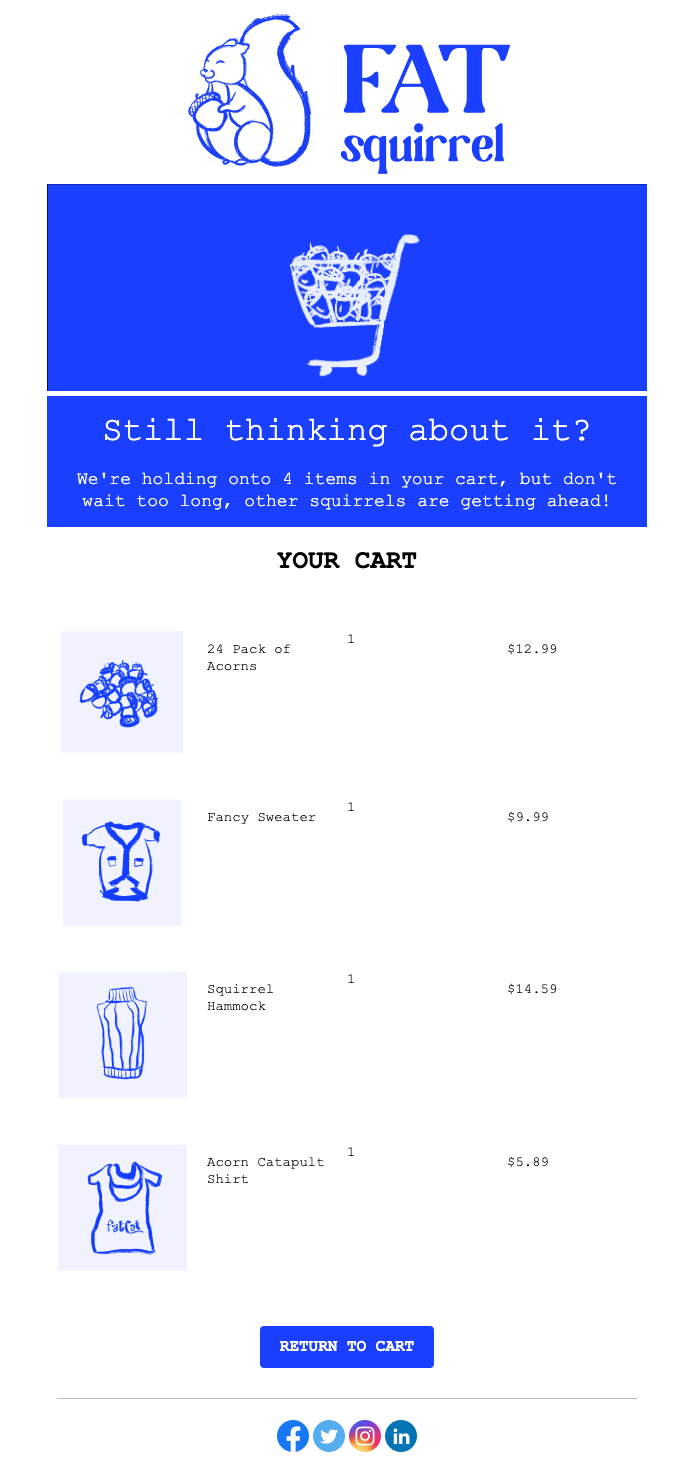
此示例展示如何构建一个邮件模板,显示:
  • 购物车商品数量
  • 使用 for 循环显示每个产品的图片、名称、数量和价格
  • 一个链接到客户唯一购物车 URL 的按钮
1

创建邮件模板

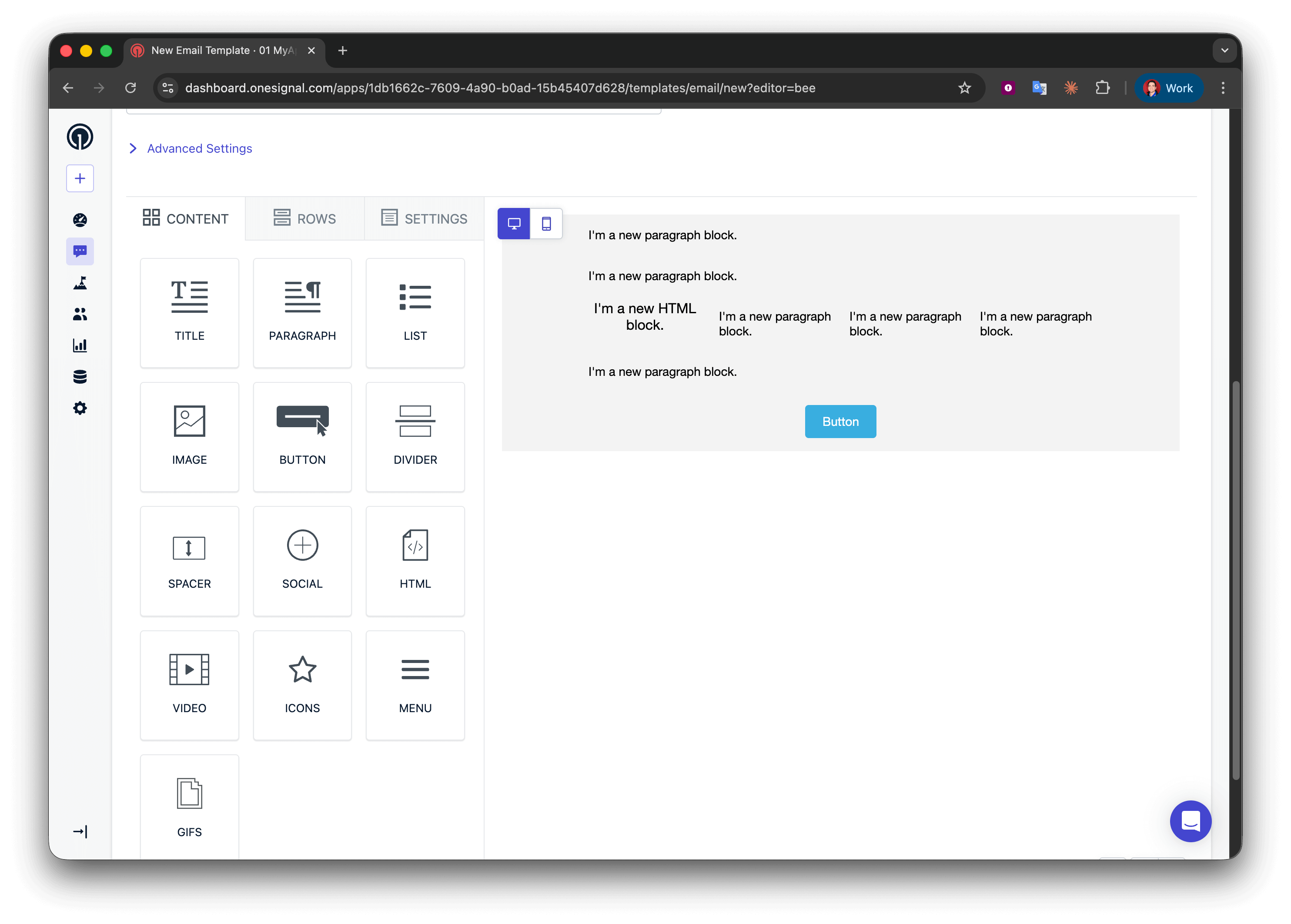
导航到 Messages > Templates > New Email Template 并打开拖放编辑器。
2

添加布局结构

创建五行:
  • 第 1、2 和 4 行:一列,包含一个段落
  • 第 3 行:四列,包含 HTML | 段落 | 段落 | 段落
  • 第 5 行:一列,包含一个按钮
3

显示商品数量

在第 1 行中添加:
Liquid
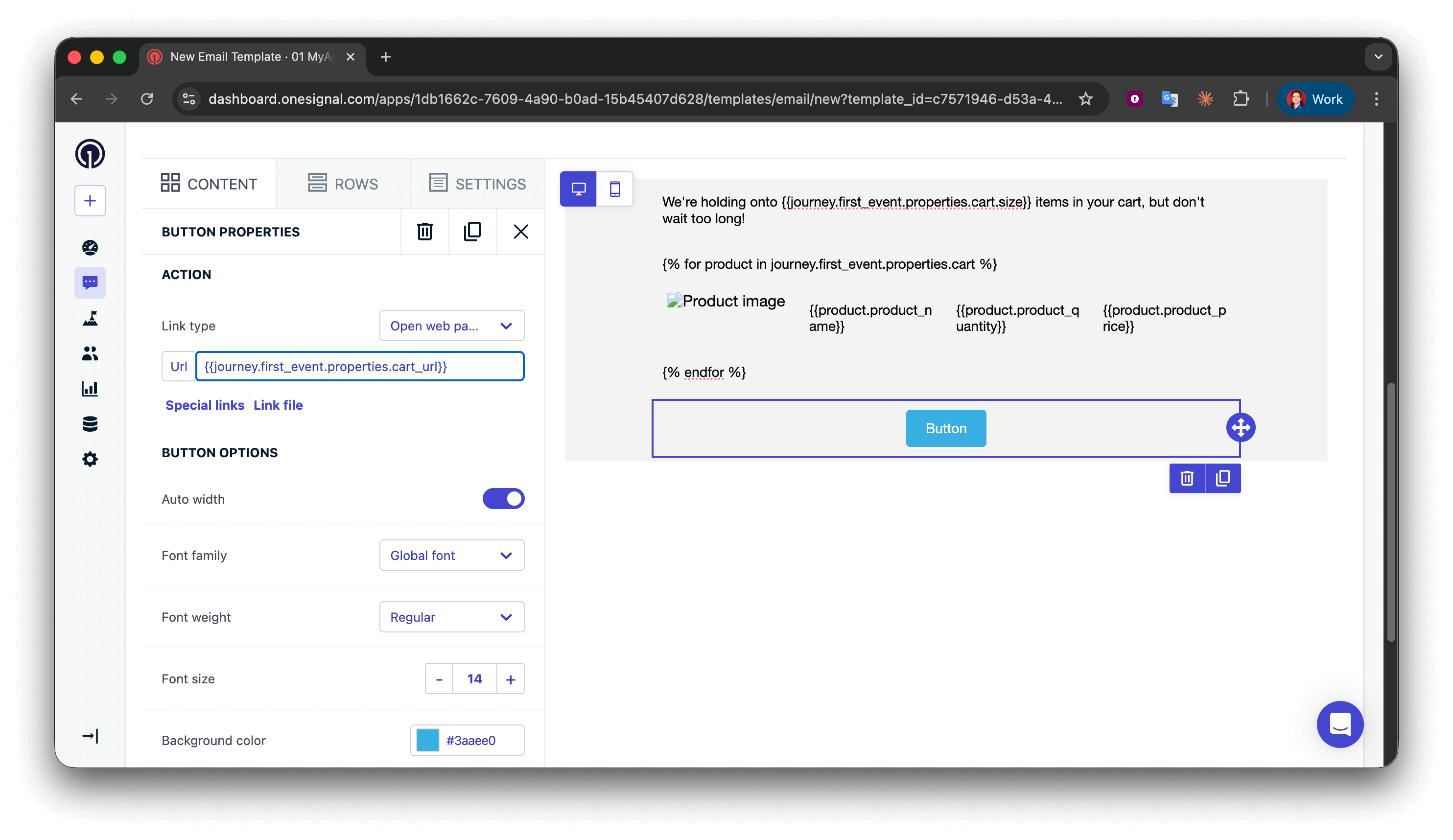
We're holding onto {{journey.first_event.properties.cart.size}} items in your cart, but don't wait too long!
为了更好的语法,你可以使用条件语句来区分”1 item”和”2 items”,但对于弃购车邮件,使用复数形式通常是可以接受的。
Liquid
{% assign cart = message.custom_data.cart %}
{% assign item_count = cart.size | plus: 0 %}
{% if item_count == 1 %}
We're holding onto {{item_count}} item in your cart, but don't wait too long, other squirrels are getting ahead!
{% endif %}
{% if item_count > 1 %}
We're holding onto {{item_count}} items in your cart, but don't wait too long, other squirrels are getting ahead!
{% endif %}
4

开始 for 循环

使用 for 循环为每个购物车商品重复产品显示行。在第 2 行(循环开始)中添加:
Liquid
{% for product in journey.first_event.properties.cart %}
作用说明:
  • 开始一个遍历 cart 数组中每个对象的循环
  • 创建一个临时变量 product 表示当前商品
  • {% for %}{% endfor %} 之间的所有内容会为每个购物车商品重复一次
  • 你可以将 product 命名为任何名称(例如 itemcartItem)——只需保持一致即可
For 循环放置位置:确保 {% for %} 语法位于其独立的文本块行中。不要将其放在包含其他内容的多列行中,因为这可能会在某些邮件客户端中导致渲染问题。
5

显示产品详情

这个 4 列行显示图片、名称、数量和价格。因为它在循环内部,所以会为每个购物车商品重复。在第 3 行(产品详情)中配置:第 1 列 - HTML 块(产品图片):
<img src="{{product.product_image}}" alt="Product image" style="max-width:100%;" />
第 2-4 列 - 文本块(产品名称、数量、价格):
  • 第 2 列:{{product.product_name}}
  • 第 3 列:{{product.product_quantity}}
  • 第 4 列:{{product.product_price}}
循环工作原理:
  • 第一次迭代时,product = 购物车数组中的第一个对象
  • {{product.product_image}} 获取第一个商品的图片
  • 第二次迭代时,product = 第二个对象
  • 行会自动为所有购物车商品重复
**字段名称匹配:**像 product_image 这样的键必须与你的事件负载完全匹配(区分大小写)。不匹配会渲染为空字符串。
6

结束 for 循环

关闭循环以标记重复结束的位置。在第 4 行(循环结束)中添加:
Liquid
{% endfor %}
每个 {% for %} 必须有匹配的 {% endfor %}。缺少它会导致邮件渲染出错。
7

添加购物车 URL 按钮

在第 5 行的按钮块中,将操作 URL 设置为:
Liquid
{{journey.first_event.properties.cart_url}}
8

测试模板

  • 将模板添加到空白 Journey,并将入口规则设置为 Custom Event。
  • 启用 Journey 并通过 Custom Event API 将自己加入其中。
  • 验证数据是否正确显示。
成功!现在你可以为模板应用自己的样式。请参阅使用拖放设计邮件

推送模板

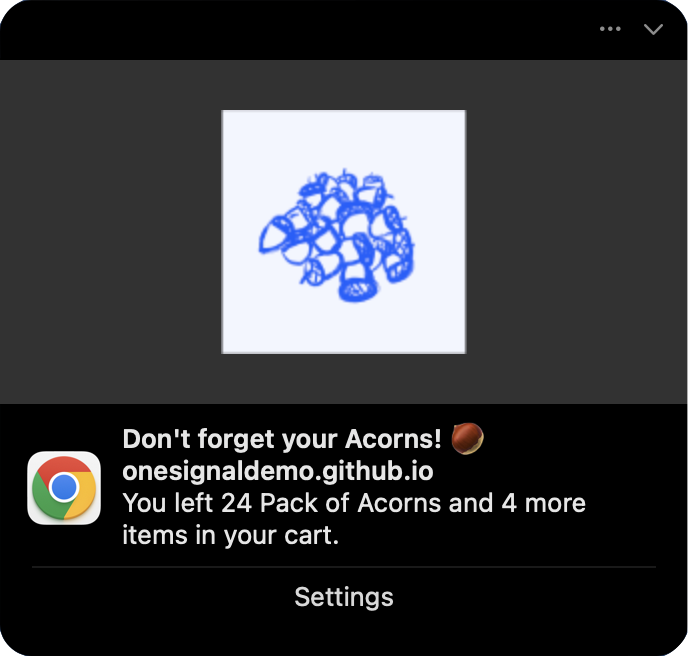
推送通知空间有限,因此只显示一个商品并提及总数量。 消息字段: 使用条件语句显示商品和数量,并确保语法正确。
Liquid
{% assign cart = journey.first_event.properties.cart %}
{% assign item_count = cart.size | plus: 0 %}
{% if item_count == 1 %}
You left {{cart.first.product_name}} in your cart.
{% endif %}
{% if item_count == 2 %}
You left {{cart.first.product_name}} and {{item_count | minus: 1}} more item in your cart.
{% endif %}
{% if item_count > 2 %}
You left {{cart.first.product_name}} and {{item_count | minus: 1}} more items in your cart.
{% endif %}
图片字段:
Liquid
{{journey.first_event.properties.cart.first.product_image | default: "https://i.imgur.com/ssPCfbC.png"}}
启动 URL 字段:
Liquid
{{journey.first_event.properties.cart_url | default: "https://yourdomain.com/cart"}}
将推送通知添加到测试 Journey 并通过另一个 Custom Event API 调用将自己加入其中,向自己发送测试推送通知。你应该会看到类似以下内容的通知:
成功!你现在可以创建更多模板并在弃购车 Journey 中使用它们。

故障排除和最佳实践

常见错误:
错误失败原因正确语法
{{ journey.first_event.item }}缺少 .properties{{ journey.first_event.properties.item }}
{{ journey.event.purchase.item }}缺少 .properties{{ journey.event.purchase.properties.item }}
{{ journey.first_event.properties.Item }}大小写错误(应为 item{{ journey.first_event.properties.item }}
{{ event.properties.item }}缺少 journey. 前缀{{ journey.first_event.properties.item }}
最佳实践:
  • 在上线之前始终测试模板
  • 对可选属性使用 default 过滤器
  • 验证事件结构与模板预期匹配

相关页面

需要帮助?与我们的支持团队聊天或发送邮件至 support@onesignal.com请包含以下信息:
  • 您遇到的问题详情以及复现步骤(如有)
  • 您的 OneSignal 应用 ID
  • 外部 ID 或订阅 ID(如适用)
  • 您在 OneSignal 控制台中测试的消息 URL(如适用)
  • 任何相关的日志或错误信息
我们很乐意为您提供帮助!