Use OneSignal in-app messages to coach Android users on Samsung, Xiaomi, and similar devices that block push delivery when apps are force-stopped or have notification categories disabled.
Some Android manufacturers — including Samsung, Xiaomi, Huawei, Oppo, Vivo, and OnePlus — restrict background activity for non-system apps. When users swipe these apps away from the recents list, the OS force-stops the app and blocks push delivery until the user reopens it. See Android Force Stop for the underlying cause.Push delivery from OneSignal succeeds, but the device suppresses the notification. You can detect these devices from your Android app and trigger a OneSignal in-app message that walks the user through enabling the right settings.
This pattern applies only to Android apps. iOS and web do not have an equivalent OS-level restriction that requires user remediation.
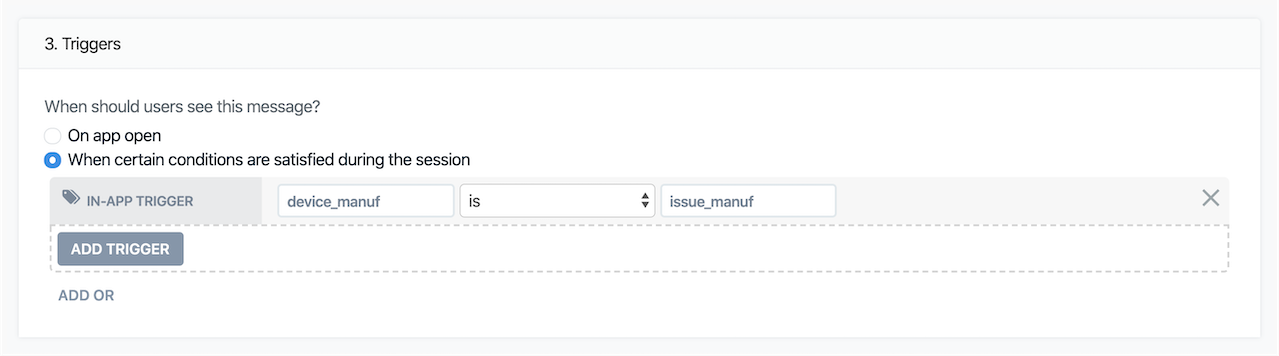
In Messages > In-App > New In-App, build the message you want to show. The body should give users clear, copy-paste-friendly steps to allow background activity on their device.Set the audience to Subscribed Users with platform filter Android. Other audience filters work too, as long as the user is in the audience before a new session starts — otherwise the trigger will not fire. See the in-app trigger requirements.In Trigger, choose Custom trigger and set:
Key: device_manufacturer
Operator: is
Value: restricted
Custom trigger configured to fire when device_manufacturer is restricted
2
Detect the device manufacturer in your Android app.
Read android.os.Build.MANUFACTURER early in your app’s lifecycle — for example in Application.onCreate() or immediately after OneSignal initialization. If the value matches your list of restricted manufacturers, call addTrigger with the same key and value you set in the dashboard.
val restrictedManufacturers = setOf( "samsung", "huawei", "xiaomi", "oppo", "vivo", "oneplus", "honor", "realme", "meizu", "asus")if (Build.MANUFACTURER?.lowercase(Locale.ROOT) in restrictedManufacturers) { OneSignal.InAppMessages.addTrigger("device_manufacturer", "restricted")}
Keep the manufacturer list in remote config (Firebase Remote Config, your own backend, or feature flags) so you can update it without shipping a new app release. dontkillmyapp.com maintains a community-sourced list of OEMs with restrictive battery policies.
3
Point users to the correct settings.
Settings paths vary by manufacturer and OS version, so generic instructions break quickly. Two approaches that age well:
Recommended. Link to the manufacturer’s page on dontkillmyapp.com (for example, https://dontkillmyapp.com/samsung) from the in-app message CTA. The site has up-to-date, per-OEM walkthroughs in multiple languages.
Advanced. Deep-link to the Android battery optimization screen from your IAM click handler using Intent.ACTION_IGNORE_BATTERY_OPTIMIZATION_SETTINGS. This skips the settings hunt entirely on most devices.
If you prefer to include settings copy directly in the message, scope it to the dominant manufacturer in your install base and refresh it when you see drop-off in delivery.
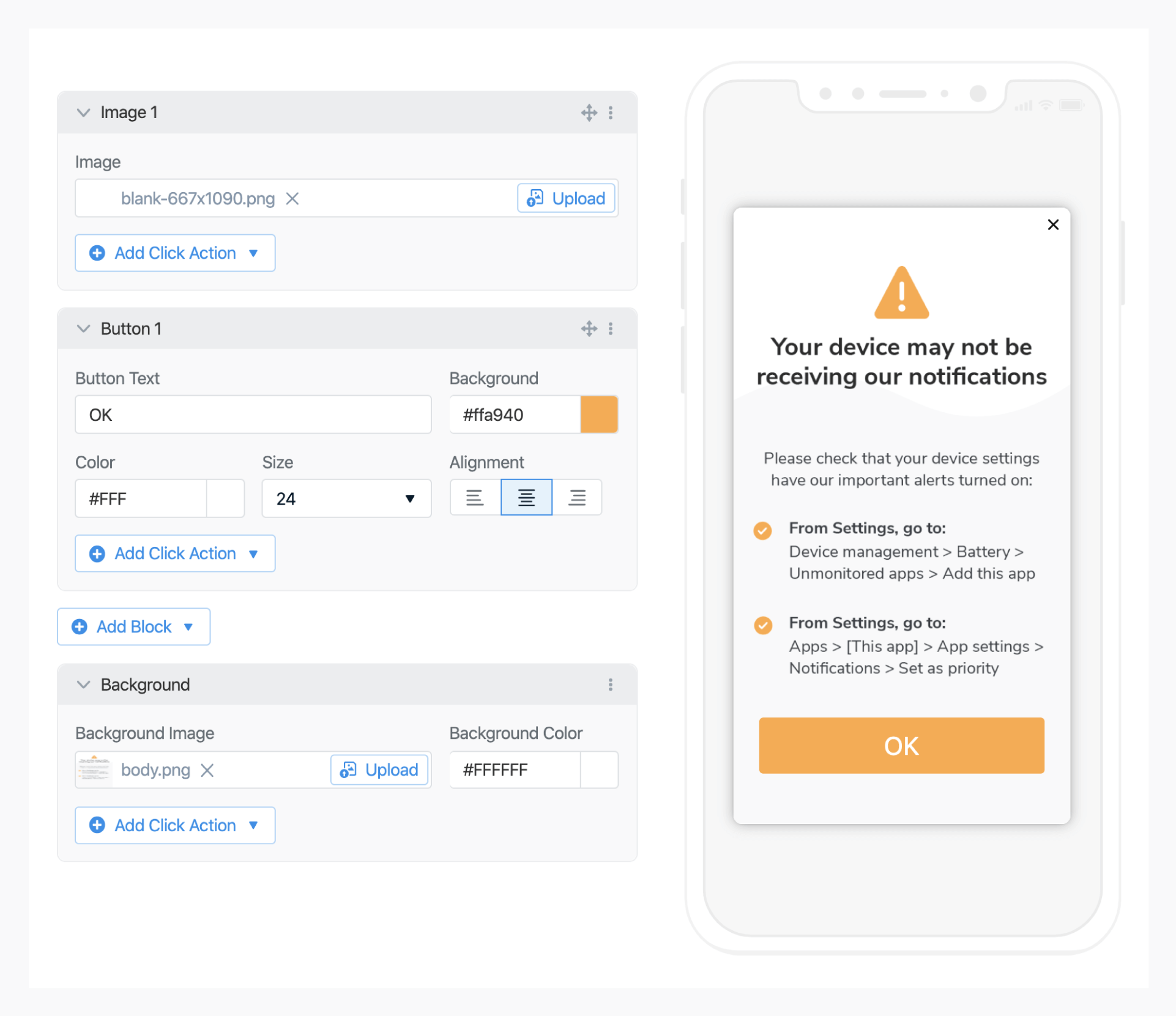
Example message copy for Samsung
Your device may not be receiving our notifications. To make sure you stay updated:Settings > Apps > [Your app] > Battery > Allow background activitySettings > Apps > [Your app] > Notifications > Allow notifications and verify all categories are on.
In-app editor preview of a Samsung-targeted settings message
4
Test on a target device.
Install a debug build on a Samsung (or other restricted-manufacturer) device.
Force-close and reopen the app to start a new session.
Confirm in logcat that addTrigger is being called with the expected key and value.
Samsung One UI 6.1 silently disables notification categories for many apps after install, which suppresses notifications even when the OS otherwise allows them. You can target this case with the same pattern by adding a second trigger and a second in-app message.
if (Build.MANUFACTURER.equals("samsung", ignoreCase = true)) { OneSignal.InAppMessages.addTrigger("samsung_category_check", "show")}
Configure a separate in-app message that explains how to re-enable categories at Settings > Notifications > Your app. See Android notification categories disabled for background on this issue.
The most common cause is calling addTrigger after the user is already past the start of their session. In-app messages evaluate triggers when a session begins. Call addTrigger early in your app launch flow — before any user interaction — or instruct the user to relaunch the app.A second common cause is the user being excluded from the message audience. Confirm the message audience includes the test user’s subscription and platform.
By default, every launch where the trigger matches will fire the message. To limit frequency, configure display frequency on the in-app message (for example, “Show only once”).
No. iOS does not allow third-party apps to be force-stopped by the OS or by user swipe, so the underlying problem does not exist. You do not need to ship this pattern on iOS.
Does this work on React Native, Flutter, or Cordova?
Yes. The addTrigger API is identical across supported SDKs. To read the device manufacturer, use a platform package such as react-native-device-info (getManufacturer()) or device_info_plus (AndroidDeviceInfo.manufacturer), then call OneSignal.InAppMessages.addTrigger("device_manufacturer", "restricted") when the value matches your list.
No. The OneSignal SDK does not expose Build.MANUFACTURER directly. You read it from the Android Build class in your own code and pass the result to addTrigger.
Trigger state is local to the SDK and is not a user-level property, so it does not appear in the OneSignal dashboard. To confirm it ran, add a log statement next to your addTrigger call, then watch logcat or check whether the IAM displayed for the test user.