

Target by country
Country is determined by the device’s IP address and updates automatically each time the user opens your app. The value uses the ISO 3166-1 Alpha-2 two-letter country code (for example,US, GB, CA).
Target by country using the country field in Segments or in the filters parameter of the Create segment API:
Target by location (latitude, longitude, and radius)
If your mobile app collects GPS location and shares it with OneSignal, the SDK updates the user’s coordinates approximately every 5 minutes (based on permission and system rules). If the app is force-stopped, location cannot be tracked until the user opens it again.Location tracking setup
Location tracking is configured in your mobile app’s code, not in the OneSignal Dashboard. At a minimum, your app must:- Add native location permissions and dependencies for iOS and Android.
- Enable the
Location.isSharedflag to share coordinates with OneSignal. - Request the system location permission, or use an in-app message as a soft pre-prompt for better opt-in rates.
Mobile SDK location reference
Full setup and per-platform code for iOS, Android, React Native, Flutter, Unity, and Cordova/Ionic.
Once location tracking is enabled, you can create segments or send messages via our API using the
location filter.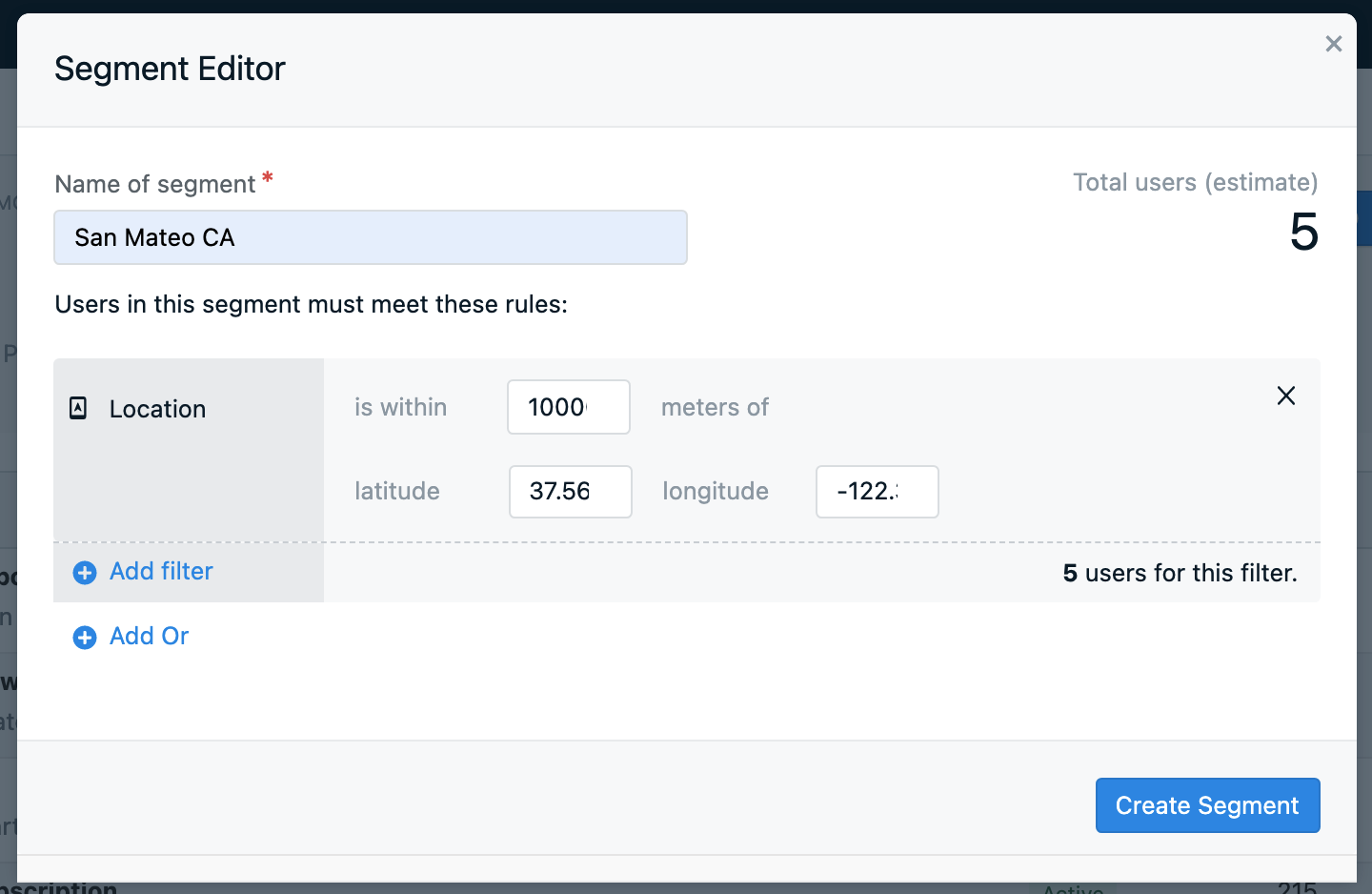
Location filter in Segments
Web push latitude and longitude tracking
OneSignal does not collect latitude/longitude for web. However, you can use tags to set the location from your web app or use the Update User API to set the location from your server. Tagging example:- Request location access in your web app using the browser’s Geolocation API.
- Use JavaScript to detect the user’s coordinates.
- Send those coordinates to OneSignal using tags.
37° ≤ lat < 38° and -118° ≤ long < -117°, add these four filters in the segment builder:
- Tag
latgreater than37 - Tag
latless than38 - Tag
longgreater than-118 - Tag
longless than-117
Target by city or custom location
OneSignal does not natively detect city or area codes. To target by city or custom location:- Let users input a city or region in a form.
- Or use JavaScript with reverse geocoding (e.g., Google Maps API) to infer city from coordinates.
- Send the city name as a data tag.
FAQ
Does location tracking work on web?
Not natively. OneSignal’s Web SDK does not collect GPS coordinates. To use location-based segments for web push, collect coordinates yourself from the browser’s Geolocation API and send them to OneSignal as tags, then build range-filter segments on those tags. See Web push latitude and longitude tracking.Why is my app not tracking location?
Verify all three setup conditions are met: your app has the correct location permissions and dependencies installed,Location.isShared is set to true, and the user has granted location permission at the system prompt. See the Mobile SDK location reference for platform-specific setup and common fixes, including the Android play-services-location dependency.
How often does the SDK update location?
When location tracking is enabled, the SDK updates coordinates approximately every 5 minutes while the app is in use. If the app is force-stopped, location updates pause until the user opens the app again.Can I target users by city?
Not natively. OneSignal tracks country (via IP address) and GPS coordinates (via the SDK), but not city or area code. You can infer city from coordinates using a reverse geocoding service and store it as a tag. See Target by city or custom location.Related pages
Location opt-in prompt
Use an in-app message as a soft pre-prompt before requesting native location permission.
Segments
Create audience segments using location filters, tags, and user properties.