

In-App Messages display only when their trigger conditions are met. You control exactly when a banner appears by setting triggers from your app.
When to use banner IAMs
Use banner IAMs for onboarding when you want to:- Explain a screen as the user reaches it
- Guide users through multi-step flows
- Highlight actions users should take next
- Keep onboarding visible but non-intrusive
Example onboarding flow
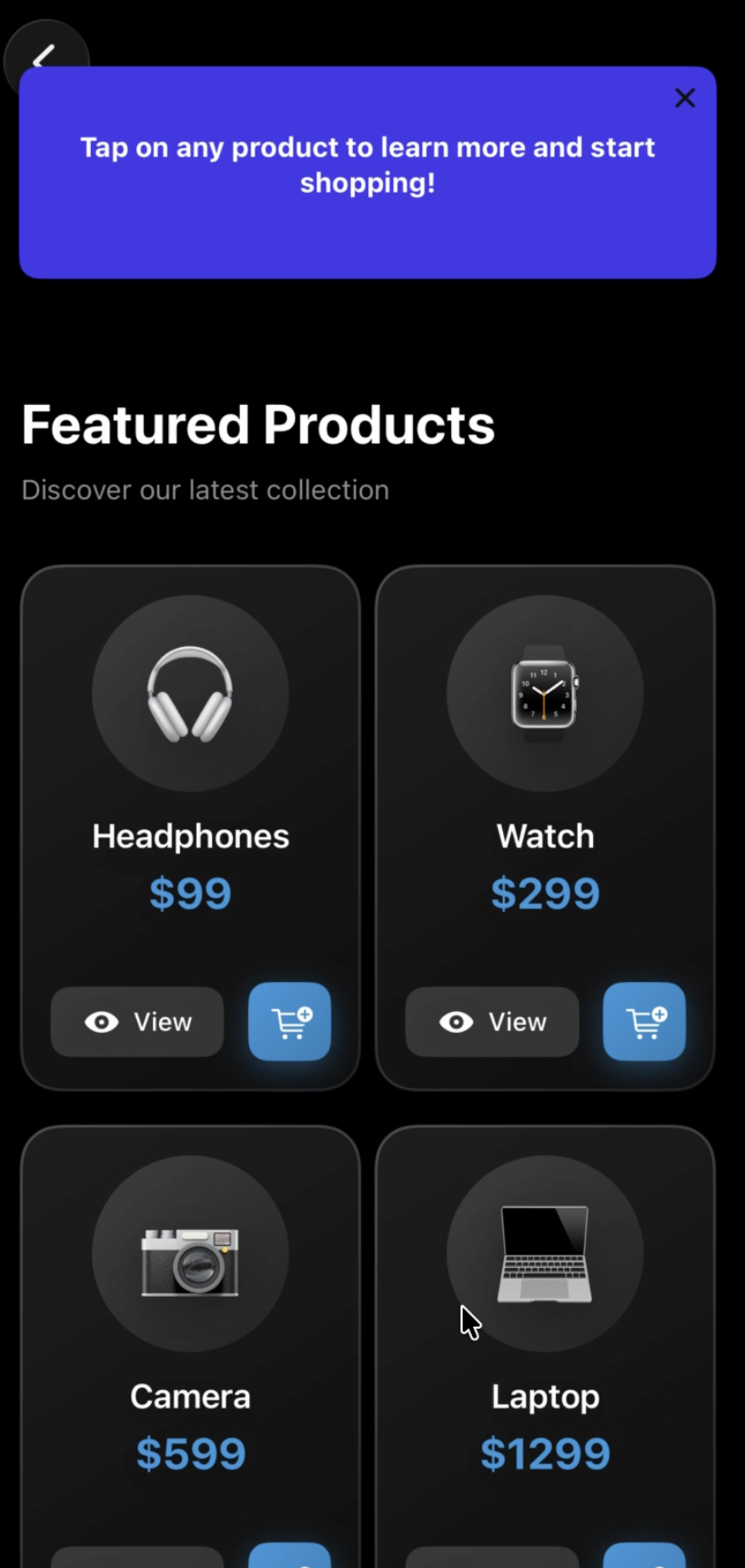
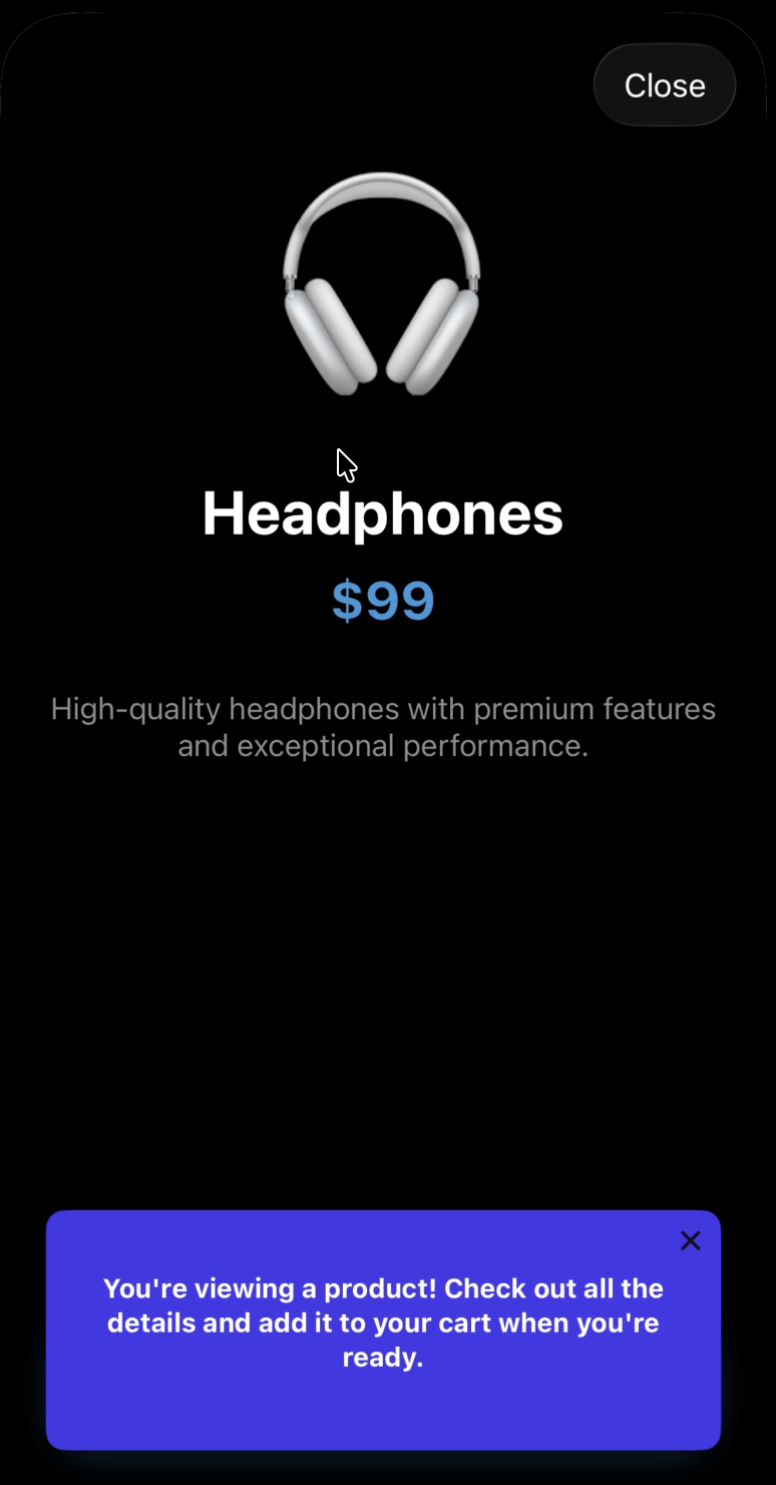
When a user opens your site or app for the first time, a top banner welcomes them and prompts exploration. When the user taps a product to view details, a bottom banner guides them on what to do next. Each banner appears only when the user reaches the relevant screen. This approach ensures users see guidance only when it is relevant.Visual example: E-commerce onboarding
Here’s how banner IAMs guide users through an e-commerce app. This example uses two separate IAMs, each with a 3-second auto-dismiss. When the first banner dismisses, the trigger for the second banner activates, creating a smooth sequential flow:Initial welcome banner
Product selection banner
Prerequisites
Before you begin, make sure you have:- An active OneSignal app
- OneSignal SDK installed in your app
- The ability to trigger events or call methods from your app code
- User consent granted for the OneSignal SDK (required for In-App Messaging)
Create a banner in-app message
1
Navigate to In-App Messages
In the OneSignal dashboard, go to Messages → In-App Messages and select New In-App Message.
2
Choose banner type
Under Message Type, choose Top or Bottom.
3
Design your content
Include a short heading that explains the purpose of the screen, optional supporting text if needed, and an optional button to guide the next action.
4
Configure triggers
Add one or more In-App Message triggers that define when the banner should appear. Optionally add conditions or limits to control how often the message displays.
5
Set display duration
Choose between auto-dismiss (banner disappears after 3-10 seconds) or user-dismissible (banner remains until the user taps close).
6
Activate the message
Save and activate your banner In-App Message.
Use top banners for high-visibility guidance and bottom banners for subtle prompts that align with primary actions. For onboarding, use auto-dismiss to keep the flow moving without requiring user action.
Trigger the banner from your app
You trigger the banner IAM when the user reaches a specific screen or completes an action using In-App Message triggers. Triggers are key–value pairs that you set from your app code. When the trigger conditions match the IAM’s display rules, the banner displays.Triggers persist for the session unless you remove or update them. Make sure each trigger represents a clear, intentional onboarding moment.
Remove triggers when no longer needed
To prevent banners from reappearing unintentionally, remove triggers when they’re no longer needed:Chain banner messages (optional)
You can guide users through a flow by creating multiple IAMs, each with its own trigger. Set each banner to auto-dismiss after 3 seconds so the next banner can appear. Remove the previous trigger before adding the next one to prevent overlapping banners.Example: E-commerce onboarding flow
- Page loads → Trigger
iam_welcome→ Banner: ”🎉 Welcome! Explore our products” - User taps product → Trigger
iam_product_view→ Banner: ”👀 Tap ❤️ to save favorites” - User adds to cart → Trigger
iam_add_to_cart→ Banner: ”✅ Great choice! View cart anytime” - User views cart → Trigger
iam_cart_view→ Banner: ”🛒 Review your items here” - User checks out → Trigger
iam_checkout→ Banner: ”🎊 Thanks for your order!”
Verify the setup
The banner appears only when the trigger fires and does not block the app UI.
- Confirm the trigger key and value match exactly (case-sensitive)
- Verify the IAM is Active in the dashboard
- Check Frequency Limits - the IAM may be rate-limited
- Ensure user meets Targeting Rules (if any)
- Check console logs for OneSignal trigger events
- Verify In-App Messaging consent has been granted (if required)
Next steps
- Announce new features using banner In-App Messages
- Create a full onboarding experience with card or carousel IAMs
- Segment users to show different onboarding messages based on experience level
- A/B test different banner messages to optimize engagement