Documentation Index
Fetch the complete documentation index at: https://documentation.onesignal.com/llms.txt
Use this file to discover all available pages before exploring further.
iOS provides a UNNotificationContentExtension protocol as the entry point for a notification content app extension. This can be used to display a custom interface for your app’s notifications. This example guide explains how to use this for creating a carousel within an iOS notification.
1. Add a notification content extension

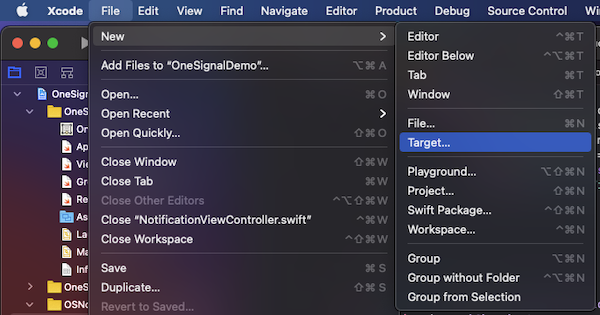
In Xcode, select File > New > Target…

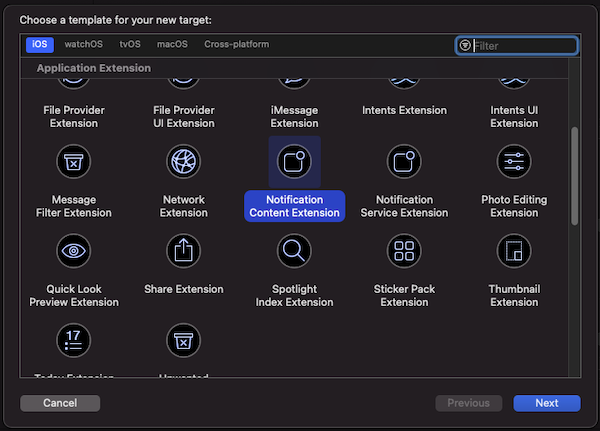
Select “Notification Content Extension”

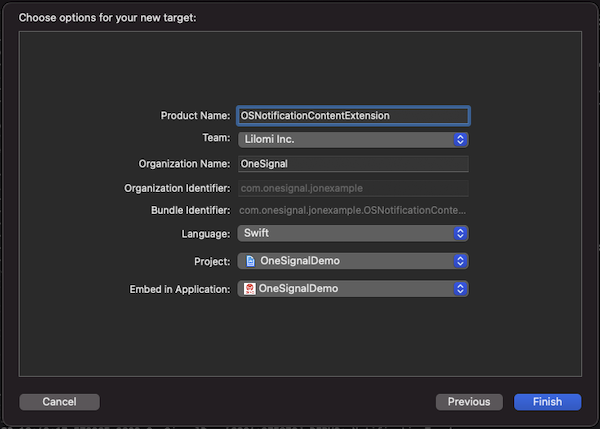
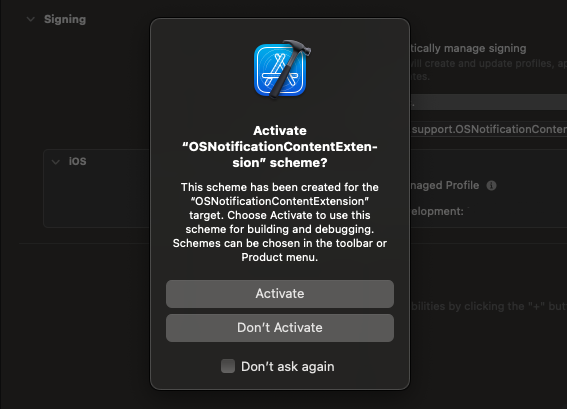
Confirm the selection on the window that pops up
2. Add code to your app
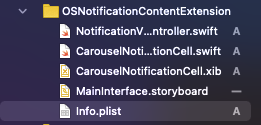
Download the OSNotificationContentExtension from Github and replace the OSNotificationContentExtension in your Xcode Project with the same file from Github.
You should see the following files added:
3. Set your notification category
This example Declares The Actionable Notification Type within the AppDelegate.swift didFinishLaunchingWithOptions.
func application(_ application: UIApplication, didFinishLaunchingWithOptions launchOptions: [UIApplication.LaunchOptionsKey: Any]?) -> Bool {
//START Authorize OS Notification Carousel Category
if #available(iOS 10.0, *) {
let options: UNAuthorizationOptions = [.alert]
UNUserNotificationCenter.current().requestAuthorization(options: options) { (authorized, error) in
if authorized {
let categoryIdentifier = "OSNotificationCarousel"
let carouselNext = UNNotificationAction(identifier: "OSNotificationCarousel.next", title: "👉", options: [])
let carouselPrevious = UNNotificationAction(identifier: "OSNotificationCarousel.previous", title: "👈", options: [])
let carouselCategory = UNNotificationCategory(identifier: categoryIdentifier, actions: [carouselNext, carouselPrevious], intentIdentifiers: [], options: [])
UNUserNotificationCenter.current().setNotificationCategories([carouselCategory])
}
}
}
//END Authorize OS Notification Carousel Category
return true
}
4. Send your push notification
When Sending Push Messages you can set the iOS Category and custom Data.
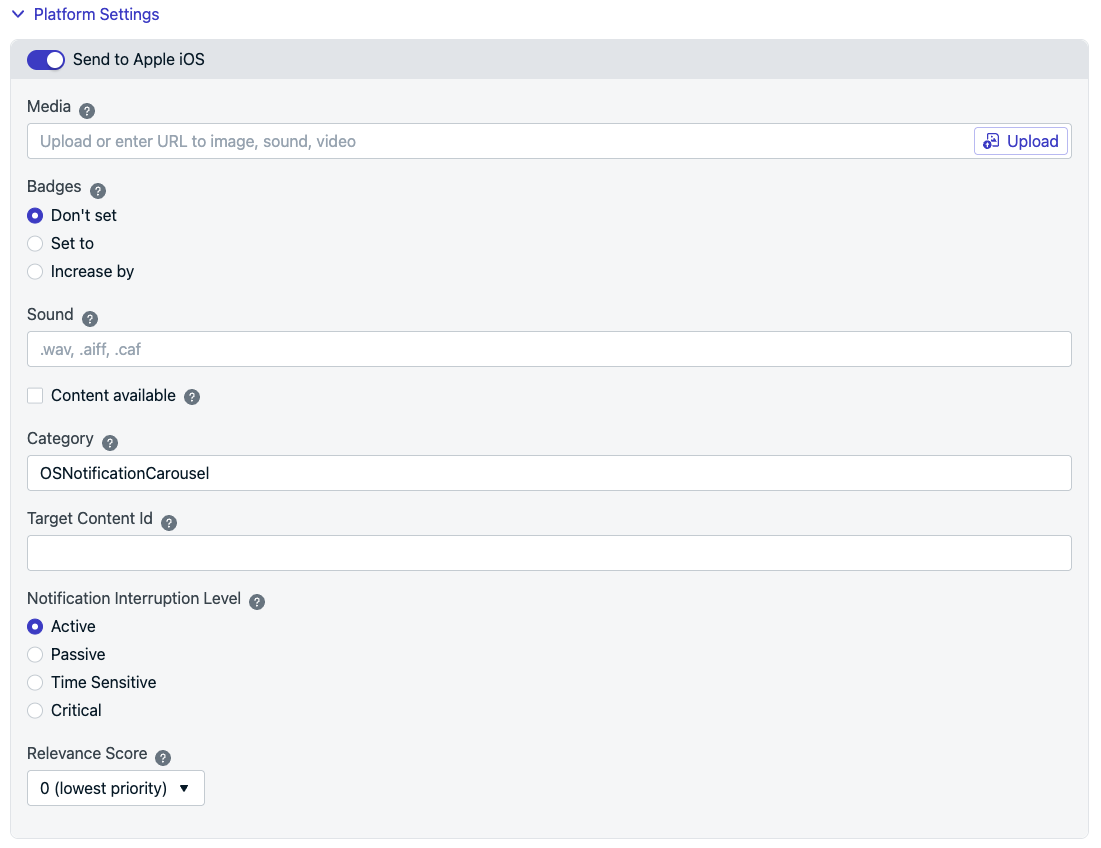
iOS category
Use OSNotificationCarousel as the iOS Category:
Set under “Platform Settings” > Send to Apple iOS > “Category” Set with the ios_category API Parameter.
Custom data
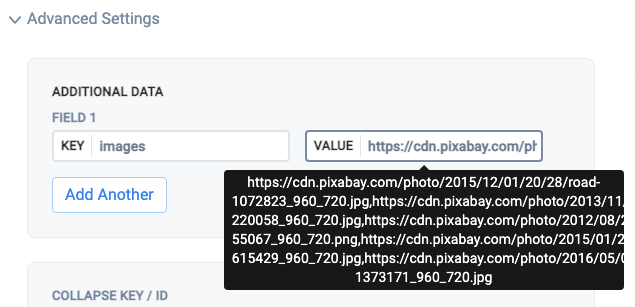
OneSignal doesn’t have an option to upload multiple images per notification.
Instead you must list the Image URLs separated by a comma ,
Set under “Advanced Settings” > “Additional Data”For the “Key” set images and the “Value” set the list of comma separated URLs without quotes.Example, copy paste:https://cdn.pixabay.com/photo/2015/12/01/20/28/road-1072823_960_720.jpg,https://cdn.pixabay.com/photo/2013/11/28/10/36/road-220058_960_720.jpg,https://cdn.pixabay.com/photo/2012/08/27/14/19/mountains-55067_960_720.png,https://cdn.pixabay.com/photo/2015/01/28/23/35/landscape-615429_960_720.jpg,https://cdn.pixabay.com/photo/2016/05/05/02/37/sunset-1373171_960_720.jpg
Use the data API Parameter like this:data: {
"images" : "https://cdn.pixabay.com/photo/2015/12/01/20/28/road-1072823_960_720.jpg,https://cdn.pixabay.com/photo/2013/11/28/10/36/road-220058_960_720.jpg,https://cdn.pixabay.com/photo/2012/08/27/14/19/mountains-55067_960_720.png,https://cdn.pixabay.com/photo/2015/01/28/23/35/landscape-615429_960_720.jpg,https://cdn.pixabay.com/photo/2016/05/05/02/37/sunset-1373171_960_720.jpg"
}
Send the push
Once you receive the push, you will need to long press or swipe left and click “View” to expand the notification depending on the iOS version.
Troubleshooting
The code sample on the Github page has lines that are commented out which show debug positions and print statements to help identify any issues. Uncomment those lines and you should be able to see if the Notification Content Extension is being instantiated. If not, please check that you have not missed any steps in the setup process. If you continue to have issues, please reach out to support@onesignal.com
Further reading