

- Case 1 – Basic: You only have data collected automatically by the OneSignal SDK, such as
First SessionandLast Session. Messages are time-based, with no event tracking required. - Case 2 – Advanced: You have Custom Events and Tags from gameplay. Messages are behavior-driven and personalized per player.
At a glance
Setup is the same for both cases. The only difference is the daily decision step.- Define the entry, exit, and recent-activity segments.
- Build the push, email, and in-app message templates.
- Configure Journey entry, exit, and re-entry rules.
- Wire up Day 1 — the same in both cases: email → IAM → Time Window → push.
- Repeat the daily pattern for Days 2 through 7, then add the Day 7 closing email.
Onboarding goals
Prerequisites
Work through the Gaming strategies implementation roadmap before building this Journey. The strategy page defines the data foundation; this page implements one specific Journey on top of it. Required:- Familiarity with Journeys concepts (entry/exit rules, message and action steps, etc.).
- An active OneSignal app with the mobile SDK installed.
- Push permissions enabled by the player. This Journey relies on push notifications to re-engage players, so prompt for permission early — for example, after a tutorial or during an onboarding sequence.
- Case 2 only: a
daily_sessionCustom Event — see Custom Events on the strategy hub and Required data below.
- A standalone push permission IAM. See Prompt for push permission with in-app messages for how to configure an IAM with a Push Permission Prompt click action.
- Case 2 only: a
player_nameTag for per-player personalization in the shared templates — see Tags on the strategy hub.
Segments
Entry segment:- Name: “New Players First Day Inactivity”
- Filters: First session less than
1day ago AND Last session greater than4hours ago.
Why 4 hours of inactivity?Four hours is long enough to avoid feeling needy — many players close the app between sessions and come back later the same day — but short enough that the game is still fresh in their mind. It’s a strong default, not a magic number: casual puzzle games may prefer a shorter window (2 hours), while RPGs or strategy games may warrant longer (6–8 hours). To test alternatives, clone the Journey with a different segment threshold and compare Day 2 return rates.
- Name: “Players who have not returned in 1 week”
- Filters: Last session greater than
1week ago.
- Name: “Players active in the last 12 hours”
- Filters: Last session less than
12hours ago.
Templates
These templates are starting points — clone, edit, and re-use them in your own Journey. They use Liquid syntax for personalization.- Push Notification templates
- Email templates
- In-App Message templates
Templates
Create and manage reusable message templates.
Message personalization
Overview of all personalization options available in OneSignal.
Deep linking
Route users to the correct page.
Journey configuration
Both cases share the same segments, message templates, and Journey settings. Define them once and reference them from either case.Journey settings
Entry rules:- Audience Segment: “New Players First Day Inactivity”
- Future additions only: Checked — this must stay checked so existing users aren’t bulk-enrolled the moment the Journey is saved.
- Meet a certain condition: check Exit when a user enters a segment.
- Segment: “Players who have not returned in 1 week”
- Tag users when they exit early:
completed_welcome_journey:false- Identifies players who stopped returning before completing the Journey. Use it as the entry filter for a downstream winback Journey so stalled players get a dedicated “we miss you” flow rather than more onboarding messages.
Case 1: Basic onboarding journey
This Journey uses time-based delays and session filters — a “set it and forget it” onboarding flow that covers the critical first-week re-engagement window with minimal data requirements.Daily timing: Wait + Time Window
This Journey uses two Journey actions together to deliver a daily re-engagement push during the player’s most likely play window:- Wait: A fixed delay between messages.
- Time Window: A delivery window every day between 6 PM and 10 PM in the player’s local timezone. Every push is held until the window opens.
Without the buffer — say, a 4-hour Wait that exactly matches the window — a 6 PM push would expire at 10 PM the same day, still inside the window, and send the Day 2 push the same night.
Basic Journey steps
Day 1
1
Email: Day 1 — Welcome and push opt-in
Goal: Open the Journey with an appreciative, welcoming, community-focused email that also drives push opt-in.Because this is the first message step, the email lands 4 hours after the player’s first session ends (per the entry segment) rather than immediately on install — less needy, less transactional. The email’s push opt-in CTA also catches players who declined the install-time permission prompt, deep-linking them to the in-app preference center.
2
In-App Message: Day 1 — Onboarding carousel
Goal: Get players to complete their profile and turn on push notifications.
3
Time Window: 6 PM – 10 PM
Goal: Prevent the Day 1 push from firing outside the evening play window.The entry segment triggers whenever the 4-hour inactivity threshold is crossed — including overnight or early morning. Without this step, a player who stopped playing at 2 AM would otherwise receive the Day 1 push at 6 AM. This Time Window holds the push until 6 PM in the player’s timezone.
4
Push Notification: Day 1 — Reward
Goal: Drive a second session on Day 1 while the player is still engaged.
Day 2
1
Wait: 6 hours
Goal: Push the next Time Window evaluation past 10 PM so the window snaps to the next day rather than re-firing the same evening. See Daily timing for the math.
2
Time Window: 6 PM – 10 PM
Goal: Hold the next push until the evening play window.
3
Yes/No branch: Players active in the last 12 hours
Goal: Skip the push if the player has already returned to claim their reward.Setup: Segment membership: “Players active in the last 12 hours”This creates 2 branches:
- Yes: Player has been active within the last 12 hours → skip the push and continue to the next day’s Wait step.
- No: Player hasn’t returned → send the Day 2 — Reward push.
4
Push Notification: Day 2 — Reward
Goal: Bring the player back to claim the next reward.Add this to the No branch of the previous step.
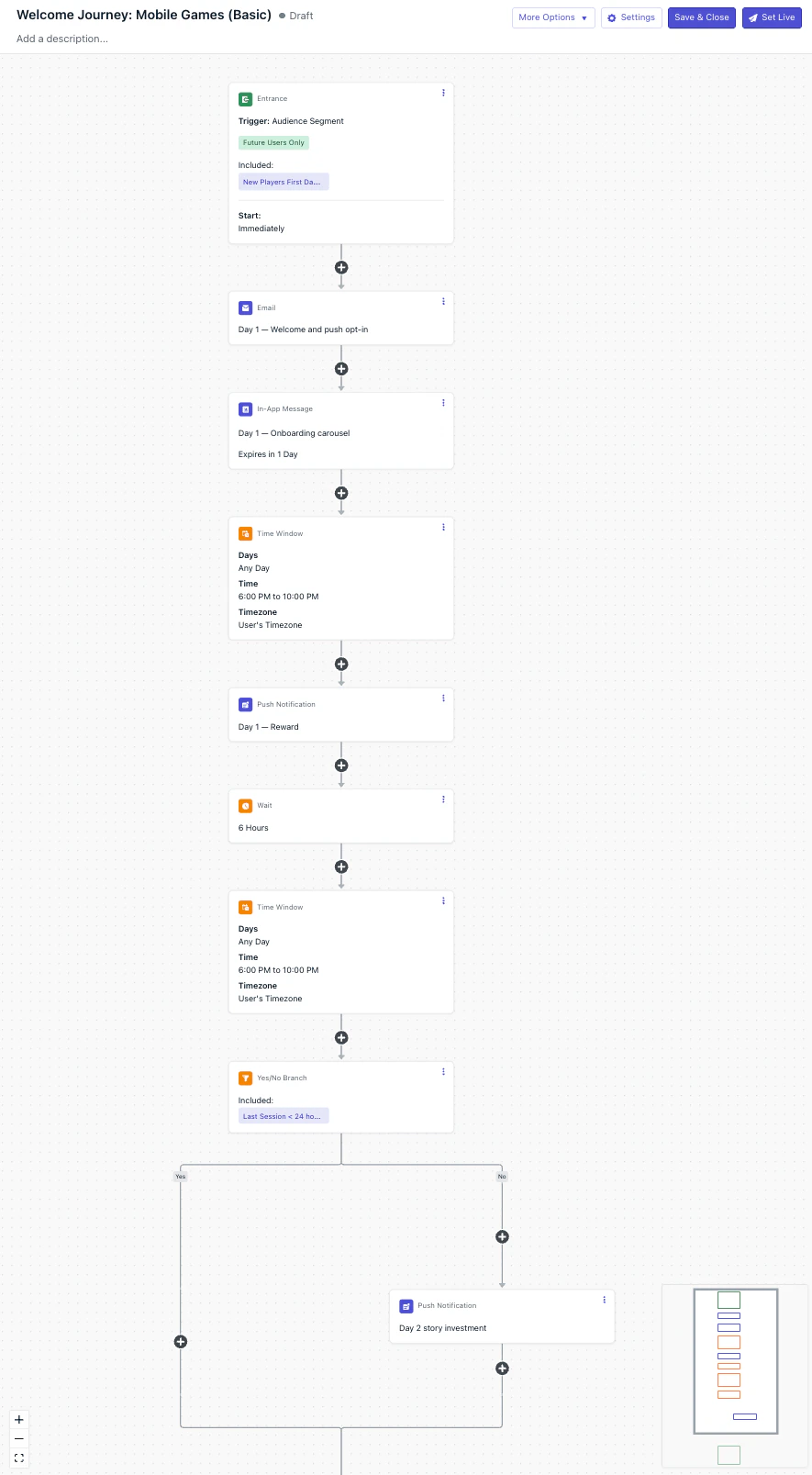
Basic Gaming Onboarding Journey
Days 3–6
Each of these days repeats the Day 2 pattern:- Wait 6 hours
- Time Window 6 PM – 10 PM
- Yes/No branch: Players active in the last 12 hours
- Push notification on the No branch.
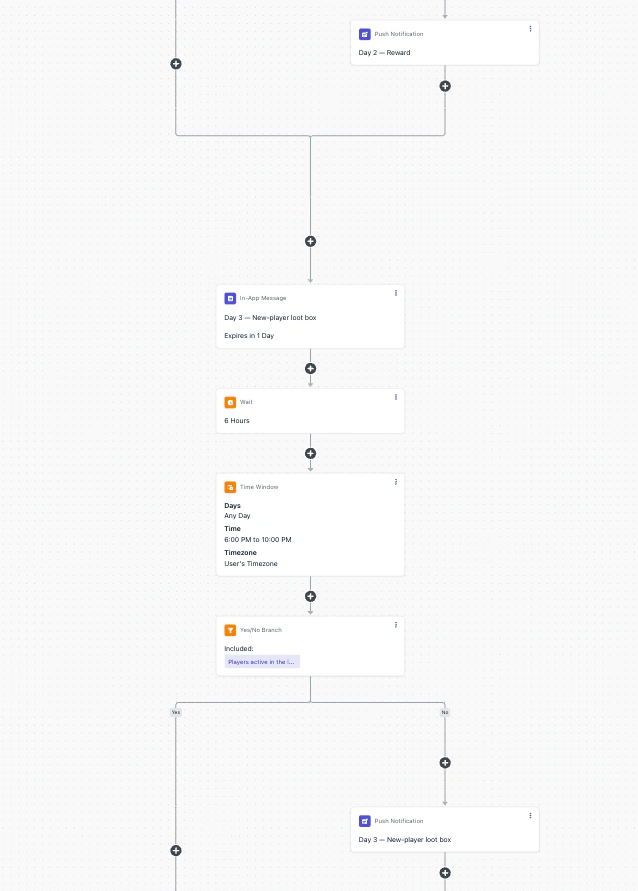
Days 3–6 pattern with IAM
Day 7
Day 7 follows the same four-step pattern as Days 3–6 and adds a closing email after the branches converge:1
Wait + Time Window + Yes/No + Push
Same shape as Days 2–6: a 6-hour Wait, a 6 PM – 10 PM Time Window, the Yes/No branch on Players active in the last 12 hours, and the Day 7 — Reward push on the No branch.
2
Email: Day 7 — Leaderboard and community recap
Add this email step after the Yes/No branch’s two paths converge — not on either branch. Placing it after convergence means active and inactive players both receive the milestone email, regardless of whether they took the Day 7 push.
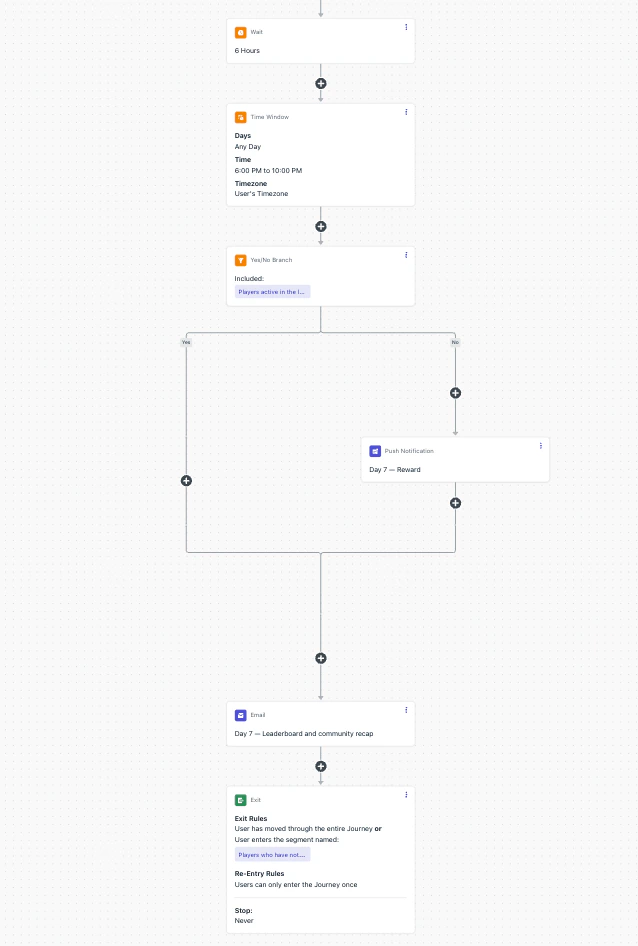
Day 7 push and email at the end of the Journey
Best practices for Case 1
- Run the push permission prompt outside the Journey. Configure it as a standalone push permission prompt IAM so first-session players see it before they ever enter the Journey.
- Route long-silent players to winback via the exit rule. The 1-week exit rule sets
completed_welcome_journey:falseso stalled players land in a dedicated winback Journey rather than cycling through more reward reminders. A shorter threshold (for example 48 hours) would exit players before Day 3 and Day 7 — the exact messages designed for silent players — and defeat the Journey’s purpose. - Skip the push if the player was recently active. The Yes/No branch on the Players active in the last 12 hours segment prevents sending a “claim your reward” push to a player who has already come back and likely claimed it. Without this gate, you risk layering a redundant reminder on top of an in-app notification they’ve already seen.
- Bookend the Journey with email. The Day 1 welcome email opens with a community-focused touchpoint that also catches players who declined the install-time push prompt; the Day 7 leaderboard email closes by transitioning the player from onboarding into the community. Both reach players regardless of push opt-in state.
- Frame messages as reward reminders, not streak claims. Case 1 has no way to verify whether the player actually returned, so claiming a “3-day streak” to someone who hasn’t opened the app since Day 1 feels dishonest. Stick to “your Day N reward is ready” — it’s honest and just as motivating. For real streak tracking, see Case 2.
- Deep-link every push to the reward claim screen. Tapping a push should land the player on the exact reward screen, not the app home. Deep linking removes friction and materially improves tap-through to claim rates. See Deep linking.
Case 2: Advanced onboarding journey
Case 2 is structurally identical to Case 1 — same entry segment, exit rule, templates, Day 1 setup, and Day 3/6 IAMs. The only change is from Day 2 onward: replace Case 1’s Wait and Yes/No branch with a single Wait Until node that listens for adaily_session Custom Event. The Time Window stays.
This swaps a time-based heuristic (“did the player return in the last 12 hours?”) for a behavioral fact (“did the player actually return?”). Players who return on their own take the event branch and continue silently — no push lands on top of an active session.
Required data
See Custom Events and Tags on the Gaming strategies hub for the full data foundation, or Custom Events and Tags for the canonical reference docs.
Advanced Journey steps
Day 1
Identical to Case 1. See Case 1’s Day 1 for the full step list.Days 2–6
Days 2 through 6 share a single pattern. Each day uses a Wait Until node in place of Case 1’s Wait + Yes/No combo. The Time Window and the day’s push move onto the expiration branch; the event branch stays silent.1
Wait Until: daily_session
Condition: the
daily_session Custom Event fires.
Expiration: 22 hours.- Event branch — player returned on their own. Continue silently; no push.
- Expiration branch — player didn’t return in 22 hours. Continue to the next two steps.
2
Time Window: 6 PM – 10 PM (expiration branch only)
On the expiration branch, hold the player until the next 6 PM – 10 PM window in their timezone. This is the same Time Window pattern Case 1 uses, kept here so the push always lands in the evening regardless of when the Wait Until expired.
3
Push: day's reward template (expiration branch only)
Send the day’s reward push (
push_day_2 through push_day_6).After this step, both branches converge and continue to the next day’s Wait Until.daily_session, and keep each day’s push aligned with its intended calendar day. A much longer expiration (say, 30 hours) would push “Day 2’s reward” into Day 3 territory; much shorter (say, 12 hours) would expire while many players are still asleep and miss return signals. 22 hours is tuned for Day 1 → Day 2: a Day 1 push at 8 PM expires at ~6 PM Day 2, right at the start of the next window.
For Day 3 onward, the timing self-stabilizes. Whether a day ends on the event branch (silent) or expiration branch (push at 6–10 PM), the next Wait Until starts in the evening, and 22 hours from there lands the next expiration in the late-afternoon-to-evening band — well-positioned for the next Time Window.
Late-night edge case. If
daily_session fires very late (e.g., 11 PM Day 1), the next Wait Until starts at 11 PM and could expire as late as 9 PM Day 2, after the window has already opened. The player still gets the push that evening, but closer to the 10 PM cutoff. If most of your players are night owls, shorten the expiration to 18–20 hours.- Day 1 push fires at 8 PM. Wait Until starts.
- Player returns: opens the app at 9 AM Day 2 →
daily_sessionfires → event branch → silent. Day 3’s Wait Until starts immediately. - Player doesn’t return: Wait Until expires at 6 PM Day 2 → Time Window holds until 6 PM (no-op, already inside) → push fires at 6 PM Day 2 → Day 3’s Wait Until starts.
Day 7
Day 7 follows the same Wait Until pattern as Days 2–6 and adds a closing email after the branches converge:1
Wait Until + Time Window + Push (expiration branch)
Same shape as Days 2–6: a Wait Until on
daily_session with a 22-hour expiration, then the Time Window and push_day_7 on the expiration branch. The event branch stays silent.2
Email: Day 7 — Leaderboard and community recap
Add this email step after both branches converge — not on either branch. Active and inactive players both receive the milestone email, regardless of whether the push fired.
Best practices for Case 2
- All Case 1 best practices still apply. Push prompt outside the Journey, reward-focused copy, deep linking, bookend email on Day 1/7. Case 2 adds behavioral precision on top — it doesn’t replace the fundamentals.
- Dedupe
daily_sessionon the client. Fire it exactly once per calendar day in the player’s timezone so the Wait Until evaluates predictably. - Keep the event branch silent. Don’t add a push or email on the event branch. The player is already in the app; the IAM steps that follow handle any in-app nudging.
- Use
reward_claimedfor a stronger signal. If your game has an explicit “Claim” action for daily rewards, fire areward_claimedCustom Event and swap it in fordaily_session. The event branch then triggers only when the player actually completed the intended action. Seereward_claimedin the Gaming strategies hub. - Scope each Wait Until with an event property. Fire
daily_session(orreward_claimed) with adayproperty that increments per session day, then have each day’s Wait Until match the corresponding value. Prevents late or replayed events from earlier days from satisfying a later day’s Wait Until and produces cleaner per-day analytics. See Event Matching. - Sync to your backend (optional). Add a Webhook step on the event branch to notify your backend that the player returned, decoupling reward granting from the Journey’s messaging role.
Custom Events
Behavioral foundation of Case 2 — track daily sessions, reward claims, and other key moments.
Wait Until action
Reference for event/expiration branches and condition setup.
Compare Case 1 and Case 2
Both cases share the same entry segment, 1-week exit rule, templates, IAMs, and Day 1 + Day 7 email — all defined once in Journey segments, Journey templates, and Journey settings. Case 2 only changes the daily decision step.Where to go from here
Start with Case 1 if you’re setting up lifecycle messaging for the first time — it covers the onboarding window with minimal data requirements. As you add Custom Event and Tag instrumentation, upgrade to Case 2 by swapping each day’sWait + Time Window + Yes/No combo for a Wait Until daily_session node. Adding the daily_session event alone is enough to flip the Journey from time-based to behavior-based; setting player_name activates the personalization the templates already accommodate.
The first 7 days determine whether a player becomes a long-term user or a churn statistic. Invest in getting this right.
After this Journey is live, return to the Gaming strategies hub for the next layer of lifecycle messaging — re-engagement at Day 1/3/7/14, milestone celebrations on level_completed and streak_reached, and VIP / spend-based flows for high-value players.
Related pages
Gaming strategies
Strategy hub: player IDs, Tags, Custom Events, segments, and Journey patterns for gaming apps.
Mobile-first lifecycle Journeys
Welcome, event-driven, and retention Journey patterns shared across mobile-first apps.
Event-driven Journeys
Trigger Journeys from gameplay events with Wait Until and Event Matching.
Custom Events
Reference for the
daily_session and reward_claimed events used in Case 2.Prompt for push permission
Configure the standalone Push Permission Prompt IAM referenced in Prerequisites.
Email warm-up
Required if you’re sending the Day 1 and Day 7 emails at scale on a new domain.