

Step 0. Configure FCM in OneSignal (required to deliver push)
You can install and initialize the OneSignal Android SDK without completing this step. However, push notifications will not deliver until Firebase Cloud Messaging (FCM) credentials are configured in your OneSignal app.Steps to configure your OneSignal app.
Steps to configure your OneSignal app.
- Log in to https://onesignal.com and create or select your App.
- Navigate to Settings > Push & In-App.
- Select Google Android (FCM) and Continue through the setup wizard.
- Upload your FCM Service Account JSON.
- Continue through the setup wizard to get your App ID. This will be used to initialize the SDK.
Setup contract & requirements
This section summarizes the tools, versions, and assumptions used throughout the guide.- SDK version:
5.6.1+(latest: check releases) - AI setup instructions:
https://raw.githubusercontent.com/OneSignal/sdk-ai-prompts/main/docs/android/ai-prompt.md - SDK repo:
https://github.com/OneSignal/OneSignal-Android-SDK - Android Studio: Meerkat | 2024.3.1+
- Android API: 23+ minimum (Android 6.0+), 31+ recommended (Android 12+)
- Device/emulator: Android 7.0+ with Google Play Services installed
- SDK dependency:
com.onesignal:OneSignal:[5.6.1, 5.99.99]includes every module. Omit a module you do not use. See Gradle modules. - Application class: Required for proper SDK initialization
- App ID format: 36-character UUID (example:
12345678-1234-1234-1234-123456789012). Find it at Dashboard > Settings > Keys & IDs. - Initialize:
OneSignal.initWithContext(this, "YOUR_APP_ID") - Battery optimization: May affect background notifications
- Recommended: Assign External ID via
OneSignal.login("user_id")to unify users across devices
Android setup steps
By the end of the steps below, you will have:- The OneSignal SDK installed and initialized in your Android app
- Push notification permissions prompting correctly on a real device
- A test push and in-app message successfully delivered
Step 1. Add the OneSignal SDK
- In Android Studio, open your
build.gradle.kts (Module: app)orbuild.gradle (Module: app)file - Add OneSignal to your
dependenciessection:
com.onesignal:OneSignal includes push, in-app messages, and location. To leave a feature out, see Gradle modules.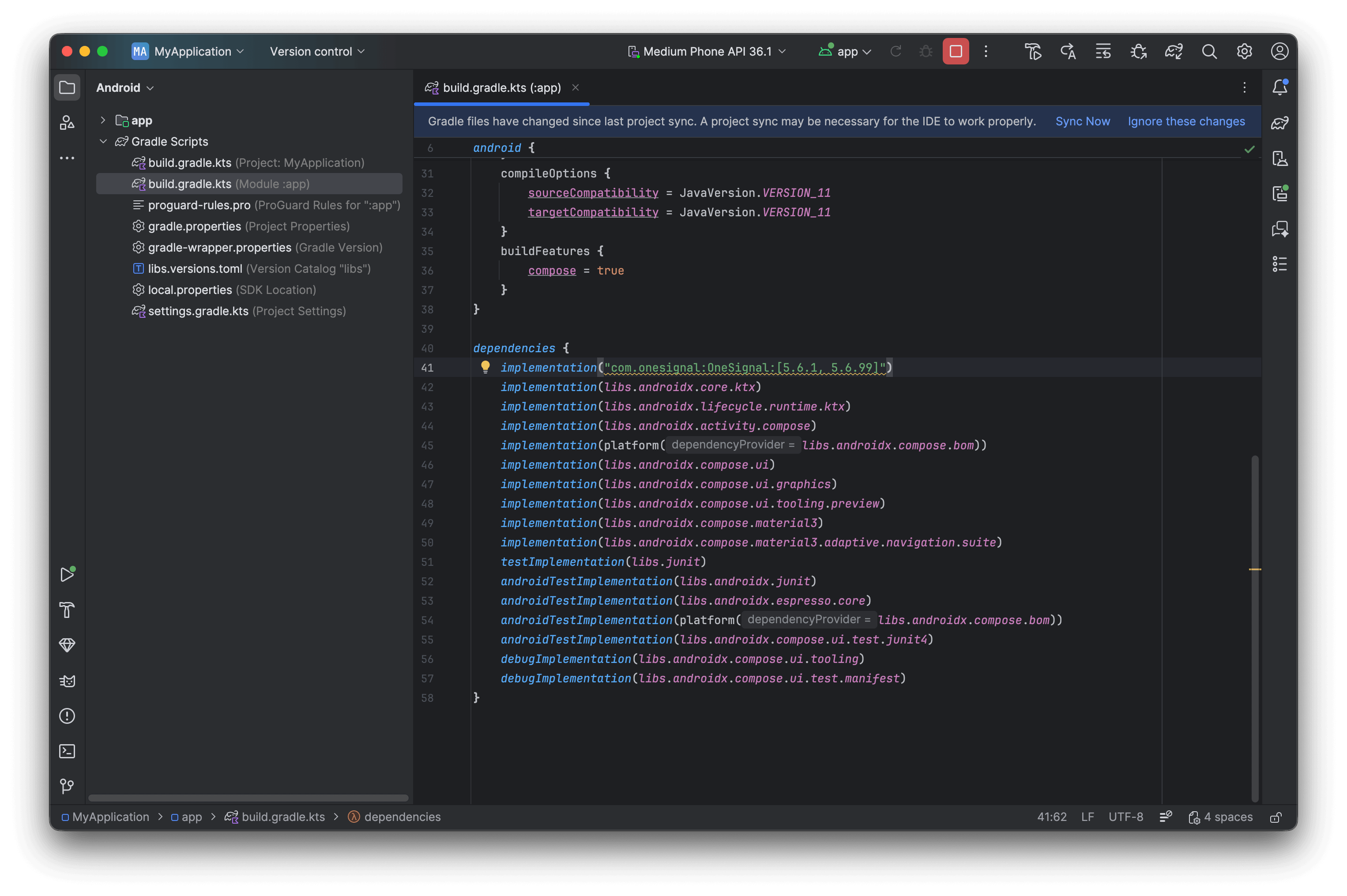
Example shows adding OneSignal to your App's build.gradle.kts file.
- Sync Gradle: Click Sync Now in the banner that appears or go to File > Sync Project with Gradle Files
Step 2. Create and configure Application class
It’s best practice to initialize OneSignal in theonCreate method of your Application class to ensure proper SDK setup across all entry points.
Create an Application class if you don’t already have one:
- File > New > Kotlin Class/File (or Java Class)
- Name:
ApplicationClass(or your preferred name)
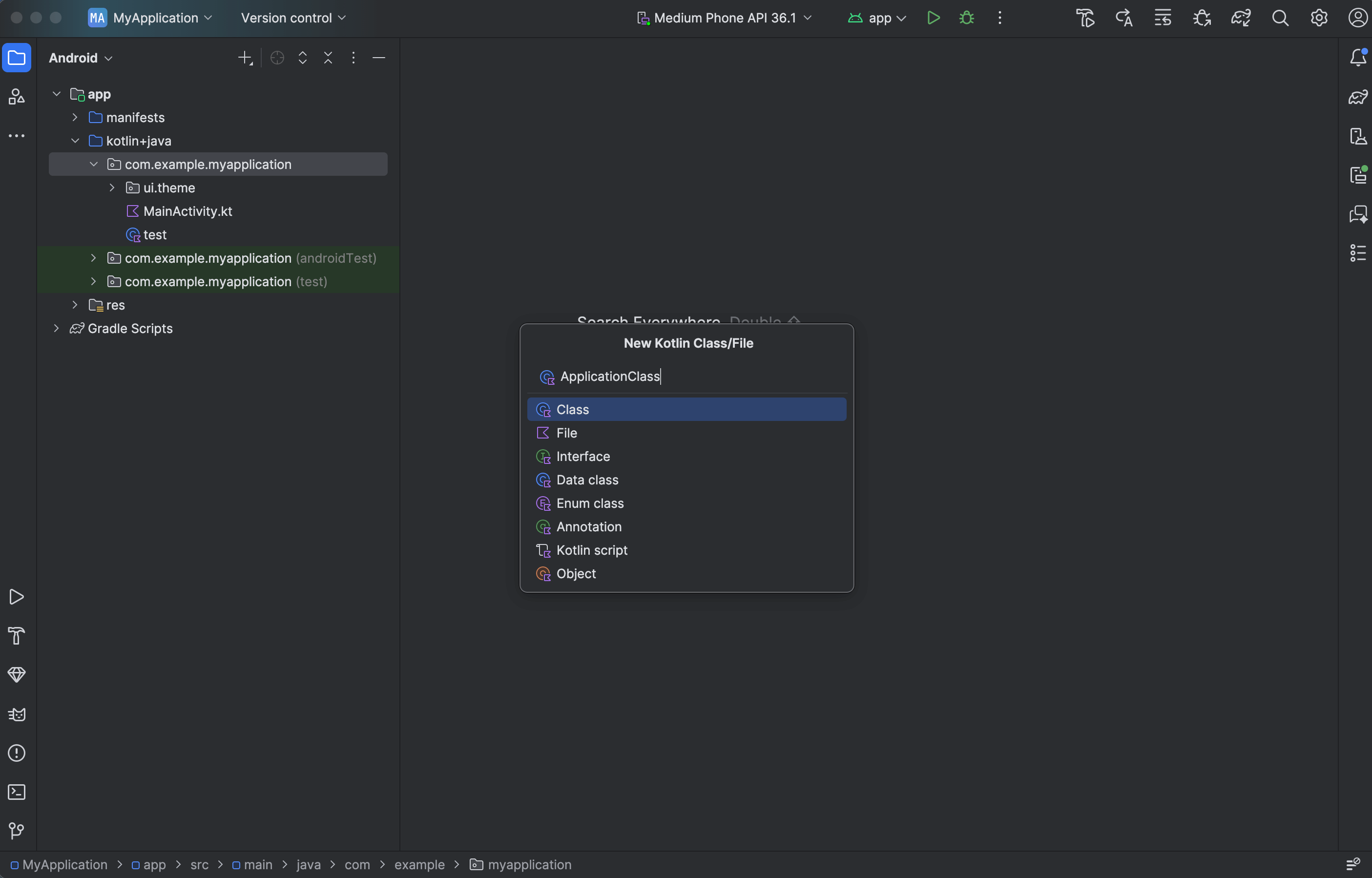
Example shows creating a new Kotlin class named ApplicationClass.
YOUR_APP_ID with your actual OneSignal App ID from the Dashboard > Settings > Keys & IDs.
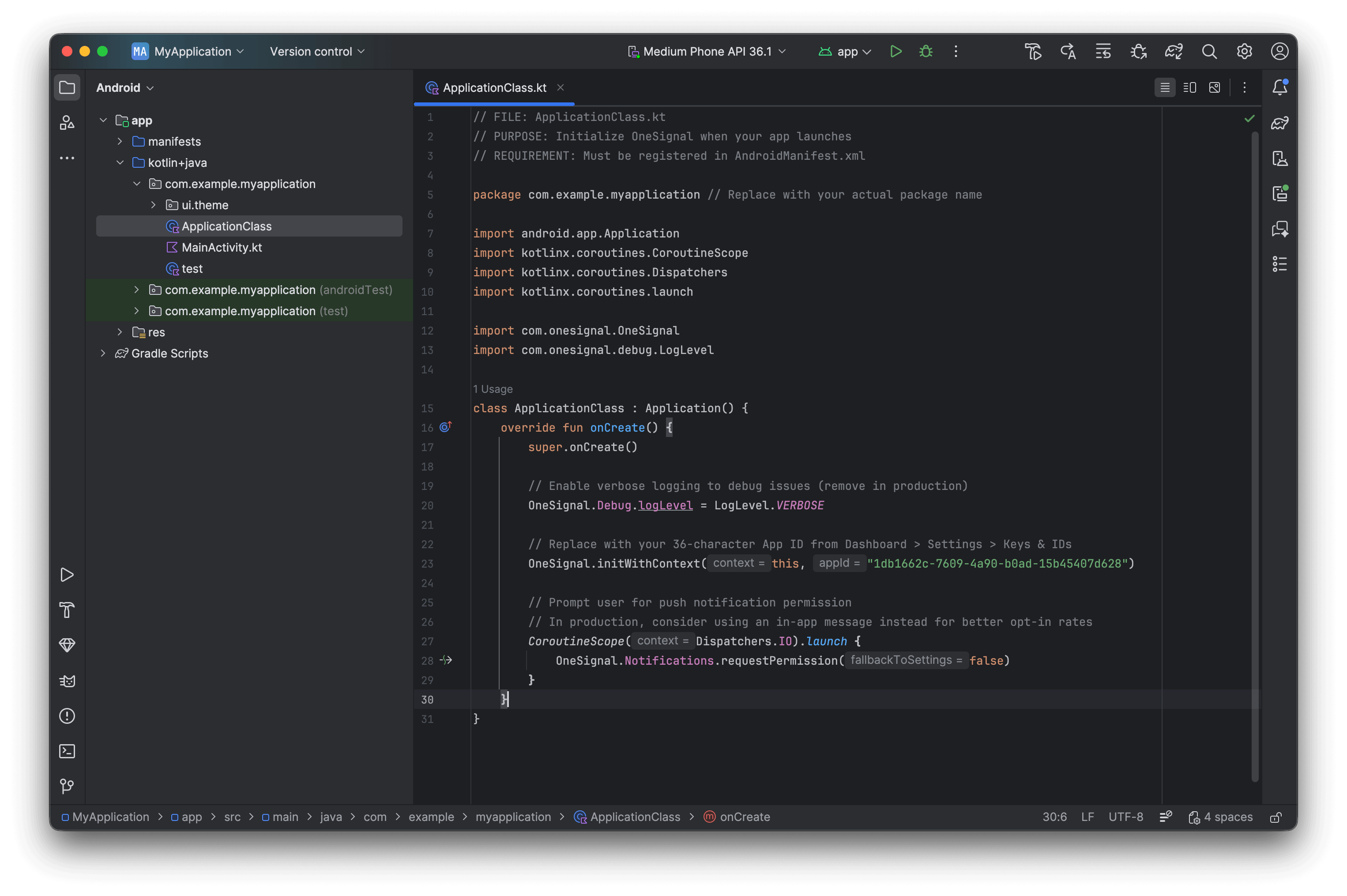
Example ApplicationClass.kt file.
- Open your app’s
AndroidManifest.xml - In your
<application>tag addandroid:name=".ApplicationClass"(replace.ApplicationClasswith your actual class name if set it to something different).
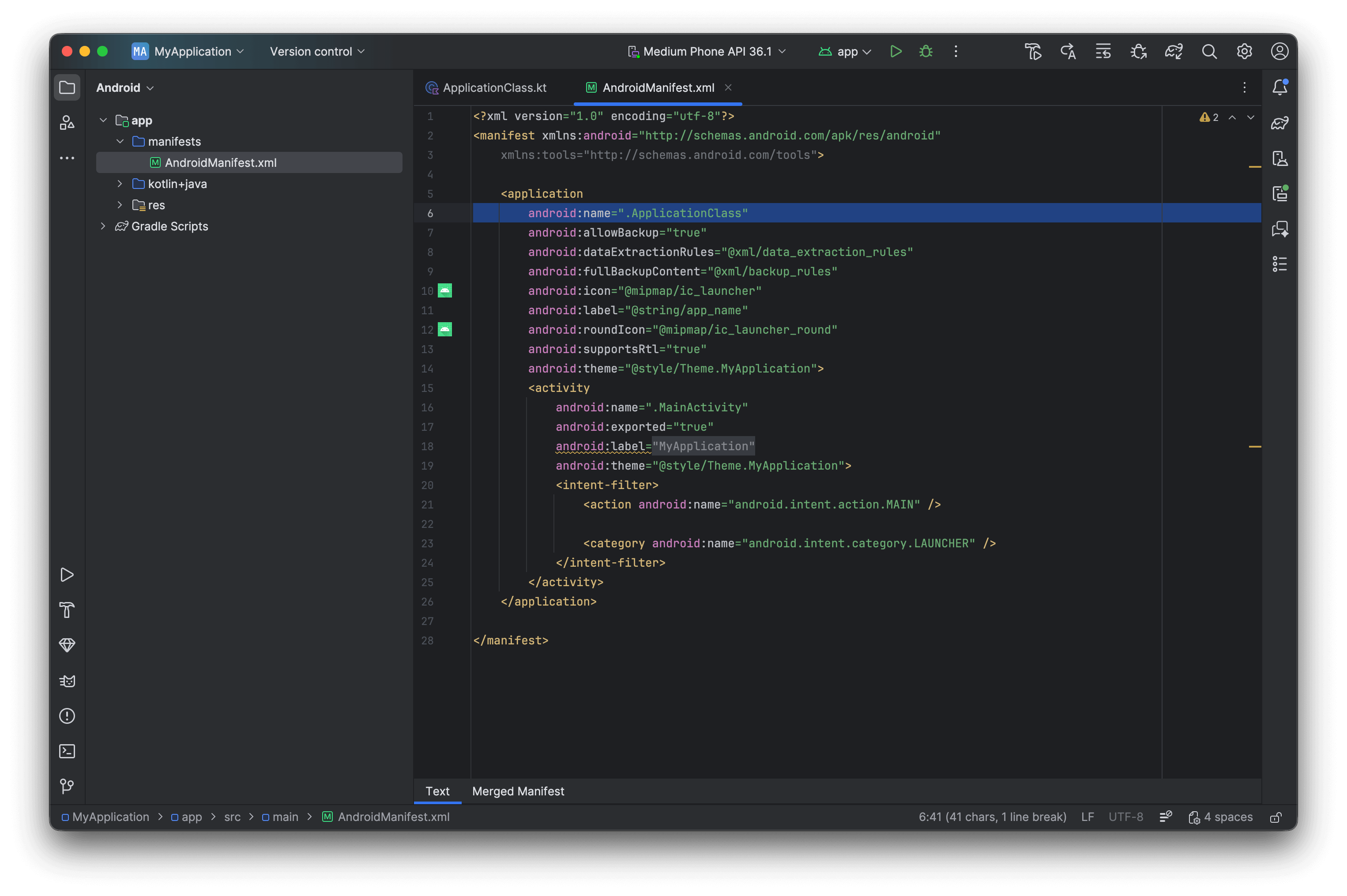
AndroidManifest.xml with the .ApplicationClass name.
Step 3. Configure default notification icons (recommended)
Replace the default bell icon with a small icon namedic_stat_onesignal_default. Use a monochrome silhouette on a transparent background, or Android will render a white square.
- Generate densities with Android Asset Studio.
- Place
ic_stat_onesignal_defaultin each density folder:res/drawable-mdpi/(24×24) throughres/drawable-xxxhdpi/(96×96).
Step 4. Test the integration
Verify Subscription creation:- Launch app on a device or emulator with Google Play Services.
- Check Audience > Users & subscriptions > Subscriptions. Status shows Never Subscribed.
- Accept the permission prompt when it appears.
- Refresh the dashboard. Status changes to Subscribed.
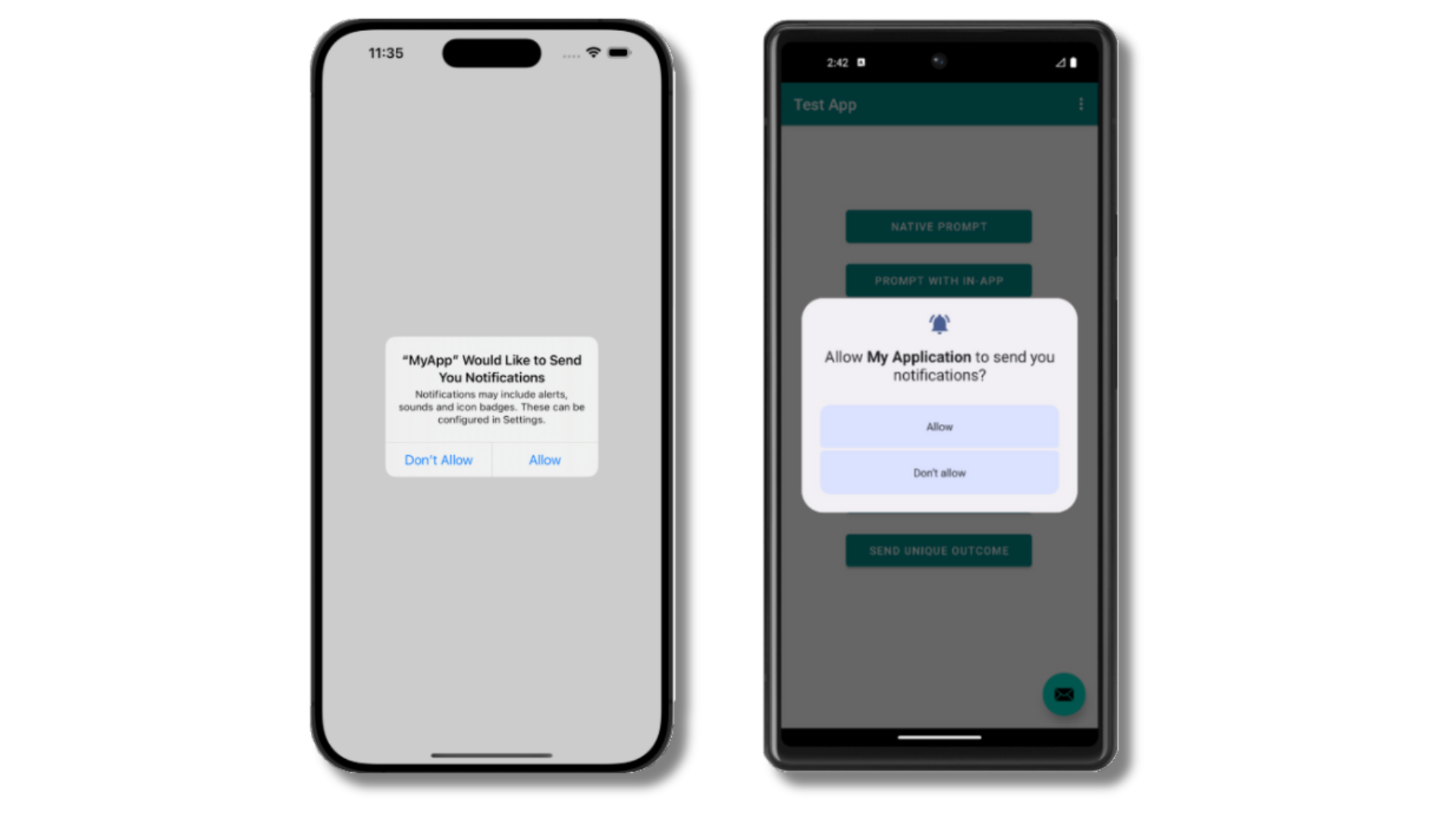
Android push permission prompt
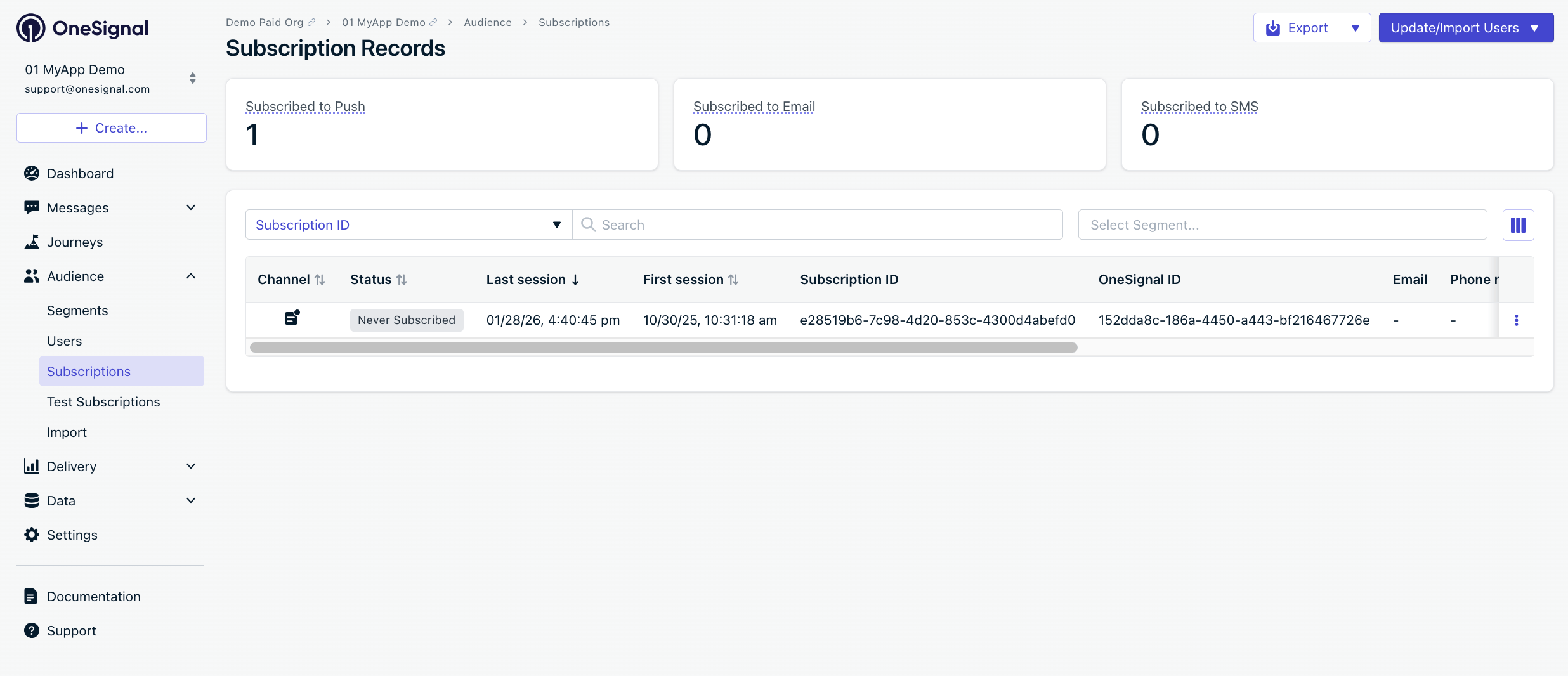
Dashboard showing Subscription with 'Never Subscribed' status
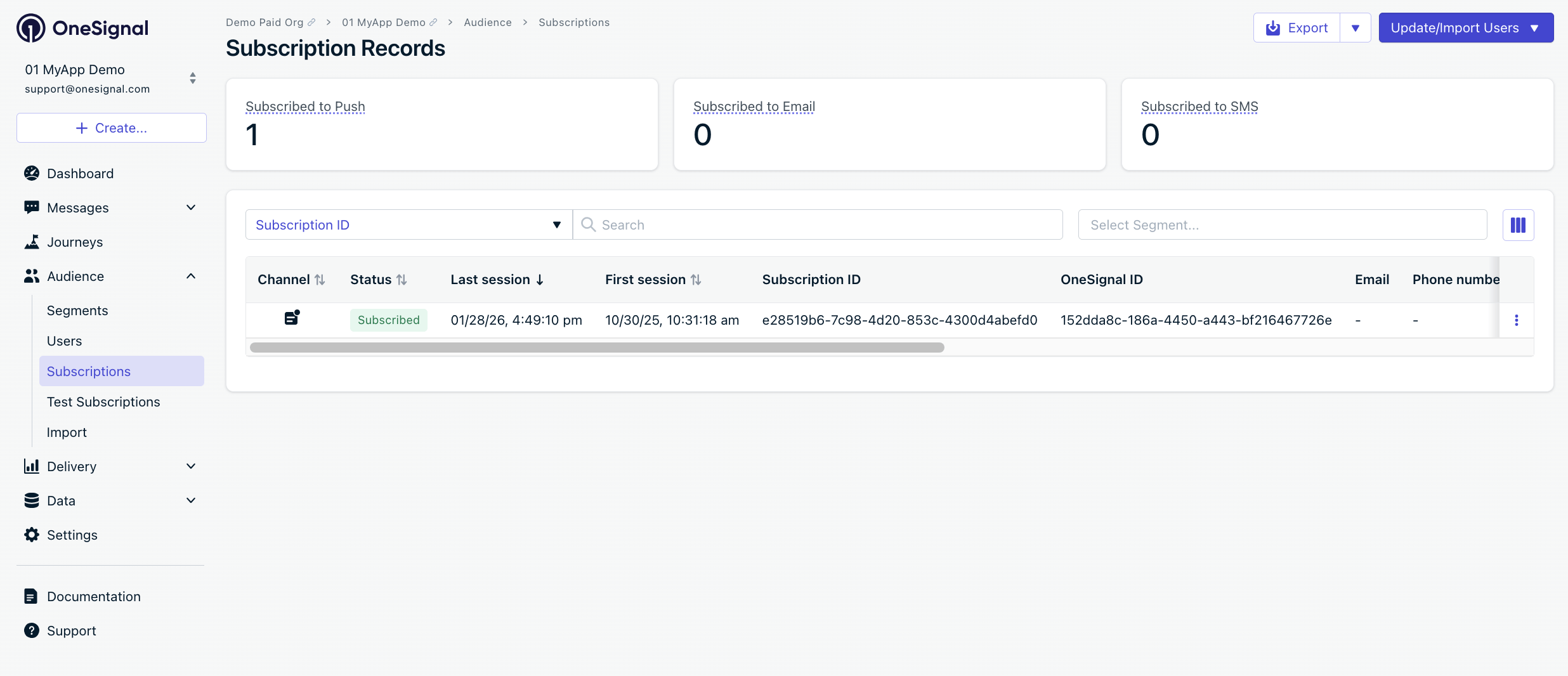
After allowing push permissions, refresh the dashboard to see the Subscription status update to 'Subscribed'
Create test user and segment
- Next to the Subscription, select Options > Add as test user and enter a name.
- Go to Audience > Segments > New Segment.
- Name:
Test Users, add filter Test Users > Create Segment.
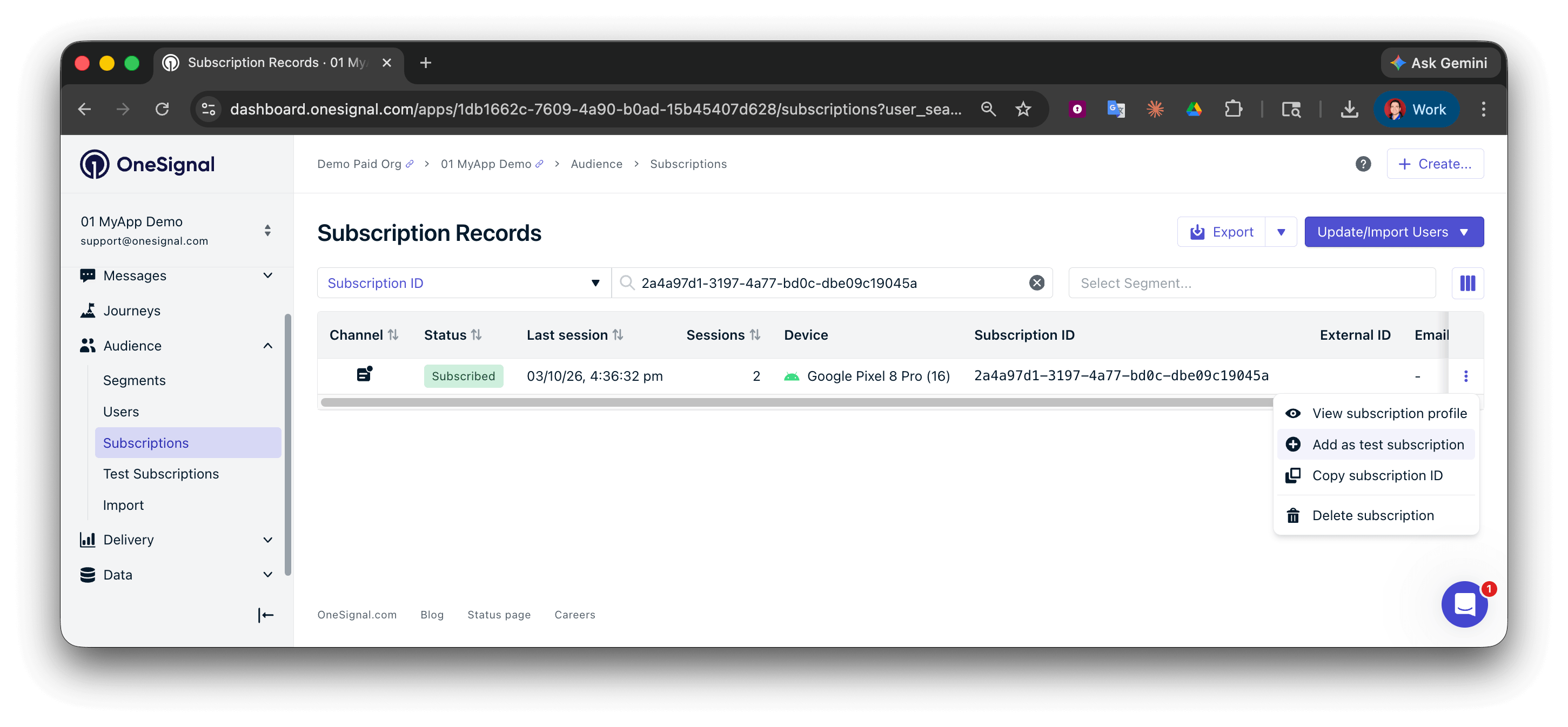
Add a test user
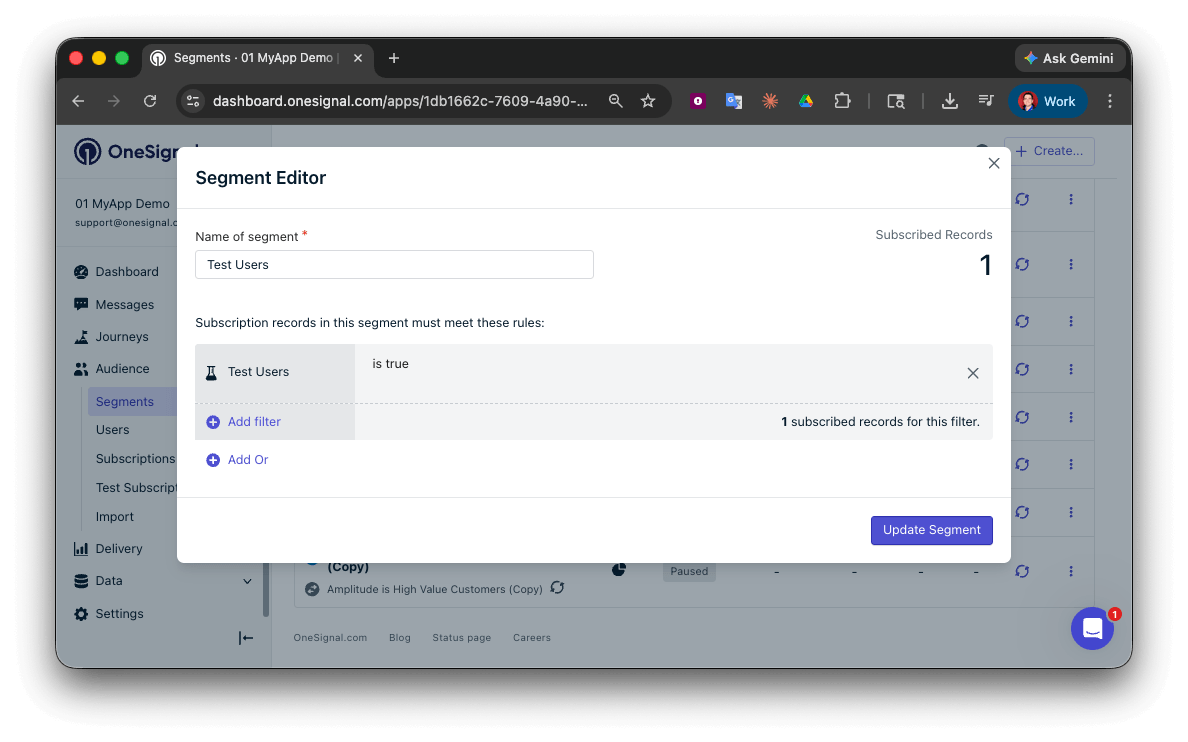
Create a 'Test Users' segment with the Test Users filter
Send test push via API
- Navigate to Settings > Keys & IDs.
- In the provided code, replace
YOUR_APP_API_KEYandYOUR_APP_IDin the code below with your actual keys. This code uses theTest Userssegment we created earlier.
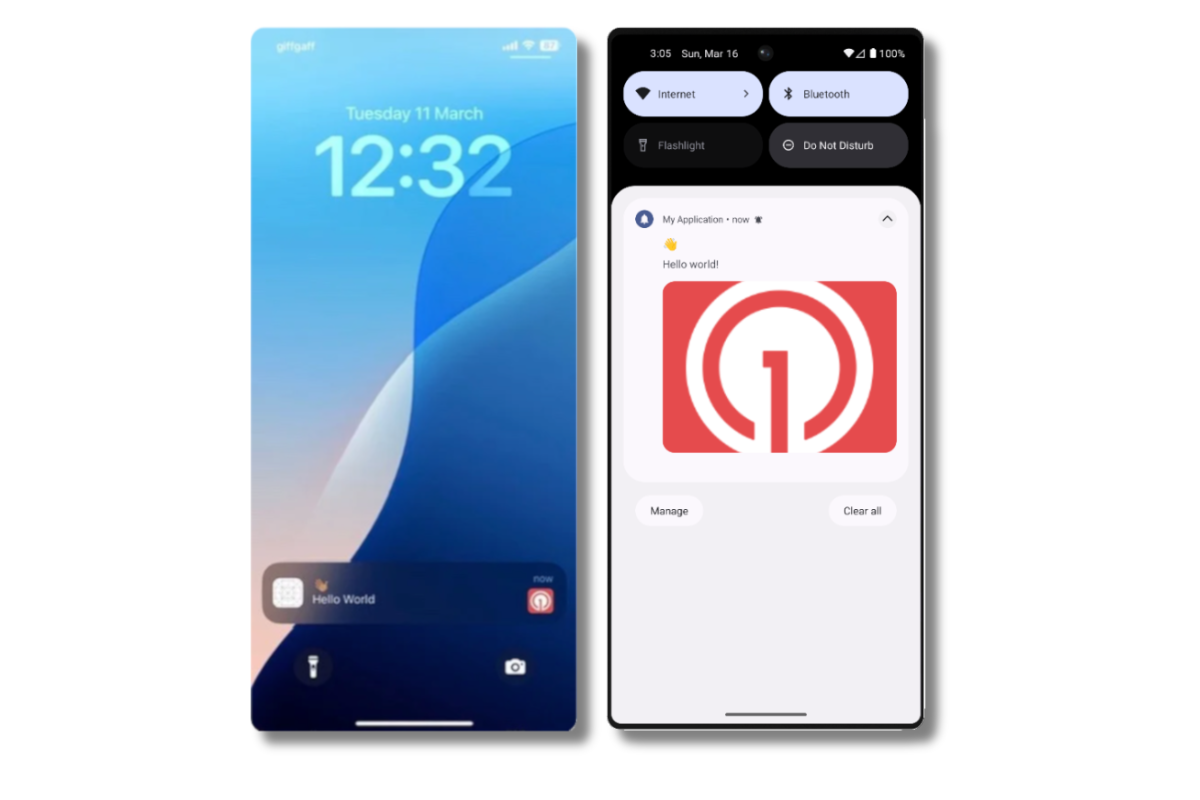
Images will appear small in the collapsed notification view. Expand the notification to see the full image.
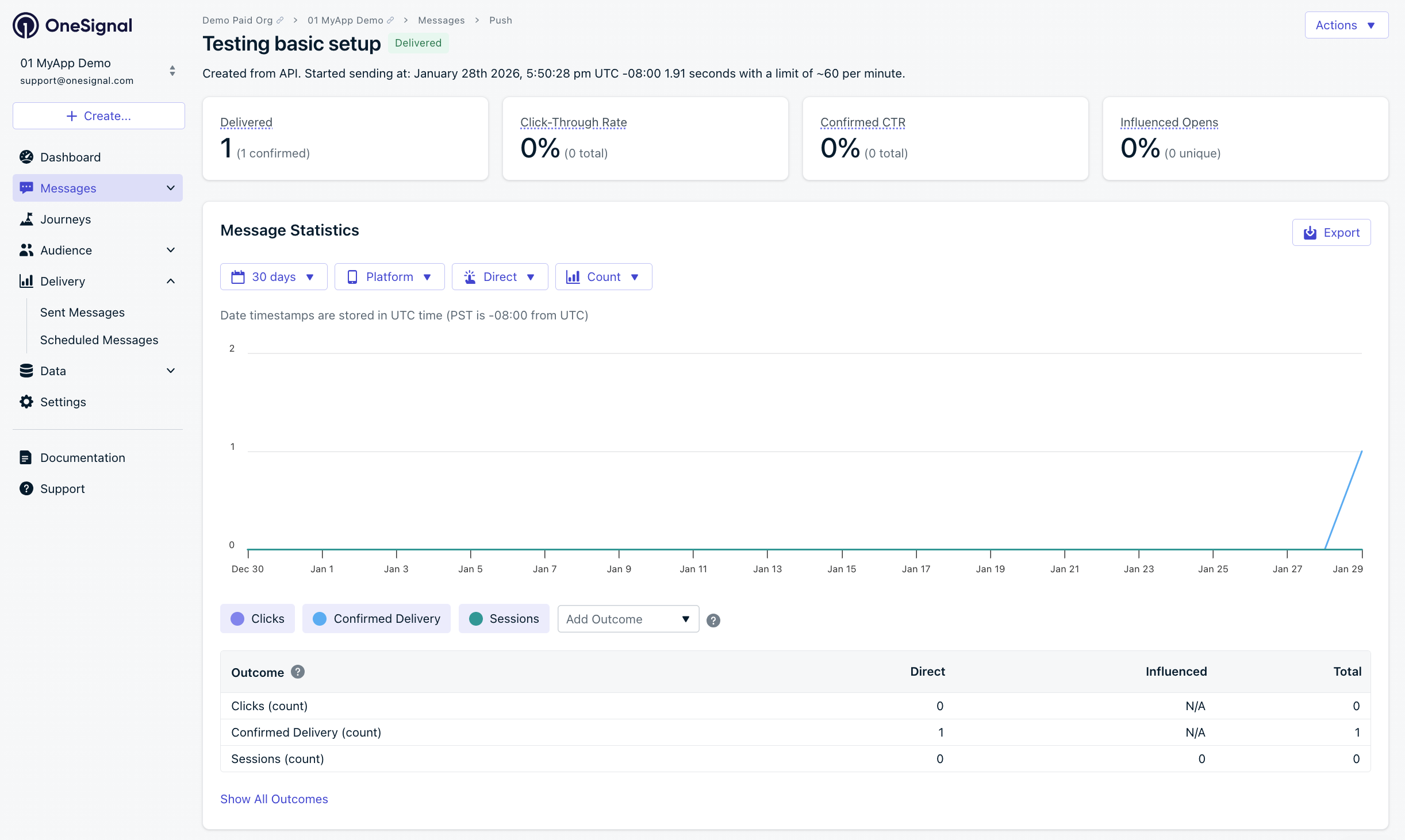
Delivery stats showing confirmed receipt (unavailable on free plans)
Test in-app messages
- Close app for 30+ seconds
- Messages > In-App > New In-App > select Welcome template
- Audience: Test Users segment
- Trigger: On app open
- Schedule: Every time trigger conditions are satisfied
- Click Make Message Live
- Open app
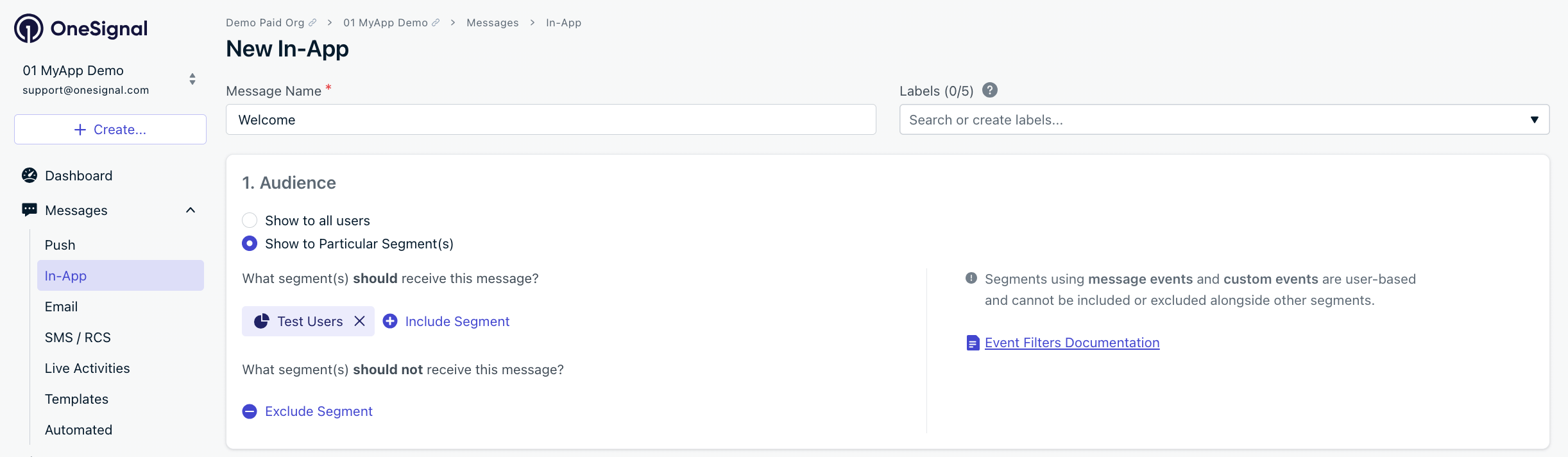
Targeting the 'Test Users' segment with an in-app message
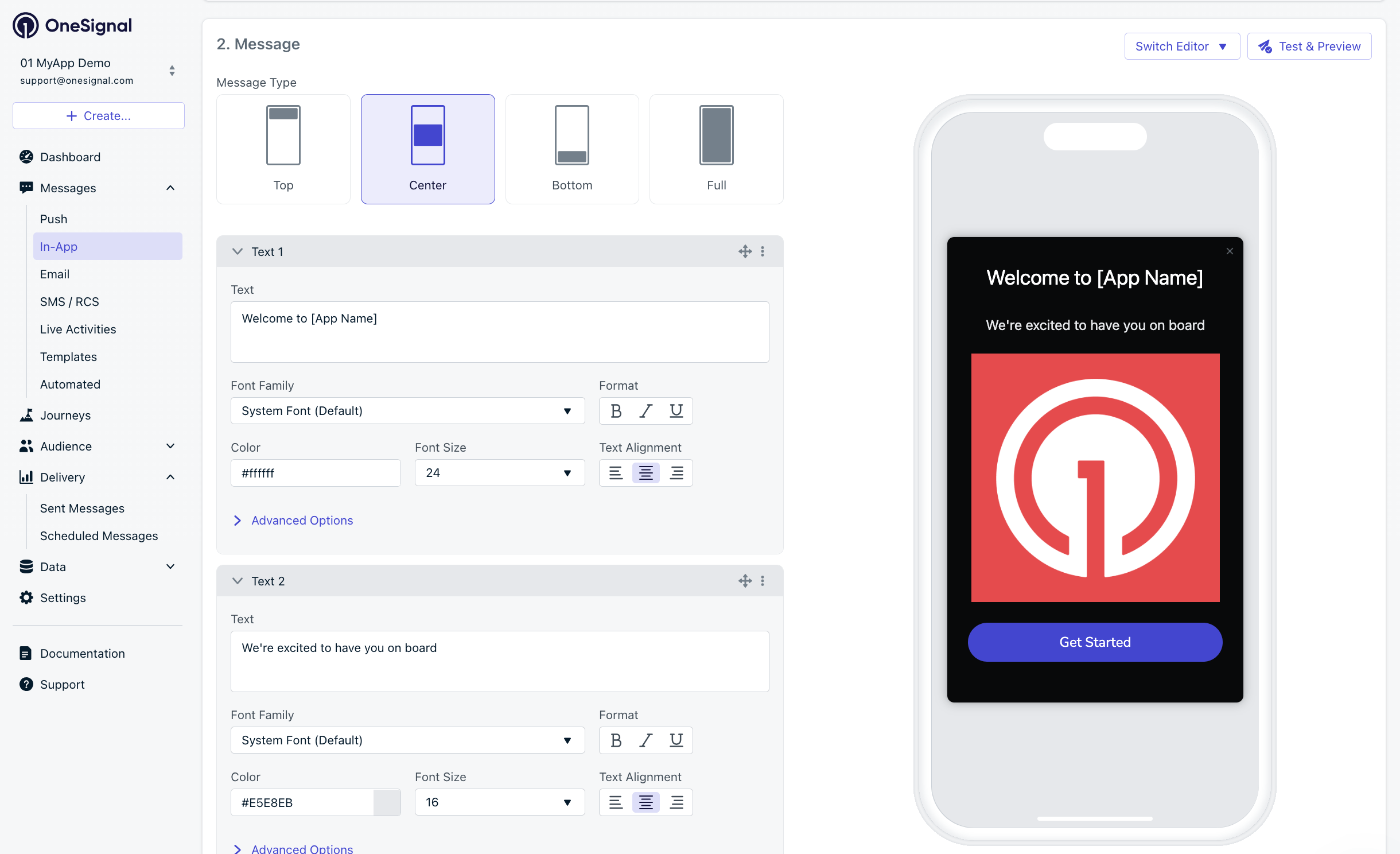
Example customization of in-app Welcome message
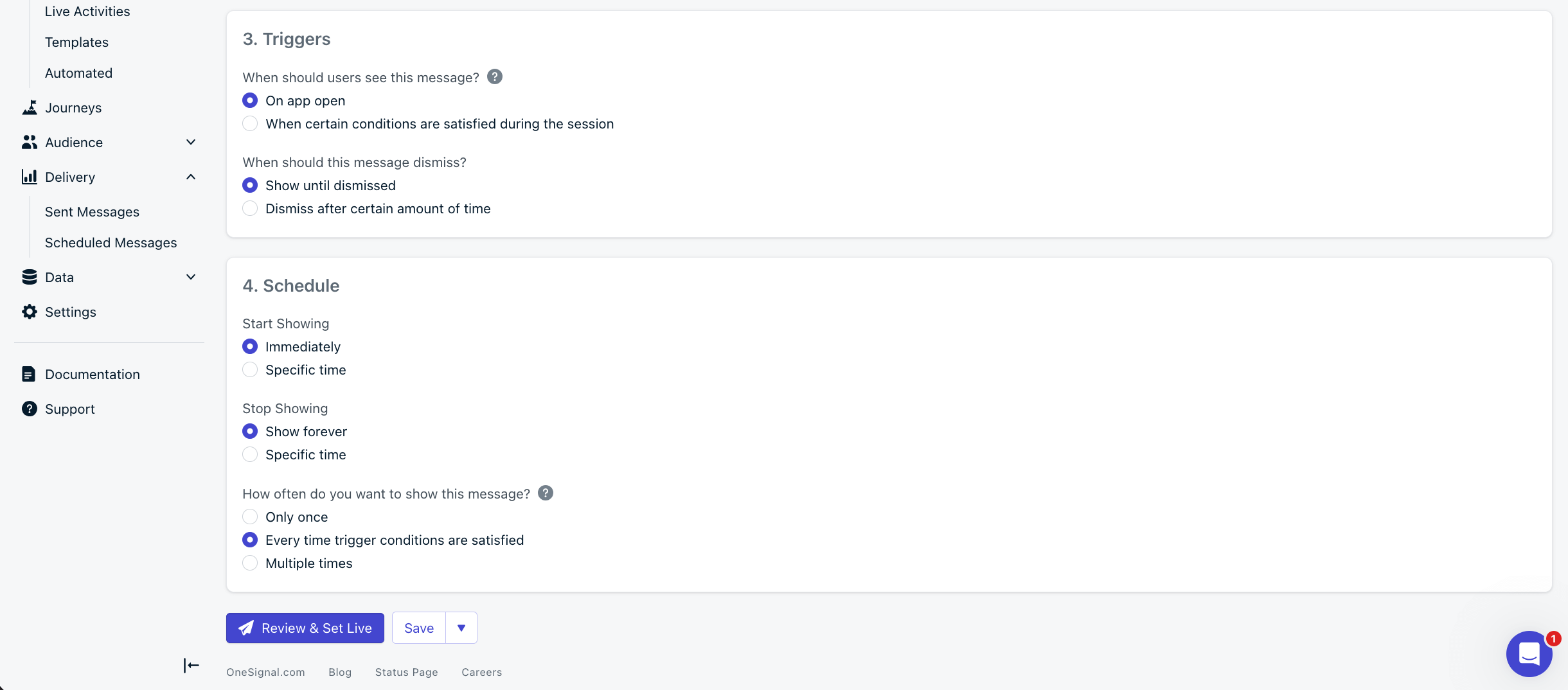
In-app message scheduling options
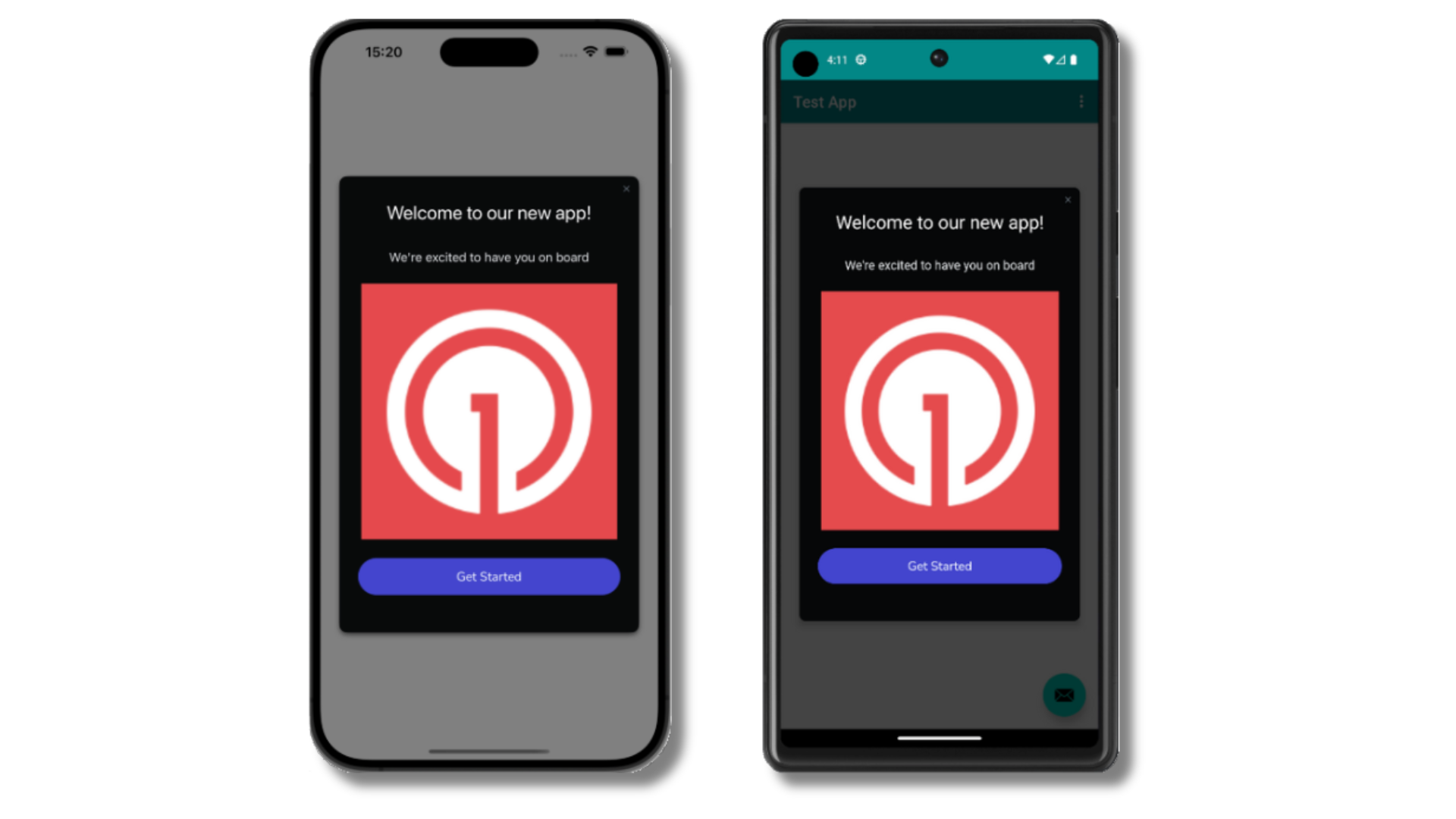
Welcome in-app message shown on devices
- Gathering Subscriptions, setting Test Users, and creating Segments.
- Sending Push with images using Segments and our Create message API.
- Sending In-app messages.
Common Errors & Fixes
User management
Previously, we demonstrated how to create mobile Subscriptions. Now we’ll expand to identifying Users across all their Subscriptions (including push, email, and SMS) using the OneSignal SDK.Assign External ID (recommended)
Use an External ID to identify users consistently across devices, email addresses, and phone numbers using your backend’s user identifier. This keeps messaging unified across channels and third-party systems.login method in the SDK reference.Add Tags & Custom Events
Tags and Custom Events both add data to users. Tags arekey-value strings for user properties (like username, role, or status). Custom Events use JSON and usually represent actions (like new_purchase or abandoned_cart). Both can power Message Personalization and Journeys.
Add email and/or SMS subscriptions
You can reach users through email and SMS in addition to push. If the email address or phone number already exists in the OneSignal app, the SDK adds it to the existing user and does not create duplicates. Calllogin() first so the address attaches to the identified user.
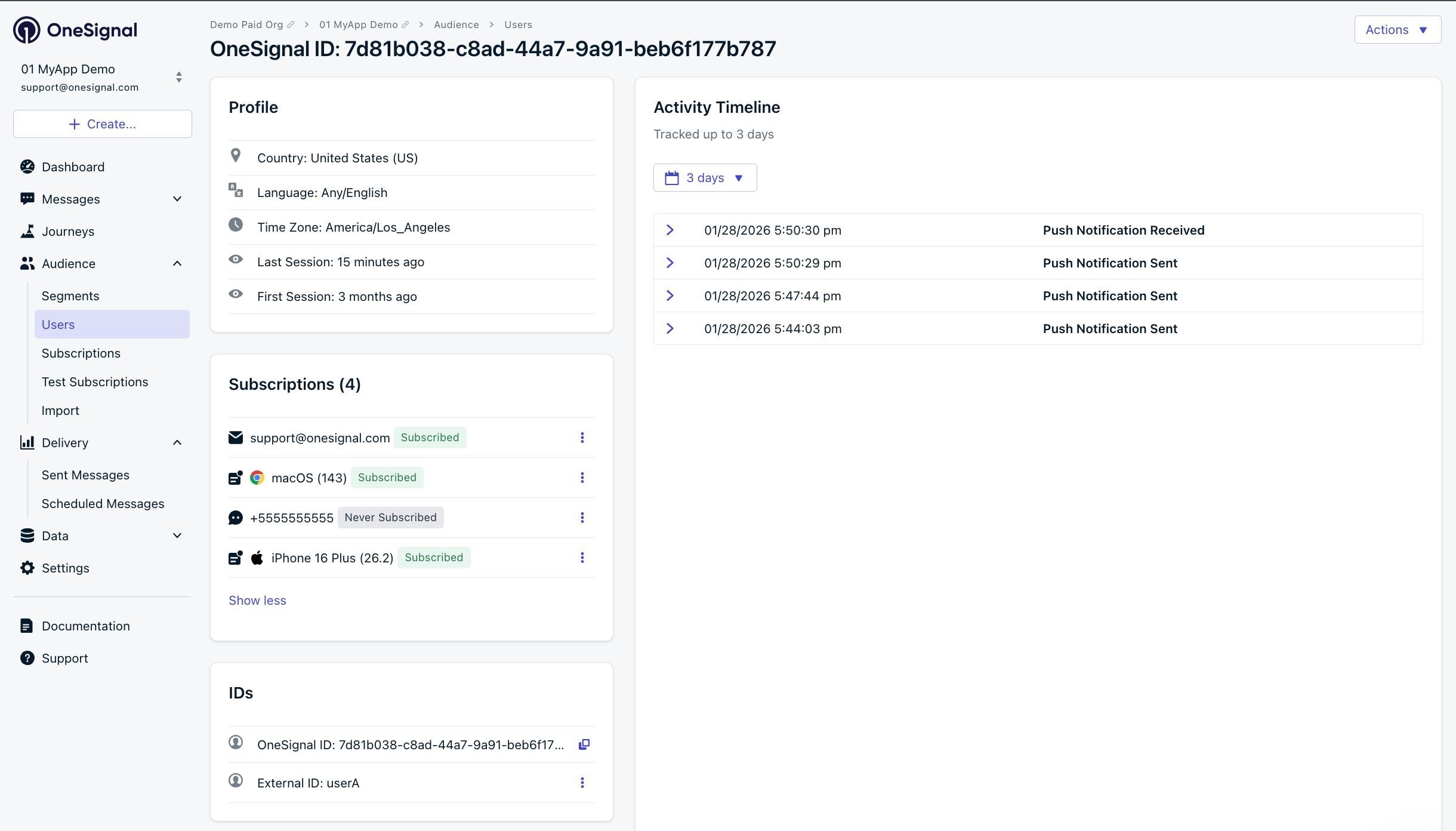
A user profile with push, email, and SMS subscriptions unified by External ID
- Obtain explicit consent before adding email or SMS subscriptions.
- Explain the benefits of each communication channel to users.
- Provide channel preferences so users can select which channels they prefer.
Privacy and user consent
To control when OneSignal collects user data, use the SDK’s consent gating methods. CallconsentRequired before initWithContext.
Prompt for push permissions
Instead of callingrequestPermission() immediately on app open, take a more strategic approach. Use an in-app message to explain the value of push notifications before requesting permission.
For best practices and implementation details, see our Prompt for push permissions guide.
Listen to push, user, and in-app events
Use SDK listeners to react to user actions and state changes. Add these in your Application class afterOneSignal.initWithContext().
Push notification events
User state changes
This example uses the push subscription observer. The user state observer and notification permission observer are in the Mobile SDK reference.In-app message events
Additional in-app message methods are in the Mobile SDK reference.Advanced setup and capabilities
Android-specific features
- Notification channels: Organize notifications into categories (Android 8.0+)
- Service extensions: Advanced notification customization
- Huawei/HMS: Alternative to Google Play Services
Universal features
- Deep linking: Navigate users to specific screens from notifications
- Action buttons: Add interactive buttons to notifications
- Identity verification: Secure user identification
- Location tracking: Location-based targeting
- Integrations: Connect with analytics and data platforms
- Multi-language messaging: Localized notifications
Gradle modules
com.onesignal:OneSignal is an umbrella artifact. It pulls in every module in the table below, which is what most apps should depend on. If you do not use a feature, leave its module out of build.gradle. On iOS, in-app messages and location are separate packages you can leave off the app target (iOS SDK setup). Android uses the same split, as Gradle artifacts.
notifications, push is not delivered. Without in-app-messages, in-app messages do not display. Without location, location is not collected. The rest of the SDK still initializes.
Push only
notifications brings in core. Do not call OneSignal.InAppMessages or OneSignal.Location.
Push and in-app messages
in-app-messages brings in notifications and core. Location stays out of the build.
Push and location
Every module
Use the dependency from Step 1:Calling an API whose module is missing
Initialization still succeeds. Logcat may print aClassNotFoundException for NotificationsModule, InAppMessagesModule, or LocationModule while the SDK starts. That line is expected for a module you left out.
Calling the missing API throws Exception. If the call is uncaught, the app crashes. The message names a module, and that name is not the Maven artifact to add:
FAQ
Why can’t Android Studio resolve OneSignal?
The SDK dependency is missing or Gradle has not synced. Add com.onesignal:OneSignal:[5.6.1, 5.99.99] to your app module build.gradle and use File > Sync Project with Gradle Files.
Why is my Application class not found?
The class is not registered in the manifest. Addandroid:name=".ApplicationClass" (or your class name) to the <application> tag in AndroidManifest.xml.
Why does the emulator say Google Play Services is not available?
The emulator image does not include Play Services. Use a device with the Play Store, or an emulator system image that includes Google APIs.Why does the notification show the default Android icon?
The small icon is missing or misnamed. Addic_stat_onesignal_default to each res/drawable-* density folder. See Notification icons.
Why did my test device not receive a push?
FCM credentials are not configured, or the device is not subscribed. Complete Step 0 and confirm the Subscription status is Subscribed. Then see Mobile push not shown. If you depend on individual modules, push also requirescom.onesignal:notifications. See Gradle modules.
Why did the app crash with Must include gradle module?
The app called OneSignal.Notifications, OneSignal.InAppMessages, or OneSignal.Location without that module on the classpath. The SDK throws, and an uncaught exception crashes the process. See Gradle modules for the artifact to add, and for which features you can leave out.
Why aren’t in-app messages showing?
In-app messages require a new session. Force-quit the app, or background it for at least 30 seconds, then reopen. Confirm the device is still in the Test Users segment. See Sessions and how in-app messages are displayed. If the app depends on individual modules andcom.onesignal:in-app-messages is absent, messages never display. See Gradle modules.
What causes Manifest merger failed?
Conflicting <application> android:name values or duplicate permissions. Search your merged manifest for a second Application class and keep a single android:name.
Why do battery optimizations block notifications?
Some OEMs restrict background work. Ask users to disable battery optimization for your app if notifications stop after the device sleeps.How do I get more log output?
SetOneSignal.Debug.logLevel = LogLevel.VERBOSE (Kotlin) or OneSignal.getDebug().setLogLevel(LogLevel.VERBOSE) (Java), reproduce the issue, and capture logcat. See Getting a debug log.
support@onesignal.comPlease include:- Details of the issue you’re experiencing and steps to reproduce if available
- Your OneSignal App ID
- The External ID or Subscription ID if applicable
- The URL to the message you tested in the OneSignal Dashboard if applicable
- Any relevant logs or error messages