

Overview
Setting up push notifications for your Unity app using OneSignal
Integrating push notifications into your Unity app is a powerful way to boost user engagement and retention. OneSignal’s Unity SDK supports iOS (APNs), Android (FCM), Amazon (ADM), and Huawei devices, enabling real-time messaging with minimal effort. Whether you’re building mobile games or interactive apps, this guide helps you integrate OneSignal quickly and reliably.Requirements
- Unity 2022.3 or newer
- Configured OneSignal app and platform
- macOS with Xcode 14+ (setup instructions use Xcode 16.2)
- Device with iOS 15+, iPadOS 15+, or Xcode simulator running iOS 16.2+
- Android 7.0+ device or emulator with Google Play Store (Services) installed
Configure your OneSignal app and platform
Configure your OneSignal app with the platforms you support — Apple (APNs), Google (FCM), Huawei (HMS), and/or Amazon (ADM).Step-by-step setup instructions
Step-by-step setup instructions
Create or select your app
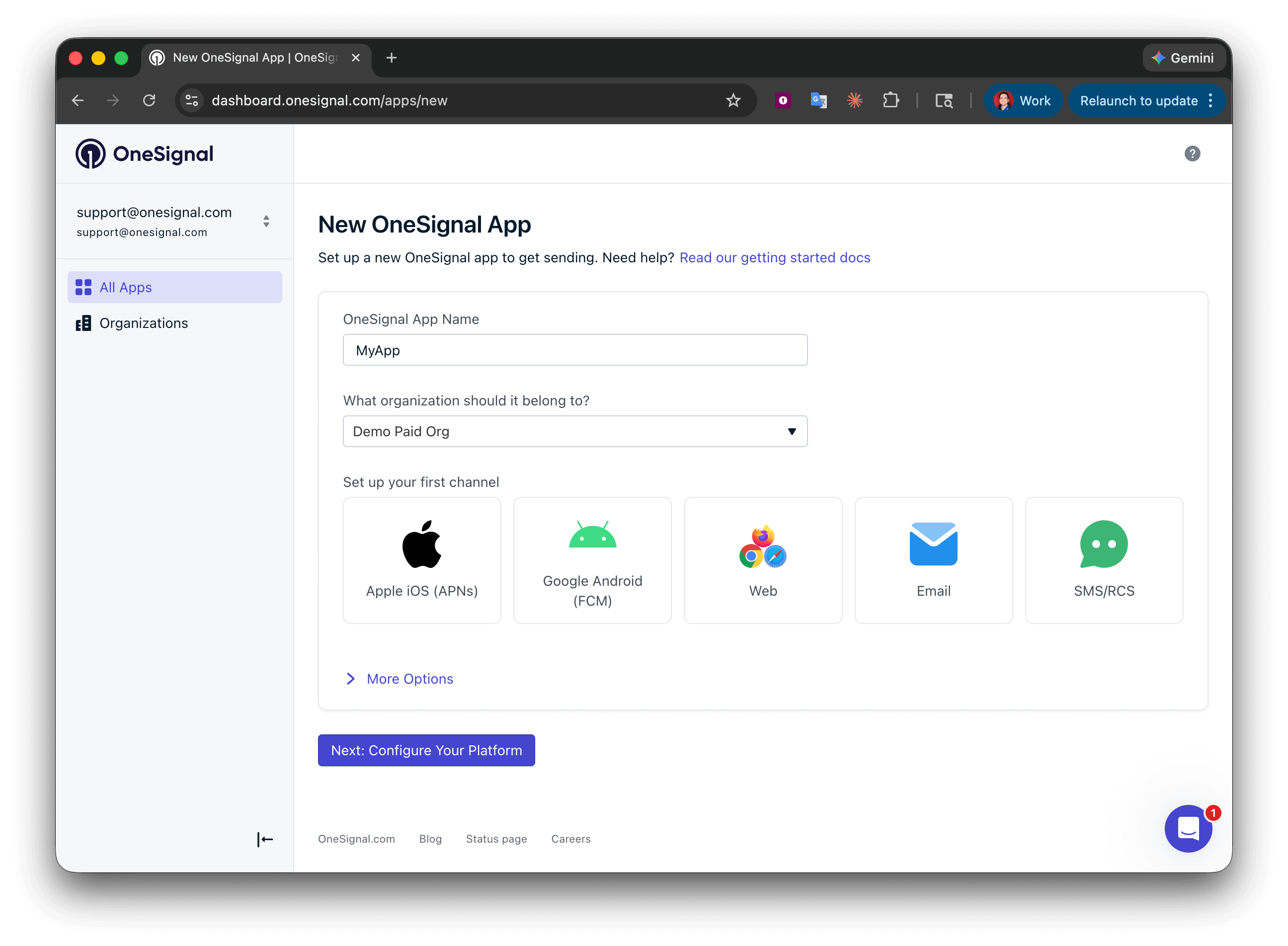
Setting up your first OneSignal app, Organization, and channel.
Configure platform credentials
- Android: Set up Firebase credentials
- iOS: p8 token (recommended) or p12 certificate
- Amazon: Generate API key
- Huawei: Authorize OneSignal
Save your App ID and install the SDK
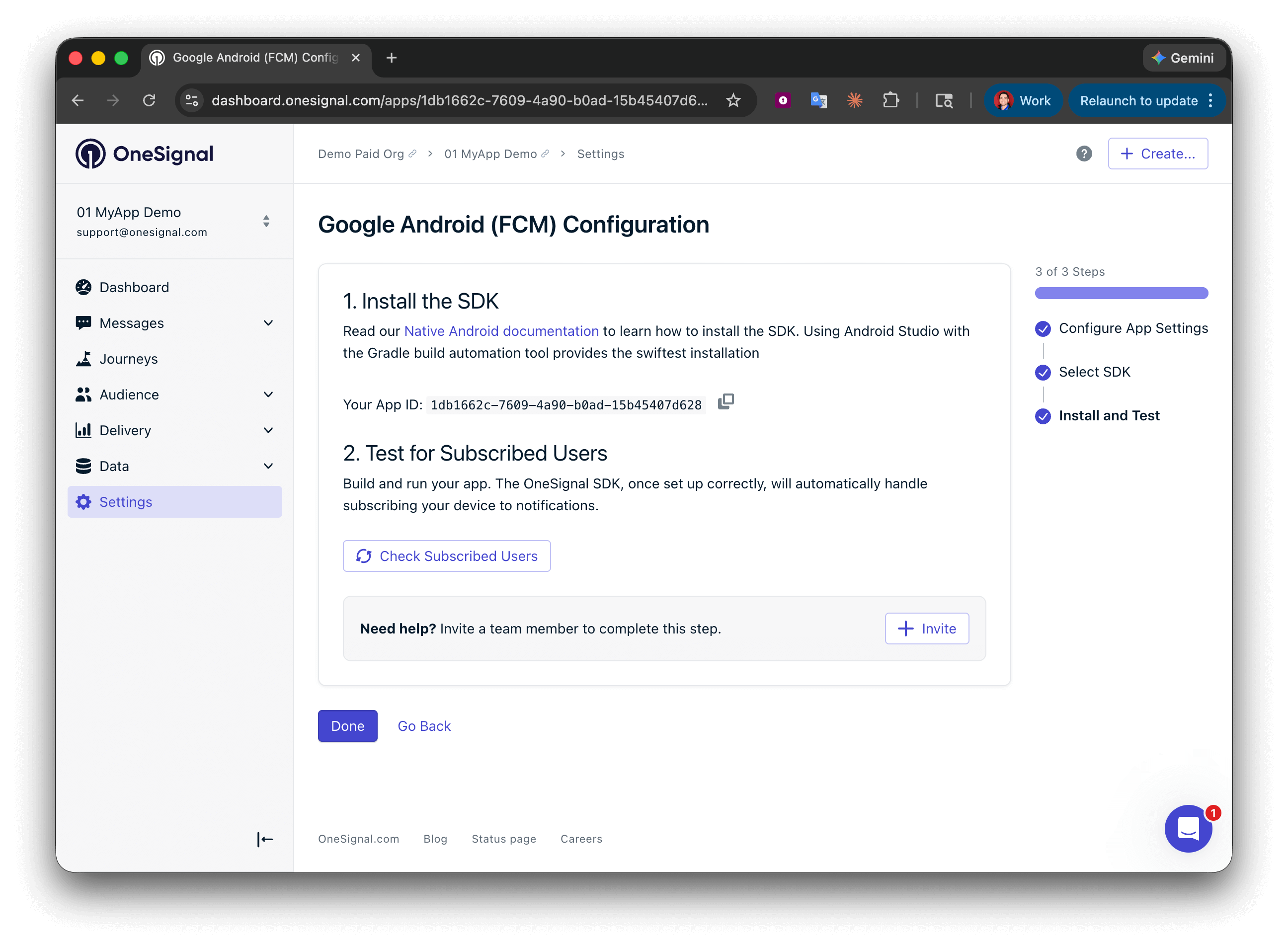
Save your App ID and invite additional team members.
Setup
1. Add the OneSignal Unity SDK
Two installation methods are available:- Unity Asset Store
- Unity Package Manager
- Add the SDK to your account via Add to My Assets.
- Click Open in Unity to launch Unity Editor and Package Manager.
- Download and Import the SDK.
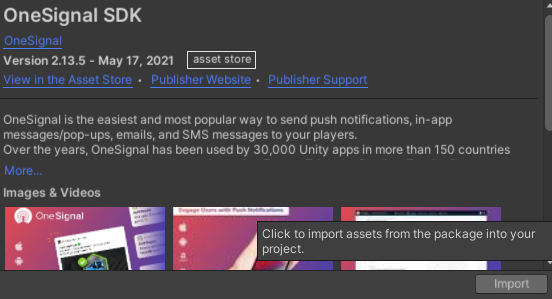
OneSignal Unity SDK in My Assets
- Accept the prompt to import all files.
- Go to Window > OneSignal SDK Setup and follow the checklist, especially Import OneSignal packages.
- After import, Unity will update the registry. Complete the remaining setup steps shown in the setup window.
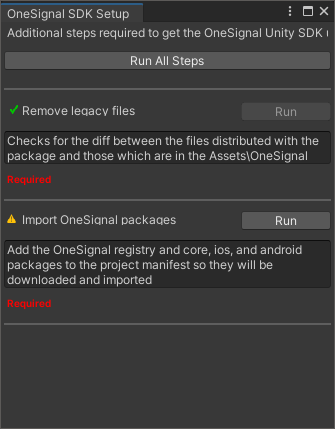
OneSignal SDK Setup Window
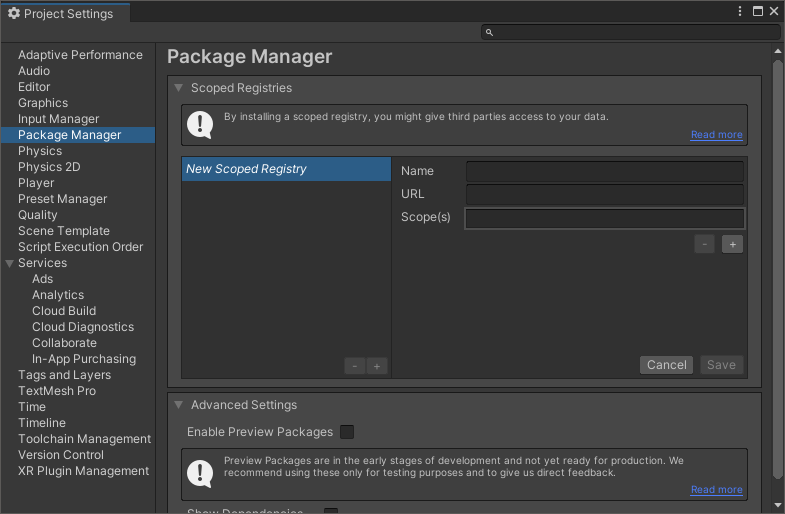
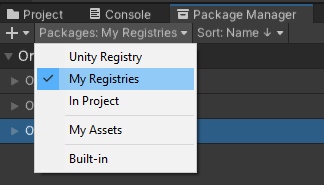
2. Platform setup
Add all the platforms your app supports.iOS setup
Our SDK auto-configures the required Xcode settings. Choose your provisioning approach:- Automatically Sign (Recommended)
- Manual Provisioning
- Go to File > Build Settings > Player Settings.
- Under Other Settings, check Automatically Sign.
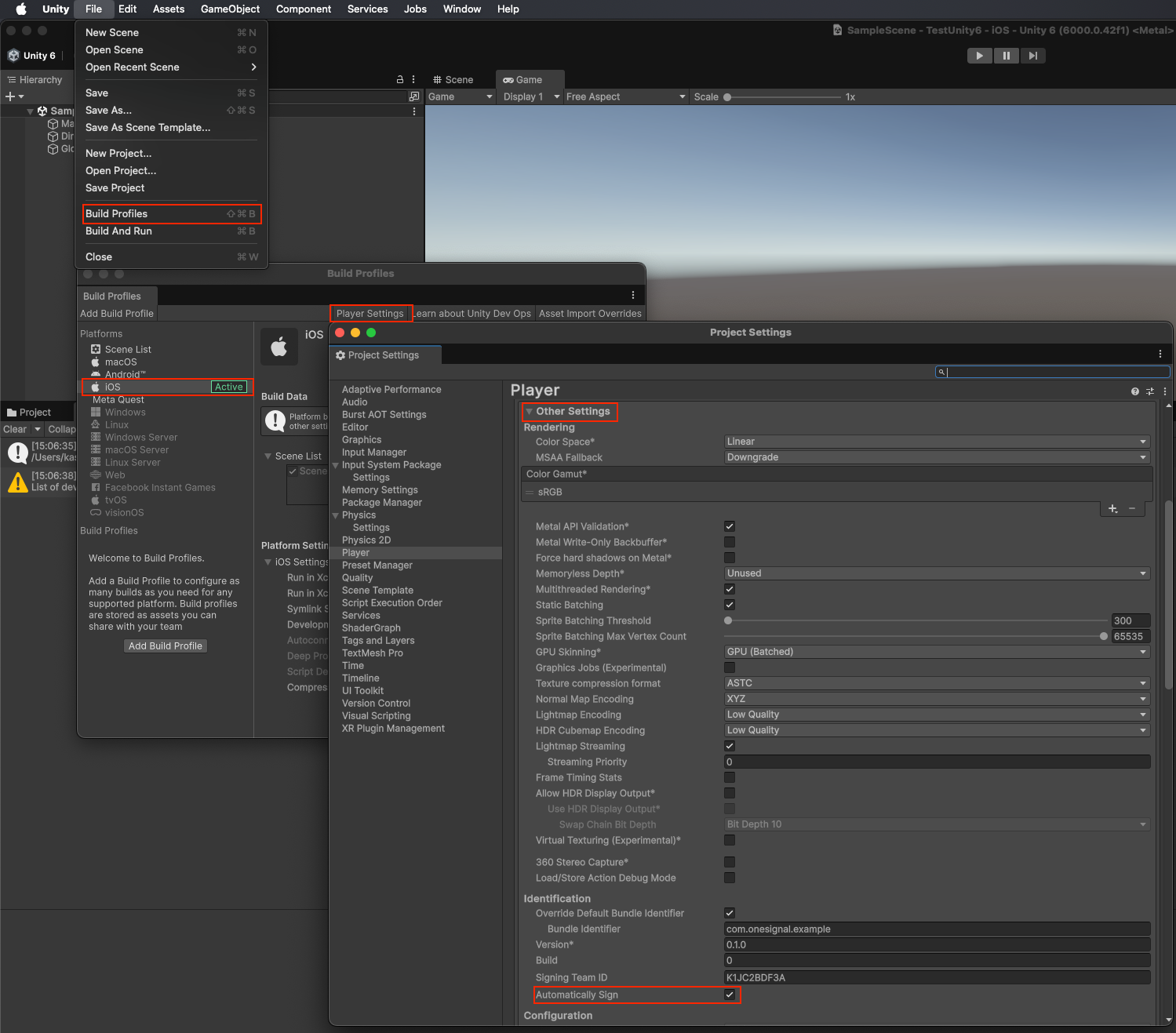
Enable automatic signing in Unity
Android setup
- Go to Edit > Project Settings > Player > Android.
- Under Publishing Settings, enable:
- Custom Main Gradle Template
- Custom Gradle Properties Template
- Run Assets > External Dependency Manager > Android Resolver > Force Resolve.
- Target API Level must be 33+ (v5.0.6+).
- If Minify is enabled, run Copy Android plugin to Assets from OneSignal SDK Setup to use
OneSignalConfig.androidlib. - Replace the default icons within
Assets/Plugins/Android/OneSignalConfig.androidlib/src/main/reswith your own (lowercase file names only, underscores allowed). See Notification icons for more.
Amazon setup
Amazon FireOS (ADM) setup
Amazon FireOS (ADM) setup
- Edit or create
Plugins/Android/AndroidManifest.xml. - Add namespace:
- Add permissions:
- Add the following to the
<application>tag:
-
Replace all
COM.YOUR.PACKAGE_NAMEinstances with your actual package name. -
Place your
api_key.txtunderAssets/Plugins/Android/OneSignalConfig.androidlib/src/main/assets
- See Generate an Amazon API Key Guide for help creating this file.
Huawei setup
Optional: Disable the location module
Starting with the OneSignal Unity SDK 5.3.0, you can exclude OneSignal’s native location module from iOS and Android builds when your app does not useOneSignal.Location. By default, the SDK includes the native location module so location APIs work without extra setup.
Set the flag before resolving Android dependencies or building iOS. There are two ways to opt out:
- Editor toggle (interactive): In the Unity Editor, go to Project Settings > OneSignal and enable Disable Location Module. The setting is saved in
ProjectSettings/OneSignalSettings.json. - Environment variable (CLI/CI): Export
ONESIGNAL_DISABLE_LOCATION=true(or1) in the shell before launching Unity. The environment variable takes precedence over the Editor toggle.
Assets/OneSignal/Editor/OneSignalAndroidDependencies.xml and Assets/OneSignal/Editor/OneSignaliOSDependencies.xml. After you run Assets > External Dependency Manager > Android Resolver > Force Resolve, Android resolves OneSignal modules without the location artifact into Assets/Plugins/Android/mainTemplate.gradle. iOS builds use OneSignal pods without OneSignalLocation.
OneSignal.Location.RequestPermission() and assigning OneSignal.Location.IsShared no-op on native builds without the location module. OneSignal.Location.IsShared returns false.
Apply the change after native dependencies are cached
If you toggle this setting in an existing project, clear stale native outputs and re-resolve dependencies with the flag set:- Delete
Assets/OneSignal/Editor/OneSignalAndroidDependencies.xmlandAssets/OneSignal/Editor/OneSignaliOSDependencies.xml, then reopen the project so Unity regenerates them fromProjectSettings/OneSignalSettings.json. - Run Assets > External Dependency Manager > Android Resolver > Force Resolve so
Assets/Plugins/Android/mainTemplate.gradlepicks up the no-location packages. - Re-export the iOS Xcode project and run
pod installif needed. - Remove
Build/and other generated output before rebuilding.
3. Initialize the SDK
Add this code inside theStart() method of a MonoBehaviour early in your application’s lifecycle.
Replace YOUR_APP_ID with your OneSignal App ID found in your OneSignal dashboard Settings > Keys & IDs.
Testing the OneSignal SDK integration
This guide helps you verify that your OneSignal SDK integration is working correctly by testing push notifications, subscription registration, and in-app messaging.Check mobile subscriptions
Launch your app on a test device.
requestPermission method during initialization.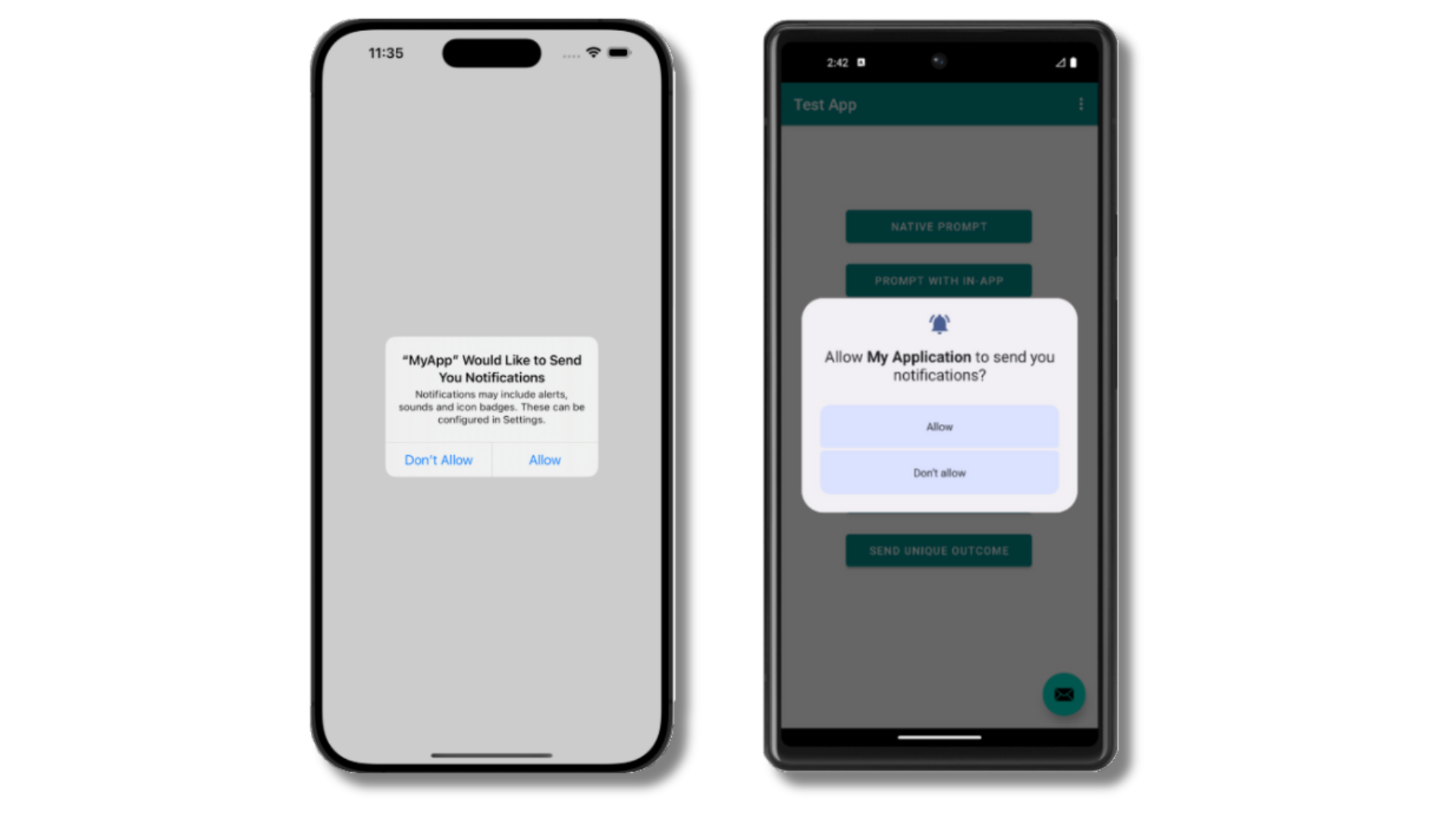
iOS and Android push permission prompts
Check your OneSignal dashboard
- Go to Audience > Users & subscriptions > Subscriptions.
- You should see a new entry with the status “Never Subscribed”.
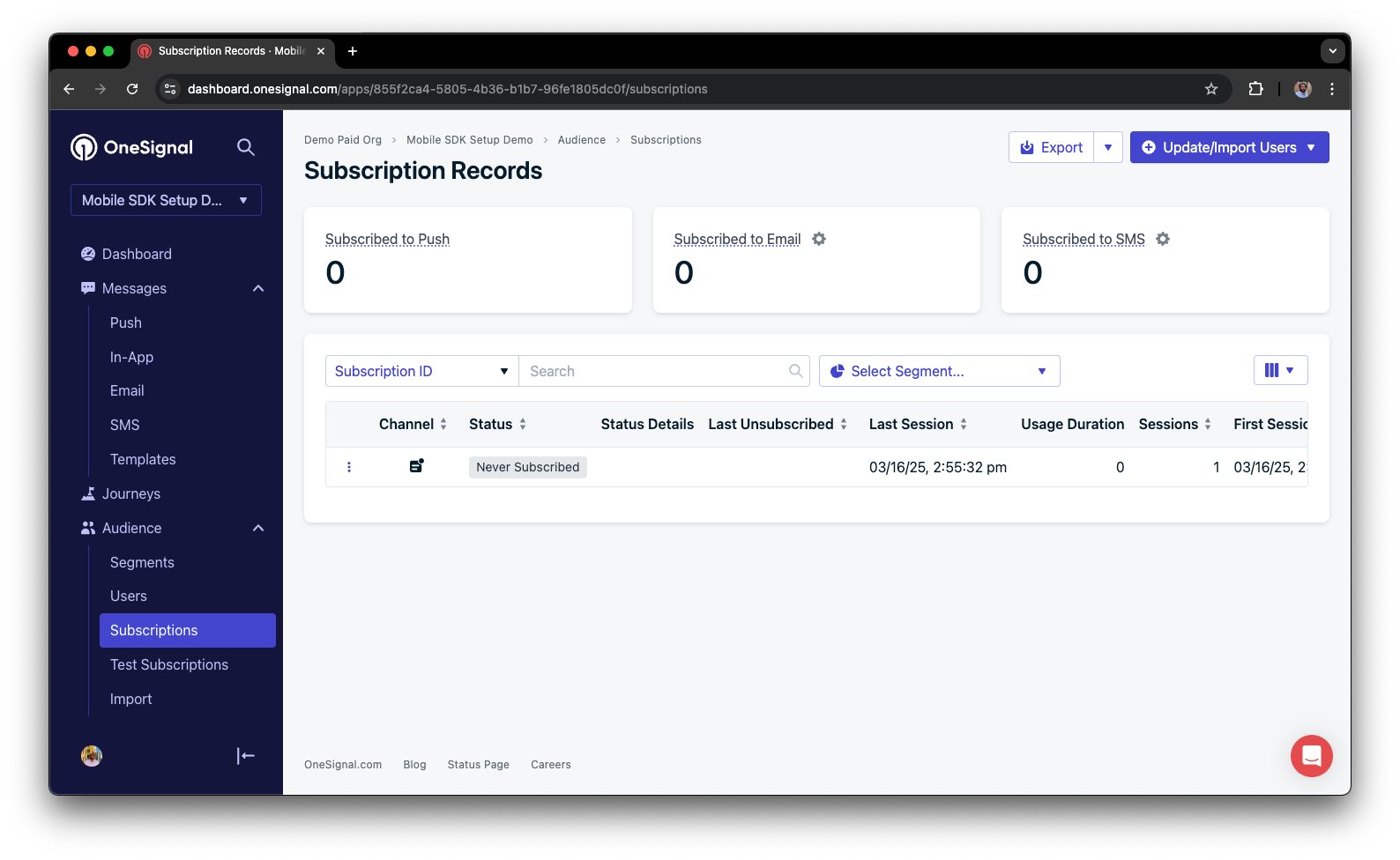
Dashboard showing subscription with 'Never Subscribed' status
Return to the app and tap Allow on the prompt.
Refresh the OneSignal dashboard Subscription's page.
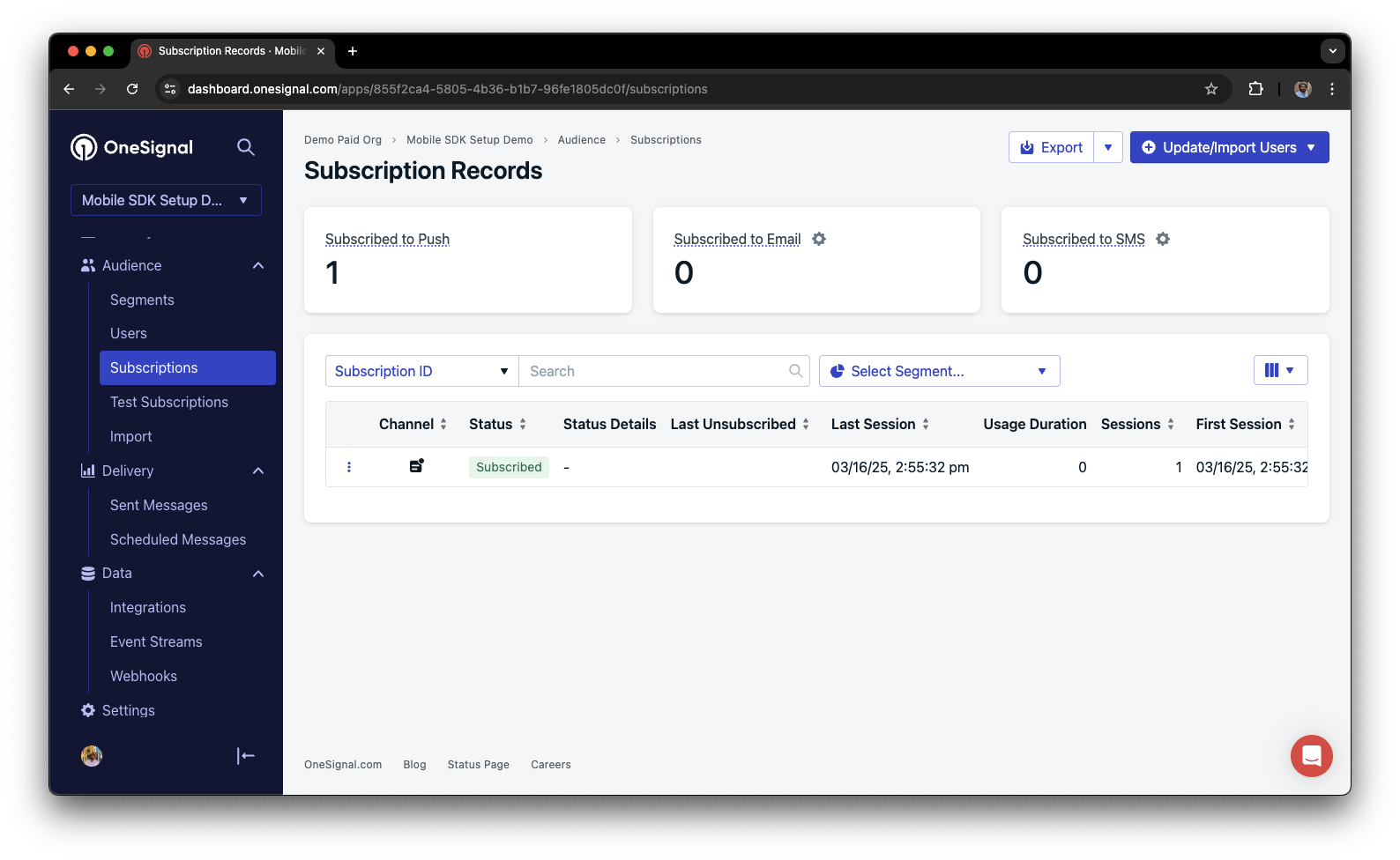
Dashboard showing subscription with 'Subscribed' status
Set up test users
test users are helpful for testing a push notification before sending a message.Add to Test Users.

Adding a device to Test Users
Name your subscription.
Create a test users segment.
Name the segment.
Test Users (the name is important because it will be used later).Add the Test Users filter and click Create Segment.
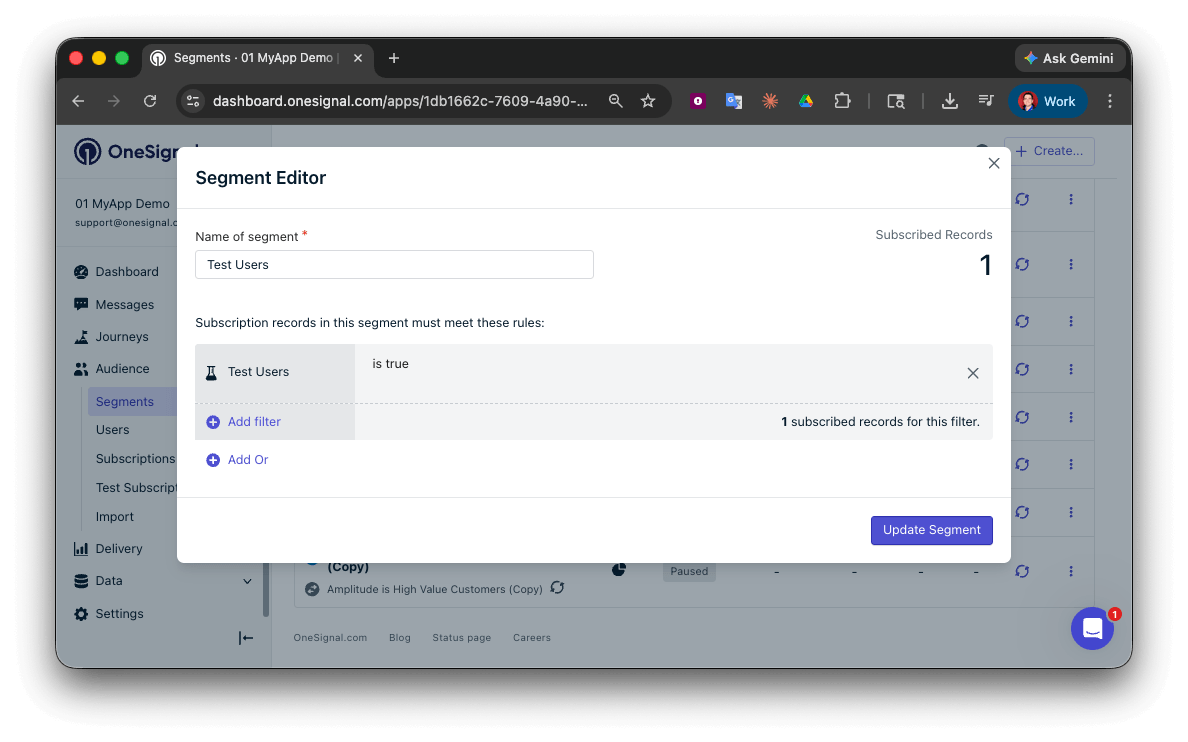
Creating a 'Test Users' segment with the Test Users filter
Send test push via API
Get your App API Key and App ID.
Update the provided code.
YOUR_APP_API_KEY and YOUR_APP_ID in the code below with your actual keys. This code uses the Test Users segment we created earlier.Run the code.
Check images and confirmed receipt.
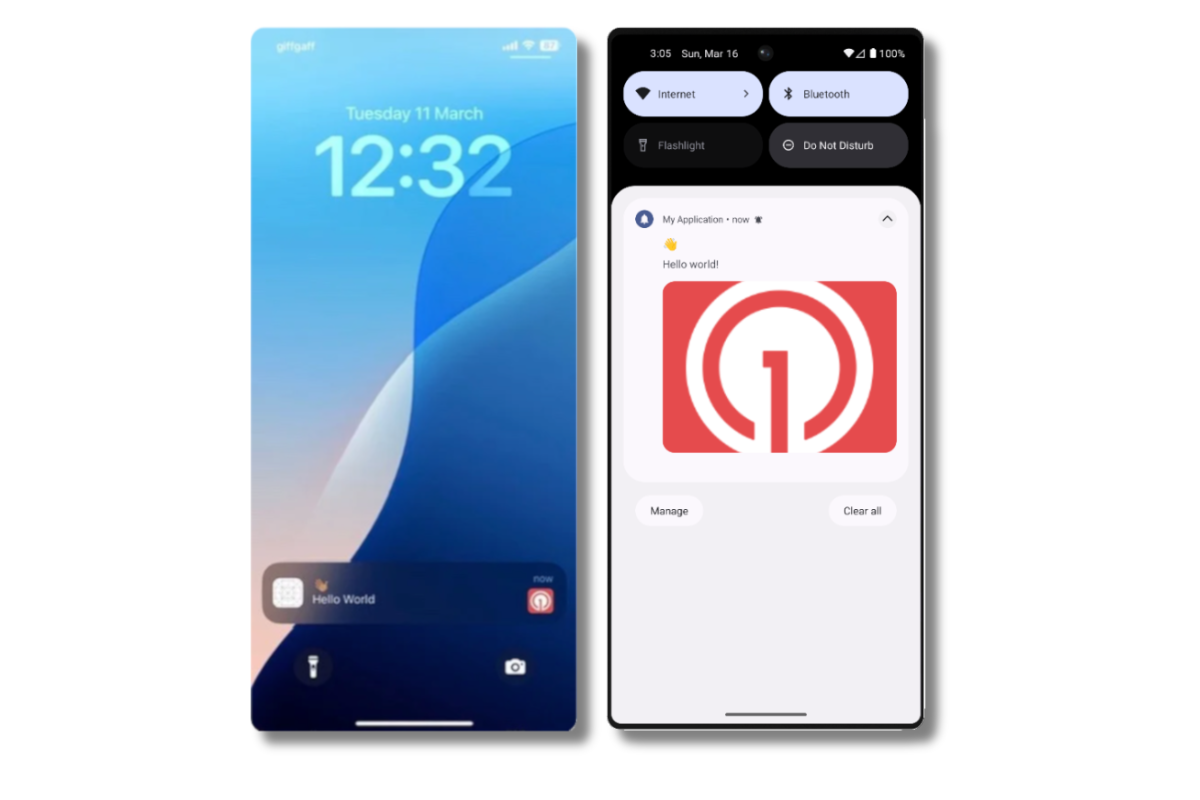
Push notification with image on iOS and Android
Check for confirmed receipt.
Send an in-app message
In-app messages let you communicate with users while they are using your app.Close or background your app on the device.
Create an in-app message.
- In your OneSignal dashboard, navigate to Messages > In-App > New In-App.
- Find and select the Welcome message.
- Set your Audience as the Test Users segment we used previously.
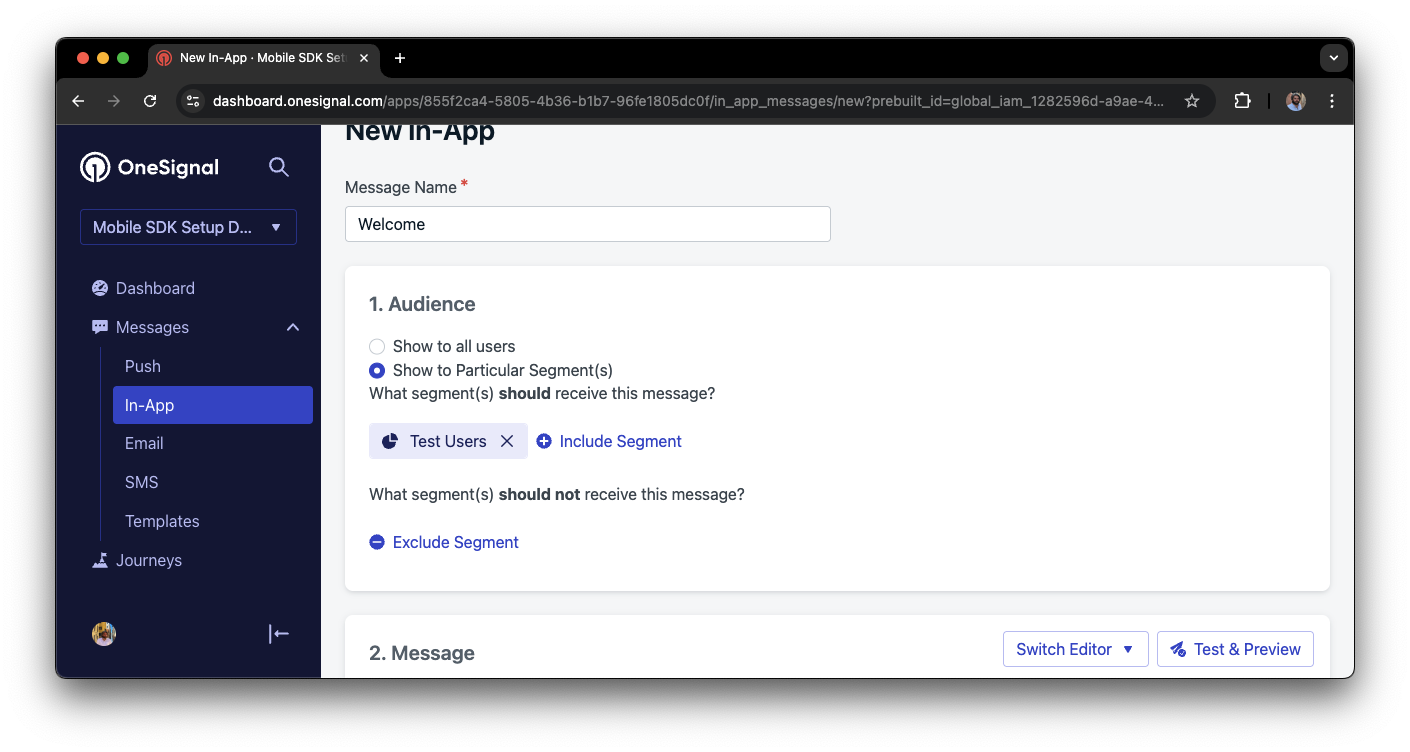
Targeting the 'Test Users' segment with an in-app message
Customize the message content if desired.
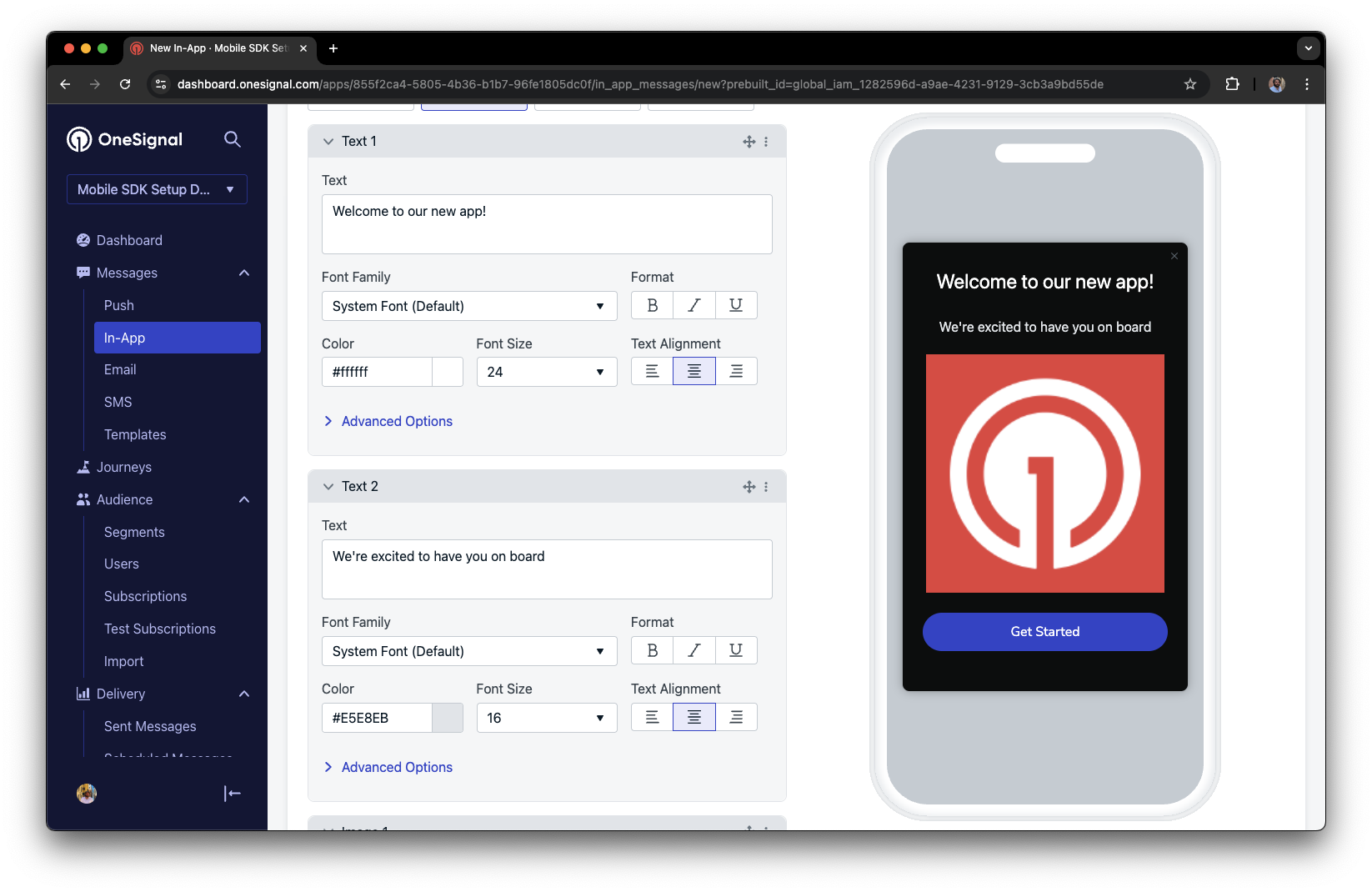
Example customization of in-app Welcome message
Set Trigger to 'On app open'.
Schedule frequency.
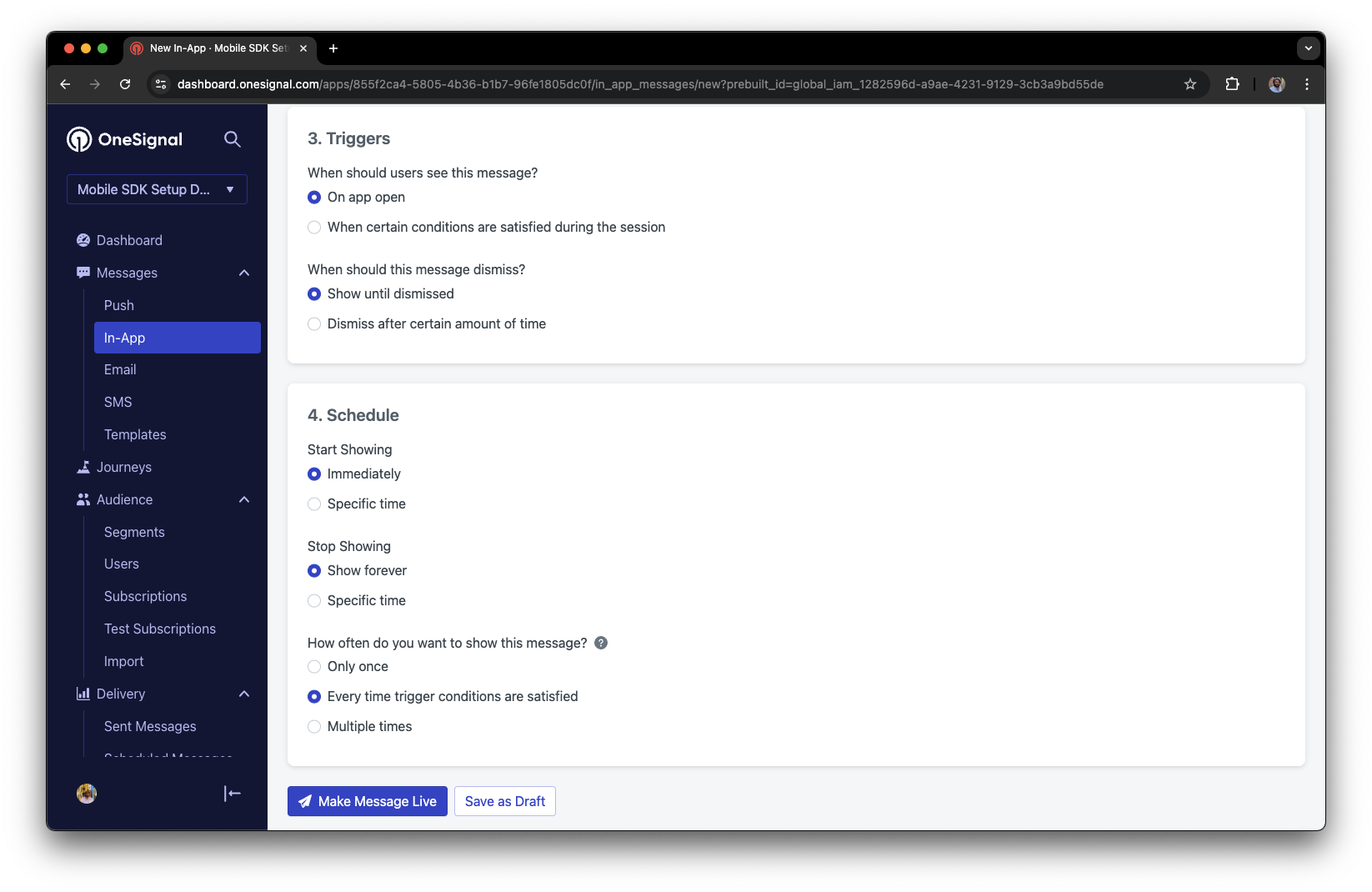
In-app message scheduling options
Make message live.
Open the app and see the message.
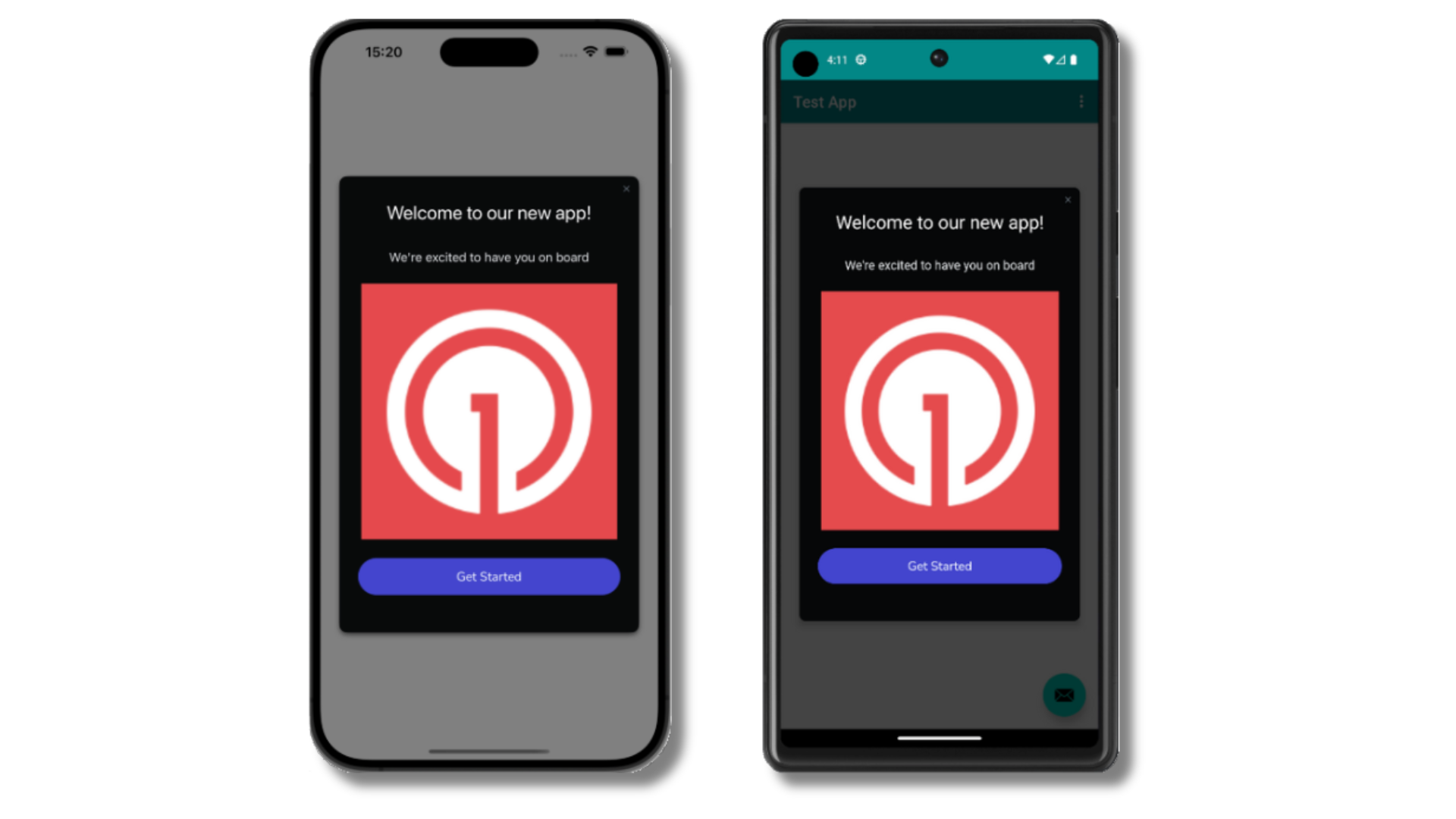
Welcome in-app message shown on devices
- Gathering Subscriptions, setting Test Users, and creating Segments.
- Sending Push with images and Confirmed receipt using Segments and our Create message API.
- Sending In-app messages.
User identification
Previously, we demonstrated how to create mobile Subscriptions. Now we’ll expand to identifying Users across all their subscriptions (including push, email, and SMS) using the OneSignal SDK. We’ll cover External IDs, tags, multi-channel subscriptions, privacy, and event tracking to help you unify and engage users across platforms.Assign External ID
Use an External ID to identify users consistently across devices, email addresses, and phone numbers using your backend’s user identifier. This ensures your messaging stays unified across channels and 3rd party systems (especially important for Integrations). Set the External ID with our SDK’slogin method each time they are identified by your app.
Add Tags
Tags are key-value pairs of string data you can use to store user properties (likeusername, role, or preferences) and events (like purchase_date, game_level, or user interactions). Tags power advanced Message Personalization and Segmentation allowing for more advanced use cases.
Set tags with our SDK addTag and addTags methods as events occur in your app.
In this example, the user reached level 6 identifiable by the tag called current_level set to a value of 6.
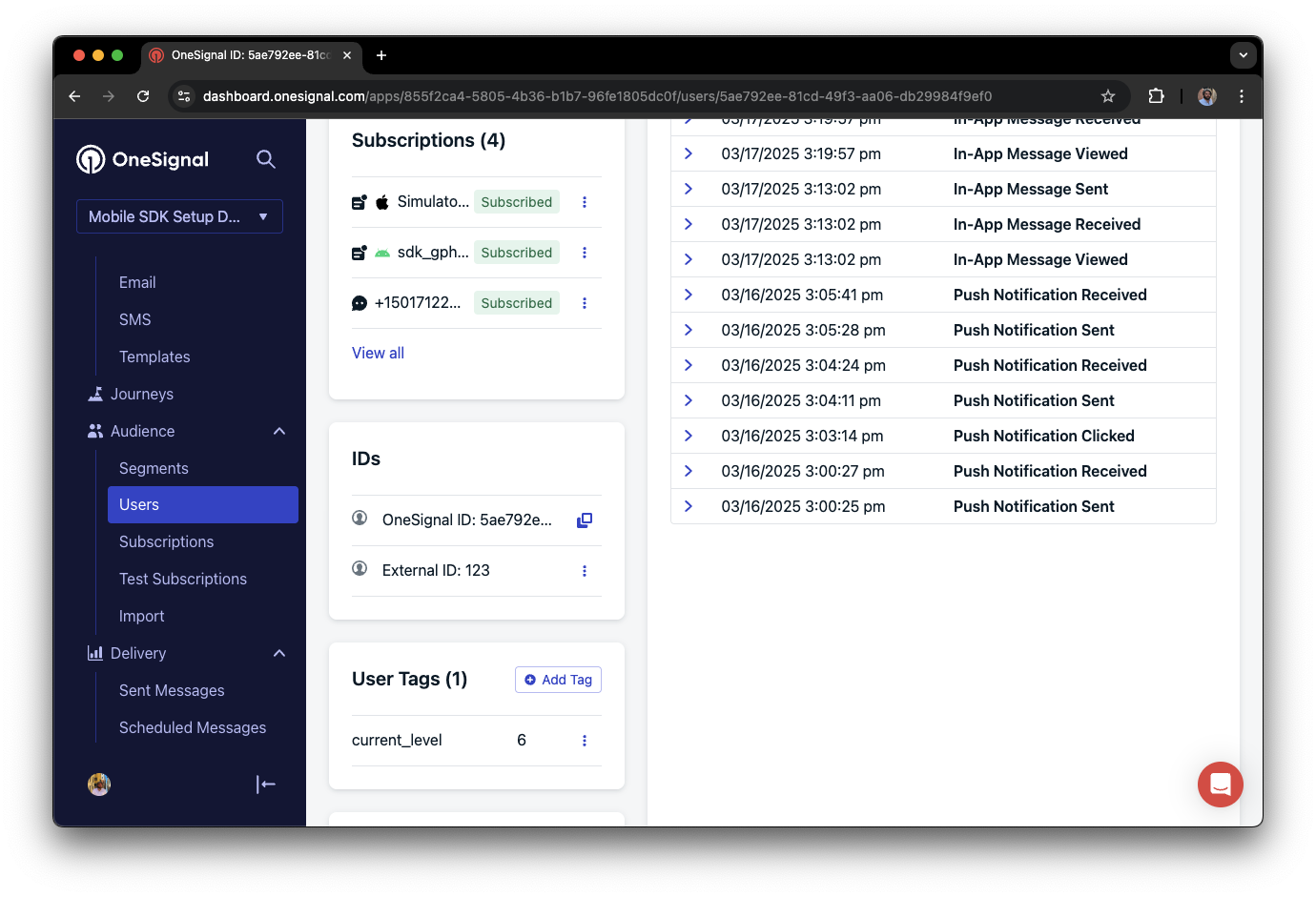
A user profile in OneSignal with a tag called "current_level" set to "6"
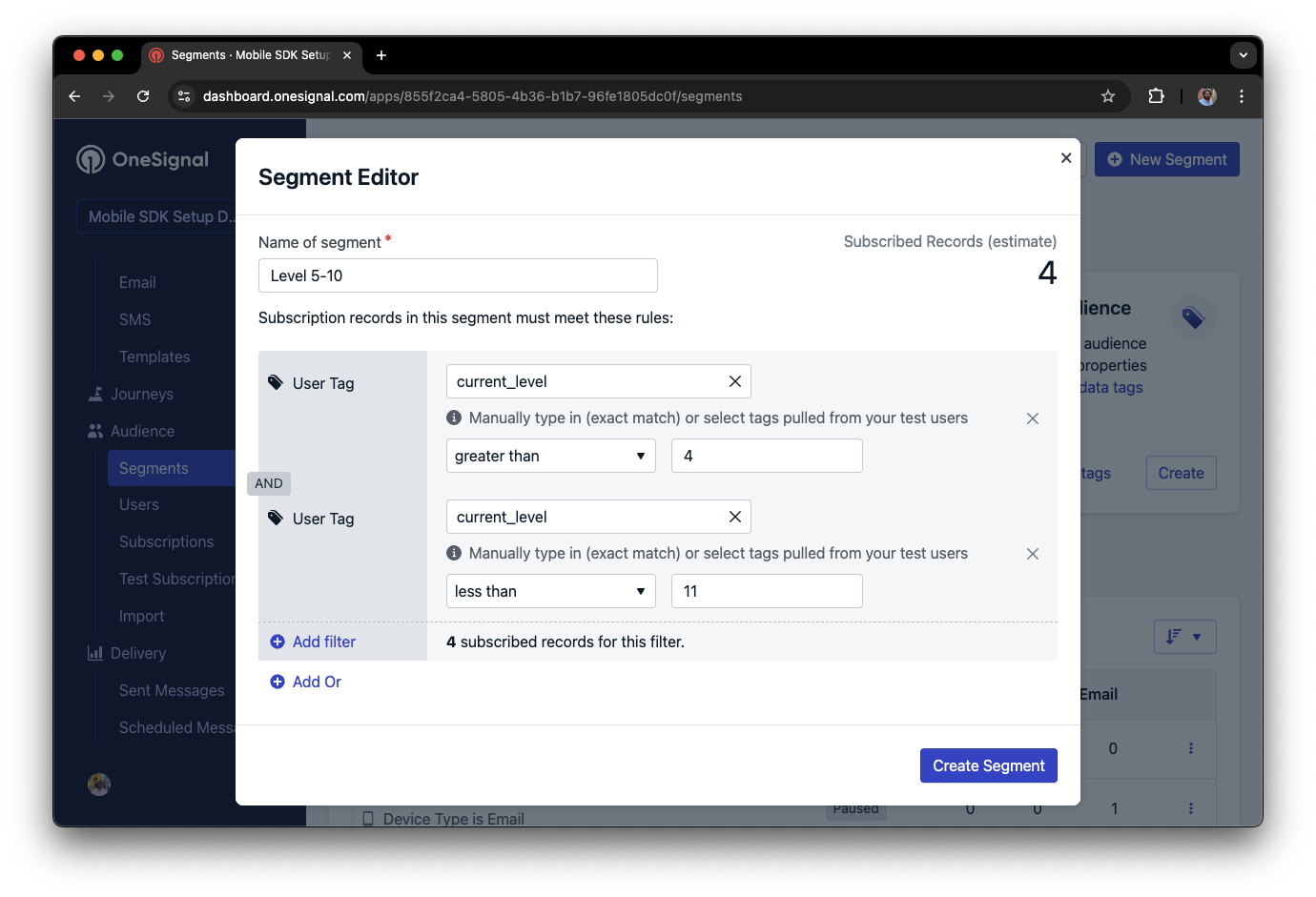
Segment editor showing a segment targeting users with a current_level value of greater than 4 and less than 10
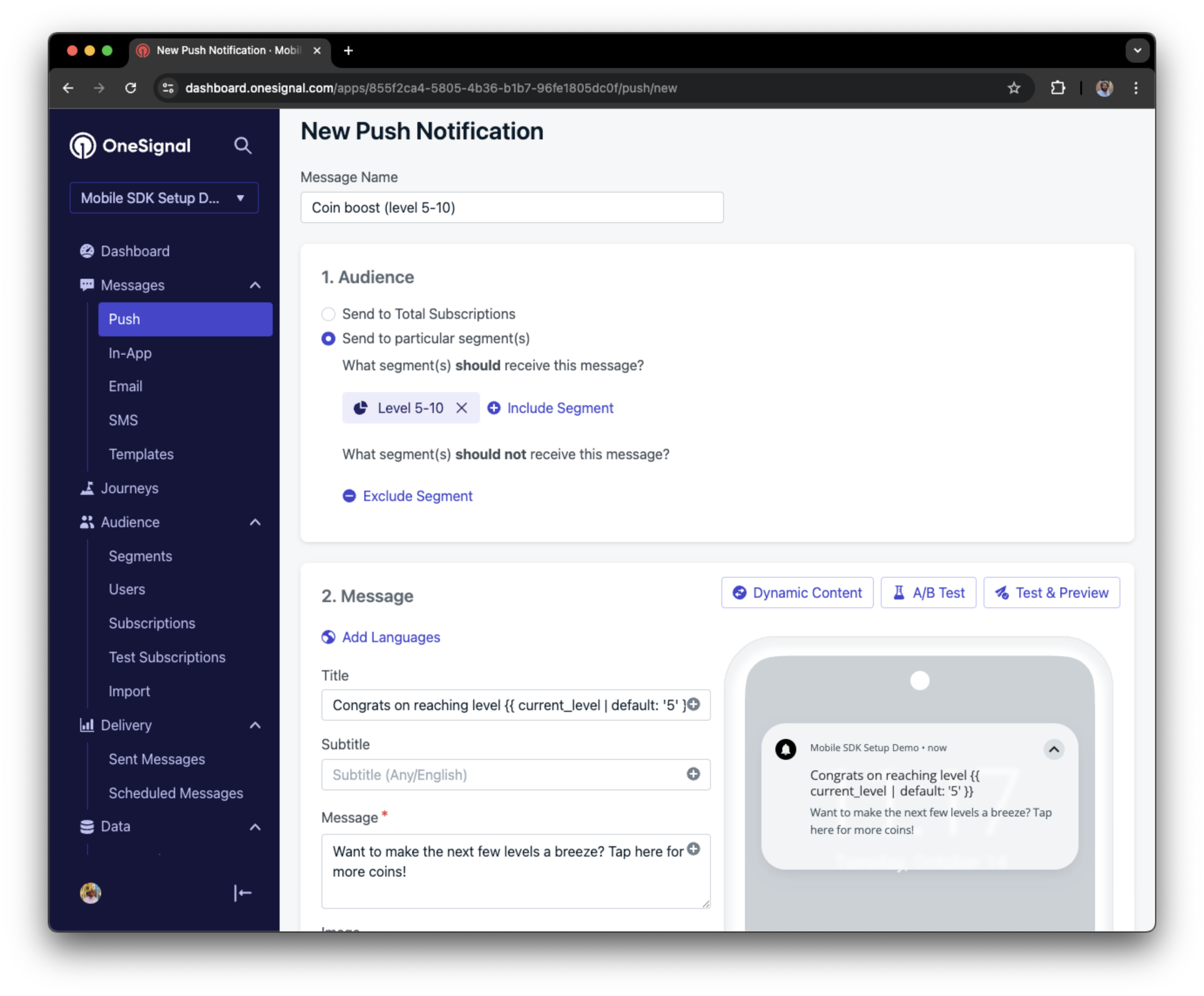
Screenshot showing a push notification targeting the Level 5-10 segment with a personalized message
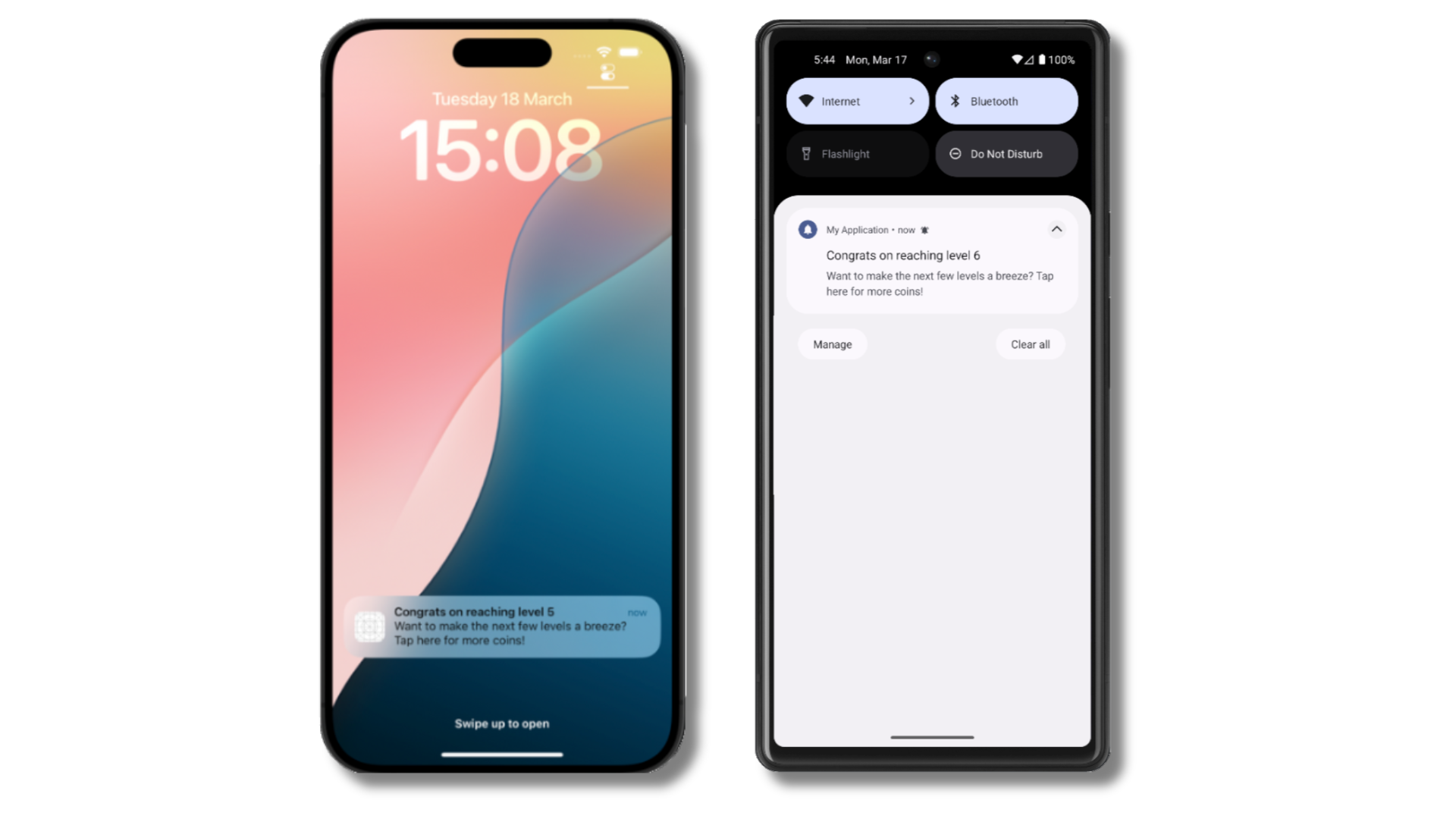
The push notification is received on an iOS and Android device with the personalized content
Add email and/or SMS subscriptions
Earlier we saw how our SDK creates mobile subscriptions to send push and in-app messages. You can also reach users through emails and SMS channels by creating the corresponding subscriptions.- Use the
addEmailmethod to create email subscriptions. - Use the
addSmsmethod to create SMS subscriptions.
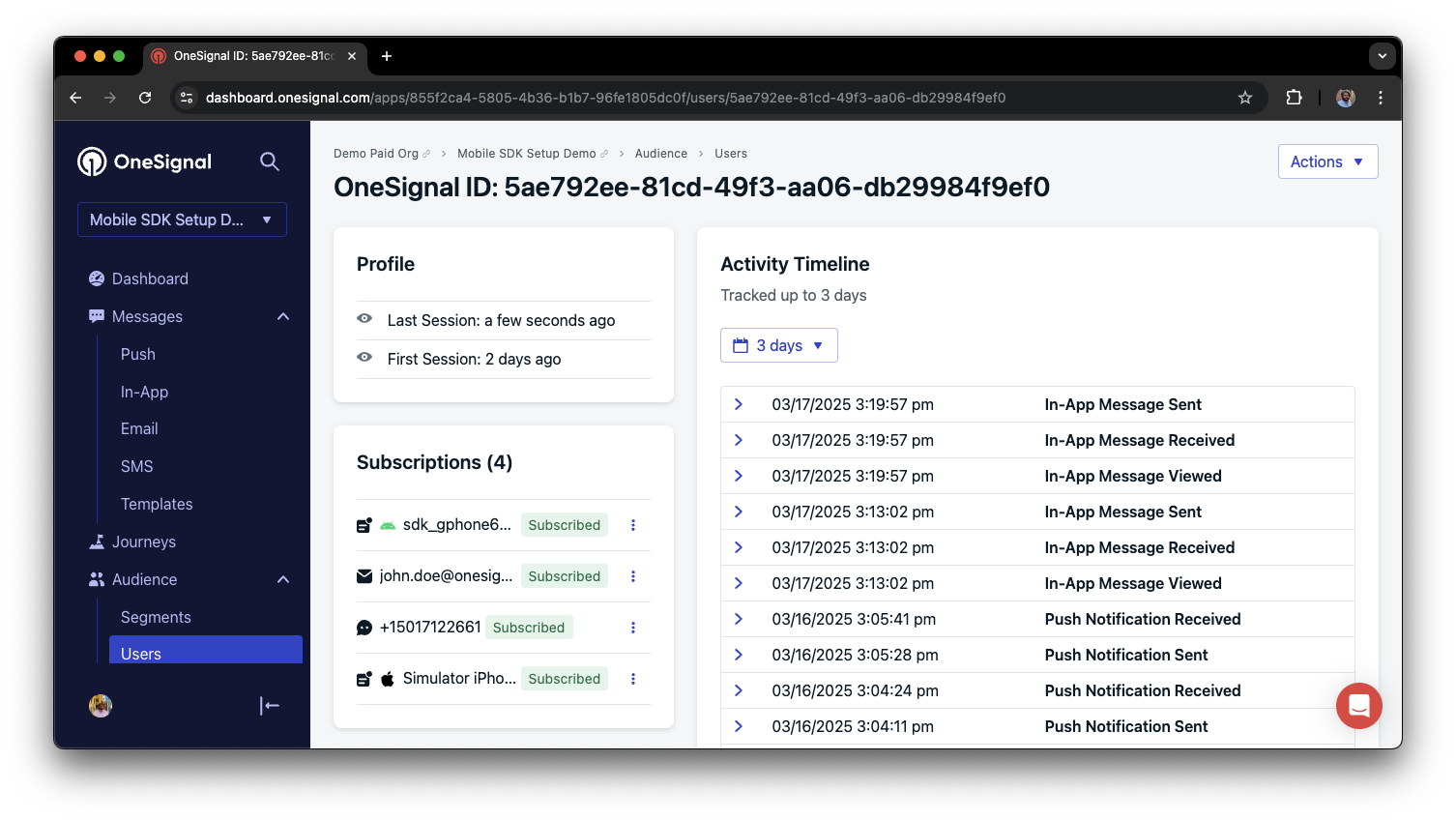
A user profile with push, email, and SMS subscriptions unified by External ID
- Obtain explicit consent before adding email or SMS subscriptions.
- Explain the benefits of each communication channel to users.
- Provide channel preferences so users can select which channels they prefer.
Privacy & user consent
To control when OneSignal collects user data, use the SDK’s consent gating methods:setConsentRequired(true): Prevents data collection until consent is given.setConsentGiven(true): Enables data collection once consent is granted.
Prompt for push permissions
Instead of callingrequestPermission() immediately on app open, take a more strategic approach. Use an in-app message to explain the value of push notifications before requesting permission.
For best practices and implementation details, see our Prompt for push permissions guide.
Listen to push, user, and in-app events
Use SDK listeners to react to user actions and state changes. The SDK provides several event listeners for you to hook into. See our SDK reference guide for more details.Push notification events
addClickListener(): Detect when a notification is tapped. Helpful for Deep Linking.addForegroundLifecycleListener(): Control how notifications behave in foreground.
User state changes
addObserver()for user state: Detect when the External ID is set.addPermissionObserver(): Track the user’s specific interaction with the native push permission prompt.addObserver()for push subscription: Track when the push subscription status changes.
In-app message events
addClickListener(): Handle in-app click actions. Ideal for deep linking or tracking events.addLifecycleListener(): Track full lifecycle of in-app messages (shown, clicked, dismissed, etc.).
Advanced setup & capabilities
Explore more capabilities to enhance your integration:- 🔁 Migrating to OneSignal from another service
- 🌍 Location tracking
- 🔗 Deep Linking
- 🔌 Integrations
- 🧩 Mobile Service Extensions
- 🛎️ Action buttons
- 🌐 Multi-language messaging
- 🛡️ Identity Verification
- 📊 Custom Outcomes
- 📲 Live Activities
Mobile SDK setup & reference
Make sure you’ve enabled all key features by reviewing the Mobile push setup guide. For full details on available methods and configuration options, visit the Mobile SDK reference.support@onesignal.comPlease include:- Details of the issue you’re experiencing and steps to reproduce if available
- Your OneSignal App ID
- The External ID or Subscription ID if applicable
- The URL to the message you tested in the OneSignal Dashboard if applicable
- Any relevant logs or error messages