

Overview
iOS push notifications are essential for driving sustained user engagement and retention in your iOS app. They empower you to deliver real-time updates, reminders, and personalized messages directly to your users, improving the overall user experience and stickiness of your app. By integrating OneSignal’s SDK with your app, you can take advantage of Apple Push Notification Service (APNS) to ensure your notifications are delivered seamlessly across iOS devices. This guide will walk you through integrating our SDK into your iOS app.Requirements
- macOS with Xcode 14+ (setup instructions use Xcode 16.2)
- Device with iOS 12+, iPadOS 12+, or Xcode simulator running iOS 16.2+
- Configured OneSignal app and platform
Configure your OneSignal app and platform
Configure your OneSignal app with the platforms you support — Apple (APNs), Google (FCM), Huawei (HMS), and/or Amazon (ADM).Step-by-step setup instructions
Step-by-step setup instructions
Create or select your app
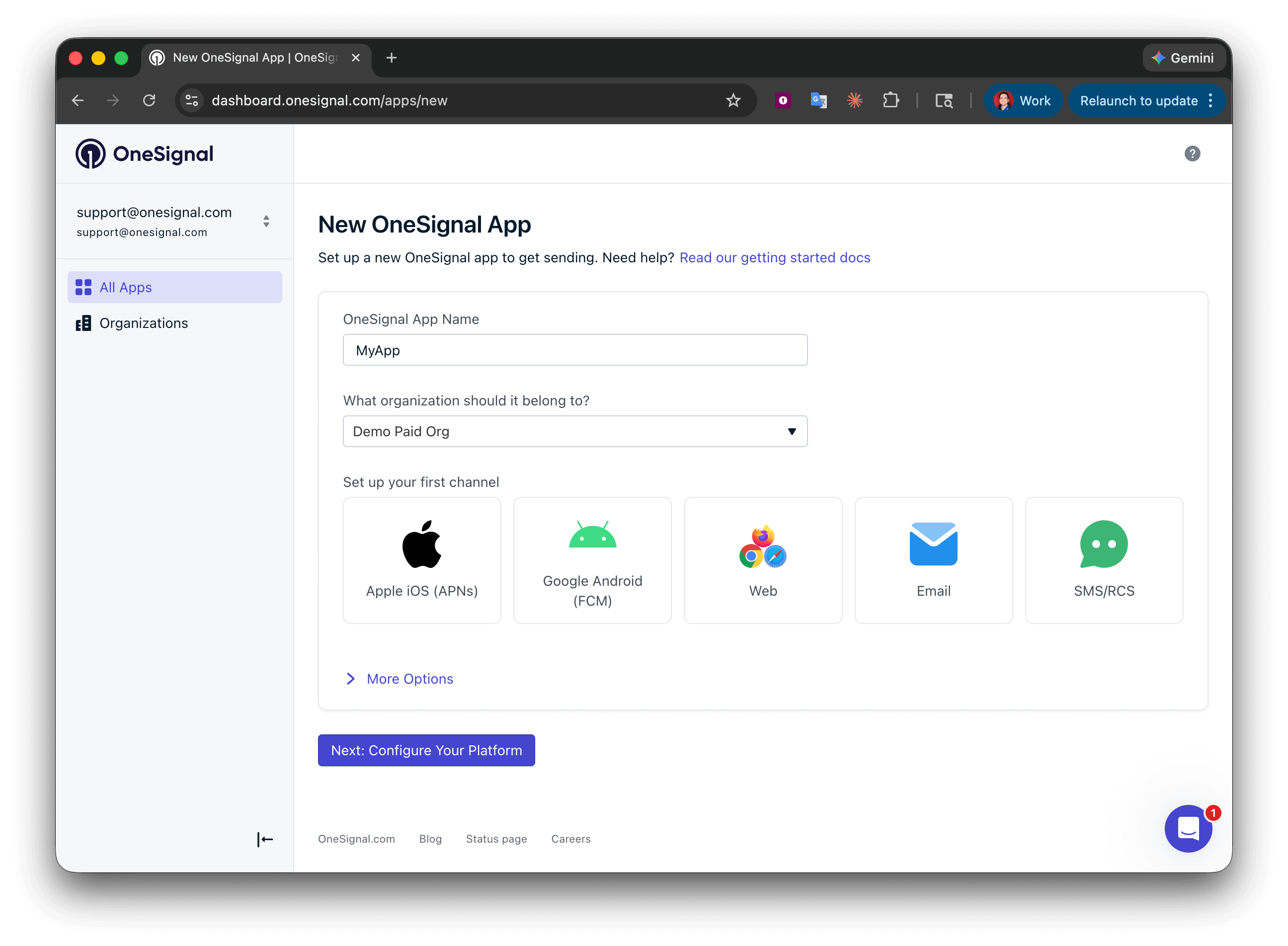
Setting up your first OneSignal app, Organization, and channel.
Configure platform credentials
- Android: Set up Firebase credentials
- iOS: p8 token (recommended) or p12 certificate
- Amazon: Generate API key
- Huawei: Authorize OneSignal
Save your App ID and install the SDK
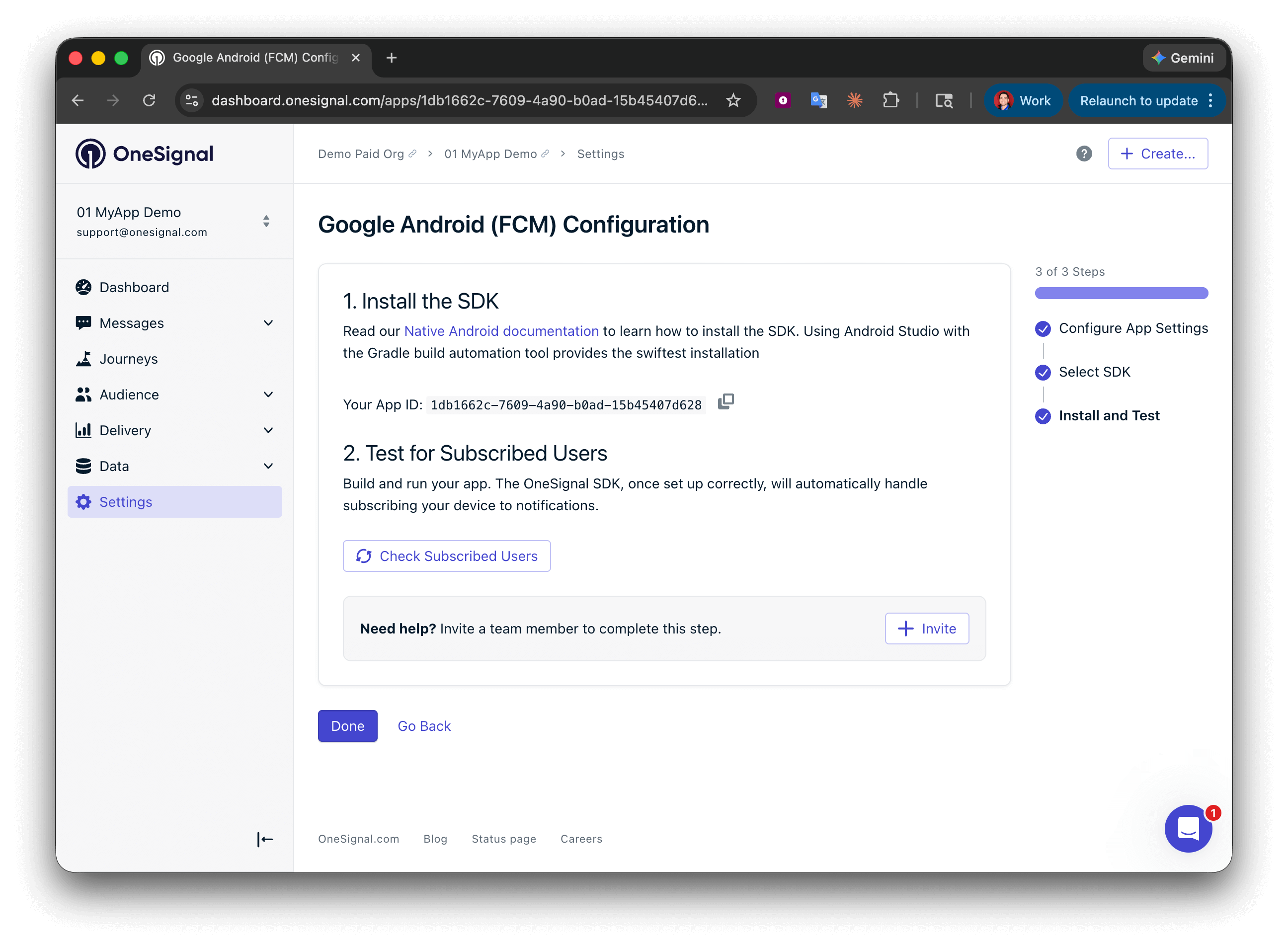
Save your App ID and invite additional team members.
iOS setup
Follow these steps to add push notifications to your iOS app, including support for Badges, Confirmed receipt, and images.1. Add Push Notifications capability to app target
The Push Notifications capability allows your app to register a push token and receive notifications.- Open your app’s
.xcworkspacefile in Xcode. - Select your app target > Signing & Capabilities
- Click + Capability and add Push Notifications capability
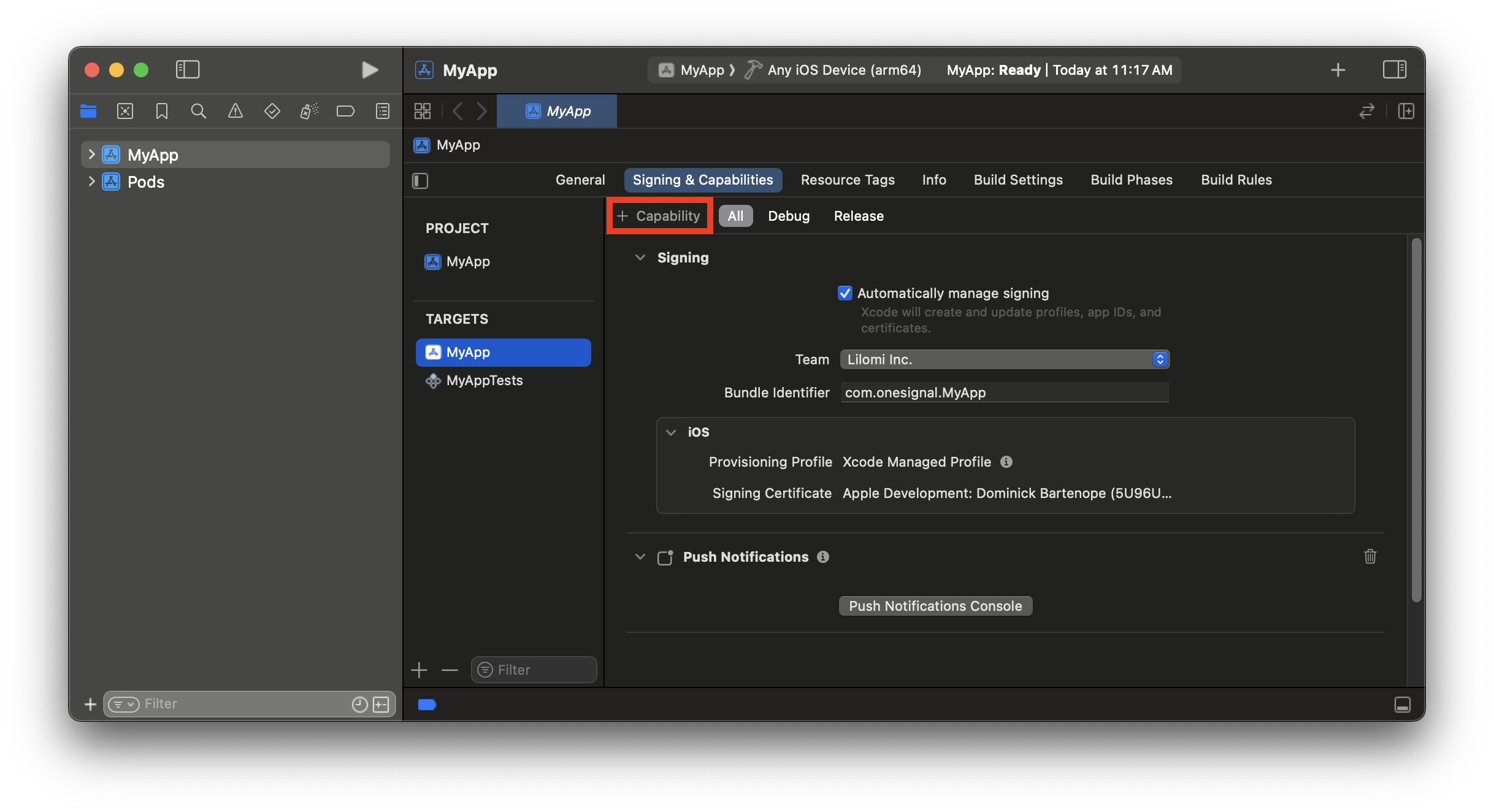
The app target is given Push Notifications capability.
2. Add Background Modes capability to app target
This enables your app to wake in the background when push notifications arrive.- Add Background Modes capability
- Enable Remote notifications
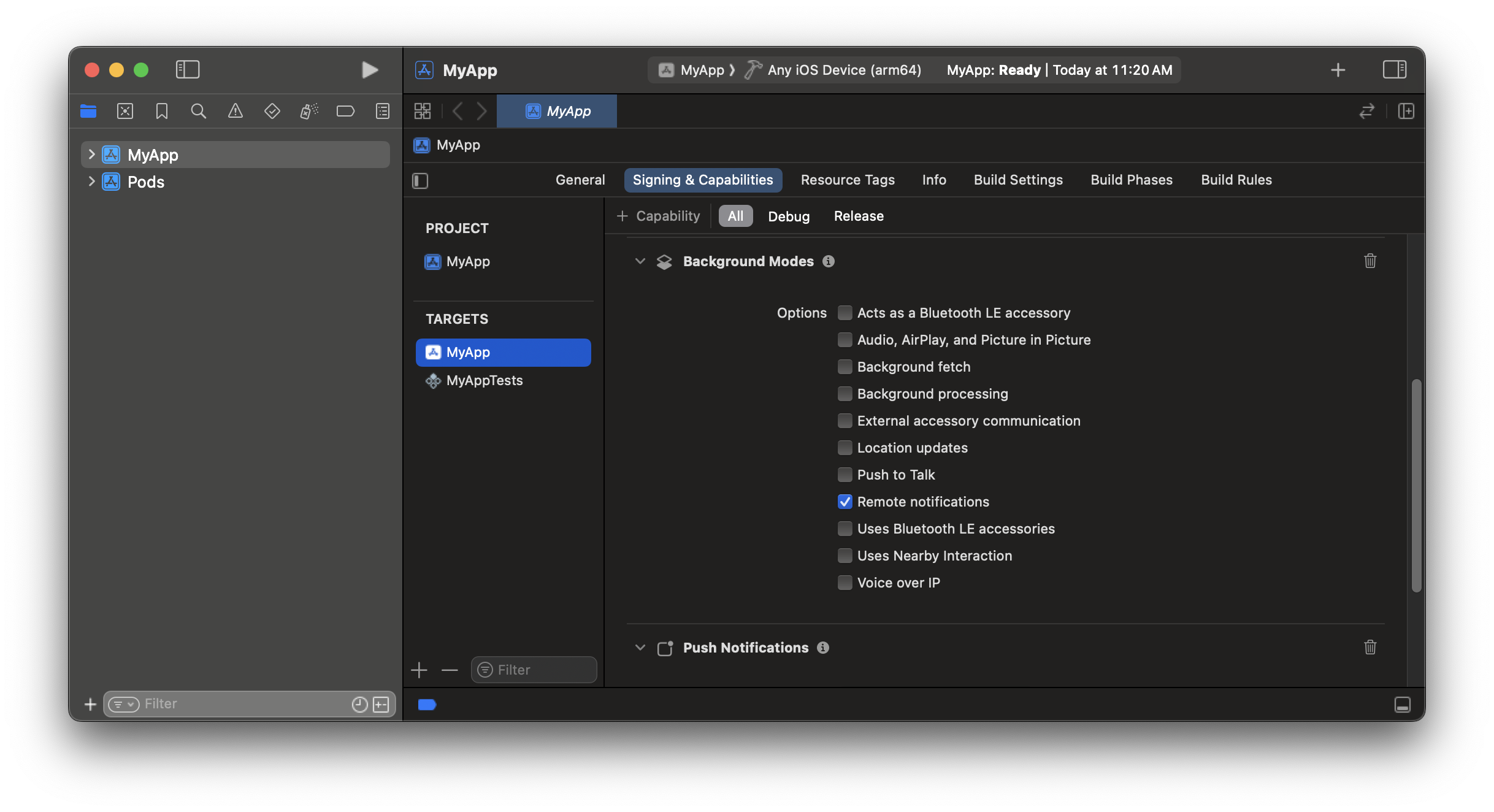
The app target is given Remote Notifications background execution mode.
3. Add app target to App Group
App Groups allow data sharing between your app and the Notification Service Extension. Required for confirmed receipt and Badges.- If you do NOT have an App Group configured
- If you DO have an App Group
- Add App Groups capability
- In the App Groups capability click +
- Add a new container ID in format:
group.your_bundle_id.onesignal
- Keep group. and .onesignal prefix and suffix. Replace
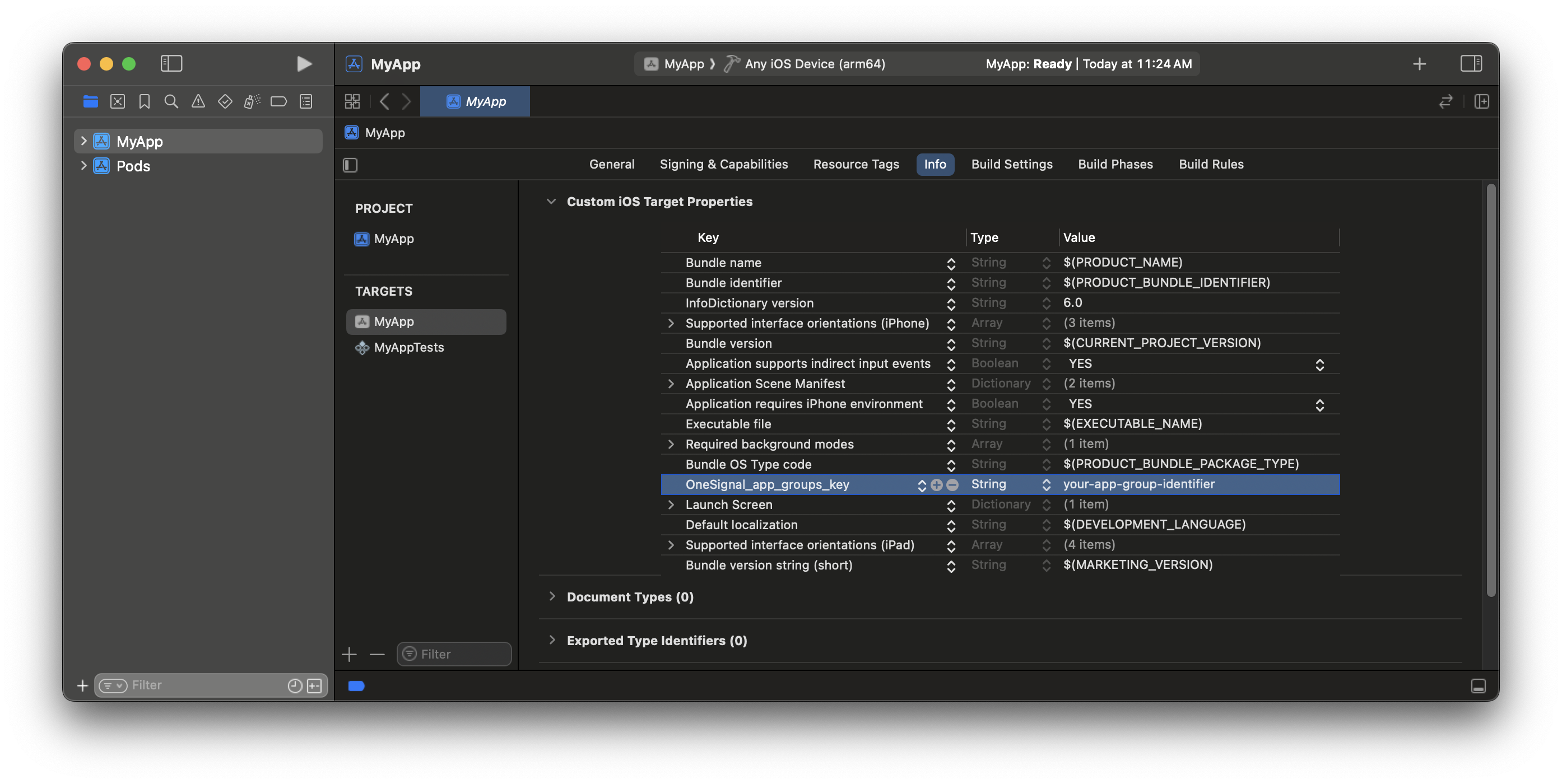
your_bundle_idwith your app’s bundle identifier. - For example, bundle identifier
com.onesignal.MyApp, will have the container namegroup.com.onesignal.MyApp.onesignal.
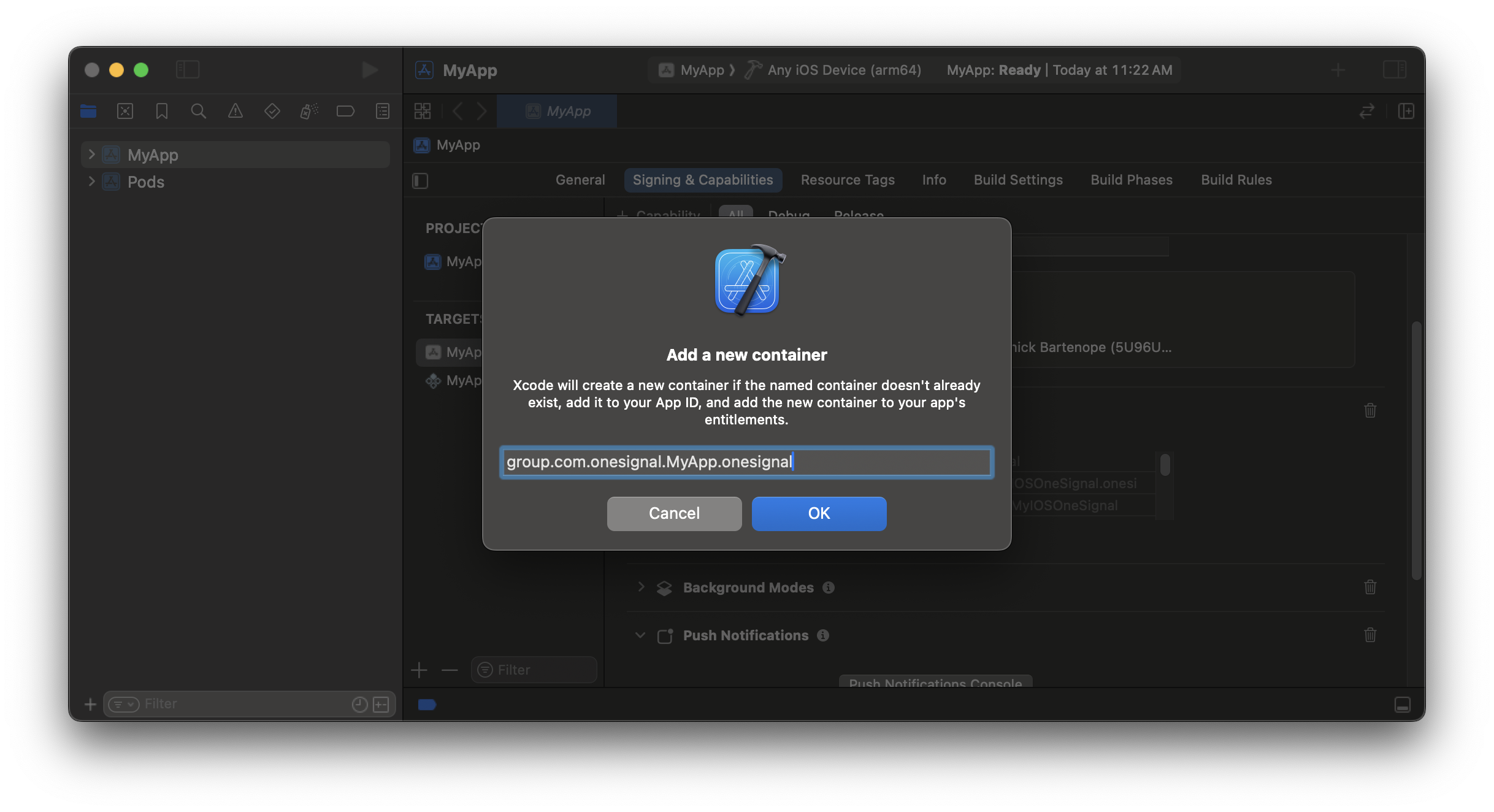
The app target is part of the App Group.
4. Add Notification Service Extension
The Notification Service Extension (NSE) enables rich notifications and confirmed receipt analytics.- In Xcode: File > New > Target…
- Select Notification Service Extension, then Next.
- Set the product name to
OneSignalNotificationServiceExtensionand press Finish. - Press Don’t Activate on the Activate scheme prompt.
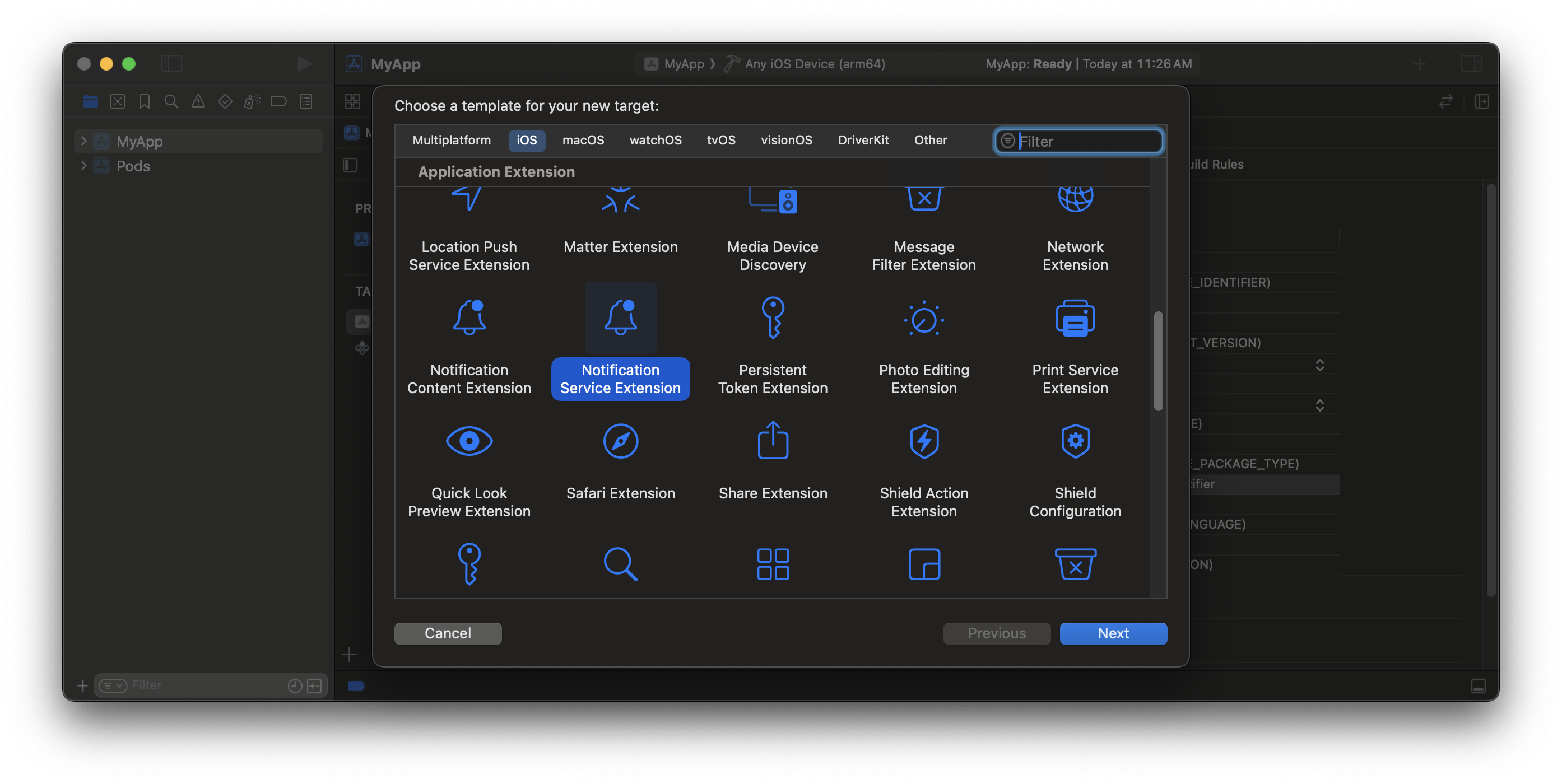
Select the Notification Service Extension target.
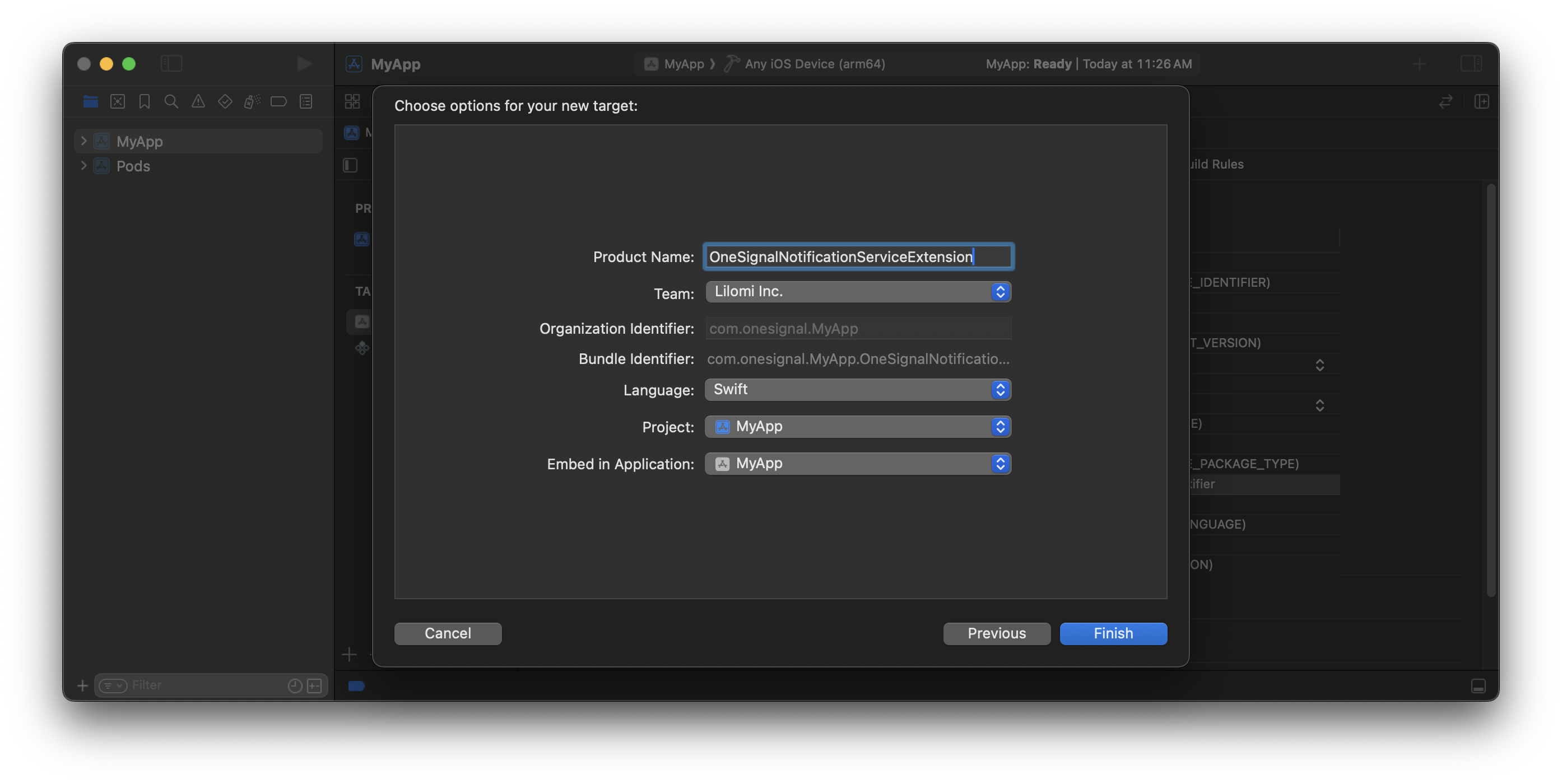
Name the Notification Service Extension .
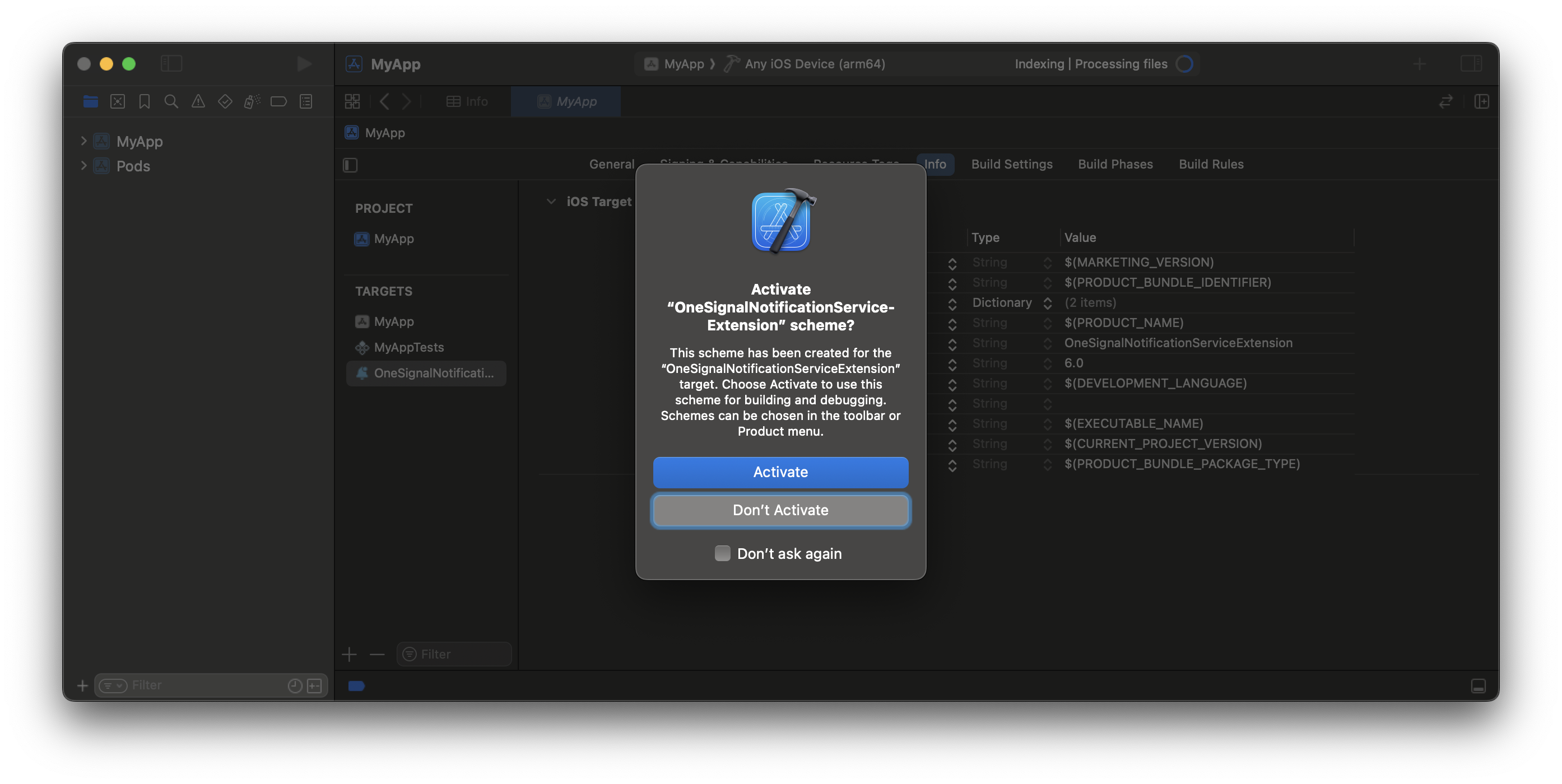
Cancel activation to continue debugging your app target.
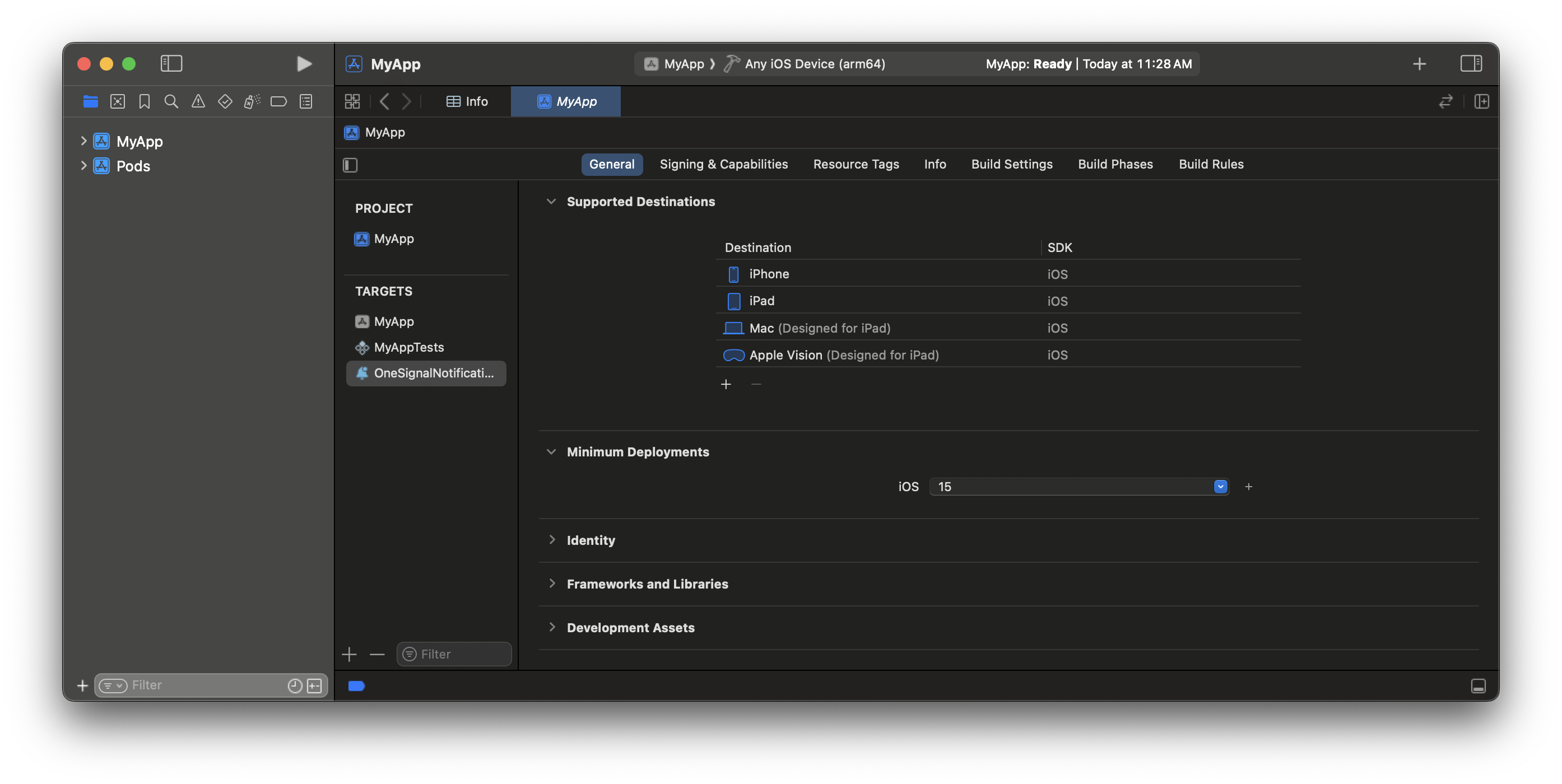
Set the same deployment target as the main app.
5. Add NSE target to app group
Use the same App Group ID you added in step 3.- Go to OneSignalNotificationServiceExtension > Signing & Capabilities
- Add App Groups
- Add the exact same group ID
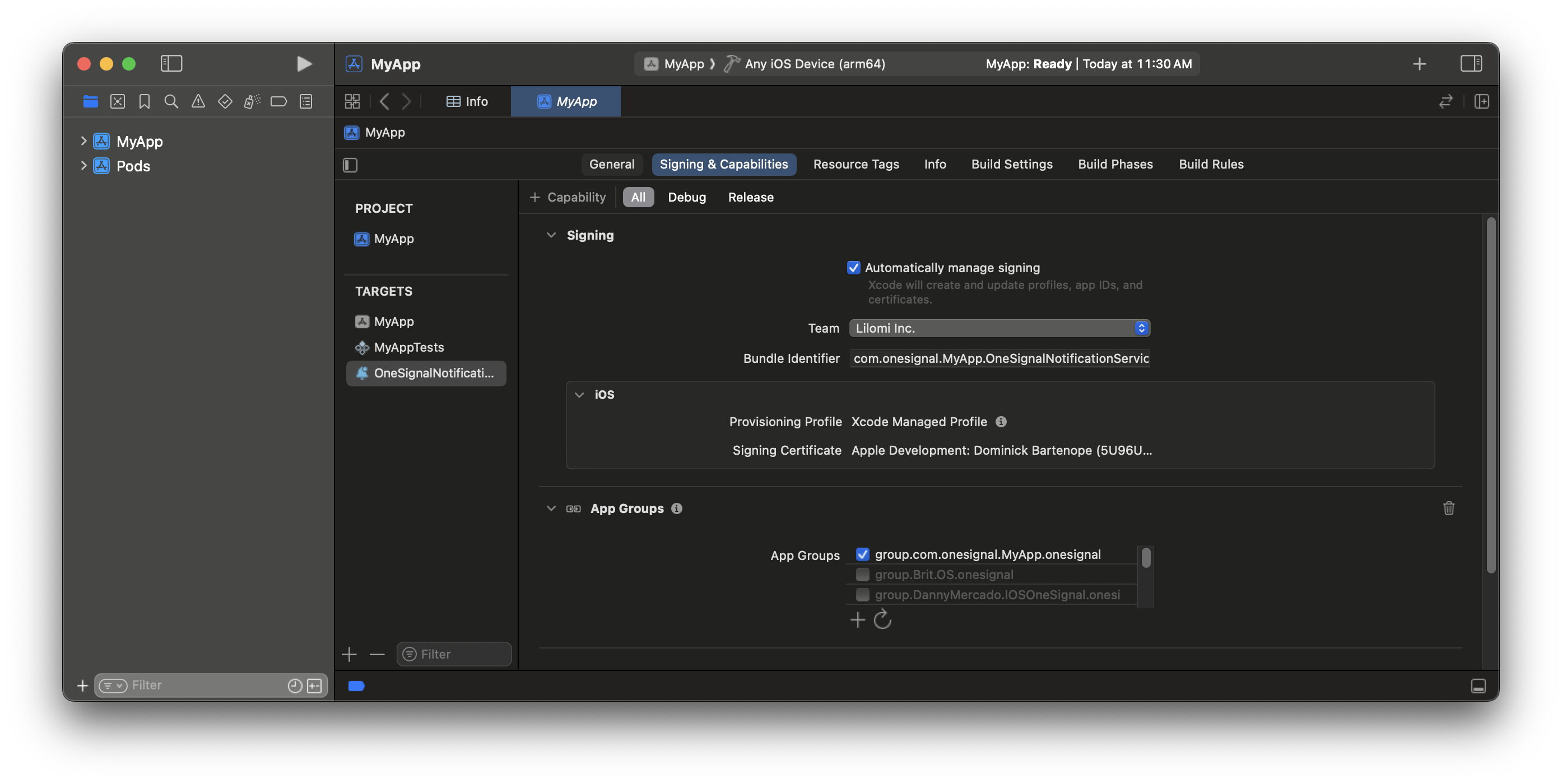
The NSE now belongs to the same app group as your app target.
6. Update NSE code
- Navigate to the OneSignalNotificationServiceExtension folder
- Replace the contents of the
NotificationService.swiftorNotificationService.mfile with the following:
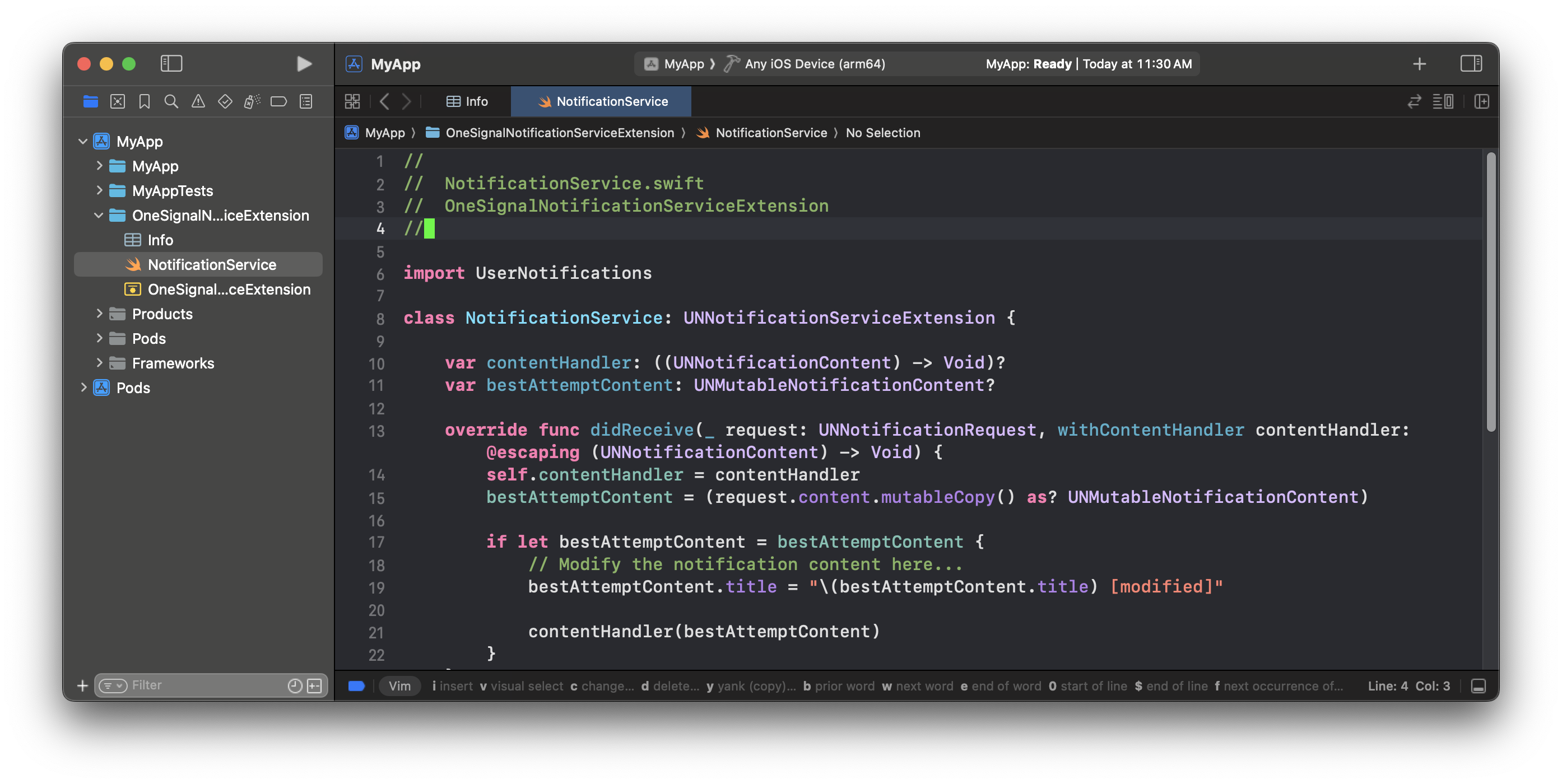
Navigate to your NotificationService file.
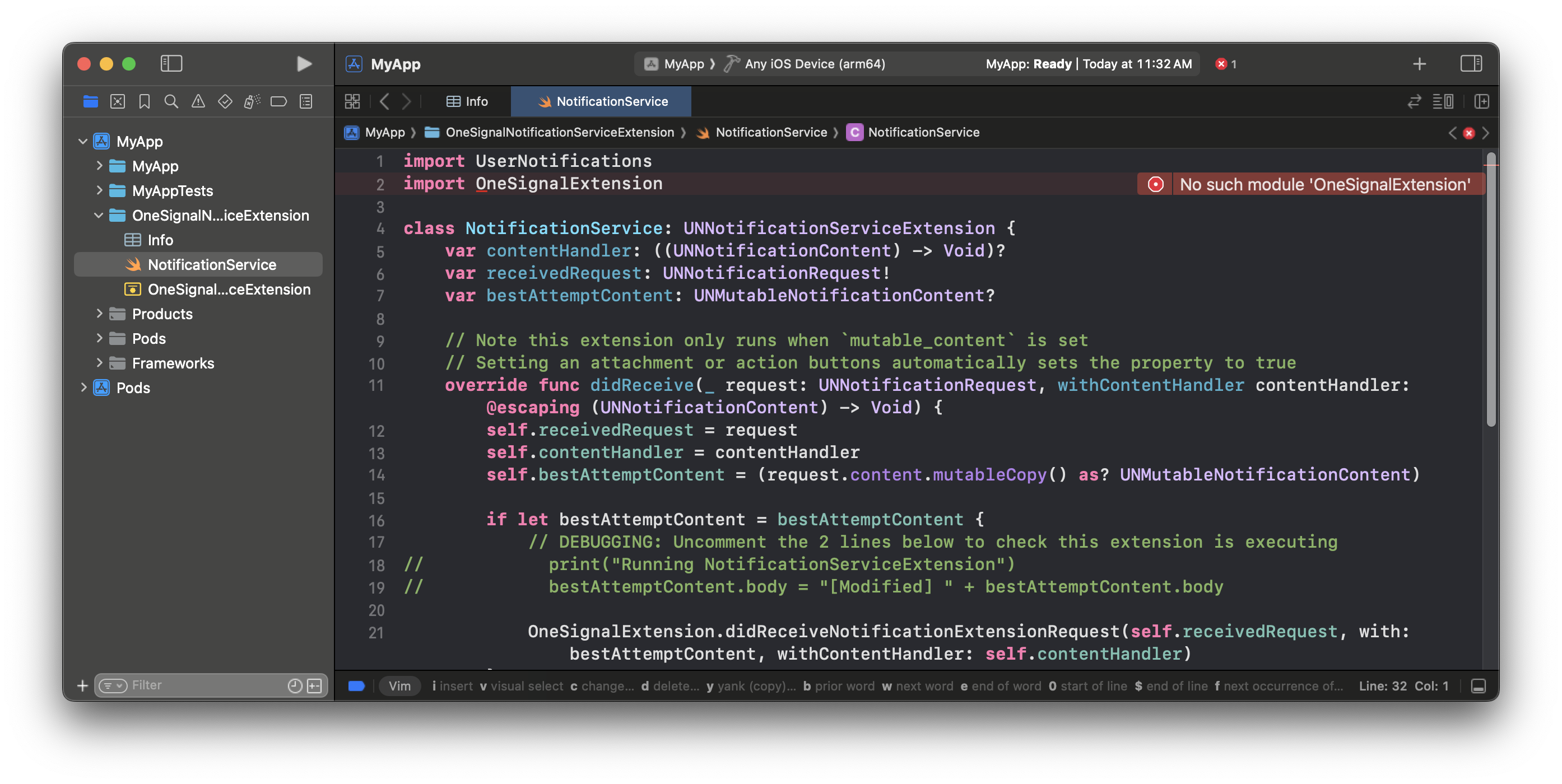
This file shows an error until you install the package in the next step.
SDK setup
This section will guide you through integrating OneSignal’s core features. By the end of this section, you will have a basic integration with our SDK enabling you to trigger in-app messages and receive push notifications.1. Add SDK
Add our SDK using Xcode Package Dependencies Manager (Swift Package Manager) or CocoaPods. There are 4 available libraries. If you do not want In-app messages and/or Location tracking, you can omit these packages.- Xcode Package Dependencies
- CocoaPods
https://github.com/OneSignal/OneSignal-XCFrameworkSelect the onesignal-xcframework package and click Add Package.Choose Package Products for OneSignal-XCFramework.- Important: Add the OneSignalExtension to the OneSignalNotificationServiceExtension Target.
- Add the OneSignalFramework to your App Target.
- If you plan on using in-app messages (recommended) and/or location tracking, then add those packages to your App Target as well.
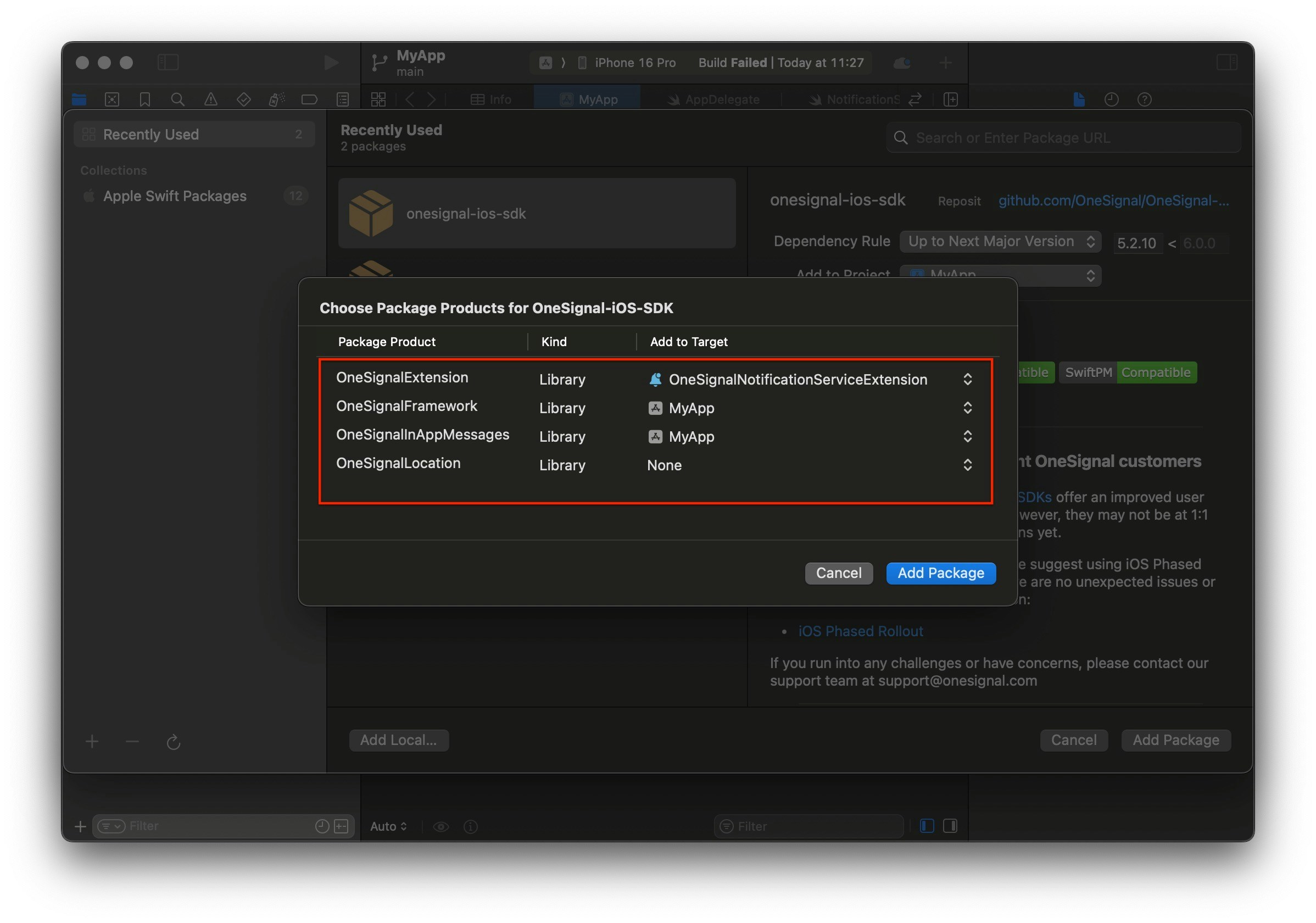
If your app doesn't require location tracking, you can remove the package as shown in this example.
2. Initialize SDK
Depending on your Xcode interface setup, initialize OneSignal following these options.- SwiftUI
- Storyboard
<APP_NAME>App.swift file and initialize OneSignal with the provided methods.Replace YOUR_APP_ID with your OneSignal App ID found in your OneSignal dashboard Settings > Keys & IDs. If you don’t have access to the OneSignal app, ask your Team Members to invite you.Testing the OneSignal SDK integration
This guide helps you verify that your OneSignal SDK integration is working correctly by testing push notifications, subscription registration, and in-app messaging.Check mobile subscriptions
Launch your app on a test device.
requestPermission method during initialization.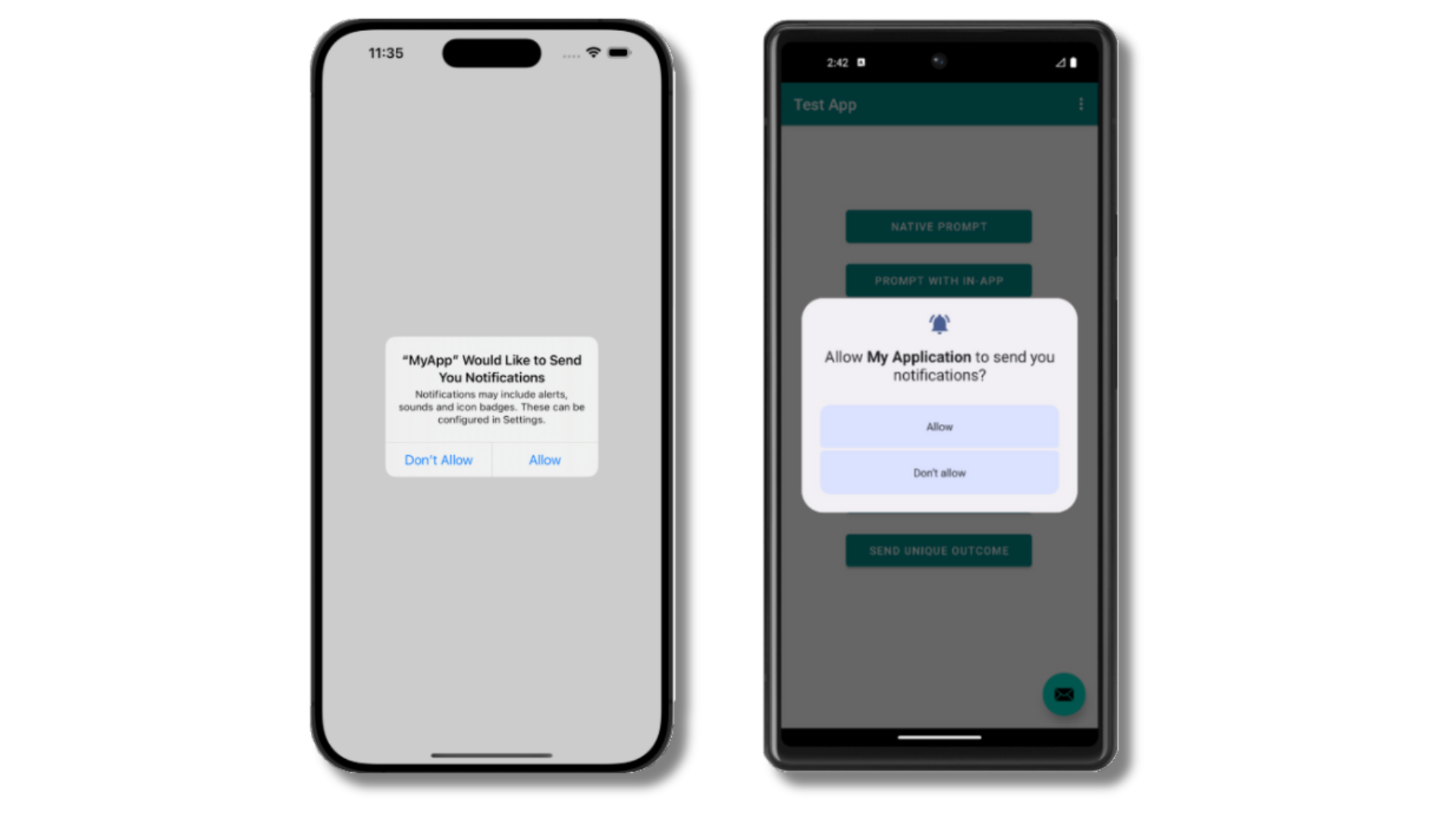
iOS and Android push permission prompts
Check your OneSignal dashboard
- Go to Audience > Subscriptions.
- You should see a new entry with the status “Never Subscribed”.
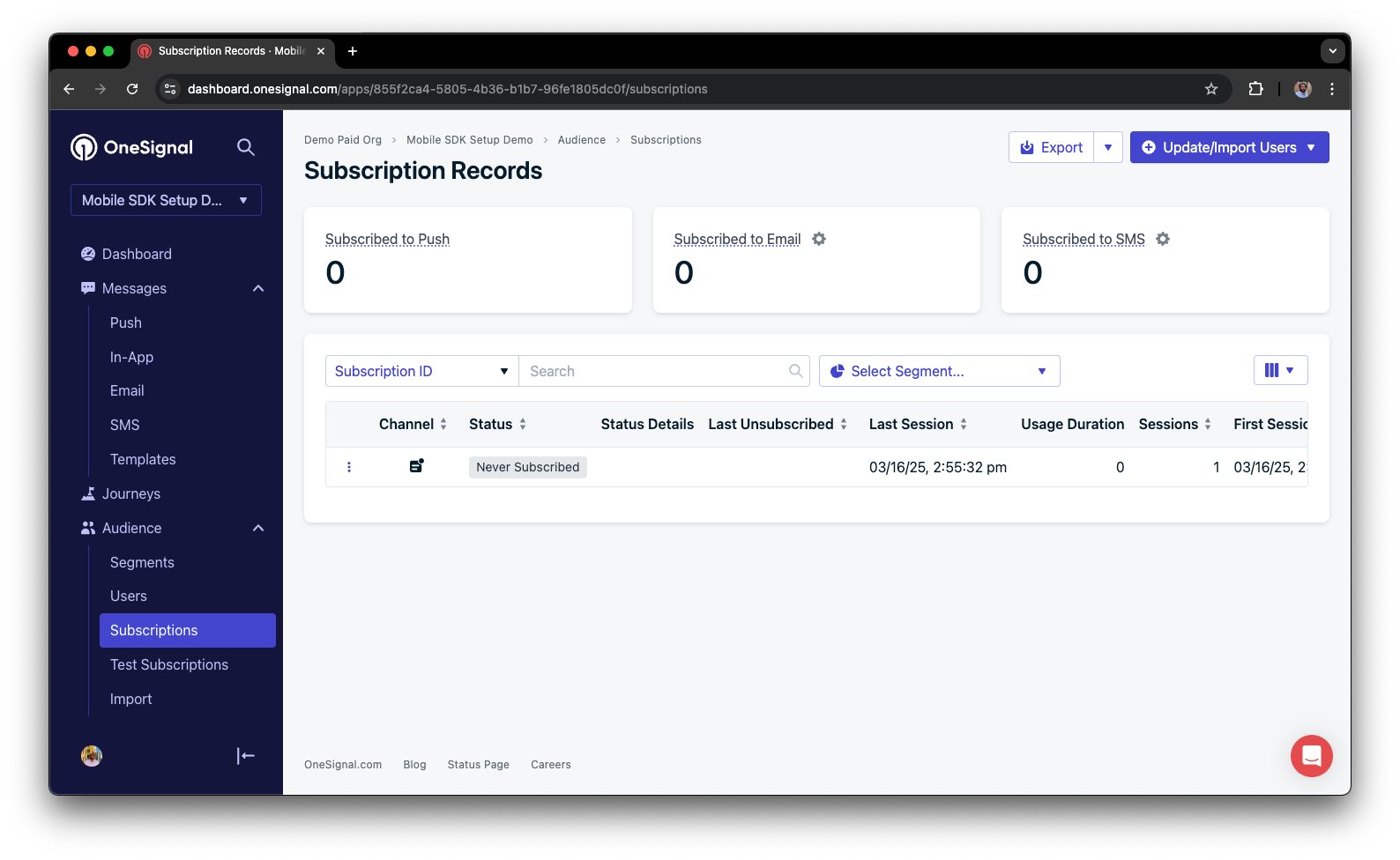
Dashboard showing subscription with 'Never Subscribed' status
Return to the app and tap Allow on the prompt.
Refresh the OneSignal dashboard Subscription's page.
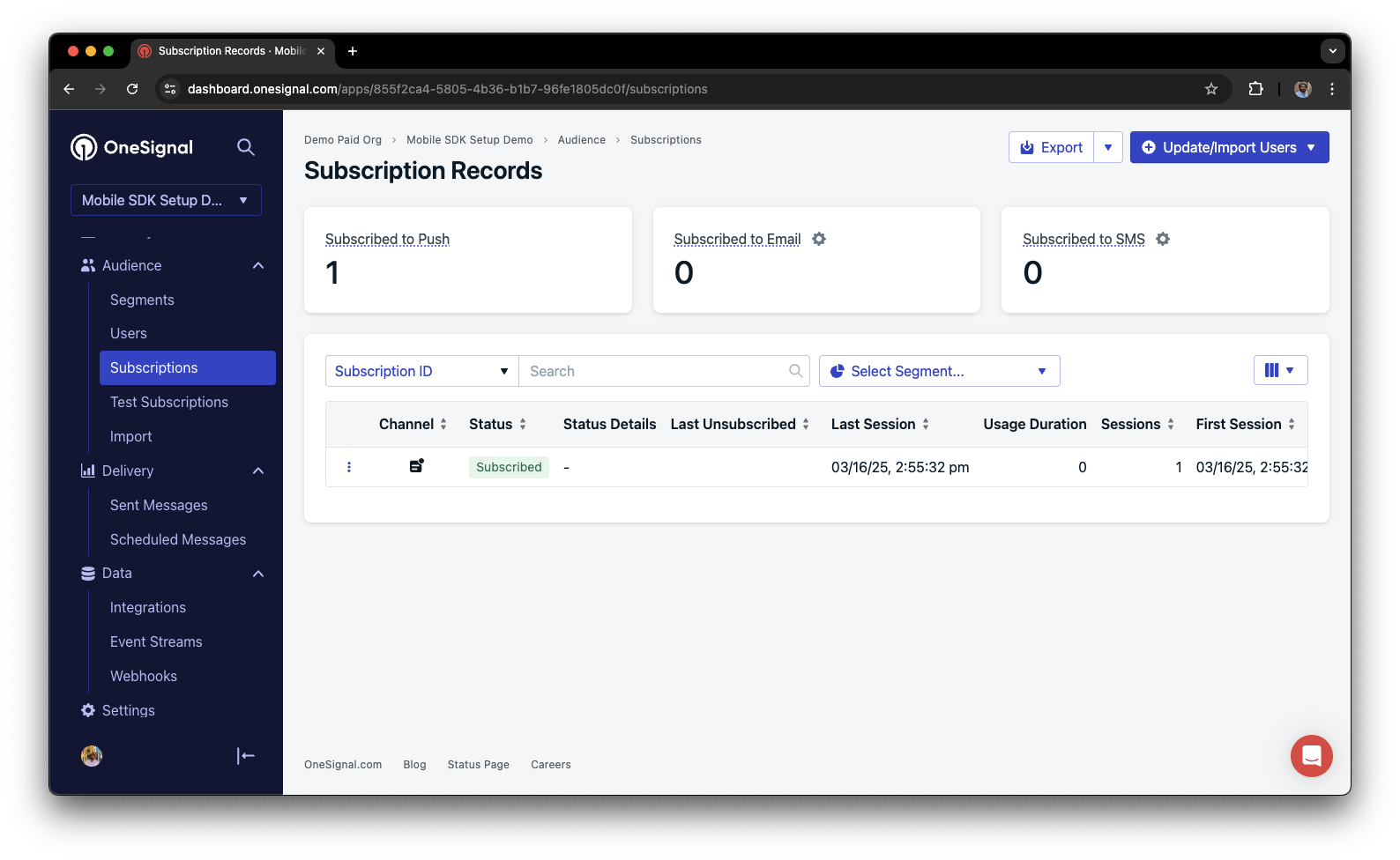
Dashboard showing subscription with 'Subscribed' status
Set up test users
test users are helpful for testing a push notification before sending a message.Add to Test Users.

Adding a device to Test Users
Name your subscription.
Create a test users segment.
Name the segment.
Test Users (the name is important because it will be used later).Add the Test Users filter and click Create Segment.
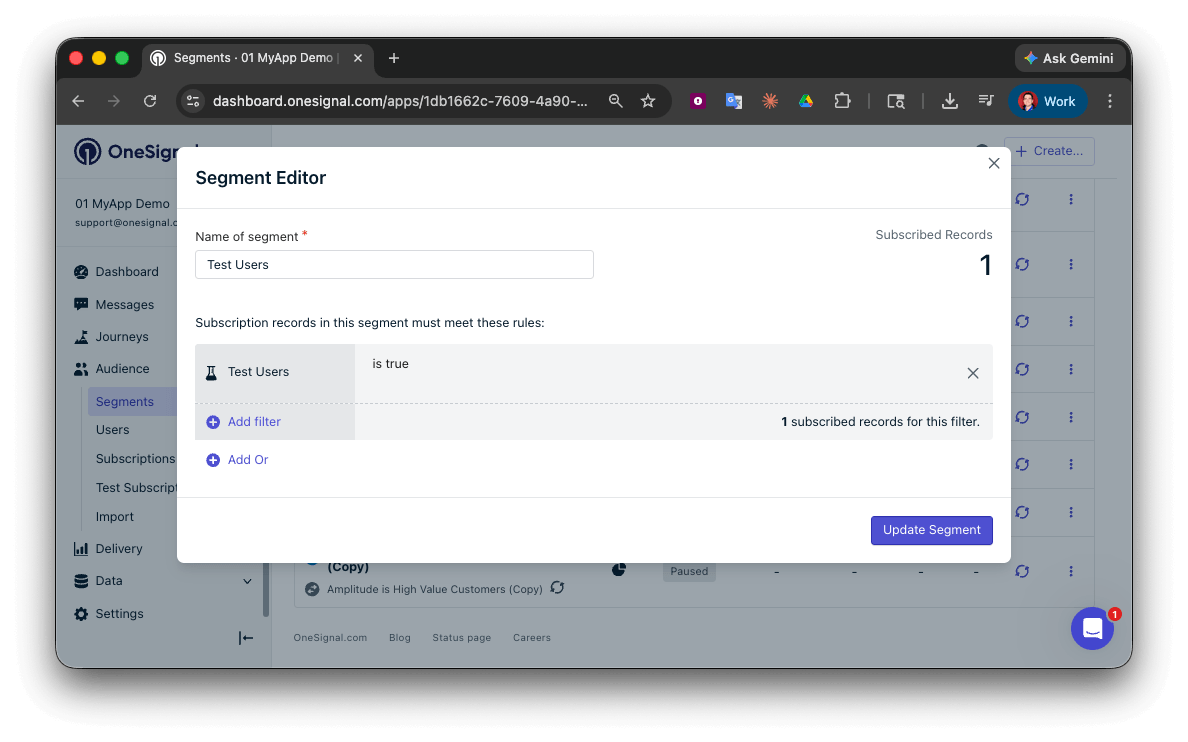
Creating a 'Test Users' segment with the Test Users filter
Send test push via API
Get your App API Key and App ID.
Update the provided code.
YOUR_APP_API_KEY and YOUR_APP_ID in the code below with your actual keys. This code uses the Test Users segment we created earlier.Run the code.
Check images and confirmed receipt.
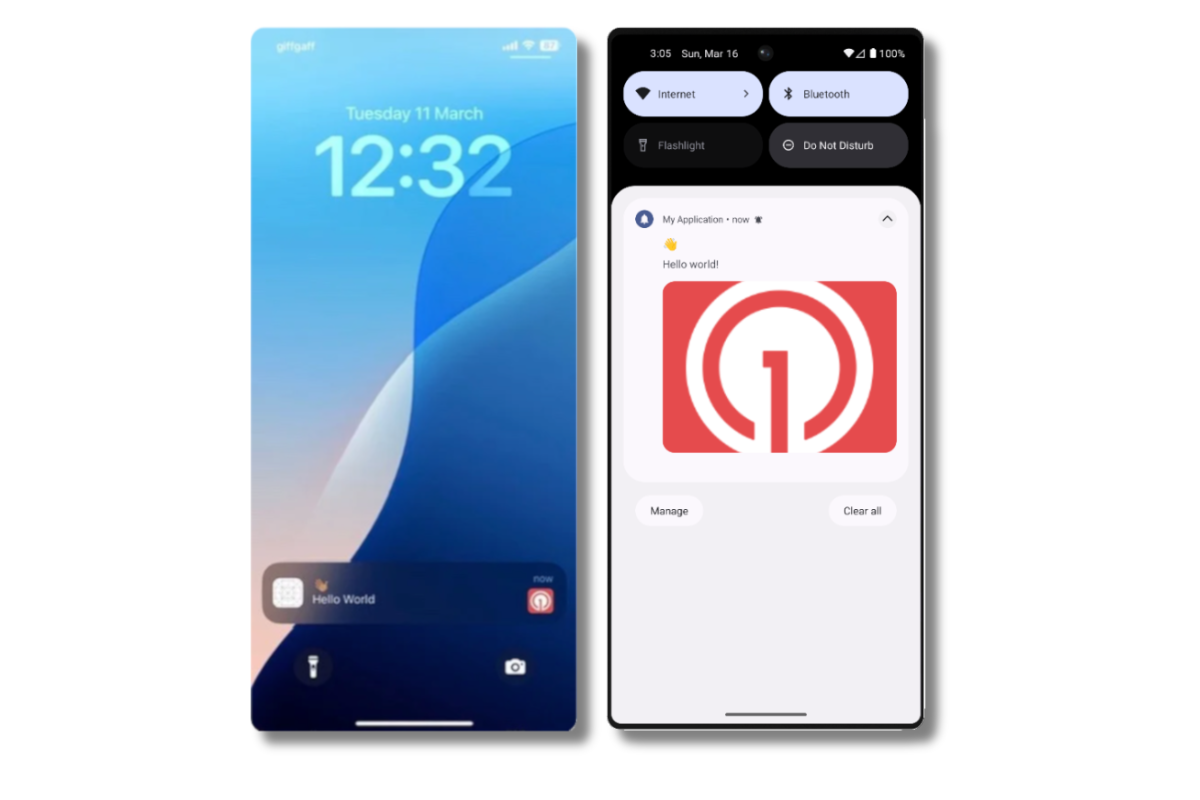
Push notification with image on iOS and Android
Check for confirmed receipt.
Send an in-app message
In-app messages let you communicate with users while they are using your app.Close or background your app on the device.
Create an in-app message.
- In your OneSignal dashboard, navigate to Messages > In-App > New In-App.
- Find and select the Welcome message.
- Set your Audience as the Test Users segment we used previously.
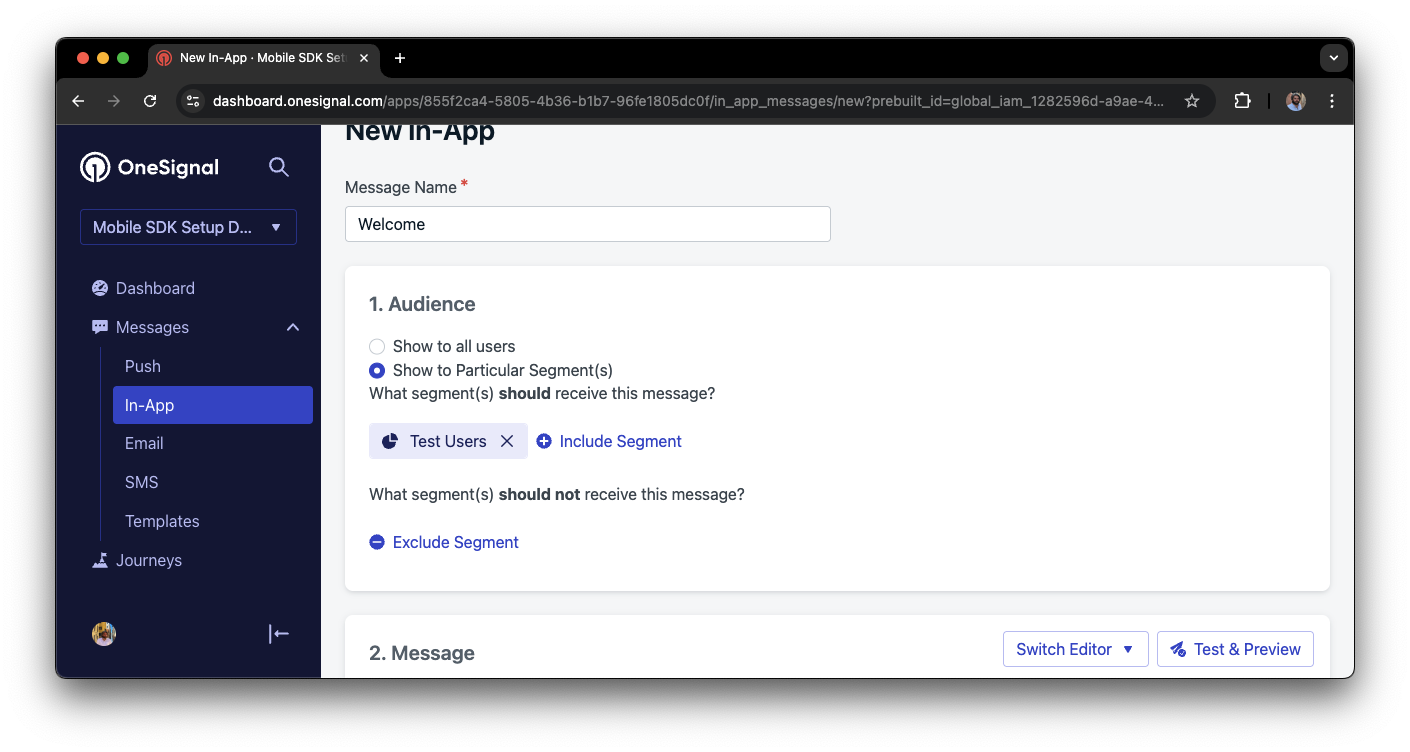
Targeting the 'Test Users' segment with an in-app message
Customize the message content if desired.
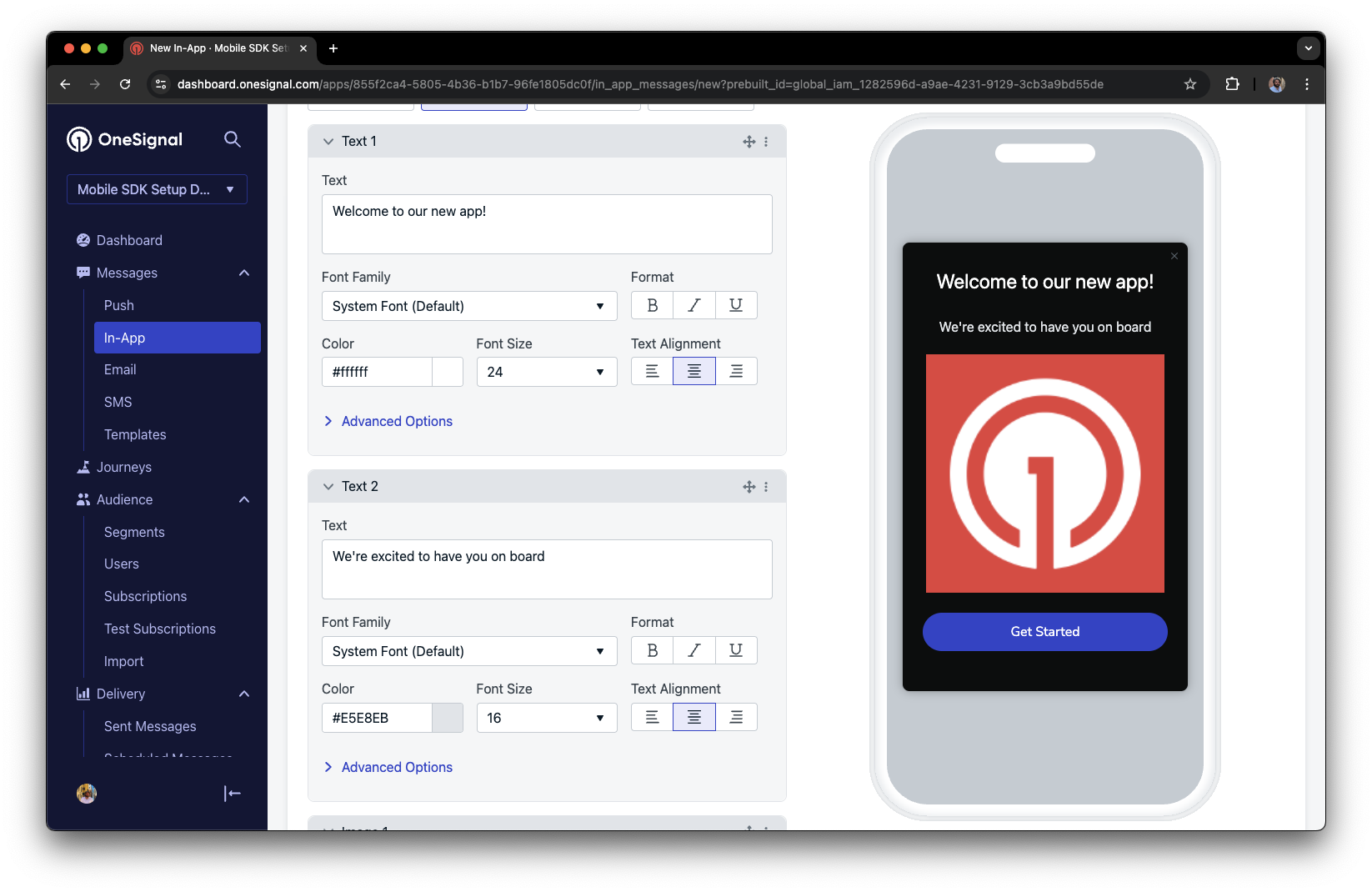
Example customization of in-app Welcome message
Set Trigger to 'On app open'.
Schedule frequency.
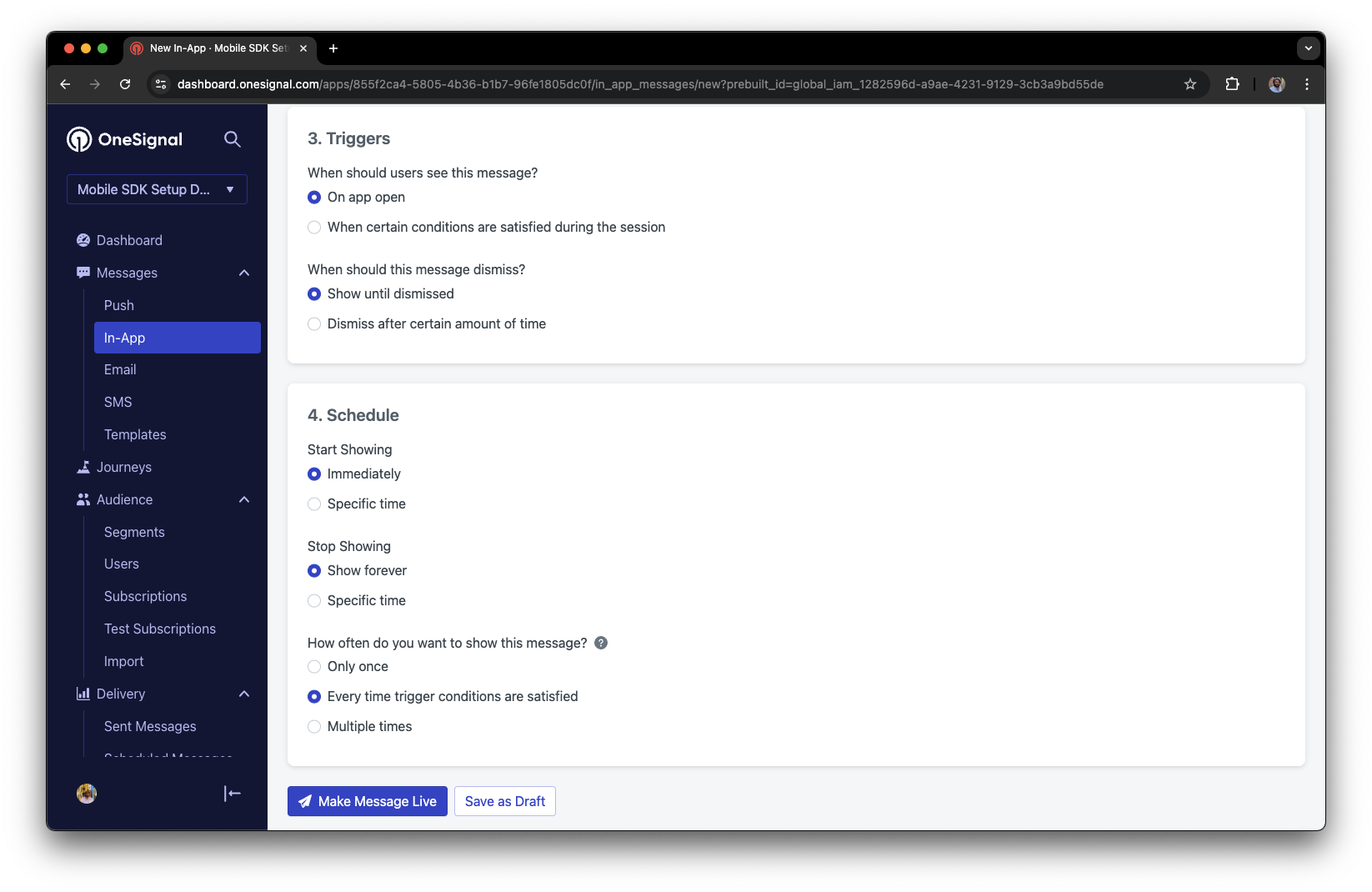
In-app message scheduling options
Make message live.
Open the app and see the message.
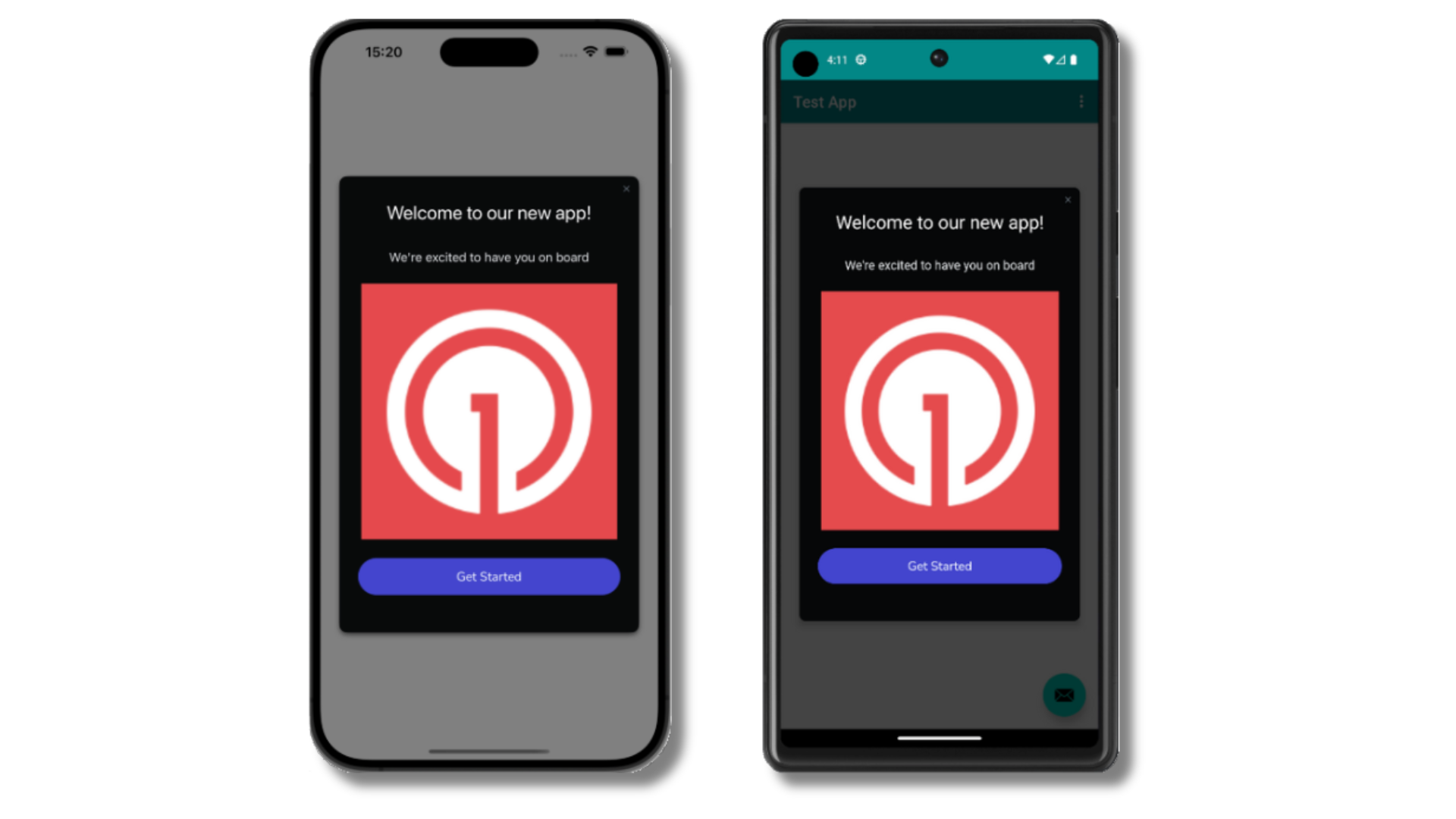
Welcome in-app message shown on devices
- Gathering Subscriptions, setting Test Users, and creating Segments.
- Sending Push with images and Confirmed receipt using Segments and our Create message API.
- Sending In-app messages.
User identification
Previously, we demonstrated how to create mobile Subscriptions. Now we’ll expand to identifying Users across all their subscriptions (including push, email, and SMS) using the OneSignal SDK. We’ll cover External IDs, tags, multi-channel subscriptions, privacy, and event tracking to help you unify and engage users across platforms.Assign External ID
Use an External ID to identify users consistently across devices, email addresses, and phone numbers using your backend’s user identifier. This ensures your messaging stays unified across channels and 3rd party systems (especially important for Integrations). Set the External ID with our SDK’slogin method each time they are identified by your app.
Add Tags
Tags are key-value pairs of string data you can use to store user properties (likeusername, role, or preferences) and events (like purchase_date, game_level, or user interactions). Tags power advanced Message Personalization and Segmentation allowing for more advanced use cases.
Set tags with our SDK addTag and addTags methods as events occur in your app.
In this example, the user reached level 6 identifiable by the tag called current_level set to a value of 6.
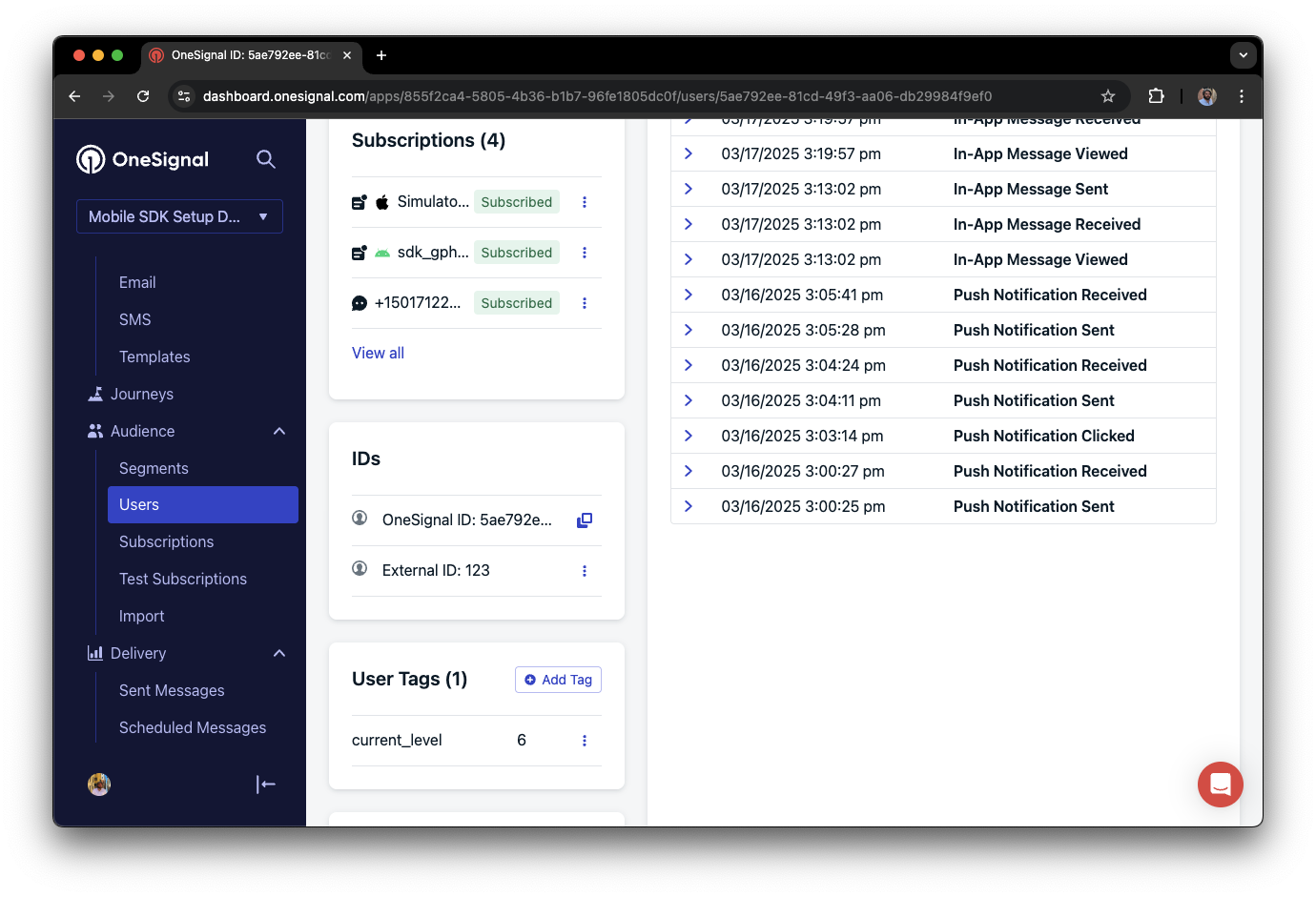
A user profile in OneSignal with a tag called "current_level" set to "6"
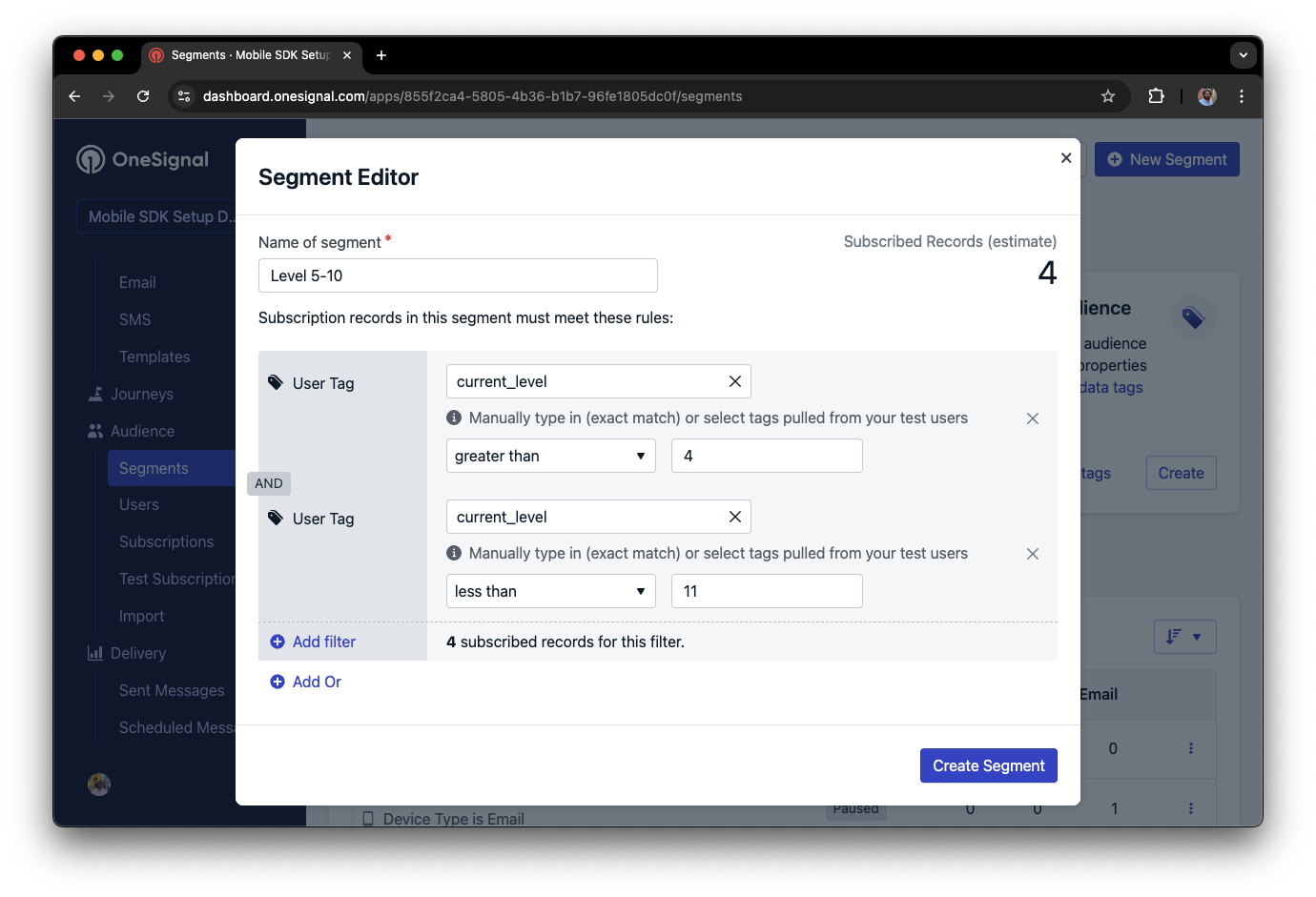
Segment editor showing a segment targeting users with a current_level value of greater than 4 and less than 10
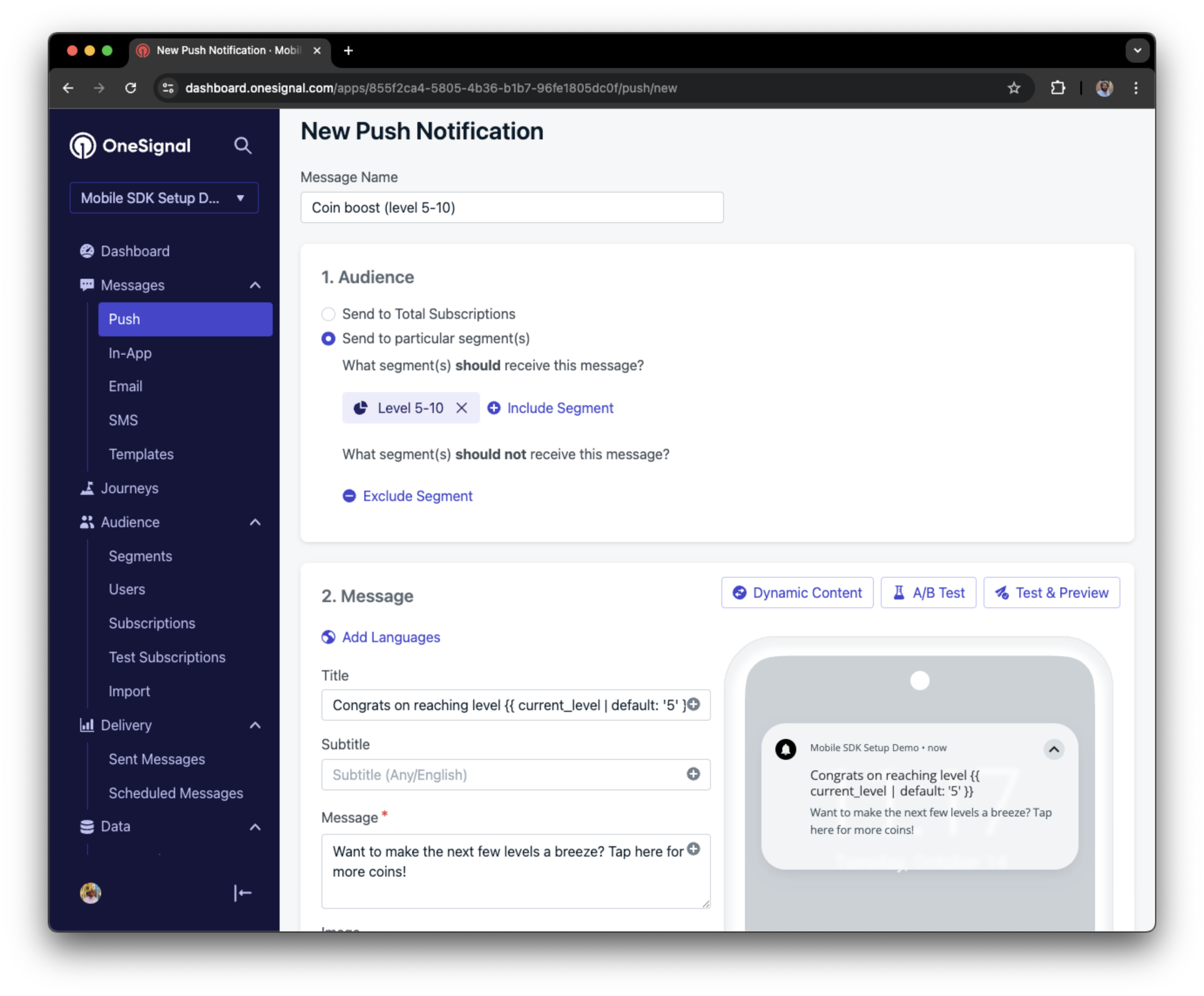
Screenshot showing a push notification targeting the Level 5-10 segment with a personalized message
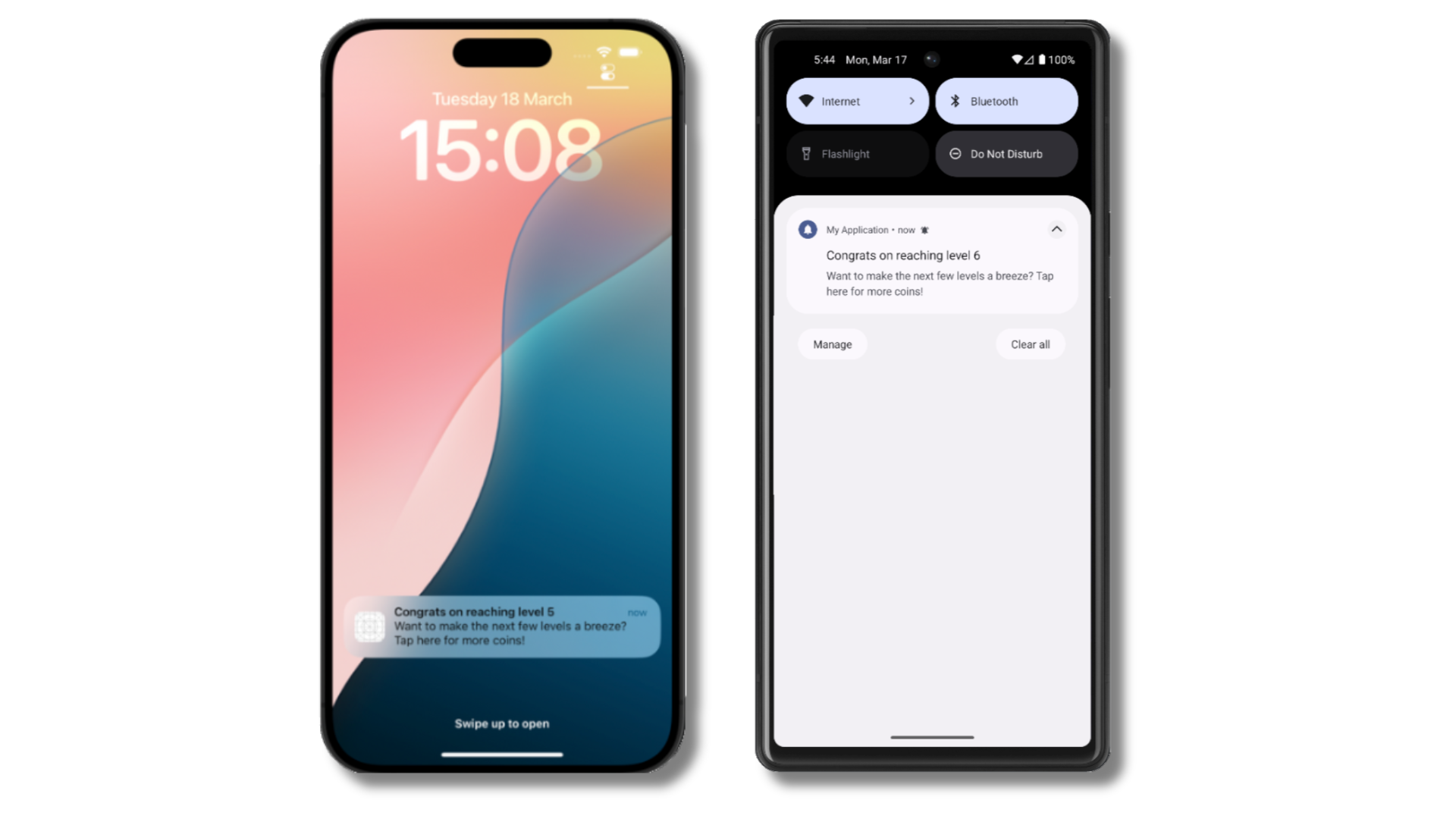
The push notification is received on an iOS and Android device with the personalized content
Add email and/or SMS subscriptions
Earlier we saw how our SDK creates mobile subscriptions to send push and in-app messages. You can also reach users through emails and SMS channels by creating the corresponding subscriptions.- Use the
addEmailmethod to create email subscriptions. - Use the
addSmsmethod to create SMS subscriptions.
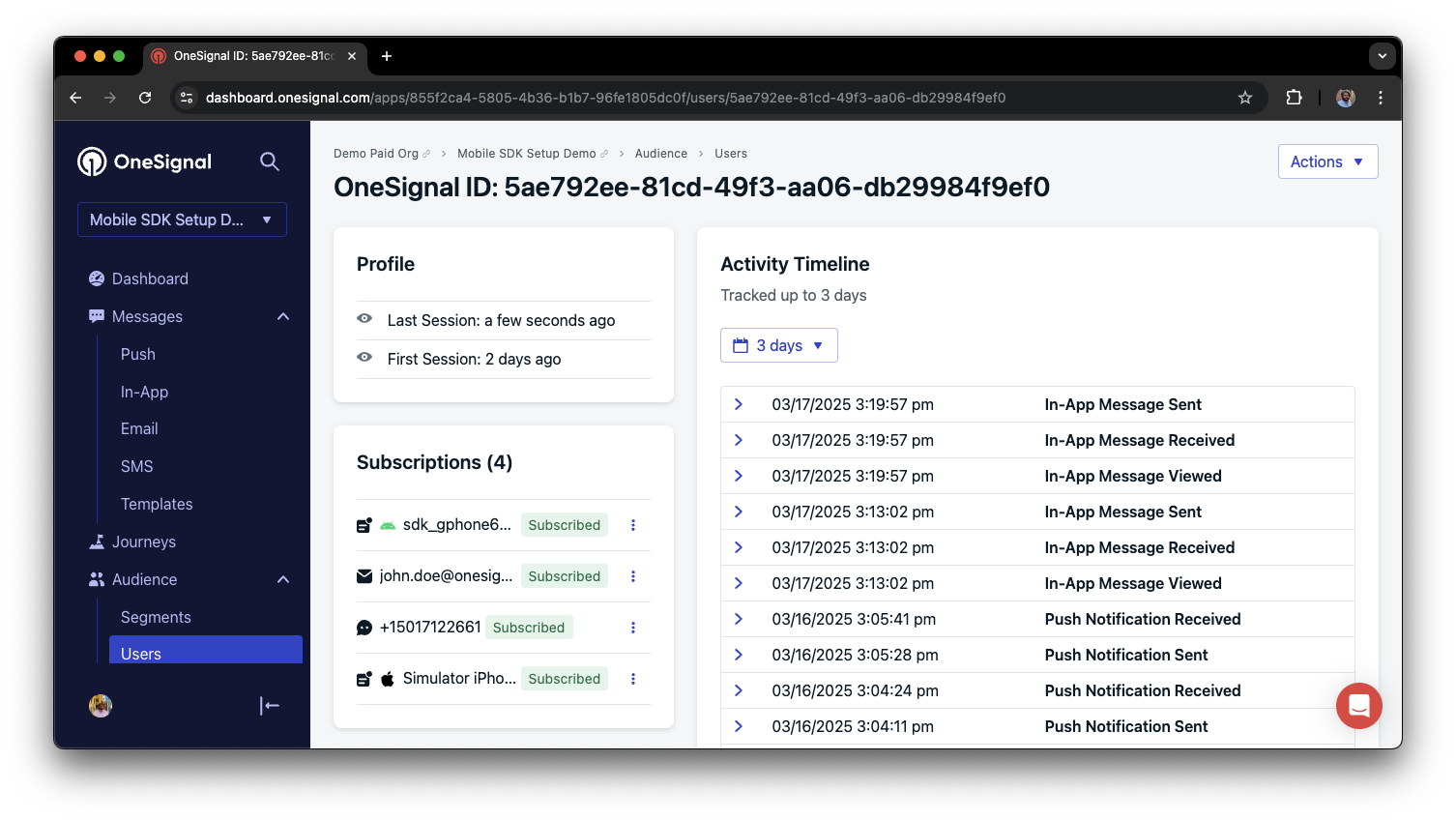
A user profile with push, email, and SMS subscriptions unified by External ID
- Obtain explicit consent before adding email or SMS subscriptions.
- Explain the benefits of each communication channel to users.
- Provide channel preferences so users can select which channels they prefer.
Privacy & user consent
To control when OneSignal collects user data, use the SDK’s consent gating methods:setConsentRequired(true): Prevents data collection until consent is given.setConsentGiven(true): Enables data collection once consent is granted.
Prompt for push permissions
Instead of callingrequestPermission() immediately on app open, take a more strategic approach. Use an in-app message to explain the value of push notifications before requesting permission.
For best practices and implementation details, see our Prompt for push permissions guide.
Listen to push, user, and in-app events
Use SDK listeners to react to user actions and state changes. The SDK provides several event listeners for you to hook into. See our SDK reference guide for more details.Push notification events
addClickListener(): Detect when a notification is tapped. Helpful for Deep Linking.addForegroundLifecycleListener(): Control how notifications behave in foreground.
User state changes
addObserver()for user state: Detect when the External ID is set.addPermissionObserver(): Track the user’s specific interaction with the native push permission prompt.addObserver()for push subscription: Track when the push subscription status changes.
In-app message events
addClickListener(): Handle in-app click actions. Ideal for deep linking or tracking events.addLifecycleListener(): Track full lifecycle of in-app messages (shown, clicked, dismissed, etc.).
Deshabilitar method swizzling (opcional)
Por defecto, el SDK de OneSignal usa method swizzling para manejar automáticamente los métodos delegados de notificaciones push. Si tu app necesita deshabilitar el swizzling (por ejemplo, para evitar conflictos con otros SDKs o para mantener control total sobre los métodos delegados de notificación), puedes desactivarlo medianteInfo.plist.
Cuando el swizzling está deshabilitado, debes reenviar manualmente los métodos delegados de notificación al SDK de OneSignal. El resto de funciones del SDK (listeners, observers, mensajes in-app, outcomes, etc.) siguen funcionando normalmente.
Paso 1. Añadir el flag en Info.plist
Añade lo siguiente alInfo.plist de tu app:
Paso 2. Configurar el delegado de UNUserNotificationCenter
Establece tuAppDelegate como delegado de UNUserNotificationCenter antes de llamar a OneSignal.initialize. Sin esto, la visualización de notificaciones en primer plano y el manejo de toques en notificaciones no funcionarán.
Paso 3. Reenviar métodos delegados de notificación
Implementa los siguientes métodos en tuAppDelegate. Todos los métodos se enrutan a través de OneSignal.Notifications.
Registro de token:
OSNotification. Si no es nil, el SDK quiere que se muestre la notificación — pasa tus opciones de presentación preferidas. Si es nil (p.ej., una vista previa de IAM), no pases opciones de presentación.
onWillDisplayNotification y las APIs preventDefault / display siguen funcionando con el reenvío manual. El SDK invoca tus listeners desde dentro de handleWillPresentNotificationInForegroundWithPayload.Opcional: Configurar el contador de badges
Cuando el swizzling está deshabilitado, el SDK no puede interceptar los cambios de badge. Usa este método para establecer el contador de badges y mantener el caché interno de badges de OneSignal sincronizado:Apps SwiftUI
Las apps SwiftUI no tienen unAppDelegate por defecto. Usa @UIApplicationDelegateAdaptor para añadir uno, luego implementa todos los métodos de reenvío mostrados anteriormente:
Referencia de API
Advanced setup & capabilities
Explore more capabilities to enhance your integration:- 🔁 Migrating to OneSignal from another service
- 🌍 Location tracking
- 🔗 Deep Linking
- 🔌 Integrations
- 🧩 Mobile Service Extensions
- 🛎️ Action buttons
- 🌐 Multi-language messaging
- 🛡️ Identity Verification
- 📊 Custom Outcomes
- 📲 Live Activities
Mobile SDK setup & reference
Make sure you’ve enabled all key features by reviewing the Mobile push setup guide. For full details on available methods and configuration options, visit the Mobile SDK reference.support@onesignal.comPlease include:- Details of the issue you’re experiencing and steps to reproduce if available
- Your OneSignal App ID
- The External ID or Subscription ID if applicable
- The URL to the message you tested in the OneSignal Dashboard if applicable
- Any relevant logs or error messages