

Triggers: let the app decide the moment
A trigger is a key and a value that the app sets. Any in-app message configured to match it is shown. Every Clean Beans screen has a help button in its header that sets one trigger, with the screen’s name as the value.src/components/HelpButton.tsx
app/(tabs)/_layout.tsx
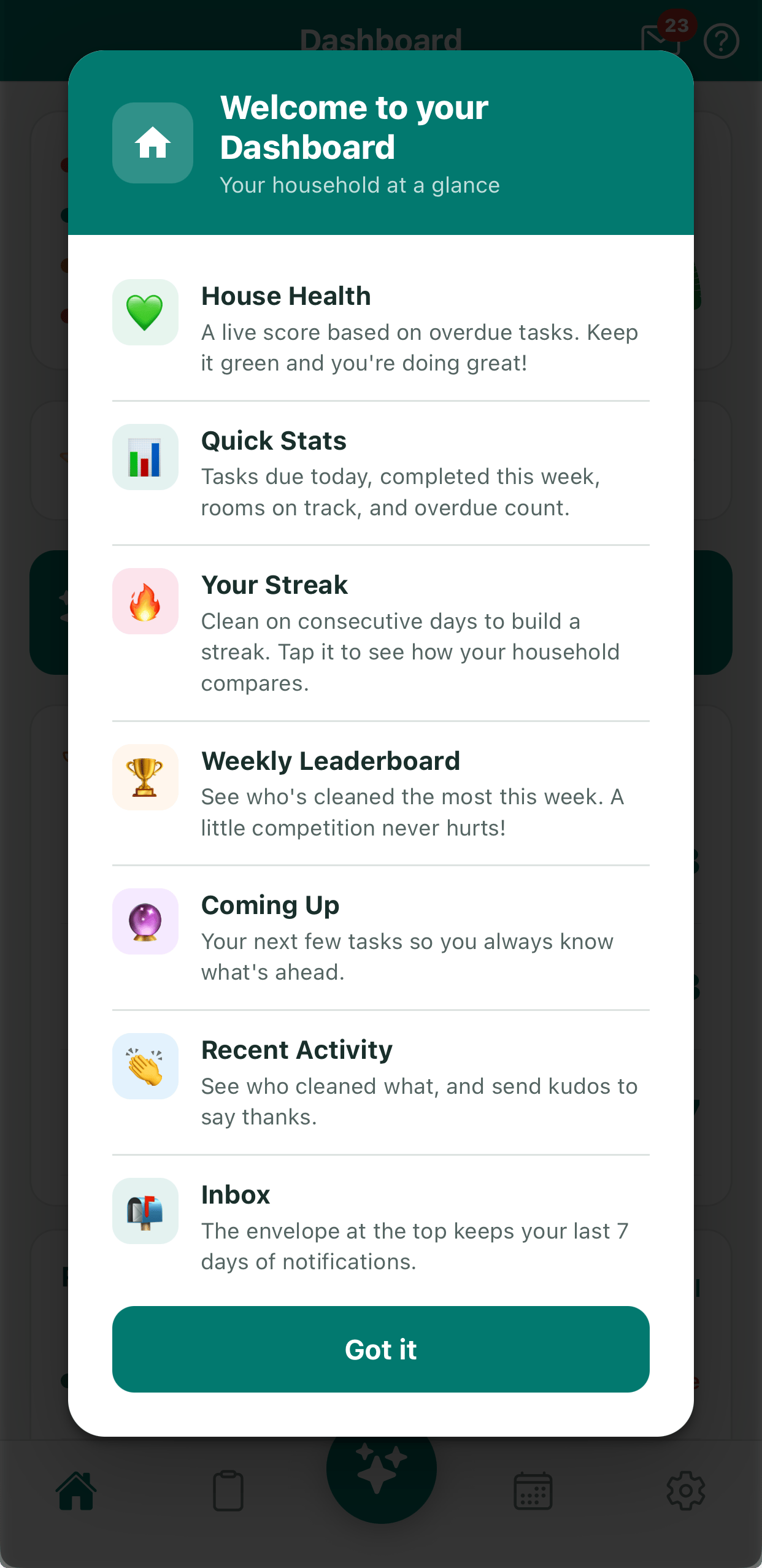
Tapping the help button on the dashboard shows a help overlay.
help_topic is dashboard, and repeat for each screen. Multi-step walkthroughs use the same trigger with a carousel layout.
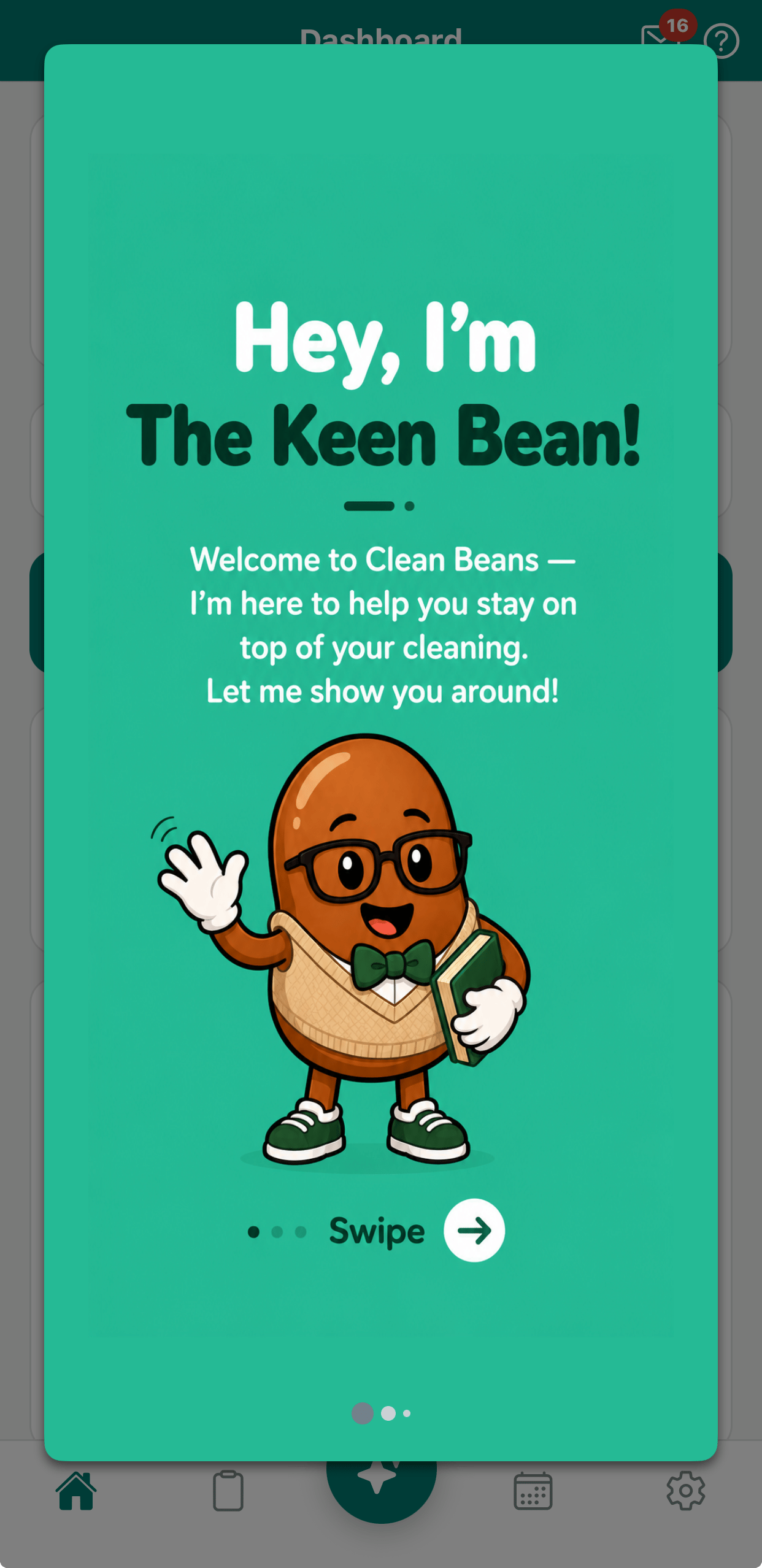
A multi-step walkthrough built as a carousel of cards.
Custom HTML messages
The help overlays are written in HTML, so they match the app’s design exactly. An HTML in-app message talks to the SDK through theOneSignalIamApi object. Two rules apply to every clickable element:
- Give it a unique
data-onesignal-unique-label, so clicks are tracked correctly. - Attach a listener that calls an
OneSignalIamApimethod. Plain links are not tracked.
docs/iam-html/help-dashboard.html
Push permission pre-prompt
The system permission dialog can only be shown once. An in-app message shown first can explain what the user will get, and only people who tap Enable notifications see the system dialog.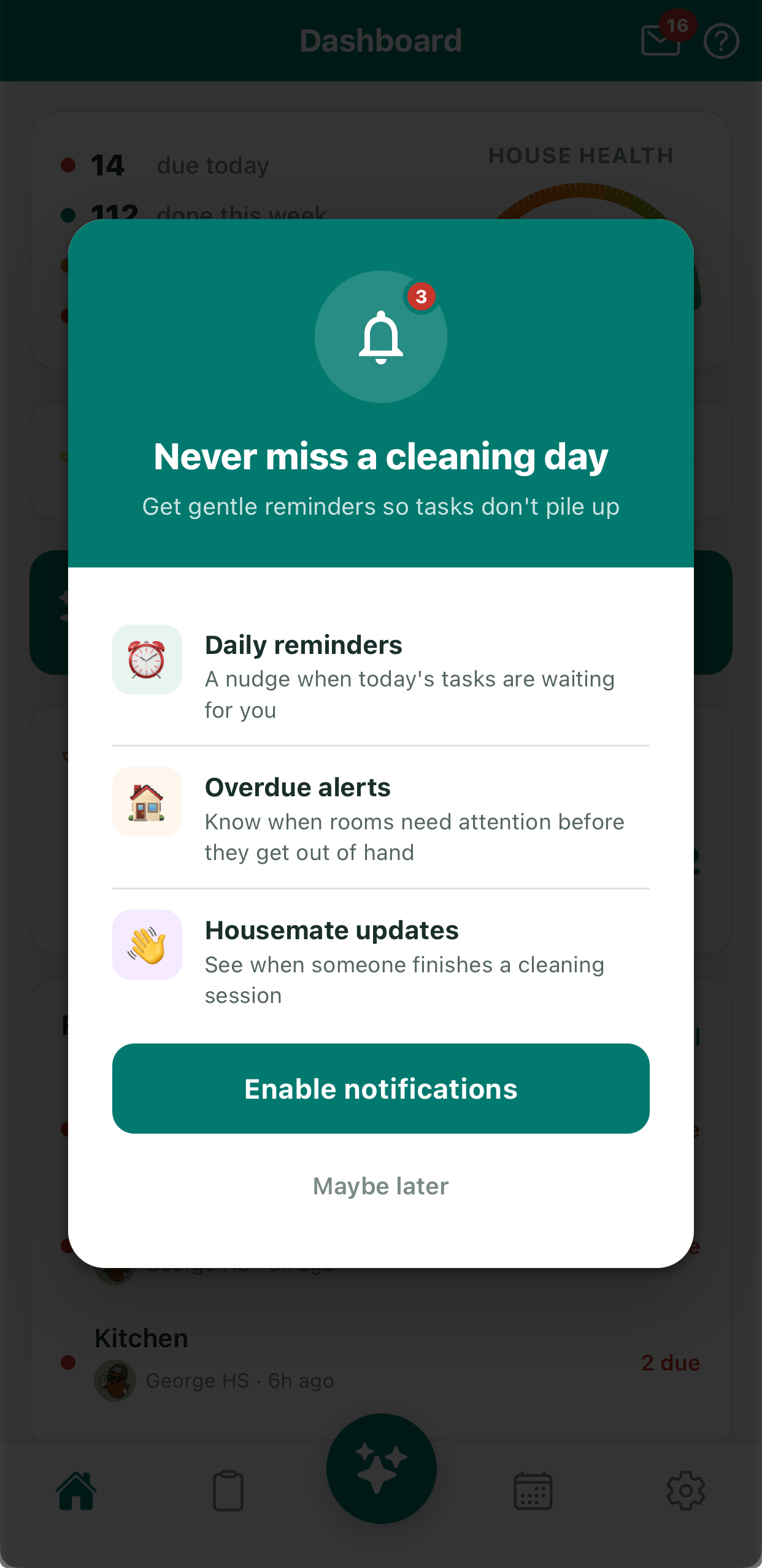
A pre-prompt explains the benefit before the system dialog appears.
docs/iam-html/push-permission-prompt.html
If you use a pre-prompt, remove the
requestPermission() call from app startup. Otherwise the system dialog appears first and the pre-prompt has nothing left to ask.App update prompt
When a new version ships, people on the old one see a prompt to update. This message needs no code in the app at all. Its audience is a segment of users on an older app version.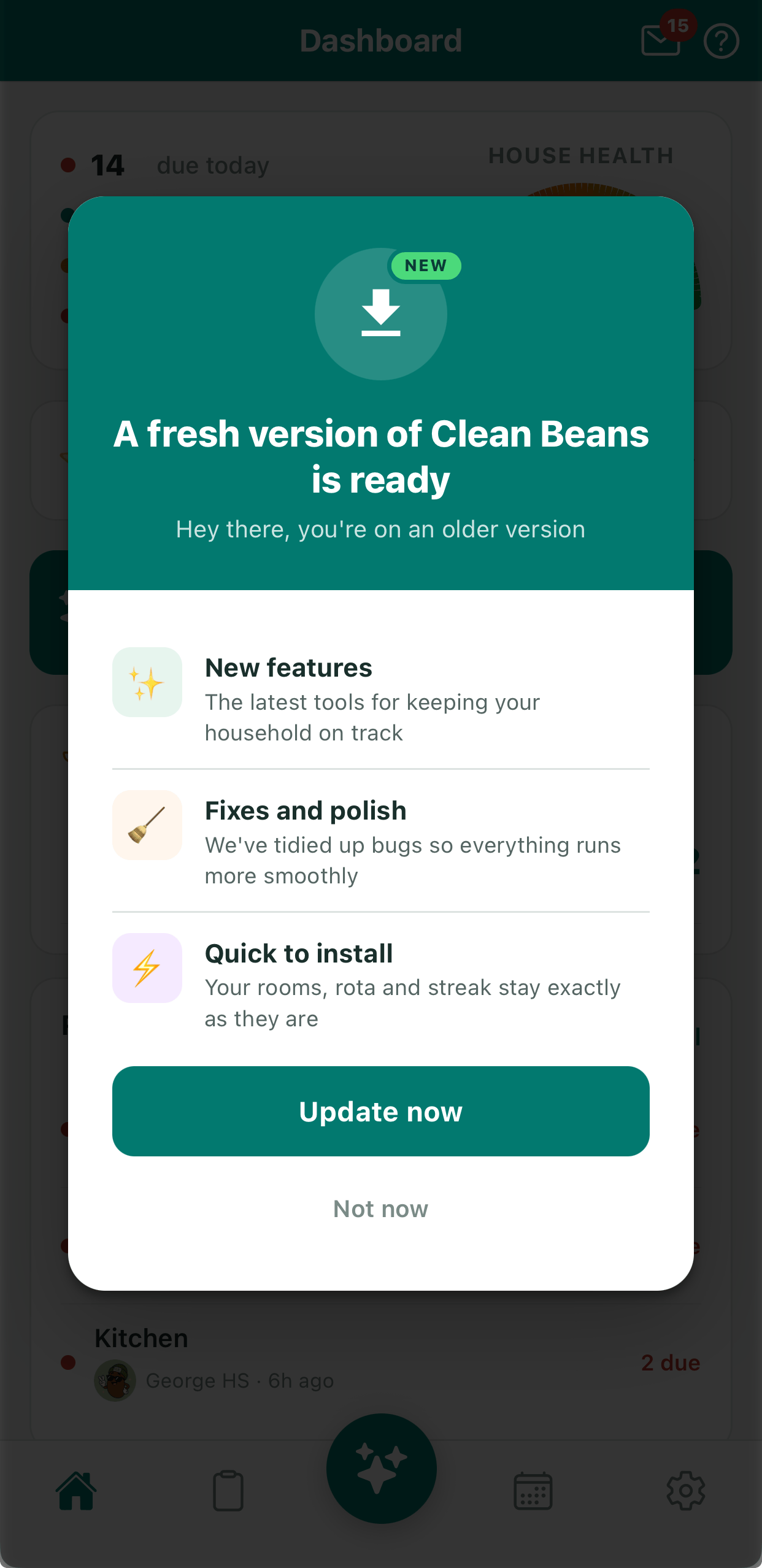
The update prompt, shown only to people on an older version.
openUrl tracks the click, opens the store, and closes the message.
docs/iam-html/app-update-prompt.html
docs/iam-html/app-update-prompt.html
Tag substitution works in the text and attributes of an HTML in-app message, but not inside
script tags.Review prompt: hand a click back to the app
A good moment to ask for an app store rating is right after something went well. Clean Beans asks when a cleaning session takes a streak to a multiple of seven days. This is the one in-app message where a tap has to run code in the app, because the native rating sheet can only be opened by the app itself.1
The app sets a trigger at a streak milestone
It waits until the session screen has closed, so the prompt never interrupts cleaning, and it remembers the last milestone it asked at.
src/lib/reviewPrompt.ts
2
The message sends a click name back to the app
addClickName passes a name to the app’s click listener. It does not close the message, so the script closes it afterwards.docs/iam-html/review-prompt.html
3
The app opens the native rating sheet
The click listener checks the name and asks the system to show the sheet.
src/lib/reviewPrompt.ts
app/_layout.tsx
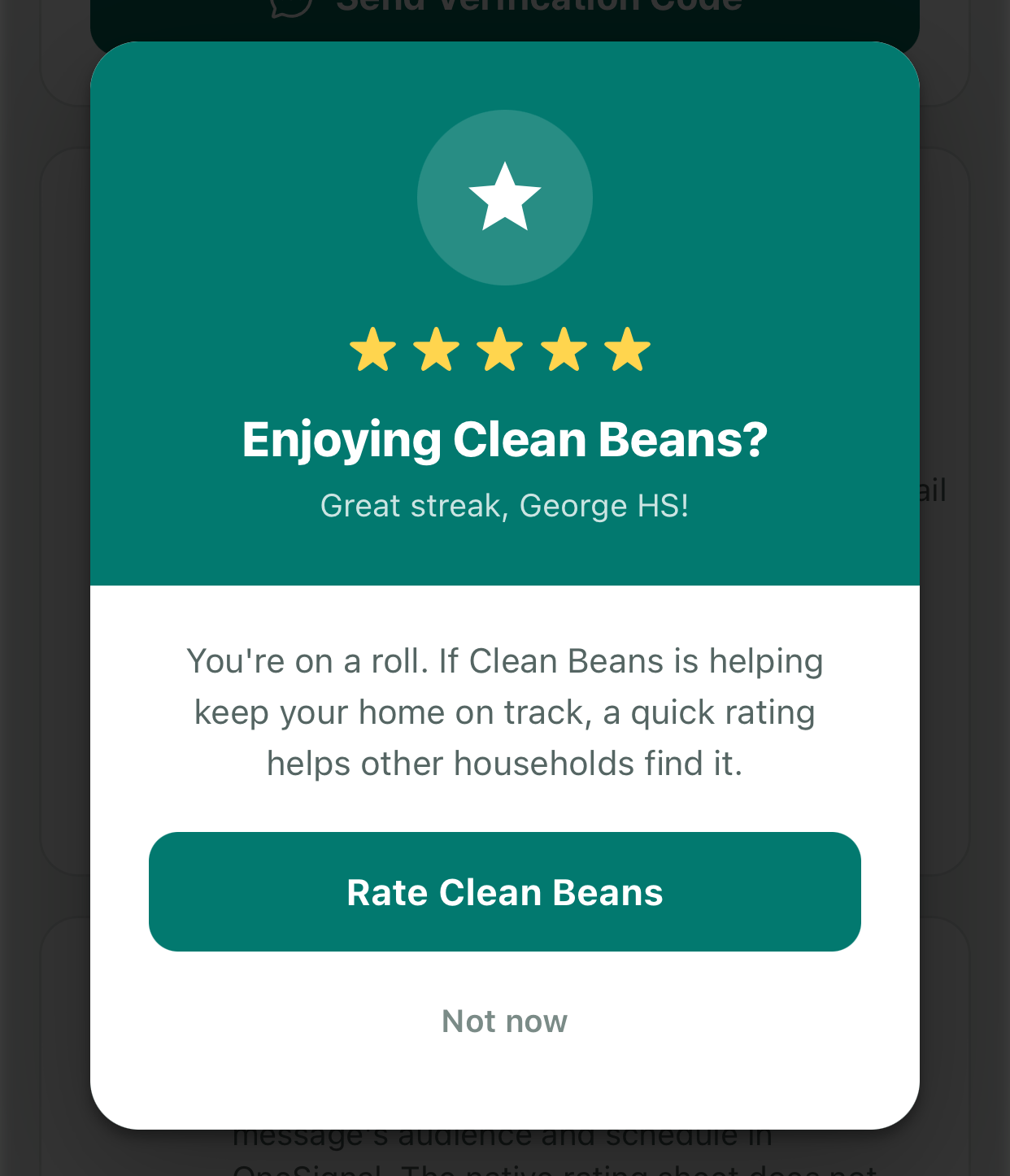
The in-app message review prompt.
ask_for_review is show. Schedule it to show at most once every 17 weeks.
In-app triggers
Trigger types and how they combine.
HTML in-app messages
Design messages with your own HTML.
In-app JavaScript API
Every
OneSignalIamApi method.