

Install with the Expo plugin
Theonesignal-expo-plugin configures the native iOS and Android projects at build time. It adds the push capability, the App Group, and the Notification Service Extension that OneSignal needs for images, badges, and confirmed delivery.
app.json
Initialize once, at the root
Clean Beans initializes OneSignal in its root layout, so it runs once on every launch before any screen appears.app/_layout.tsx
Tie each device to a user
When someone signs in, the app passes their Supabase user ID toOneSignal.login(). That ID becomes the External ID. When they sign out, logout() detaches the device so the next person to sign in does not inherit their messages.
app/_layout.tsx
Add the email channel
The app already knows each user’s email address from sign-up, so it registers it as an email subscription at sign-in. OneSignal ignores repeat calls with the same address.src/lib/onesignalSync.ts
addSms(), but only after the number has been verified. See SMS: verification codes and invitations.
Let people control what they get
The notification settings screen has a master switch and one switch per message type.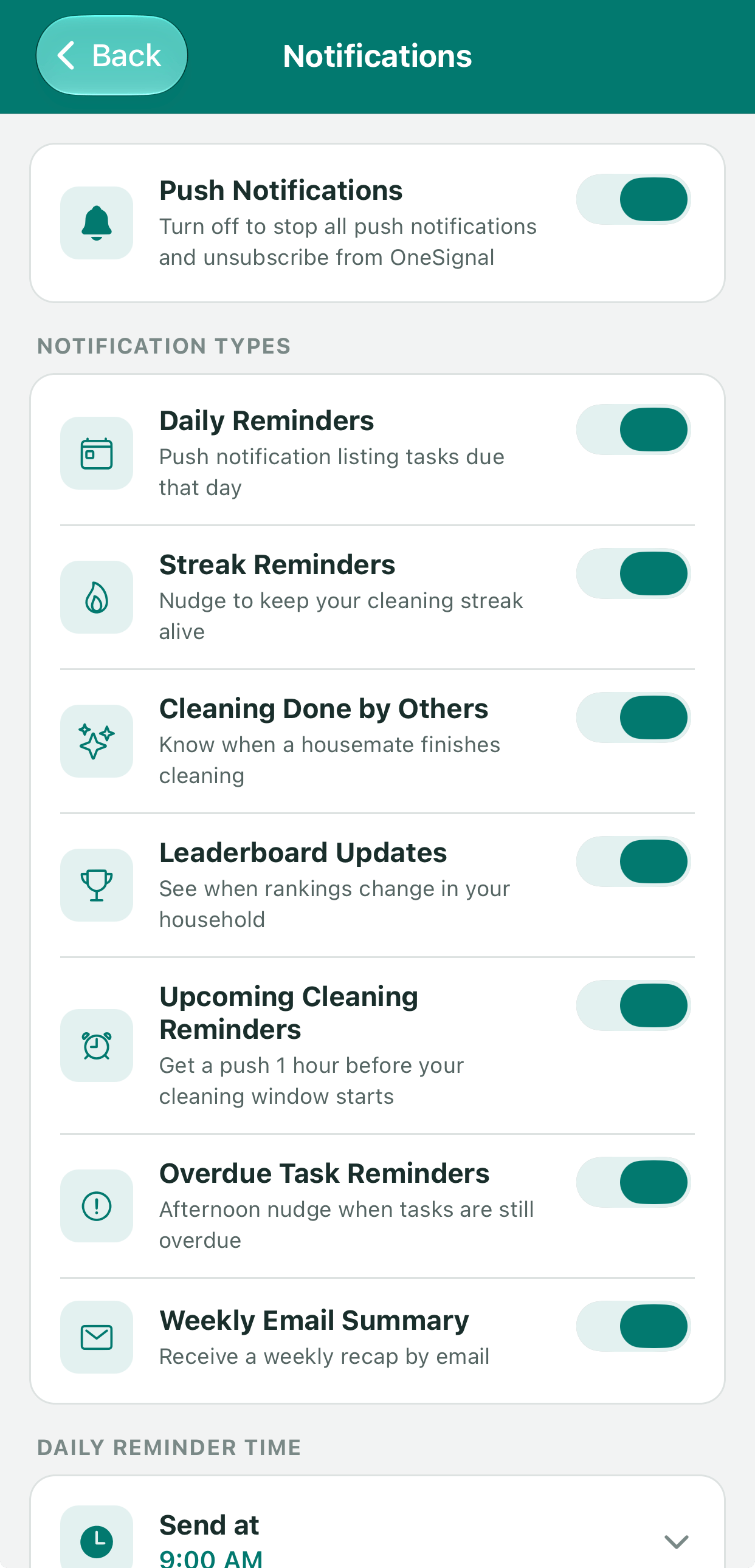
Notification settings: a master switch, per-type switches, and the daily reminder time.
optOut() and optIn() on the push subscription, so OneSignal stops and resumes delivery to that device.
app/notification-settings.tsx
src/lib/database.ts
Storing preferences in your own database, and checking them before each send, keeps the logic in one place. The alternative is to store them as tags and filter by tag in OneSignal. That works well when you send to segments. Clean Beans sends to specific users, so checking the database is simpler.
Mobile SDK reference
Every client method used in this guide.
Users and External IDs
How identity links subscriptions across channels and devices.